About event logs
Event logs maintain a record of changes made in the Grades tool. The logs can be useful when auditing a grade book, managing updates made by teaching assistants, and discussing grades with learners.
- User Grade event logs record all of the changes made to a particular user's grades.
- Grade Item event logs record changes to grades on a single grade item.
- Final Grade event logs record changes to users’ final grades.
- Manage Grades event logs record changes made to the properties or restrictions of a specific grade item.
- Restoring Grade Item event logs record the date and time a grade item is created or removed, and the user who performs the action.
Access the event log for a user
- Navigate to Grades.
- In the Enter Grades tab, click the name of the user you want to access the event log for.
- From the Actions drop-down menu of the user’s name, select View Event Log.
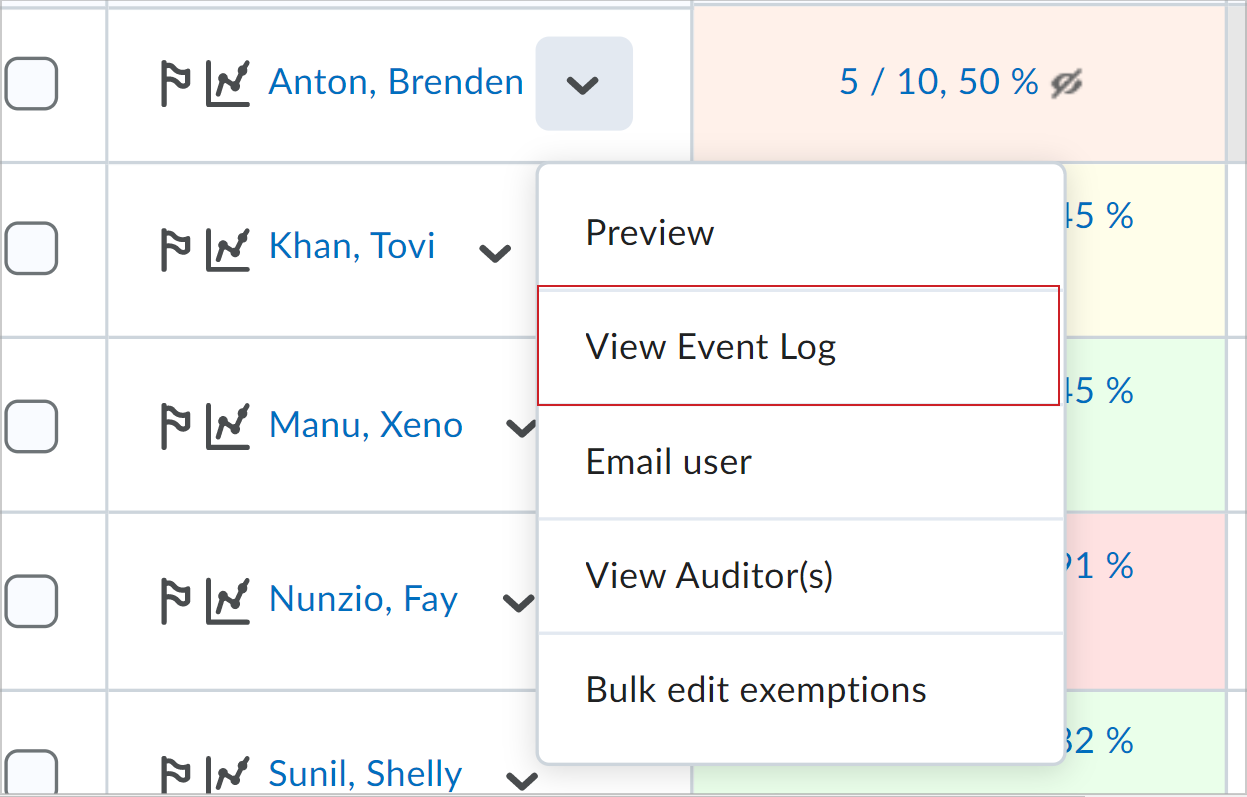
Figure: The View Event Log option in the Actions drop-down menu.
Access the event log for an individual grade item
- Navigate to Grades.
- On the Manage Grades tab, from the Actions drop-down menu of the grade item you want to access the event log for, select View Event Log.
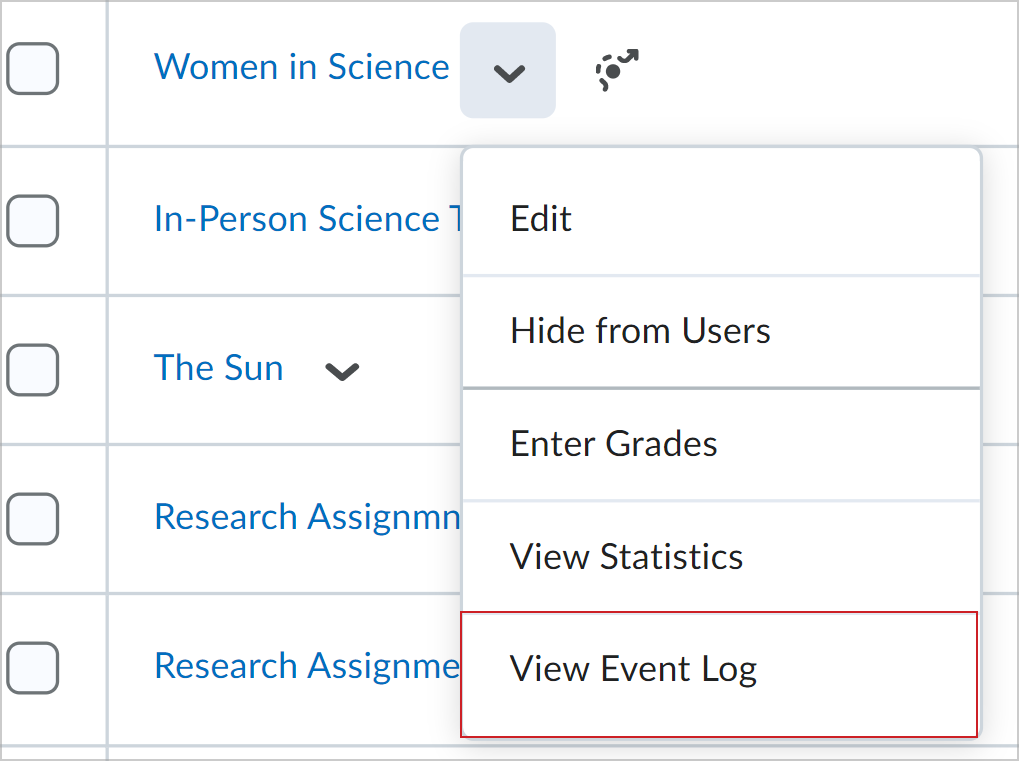
Figure: The View Event Log option for a grade item in the Actions drop-down menu.
Access the event log for a user's final grades
- Navigate to Grades.
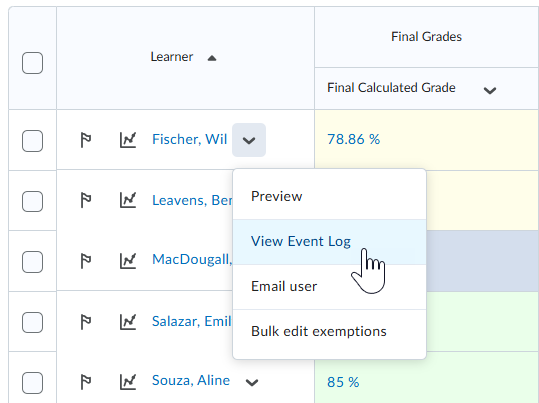
- In the Enter Grades tab, from the Actions drop-down menu of the Final Calculated Grade or Final Adjusted Grade item, select View Event Log.
Access the event log for changes to a grade item's properties or restrictions
- Navigate to Grades.
- In the Manage Grades tab, from the Actions drop-down menu of the category or grade item you want to view, select View Event Log.
Figure: The View Event Log option in the Actions drop-down menu for a grade item.
Access the event log for restoring grade items
- Navigate to Grades.
- In the Manage Grades tab, from the More Actions drop-down menu, select View Event Log.
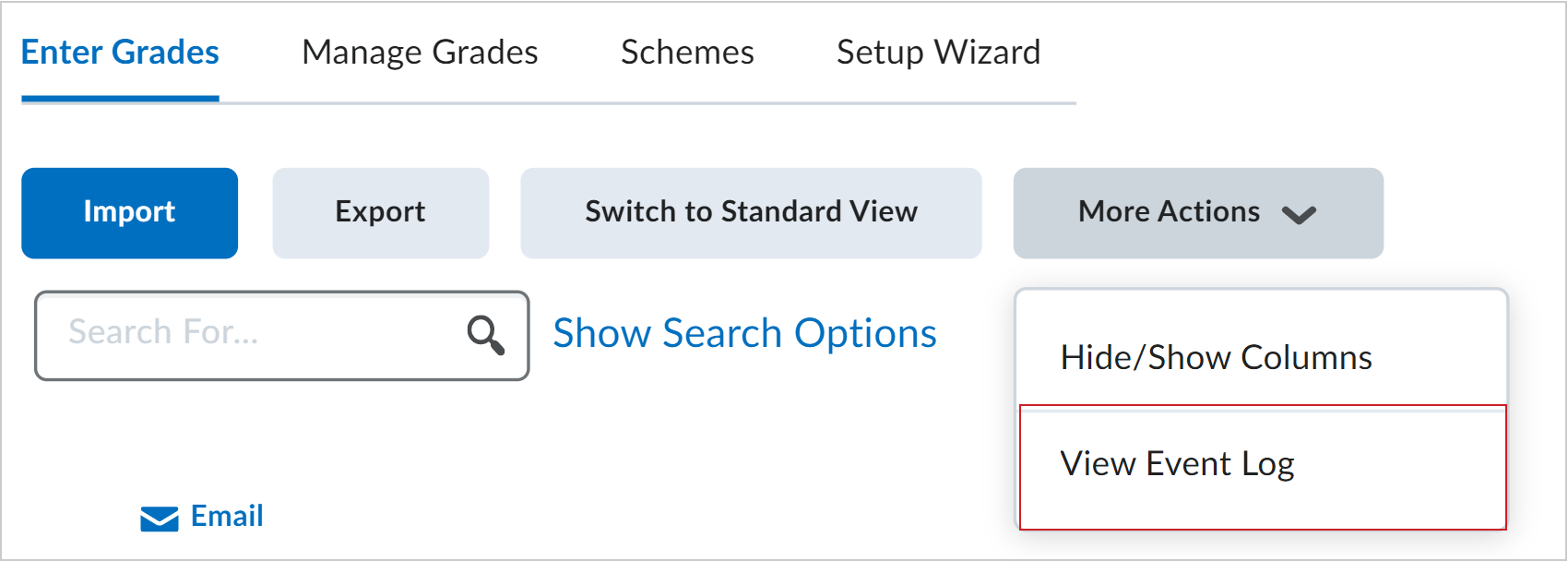
Figure: The More Actions drop-down menu showing the View Event Log option.
- If you want to restore Numeric, Select box, Pass/Fail, or Text grade items that were removed, beside the item's name, click Restore.