The Top Hat Gradebook records all of your grades and submissions for your course, including Attendance, Questions, Exams, Quizzes, or any other content assigned for grades. This guide helps you navigate your performance records on both web and mobile platforms.
Table of Contents
- Navigating the Gradebook
- Correctness, Participation and Total Grades
- Attendance Grades
- Submissions in the Gradebook
- Top Hat Test Details and Grades
- Custom Grading
- Grade Inquiry (Missing Grades)
- Common Reasons for Missing Grades
- Syncing with your LMS (Canvas, Blackboard, Moodle, Brightspace)
- How to Submit a Grade Inquiry
- Viewing Instructor Feedback
Navigating the Gradebook
To view your Gradebook, click the "Gradebook" tab in your course. The top section shows your total grade on all course material as well as your attendance record.
Note: Not all courses have the Gradebook visible to students. This is determined by your instructor.
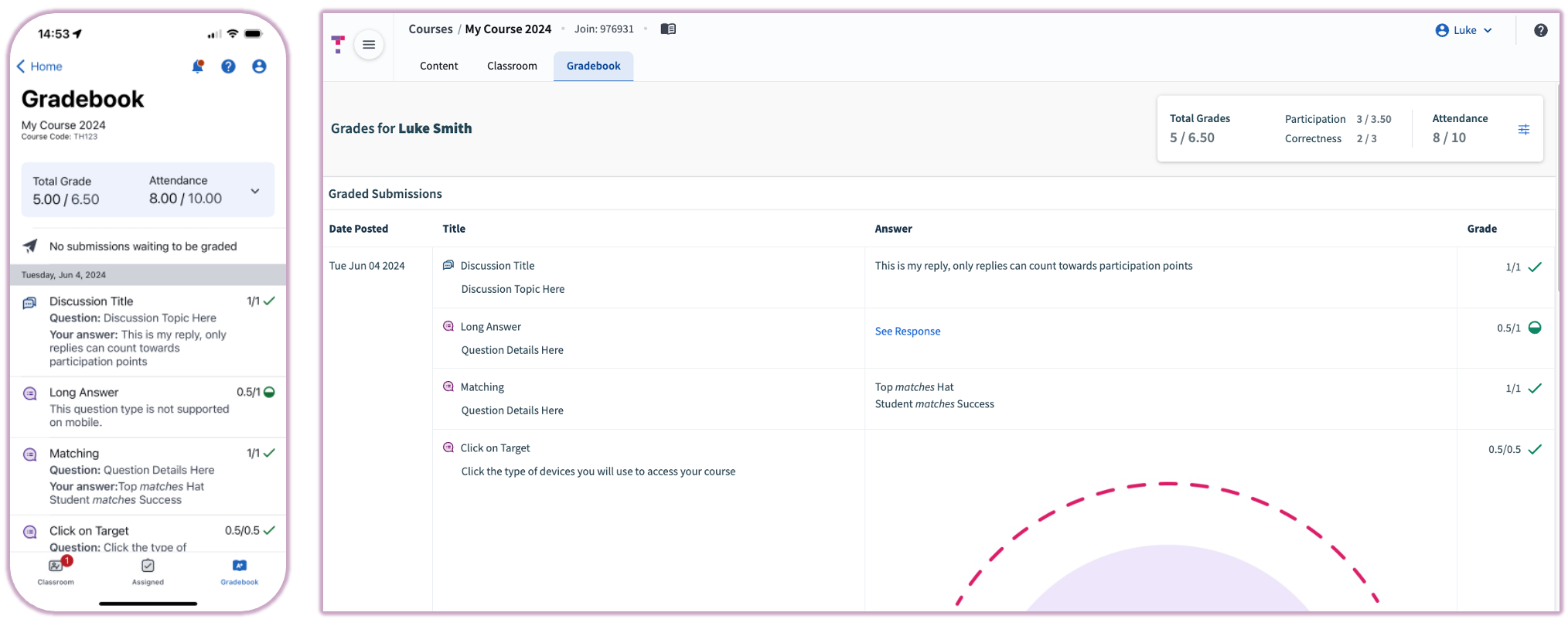 Image: The Gradebook in mobile and web views
Correctness, Participation and Total Grades
Course content assigned for grades can be split into two parts: Correctness (accuracy) and Participation (effort). An item may be weighted for one, both, or neither.
Total Grades is calculated as: Total Grades Received ÷ Total Points Possible in Top Hat.
Attendance Grades
Attendance is calculated as: Total Present ÷ Total Sessions Conducted. If you have been excused from an attendance session, it will not count against your total grade.
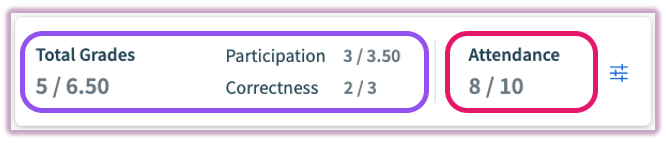 Image: Grade totals summary
Points or Percentages
On a web browser, you can toggle your display by clicking the settings gear icon next to your total grades and selecting the Percentages option.
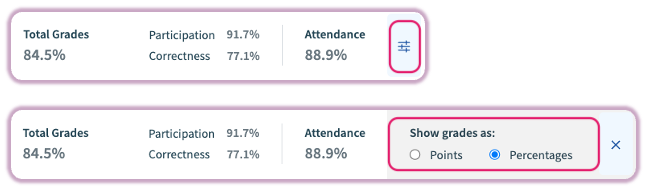 Image: Grade display settings
Submissions in the Gradebook
Below your total grades, you will see Submissions Awaiting Grading. Items remain here if the assignment is still open, requires manual review (like Long Answer questions), or if the instructor has disabled live feedback.
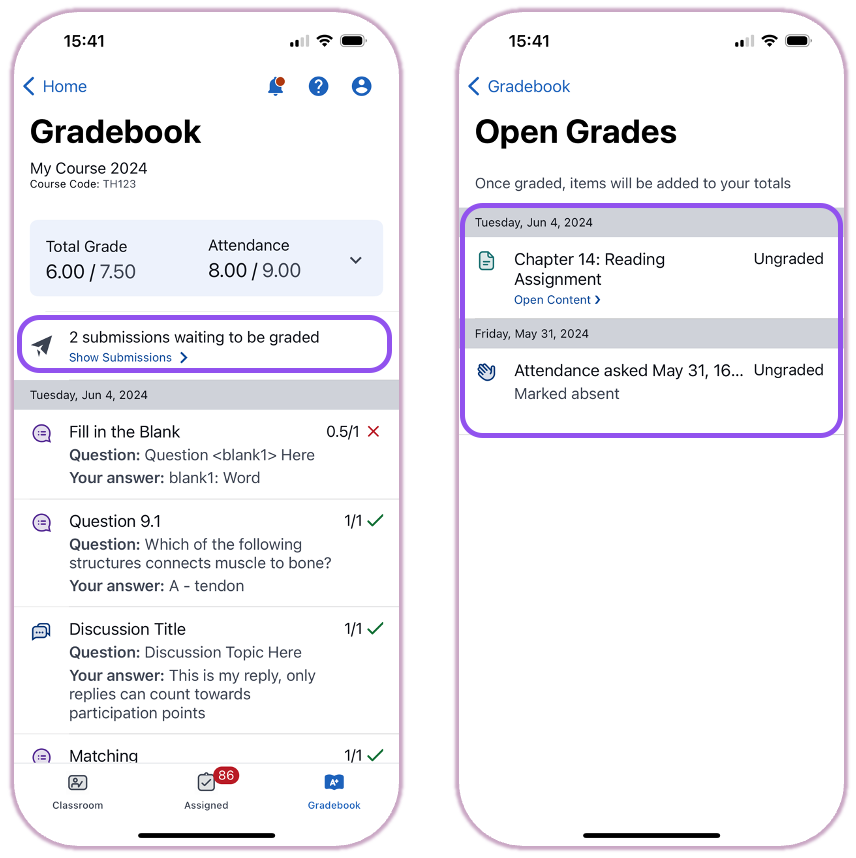 Image: Submissions waiting to be graded
In the graded submissions section, items are grouped by date. You can see the title, your specific response, and the total points earned. To see grades for individual questions embedded within a multi-question Page, click "Show Content" to expand the list.
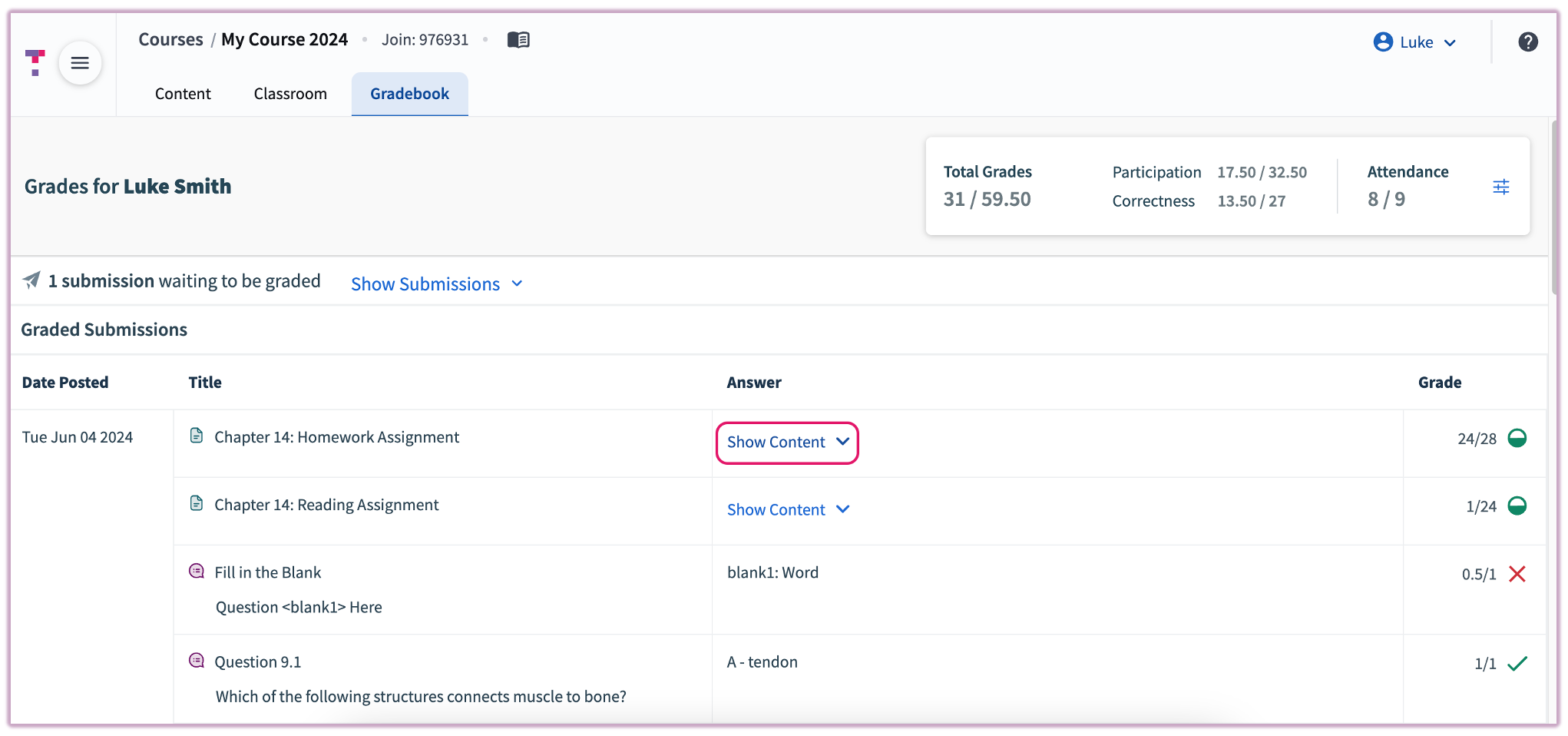 Image: Expanding Gradebook content items (Web)
Top Hat Test Details and Grades
Instructor settings determine when you see test results. Common scenarios include seeing grades immediately upon submission, after the test closes for everyone, or only after the instructor manually "Hands-back" the test.
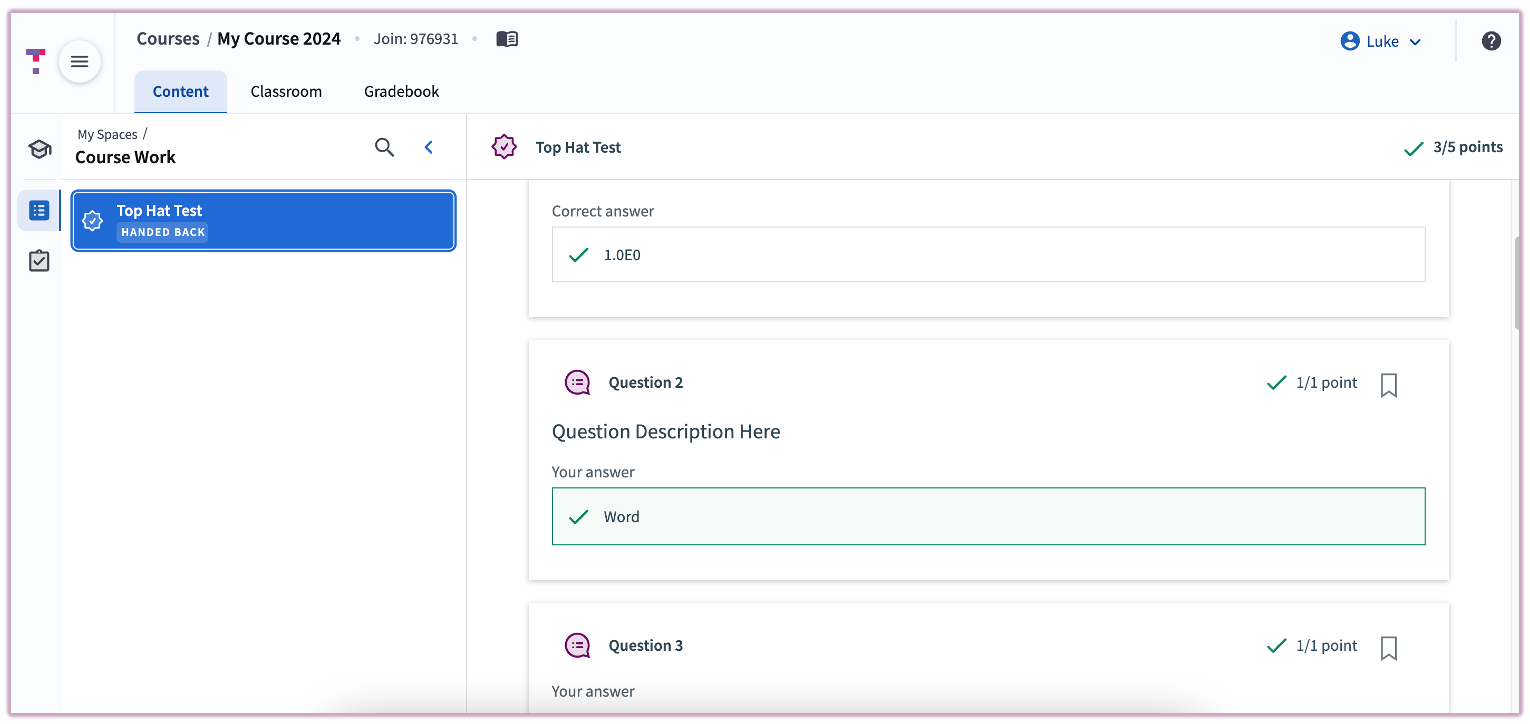 Image: A Handed-Back test in Top Hat
Custom Grading
If your instructor has applied custom grading to an assignment or chapter, you may notice a discrepancy between the total grade denominator for the item and the denominators of the individual questions within.
Custom grading is reflected in the total score because scaling individual questions can result in complex decimals. For example, in an assignment with 7 questions scaled to 10 points total, each question is worth approximately $1.42857143$ points.
To keep your Gradebook clean, Top Hat displays the original 1-point value for each question but applies the scaling to the overall item score. If custom grading is active, a notification bubble will appear to inform you.
Grade Inquiry (Missing Grades)
Common Reasons for Missing Grades
If a grade is missing from your Gradebook, please verify the following:
- Student ID: Confirm your official Student ID is entered in Account Settings.
- School: Ensure the correct institution is selected in your profile.
- Software: Use the latest version of Google Chrome, Firefox, or the Top Hat mobile app.
- Account Status: If you have multiple accounts, contact us to request a merge.
- Submission: Confirm that you clicked "Submit" for every question and that the item isn't still listed as "Still Open."
Syncing with your LMS (Canvas, Blackboard, Moodle, Brightspace)
If your Top Hat grades are not appearing in your school's LMS, ensure you have completed these steps:
- Establish the Connection: Click the Top Hat launch link within your LMS course at least once to link your accounts.
- Email Match: Your LMS and Top Hat accounts must use the identical school email address.
- Instructor Action: Instructors must manually initiate a sync to push grades from Top Hat to the LMS.
- Assignment Status: Grades typically sync only after the assignment has closed in both platforms.
- User Role: Your LMS role must be set to "Student" for grades to be recorded.
How to Submit a Grade Inquiry
To investigate a missing grade, please provide the following details through the Top Hat Support Form or the in-app Help menu:
- Account Email: The email associated with your Top Hat account.
- Course Details: 6-digit Course Join Code and the specific Question Title(s).
- Submission Context: Date, time, and method used (Web, iOS, Android, or SMS).
Important: Grade inquiries must be submitted in writing. Note that Top Hat Support cannot modify grades directly; final grading decisions remain with your instructor.
Viewing Instructor Feedback
Instructors can leave feedback on your submissions. "Private to you" labels indicate individual feedback, while "Overall class feedback" is shared with all students.
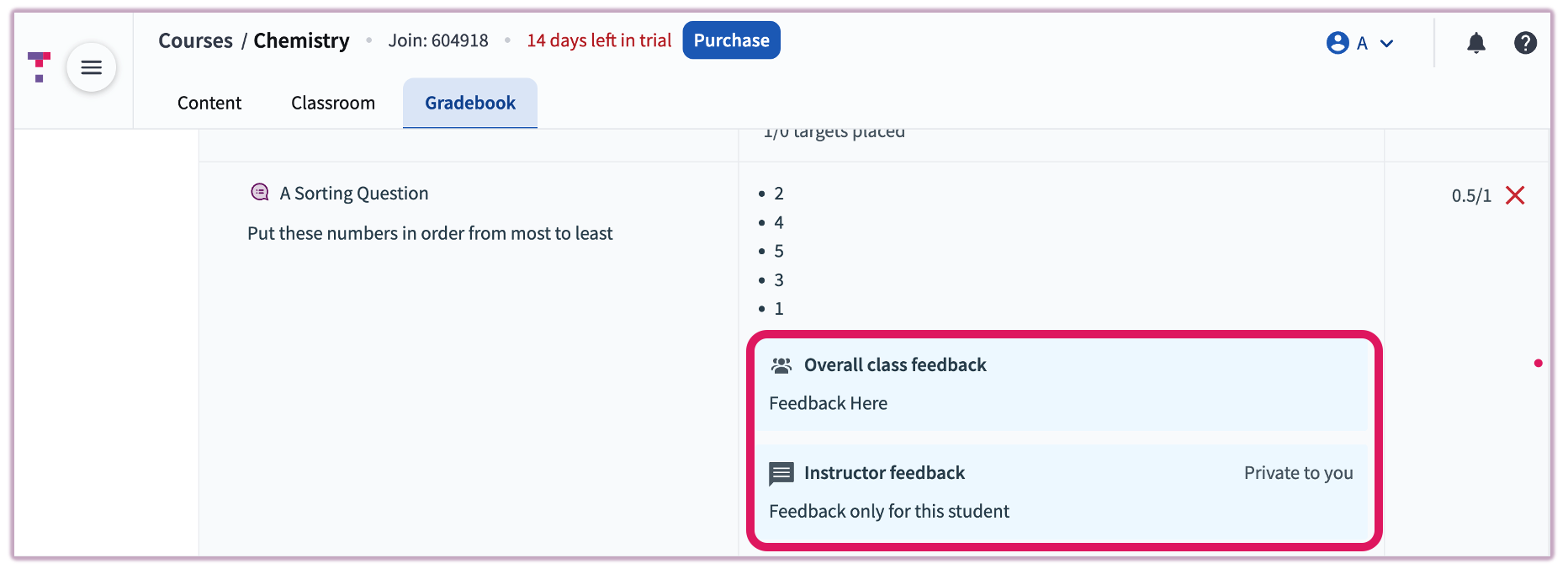 Image: Instructor feedback in the student Gradebook