Access your Top Hat eTextbooks in "My Library" via the mobile app or web browser—highlight text, take notes, or use Ask Ace AI for study support. This guide shows students how to locate and open their interactive textbooks, navigate chapters using the index, and personalize their study experience with highlighting and note-taking tools.
You’ll also learn how to ask Ace to simplify content, quiz you, or generate examples. Please note: responses submitted in My Library are not saved or graded.
Table of Contents
- Accessing "My Library"
- Chapter Index
- Highlights, Notes and Ask Ace (AI)
Accessing "My Library"
To access your "My Library", open Top Hat in a web browser or the mobile app and select "My Library". If you're using a web browser, click the menu ("hamburger") icon in the top-left corner to reveal the "My Library" option.
Select "Open" to view your textbook.
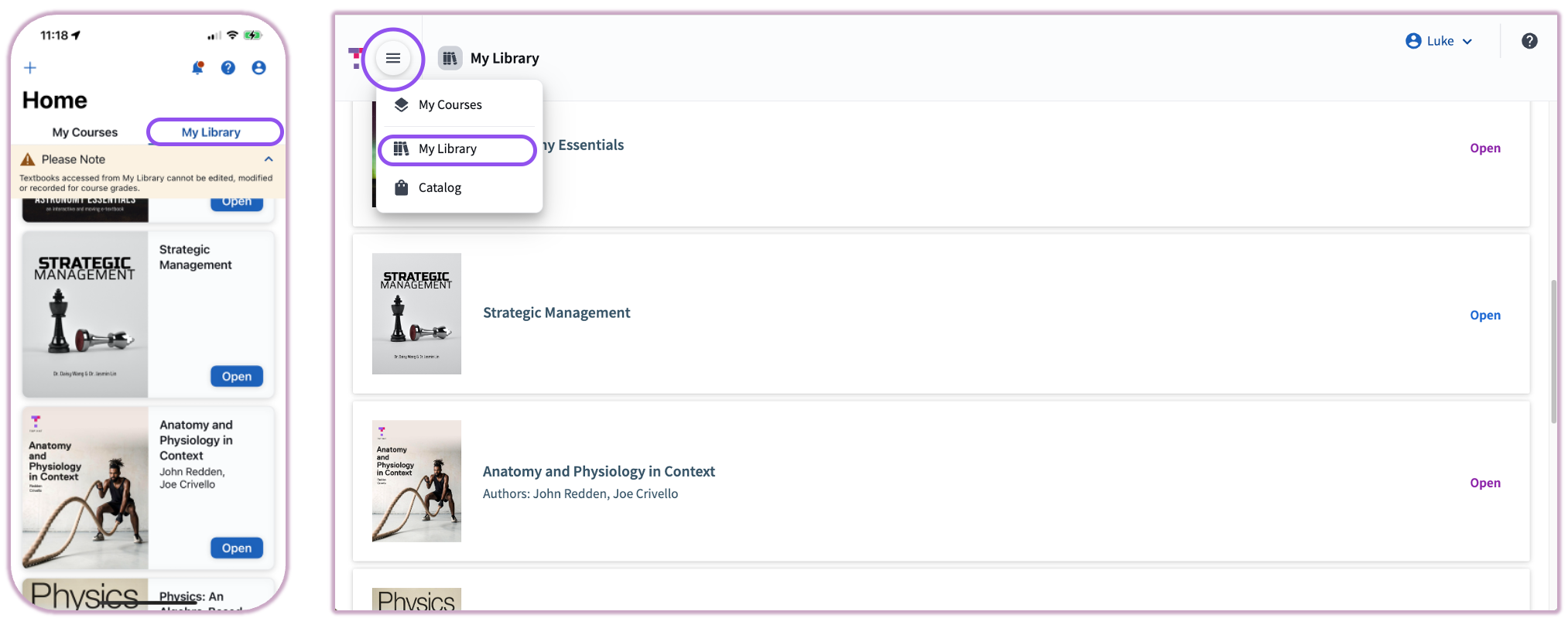 Image: My Library in the Mobile app and Web Browser
Reminder: Questions and activities submitted in this version of the textbook are not saved or graded. This version is intended for study and review only.
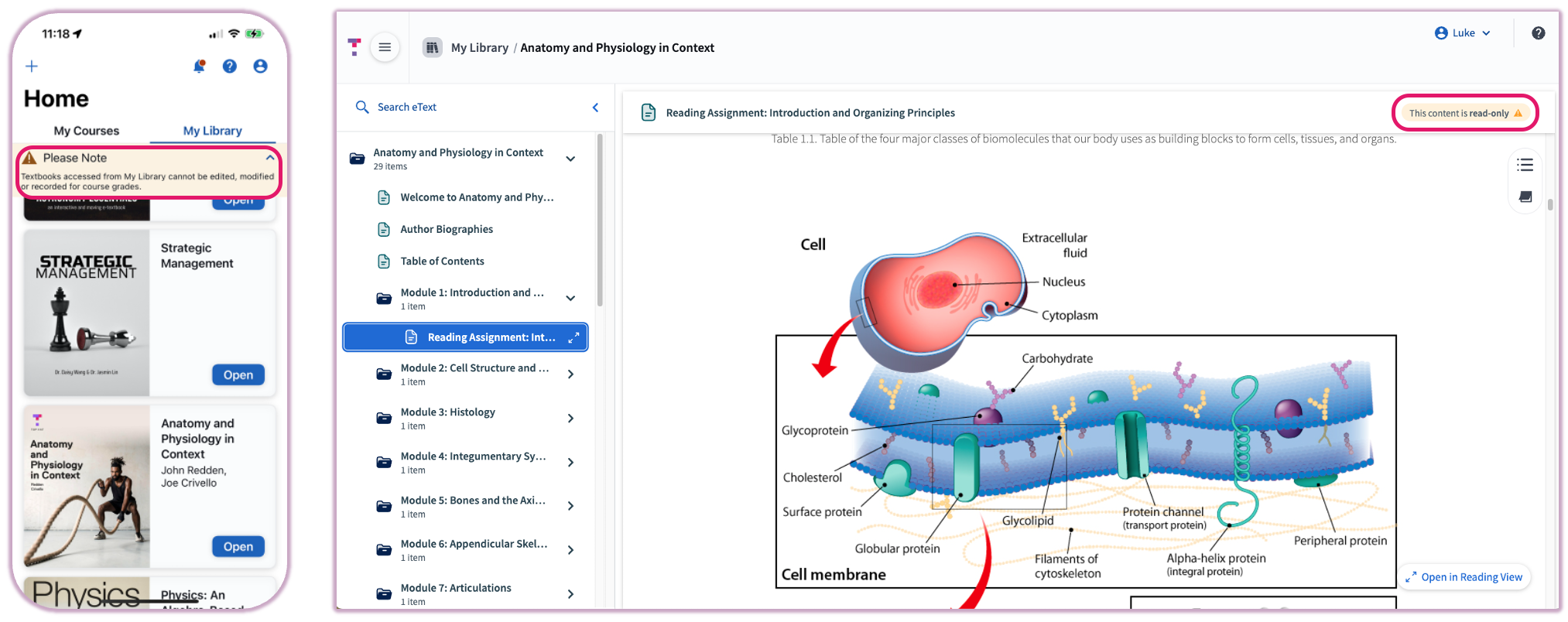 Image: Content in "My Library" is not answerable for credit
Chapter Index
The Chapter Index allows you to quickly navigate to specific parts of your textbook. To open it:
- In the mobile app: Tap the three horizontal lines at the bottom of the screen or swipe up.
- In the web browser: Click the three horizontal lines located on the right side of the window.
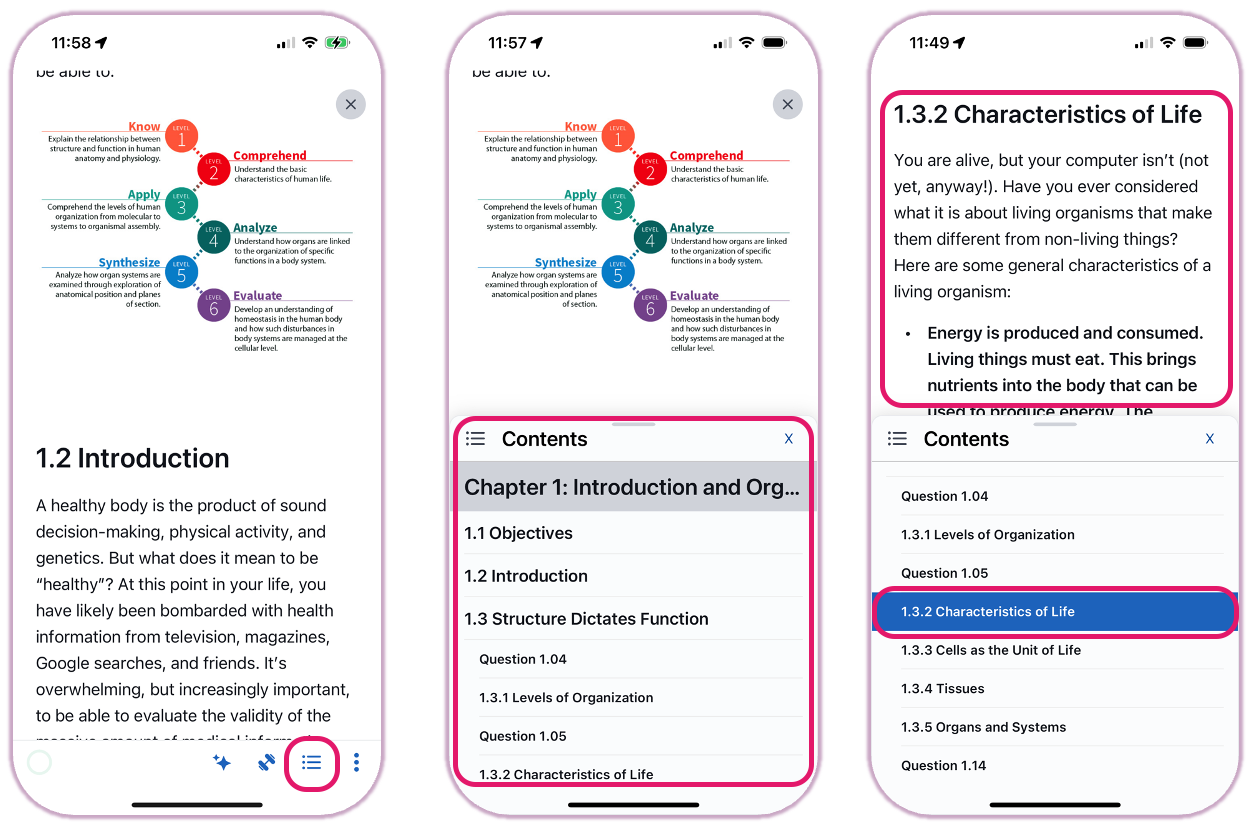 Image: Chapter Index (Mobile App)
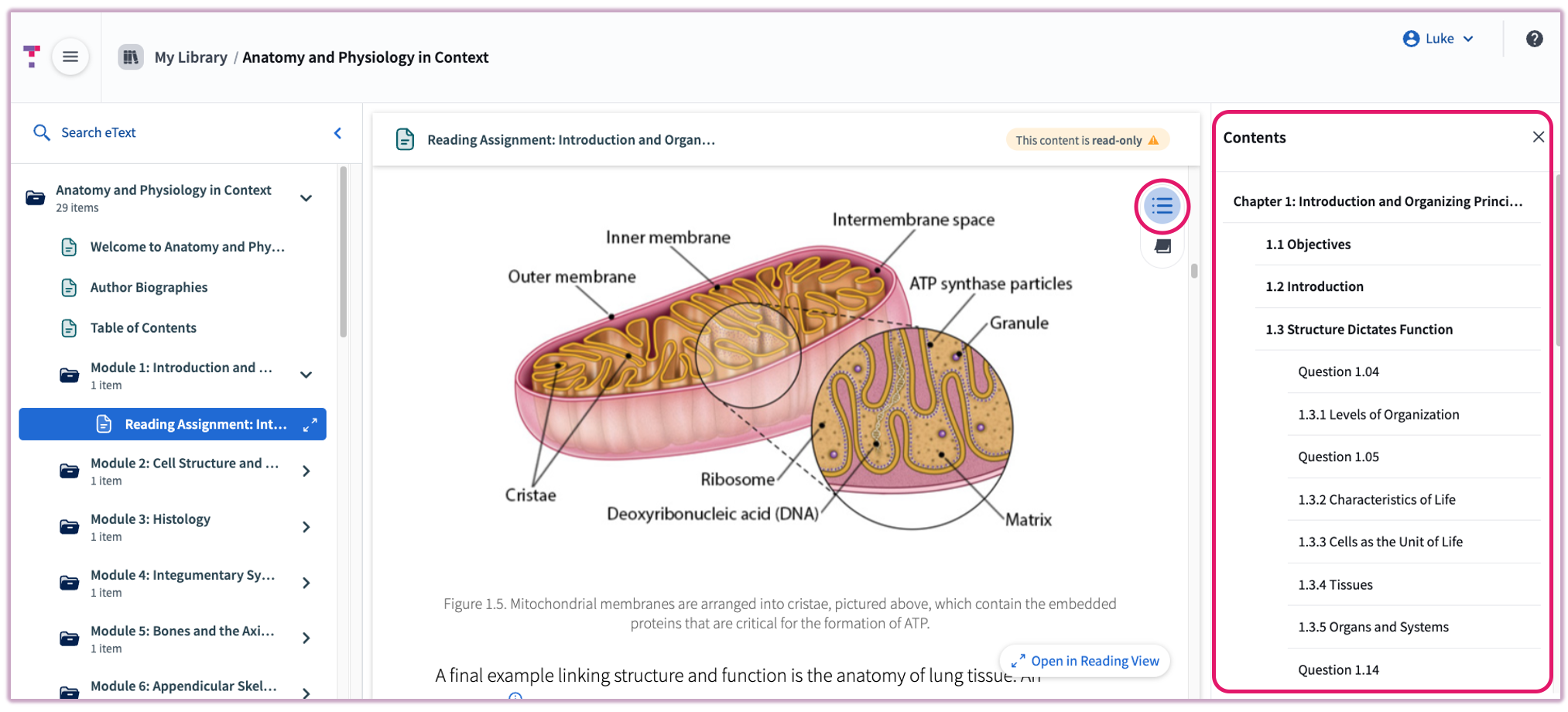 Image: Chapter Index (Web)
Highlights, Notes and Ask Ace (AI)
Highlighting
To highlight text, select the desired passage. A menu will appear—select "Highlight" and choose your preferred color. Because "My Library" chapters are always accessible, your highlights will remain available even after a course ends.
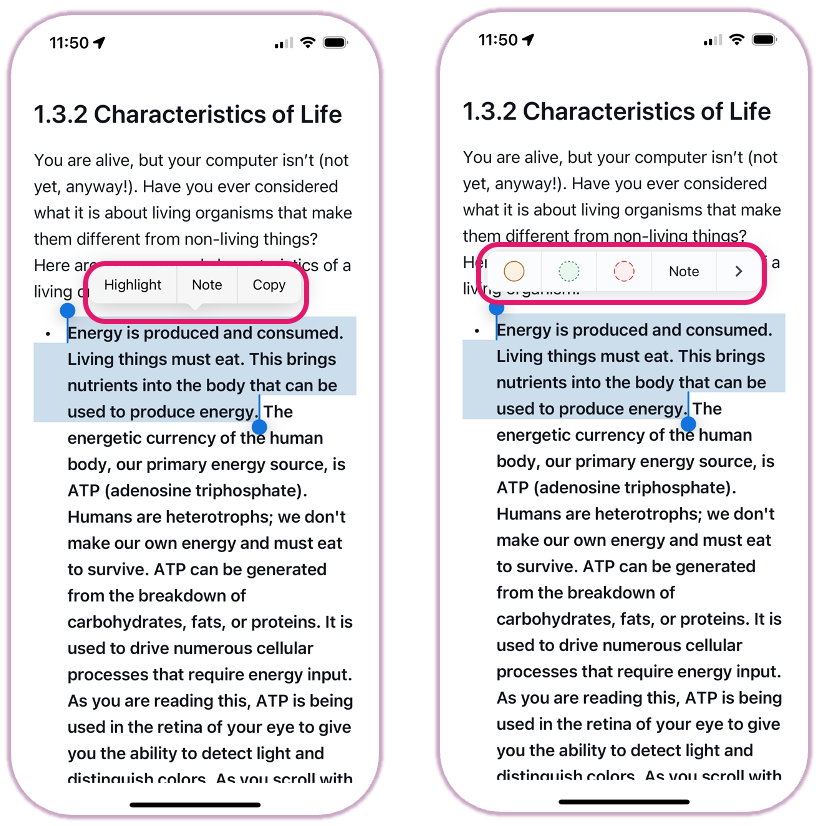 Image: Highlighting on the Mobile App
Notes
To add a note, select the text and choose "Note". A sticky note icon will appear in the margin to indicate your saved thought. You can access a consolidated list of all your notes by selecting the three vertical dots in the top-right corner and clicking "Notebook".
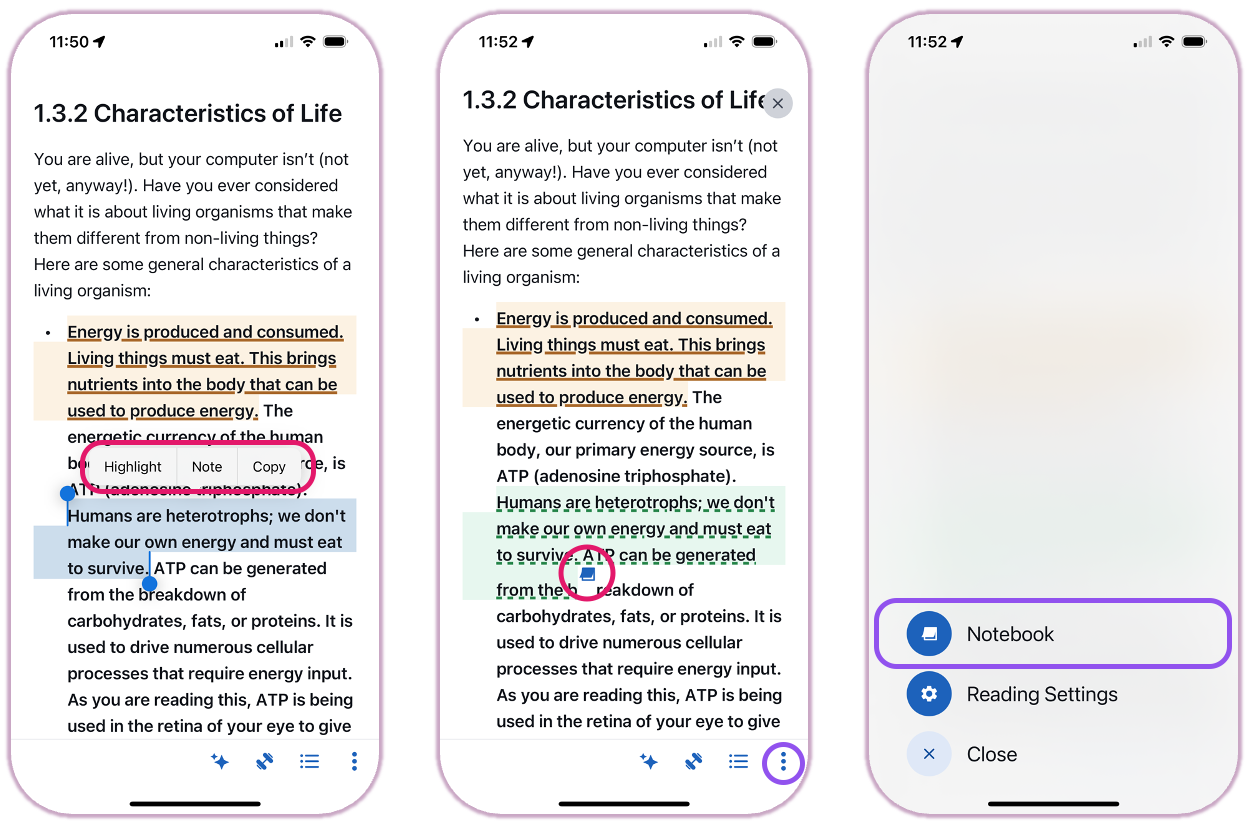 Image: Notes on the Mobile App
Ask Ace (AI)
Top Hat Ace provides AI-powered study assistance. By highlighting content, you can ask Ace to:
- Simplify the language for easier understanding.
- Provide additional examples of a concept.
- Generate a practice quiz based on the material.
- Answer custom questions about the selected text.
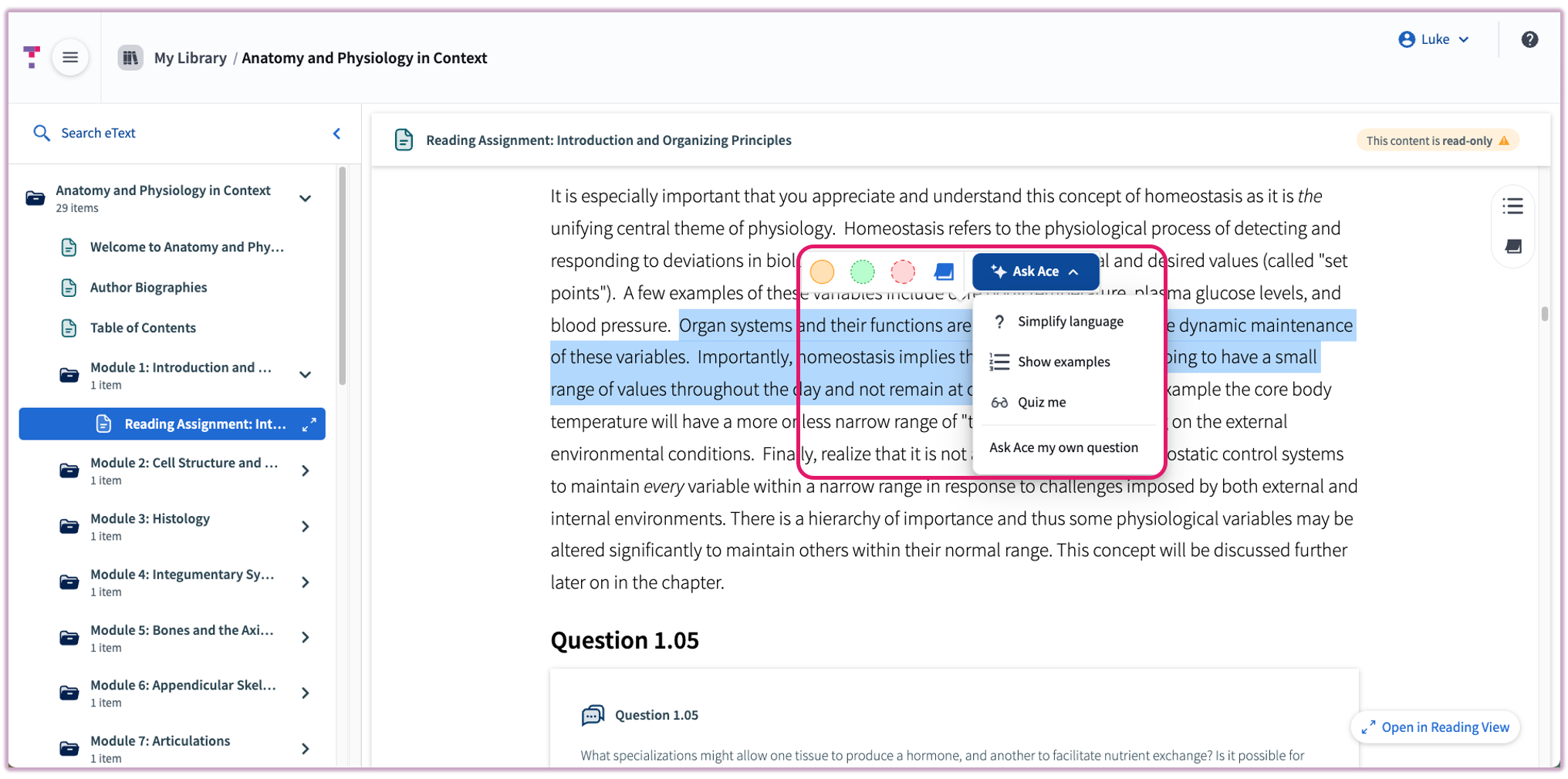 Image: Using Ask Ace AI within the My Library textbook