Learn how to interact with Top Hat Pages including eTextbook readings, videos, interactive questions, and discussions accessible via web browser or mobile app. This guide helps students understand how to highlight text, take notes, ask Top Hat Ace (AI) for assistance, and distinguish between Homework and Review modes.
You'll also learn when submissions are recorded in the Gradebook and how to navigate course materials effectively to ensure your grades are captured correctly.
Table of Contents
- What is a Top Hat Page?
- Content Status (Homework vs. Review)
- Highlighting, Taking Notes, and Asking Ace AI
- Frequently Asked Questions (FAQ)
What is a Top Hat Page?
Top Hat Pages host your primary course materials. A "Page" can contain reading material, images, interactive questions, discussions, or embedded videos. In your course content tree, Pages are identified by a green page icon. Once selected, the content displays in the main reading window.
 Image: Green page icon used to identify Top Hat Pages
In the example below, the course has four assigned pages: two are in Homework mode (graded) and two are in Review mode (study only).
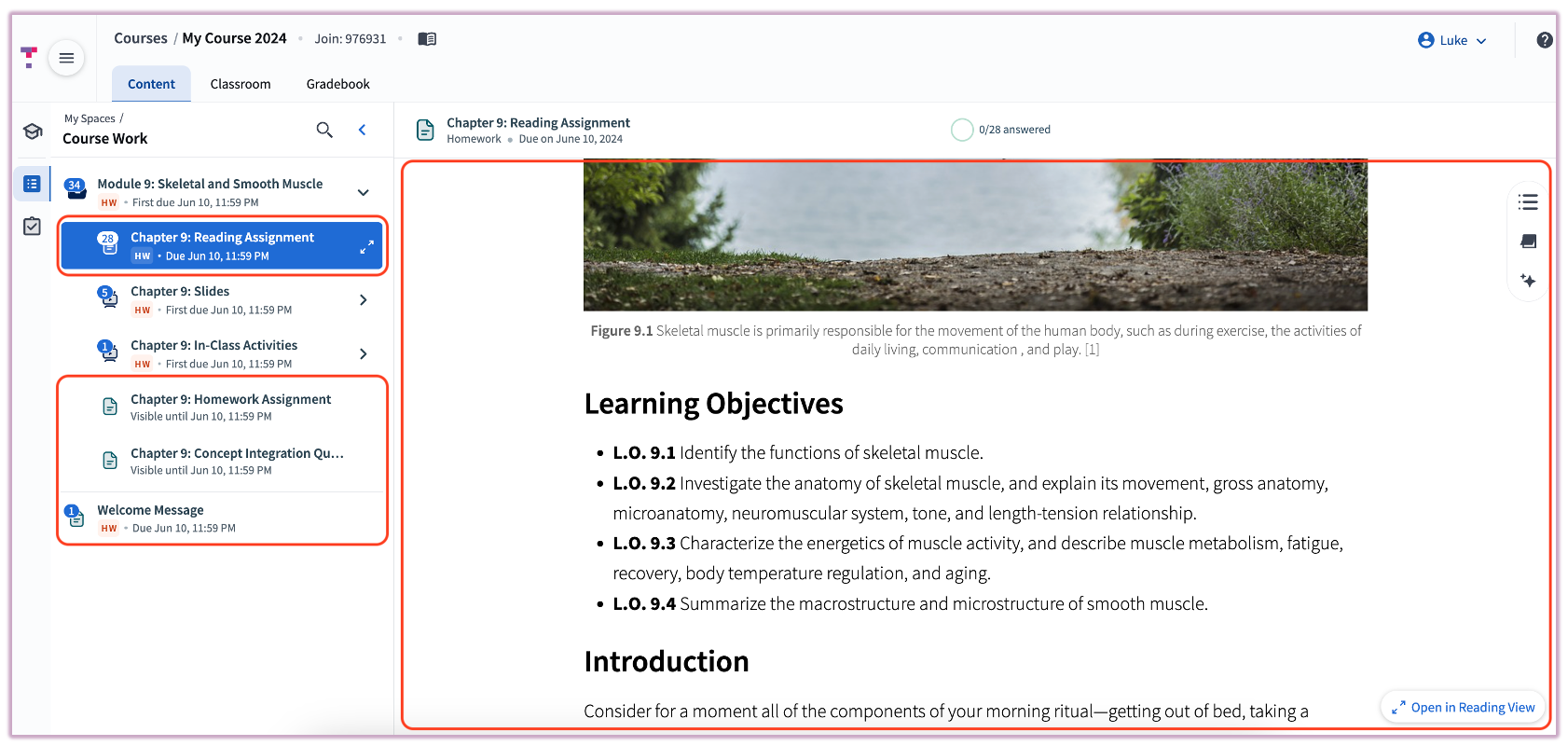 Image: Course content showing Homework and Review assigned Pages
Content Status
Content in Top Hat exists in one of two modes: Homework or Review. You can access and submit work via a web browser or the mobile app, but grades are only recorded for items assigned in Homework mode or presented live during class.
Homework Mode
- Assigned for grades.
- Includes questions presented live in class.
- Submissions are recorded in the Gradebook.
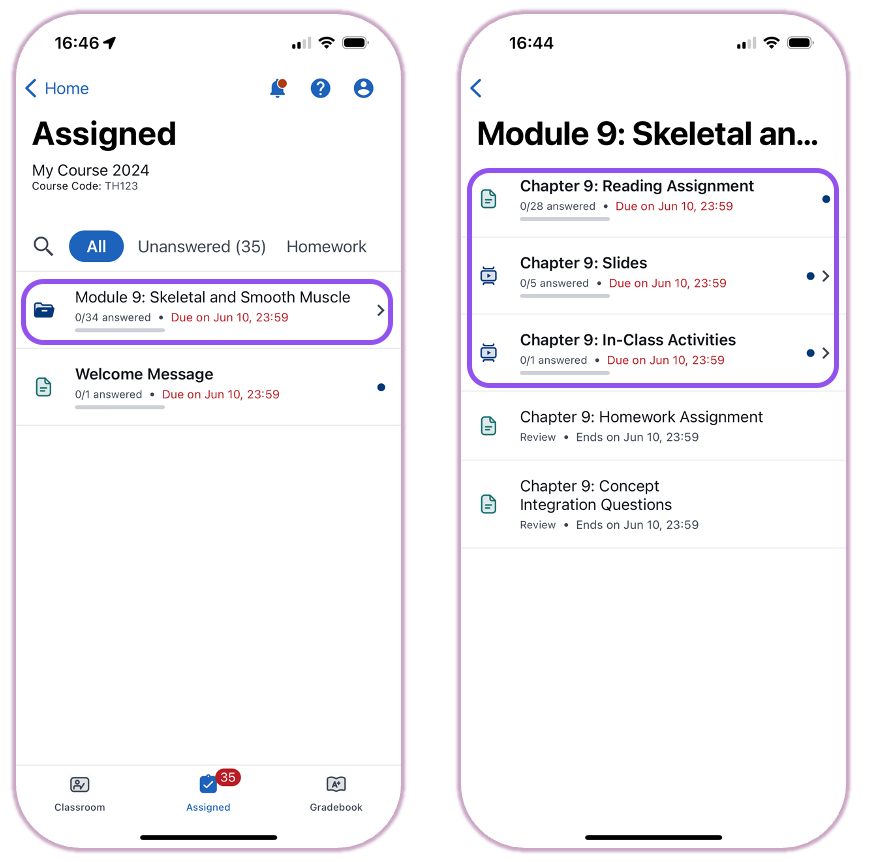 Image: Content in Homework mode (graded)
Review Mode
- Assigned for reading and revision only.
- Practice submissions are allowed but not saved.
- Allows you to view correct answers/responses for study purposes.
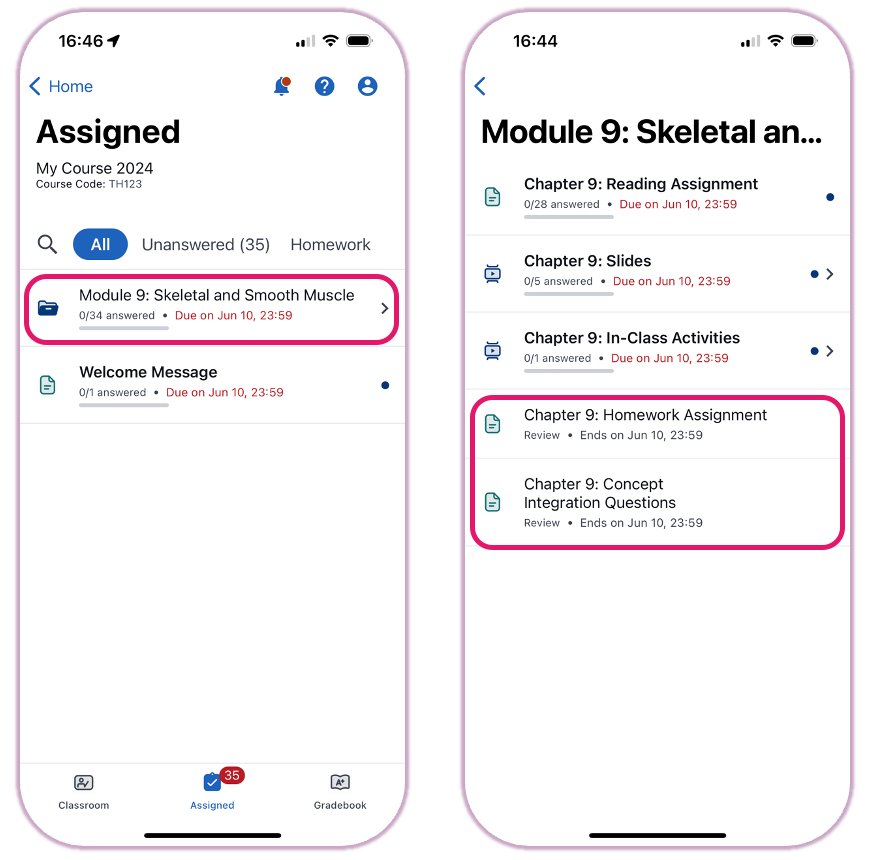 Image: Content in Review mode (ungraded)
Highlighting, Taking Notes, and Asking Ace AI
Selecting text within a Page triggers a highlighting toolbar. You can create notes and highlights in the standard view or by selecting "Open in Reading View." To access your saved notes, select the notepad icon located to the right of the reading window.
When highlighting text, you can also use Top Hat Ace to simplify language, provide examples, "Quiz Me" on the selected text, or ask your own questions.
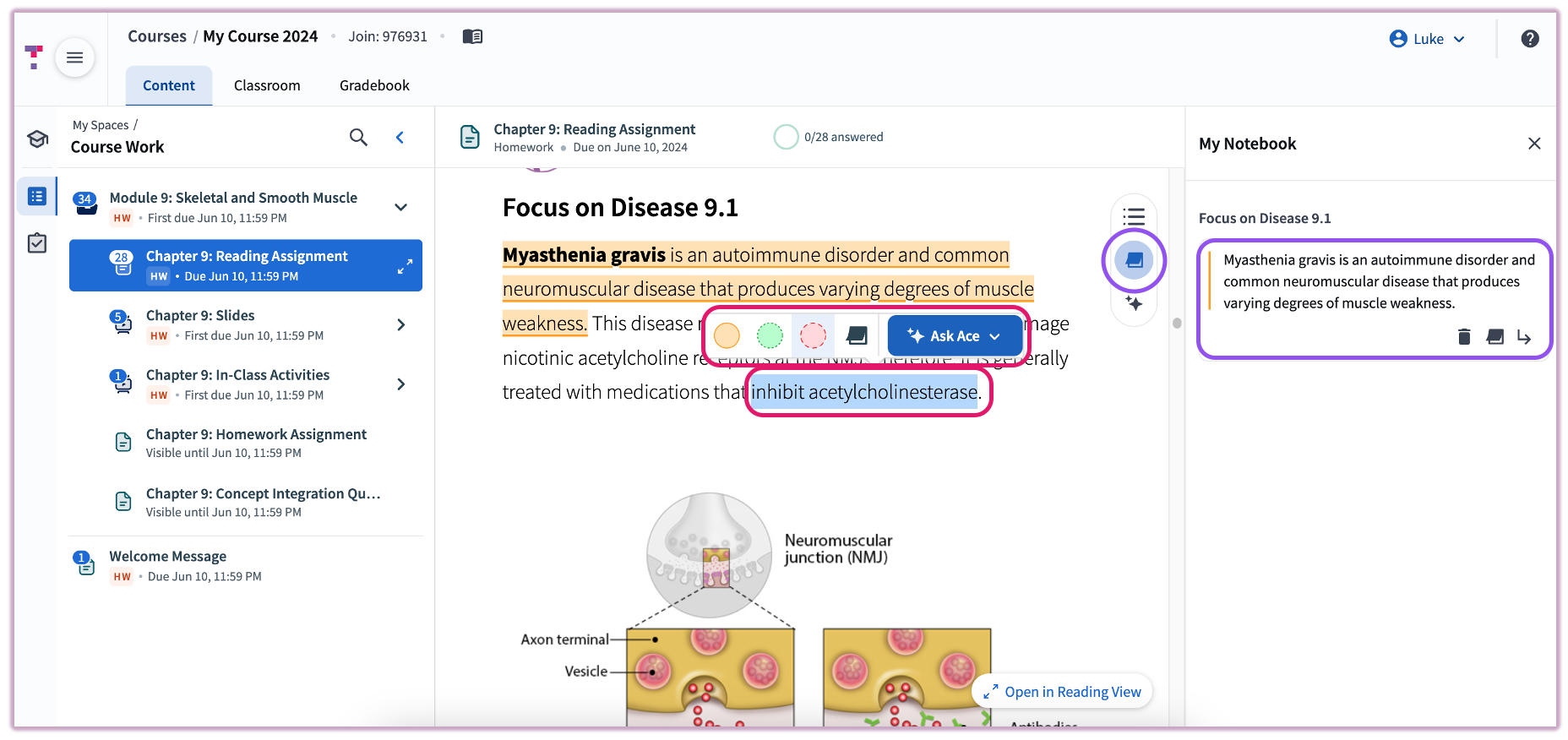 Image: Highlighting text and using Ace AI in a Top Hat Page
For keyboard-based navigation, you can enable Caret Browsing. Press Fn/Ctrl + F7 to toggle this mode on or off. Note: Caret browsing is currently fully supported only on Google Chrome.
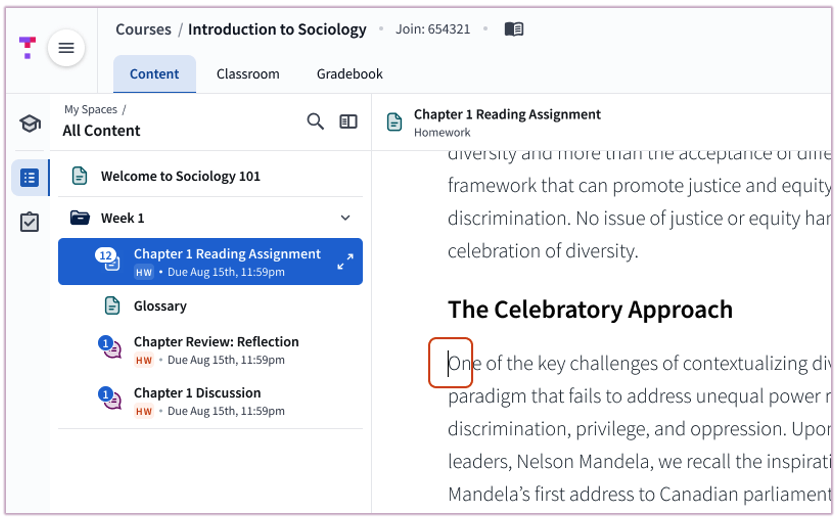 Image: Caret browsing mode with keyboard navigation
Frequently Asked Questions (FAQ)
- When will Top Hat record my submission?
-
- When you answer questions in Homework mode.
- When responses are submitted within the active timer for in-class questions.
- When content is presented live by your instructor.
- When won't Top Hat record my submission?
-
- When you are in Review mode (intended for practice only).
- If a submission is not finalized before a question timer expires.
- If you do not click "Submit." Top Hat does not save drafts; ensure you submit your answer before closing the page.