Submit Top Hat attendance using a 4-digit code via web, mobile app, or SMS. Learn how to enable location services for Secure Attendance tracking. This guide walks students through every method of marking attendance, whether you're using a browser, mobile device, or texting from a basic phone.
It also covers Secure Attendance setup, common troubleshooting steps, location permission settings for iOS and Android, and what to do if you're having issues submitting. Stay present, stay marked, and keep your grades up to date.
Table of Contents
- Submitting Attendance
- Submitting Attendance (Text / SMS)
- Text / SMS Troubleshooting
- Submitting Secure Attendance
- Web Browser and Device Required Permissions
- Updating Previously Denied Browser Location Permissions
- Testing Location Services
- Required Permissions (iOS)
- Required Permissions (Android)
- Is Top Hat tracking my location all the time?
Submitting Attendance
Step-by-Step Instructions:
- Open the "Classroom" tab when the attendance session is active.
- Select "Attendance" and enter the 4-digit code displayed in your classroom or lecture hall.
- Press "Submit" to be marked present.
Key Notes:
- Attendance grades will appear as "Submission waiting to be graded" in the gradebook until the instructor closes the session.
- If Hybrid Attendance is enabled, you’ll be asked whether you are attending in person or remotely.
Tip: Enter the code as soon as possible to avoid being marked absent. A successful submission will display the message: "You have been marked present."
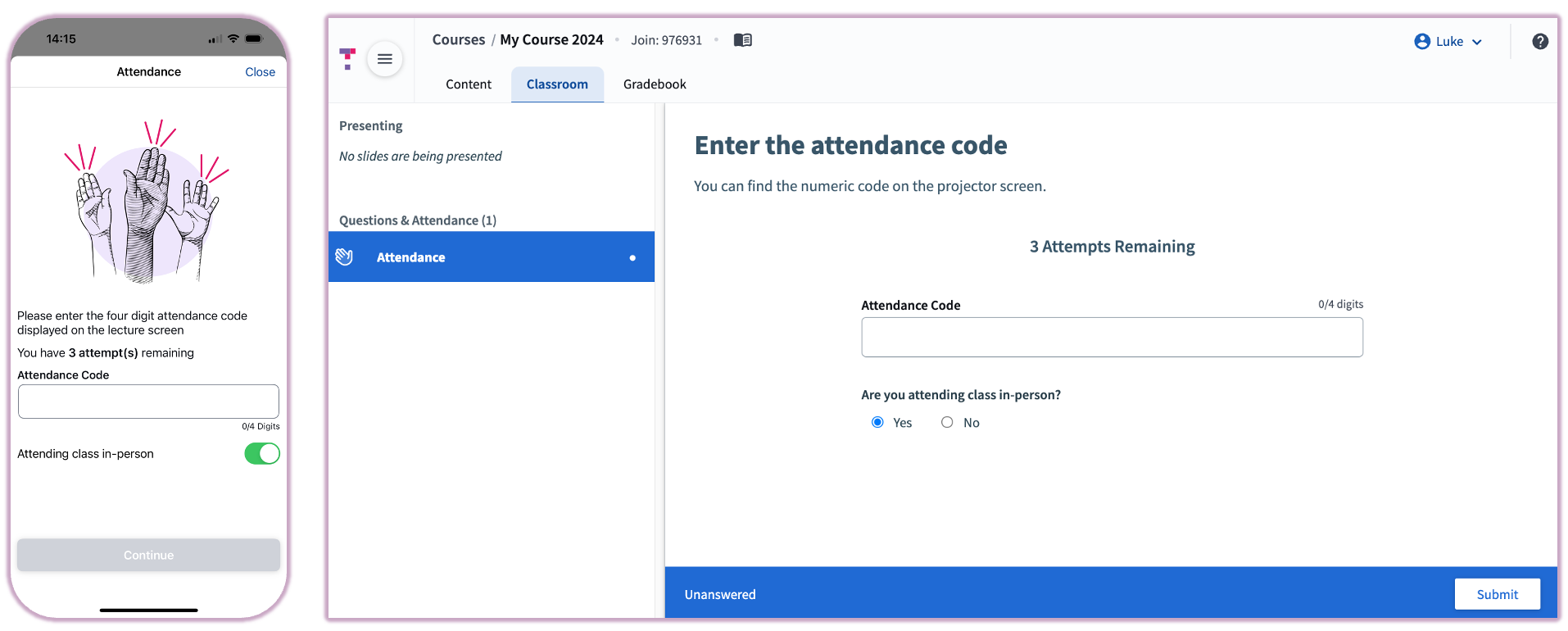 Image: Enter Attendance Code Prompt on Mobile and Web
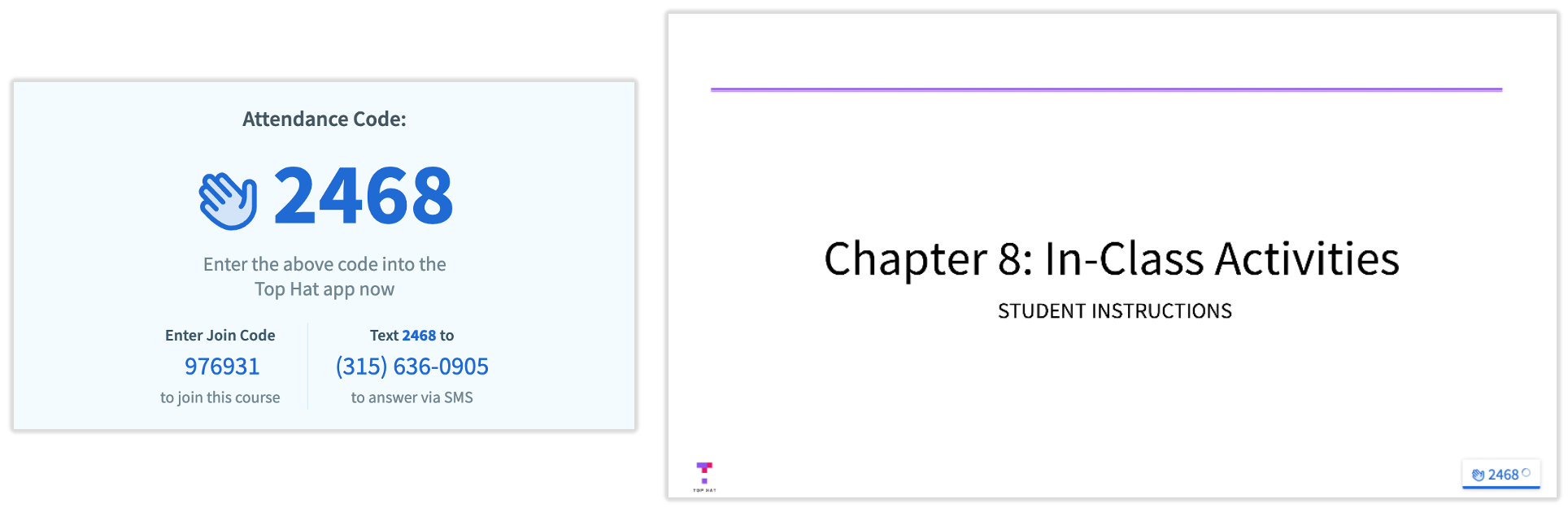 Image: Numeric entry for Attendance Code
Text / SMS
If you are using an older phone or have a weak WiFi signal, you can submit attendance via SMS for regular attendance only (Not Supported for Secure Attendance).
Steps:
- Add your phone number to your Top Hat account under Account Settings.
- Save your school’s specific SMS response number displayed in your classroom.
- Text the 4-digit code to your school’s SMS number.
Example: Text the 4-digit code (e.g. 2468) to the phone number displayed on your classroom screen (e.g. 315-636-0905. Note: Check your classroom screen for your school's unique SMS number and the 4-digit code.
Text/SMS Troubleshooting
- "Your phone number is not linked to a Top Hat account."
Ensure your phone number is correctly added to your Top Hat account without any formatting symbols (e.g., brackets or hyphens).
- "You are not enrolled in [Course Name]."
Text ENROLL [6-digit join code] to enroll in the course.
- "Your subscription has expired."
Renew your subscription by logging into your Top Hat account.
- "The 4-digit code is not in use."
Double-check the code displayed in your classroom for errors.
- "SMS submission sent too late."
Attendance sessions close at the instructor's discretion. Retain proof of submission if needed for troubleshooting.
There are no fees for texting and the phone number will be local to your country. Depending on your plan with your provider, the text message could be free or it could cost a small amount. If you are not sure, call your phone service provider to ask. This functionality works with any phone type that can send text messages.
Secure Attendance
Secure Attendance verifies your location to confirm that you are present in the classroom. Devices must have Bluetooth and Location Services enabled for this feature to work correctly.
Steps for Secure Attendance:
- Open the Top Hat course and allow location permissions when prompted.
- Enter the 4-digit attendance code displayed in the classroom.
- Press Submit to mark yourself present.
Tip: Disable any VPNs or ad blockers that may interfere with geolocation.
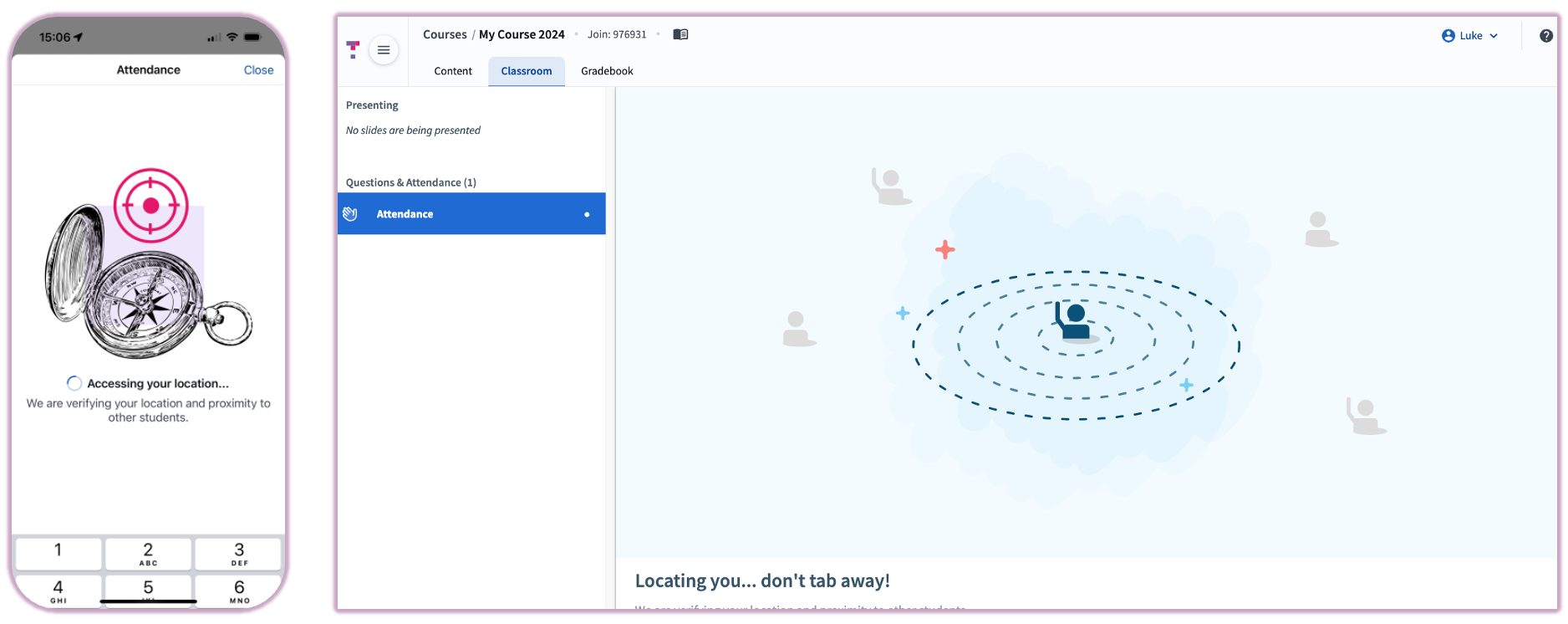 Image: Locating you messaging for Secure Attendance
Secure Attendance - Web Browser and Device Permissions Steps
- When prompted, allow Top Hat to access your location.
- If permissions were previously denied, update them in your browser settings and refresh the page.
- Submit the attendance code after successful geolocation.
- If location detection fails, follow the suggestions provided on-screen.
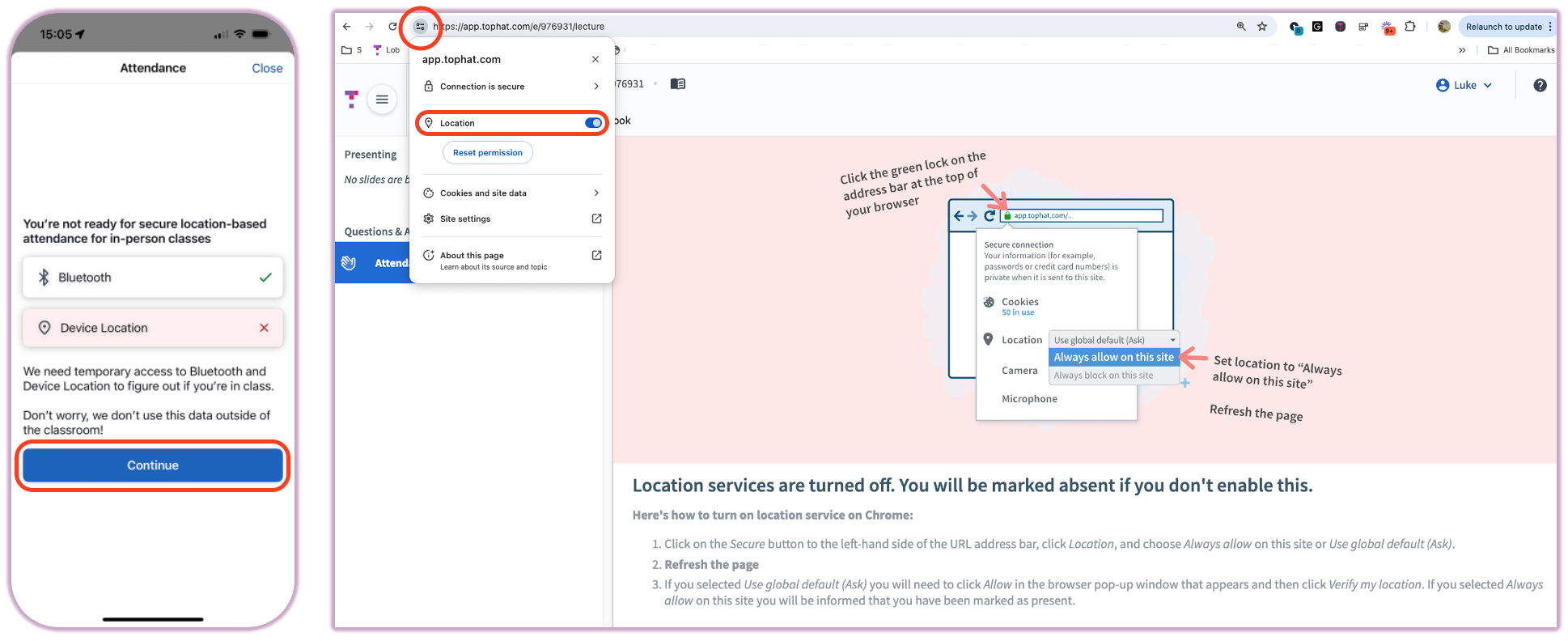 Image: Reviewing Browser Location Permissions
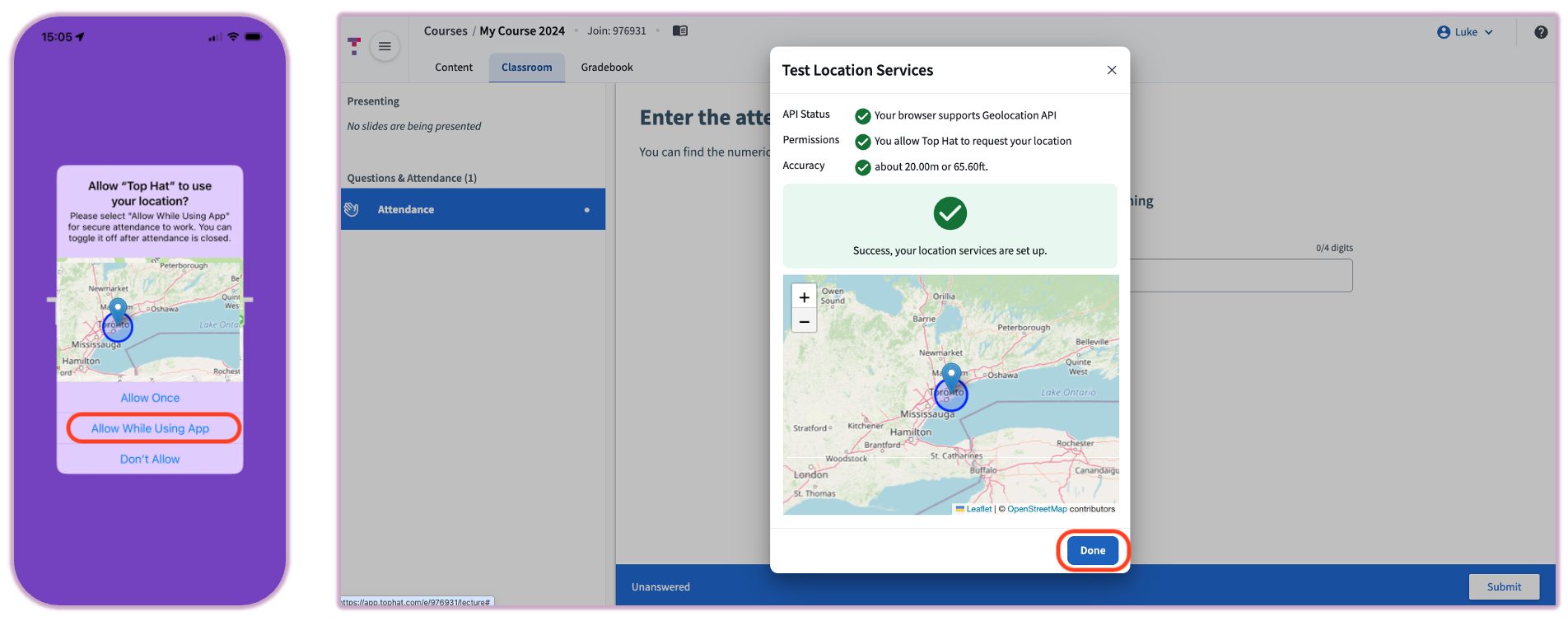 Image: Test Browser Location Permissions / Allow Location
Updating Previously Denied Location Permissions in Google Chrome
For assistance with enabling location services in Google Chrome, refer to the article below:
Testing Location Services
Test your location services at any time:
- Go to Account Settings > Advanced Settings > Test Location Services.
- Follow on-screen instructions if the test fails, including enabling permissions or connecting to campus WiFi.
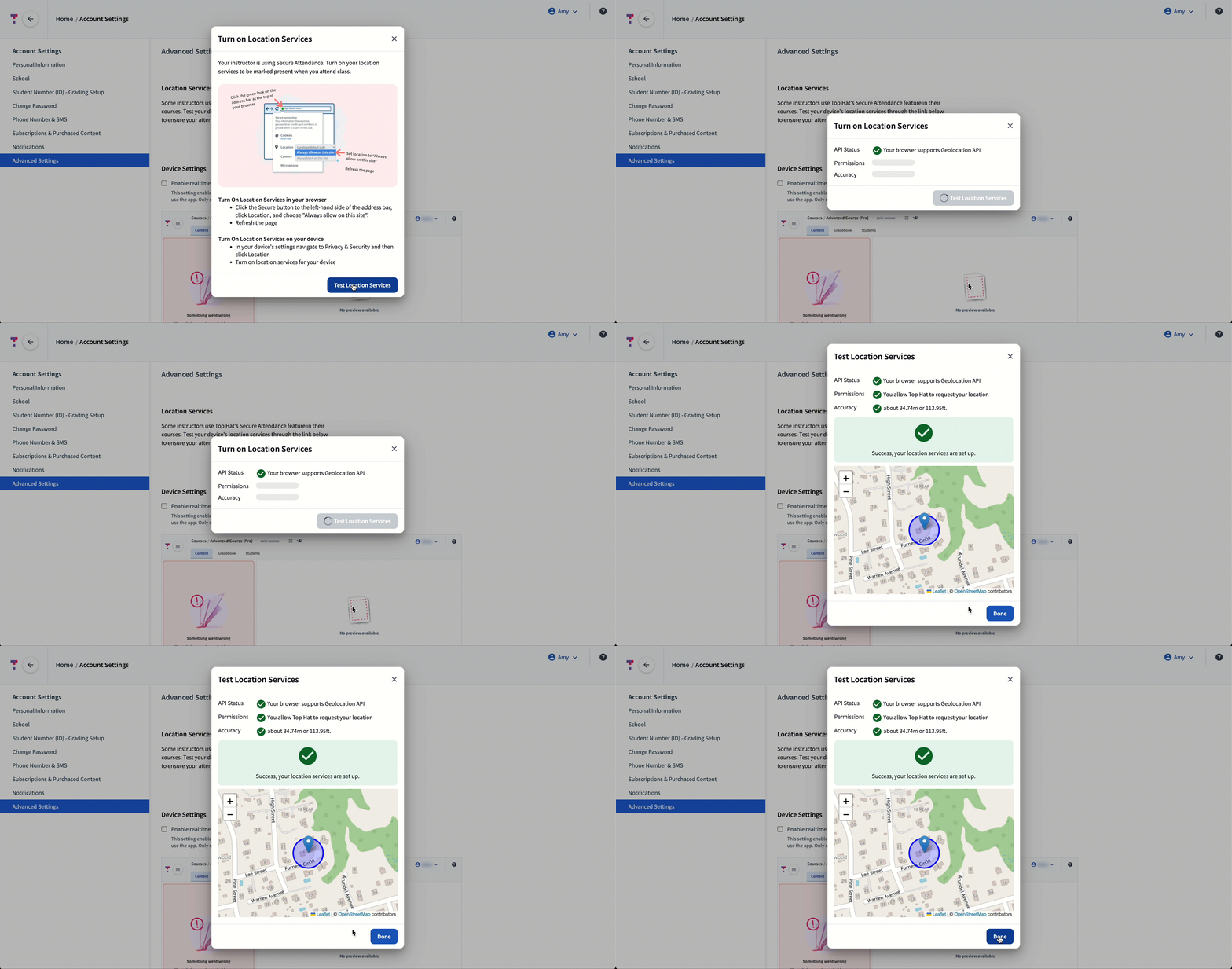 Image: Test Location Services
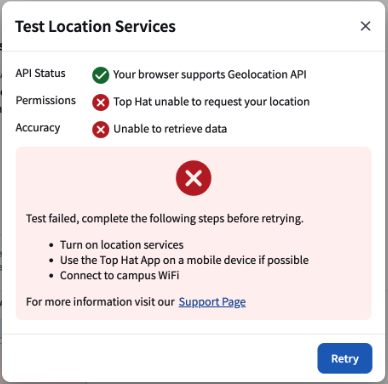 Image: Test Location Services Failed
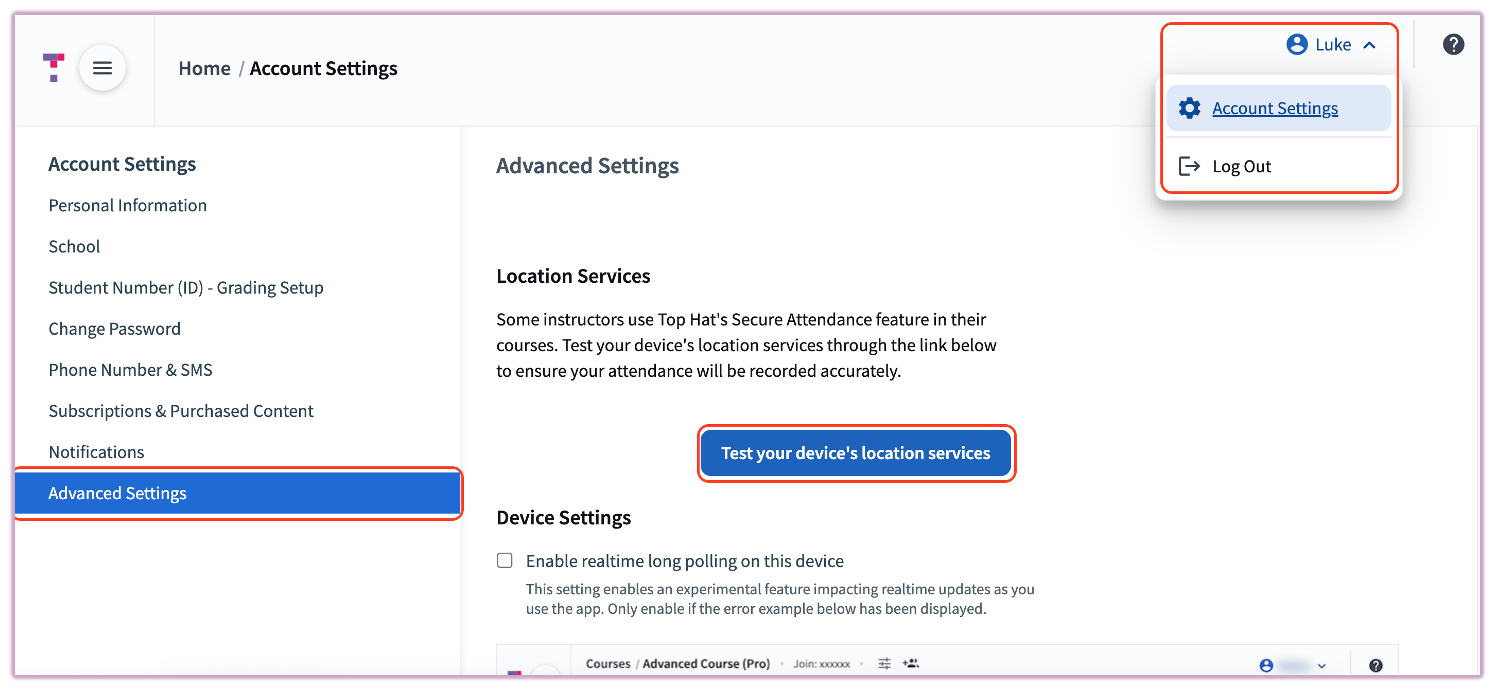 Image: Account Settings Menu in Web
Required Permissions (iOS)
- Enable Location Services under Settings > Privacy & Security > Location Services.
- Select Top Hat and choose "While Using the App".
- Return to the app to verify your location and submit the attendance code.
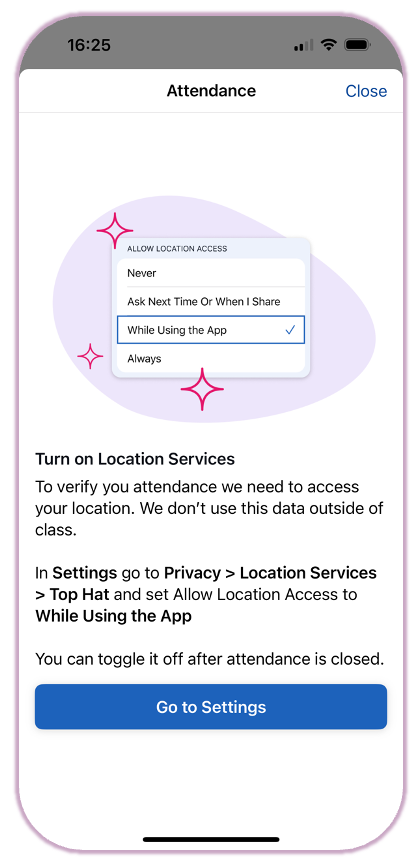 Image: iOS Location Services Permissions
Required Permissions (Android)
- Open the Top Hat app and select Attendance.
- If prompted, enable Bluetooth and Location Services.
- Enter the attendance code and submit.
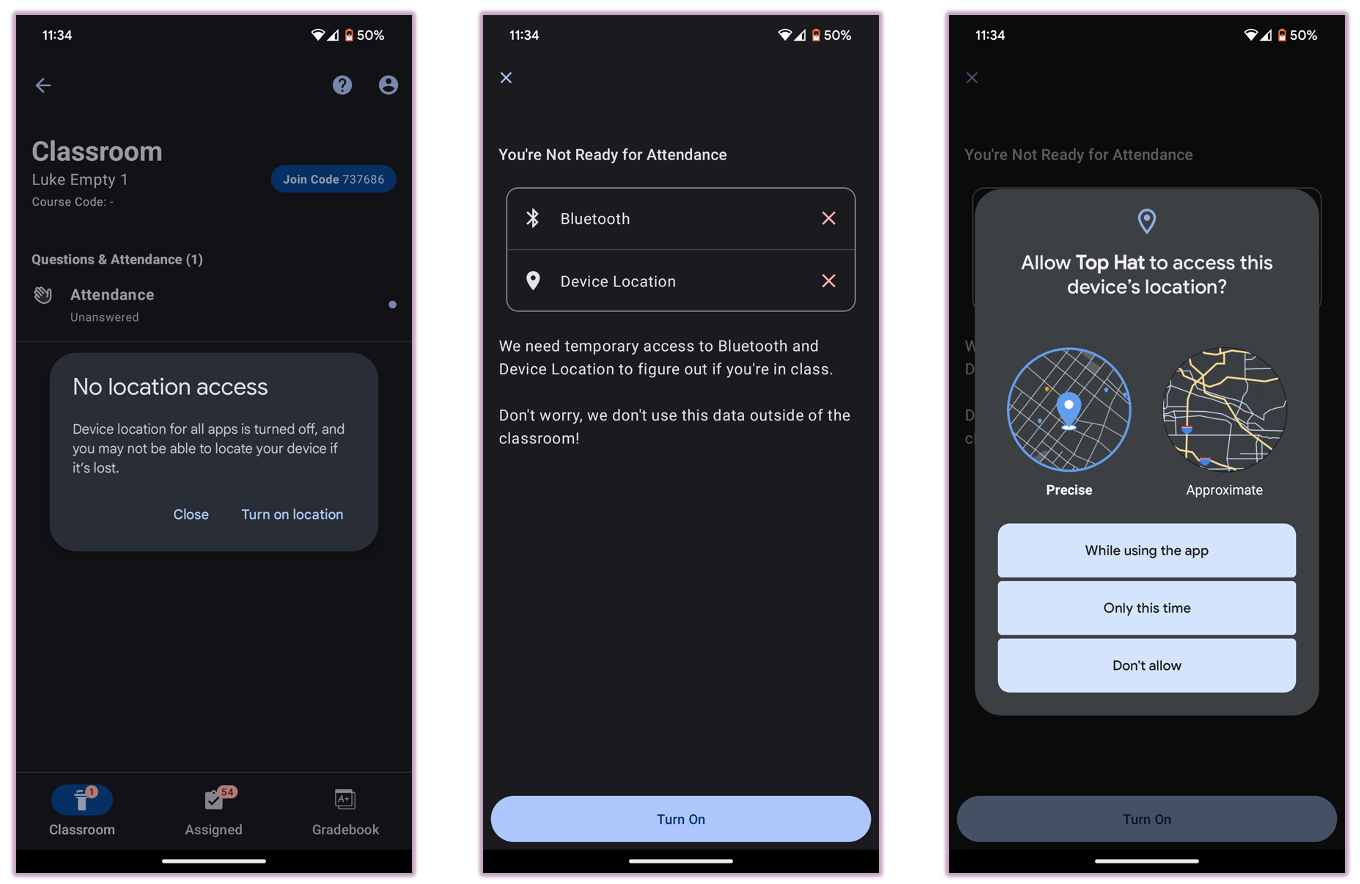 Image: Android Location Permissions
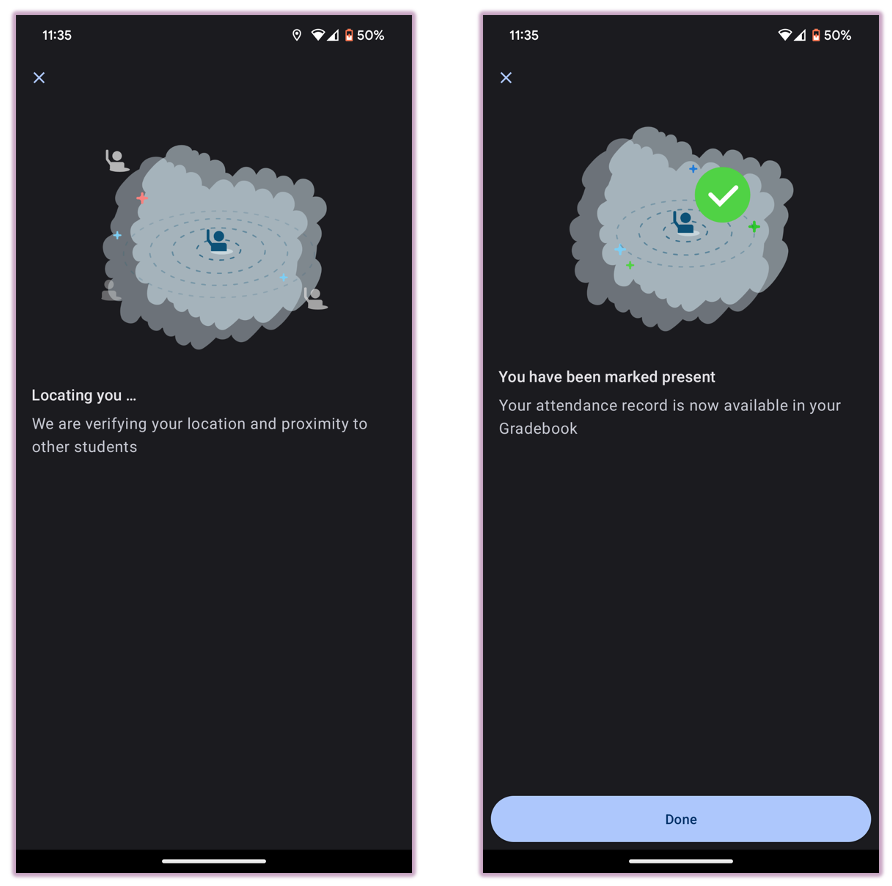 Image: Attendance marked in Android
Is Top Hat tracking my location all the time?
No, Top Hat only accesses your location during Secure Attendance submissions. You can disable location permissions at any time through your device’s settings.