Learn how to avoid common issues with grade syncing, roster removal, and enrollment errors by following the correct launch method. This includes platform-specific steps and troubleshooting tips to ensure your course access and grades are fully connected.
Table of Contents
- Finish Course Enrollment
- Key Notes
- D2L + Top Hat (Final Enrollment Step)
Finish Course Enrollment
Important: Do not manually enroll in the Top Hat course.
To complete your enrollment:
- Use the course launch link provided in your LMS.
- Open the link in a web browser to access Top Hat and finish the enrollment process.
Upon entering the Top Hat course connected to your LMS:
- A pop-up will appear with instructions to finalize the process.
- A non-dismissible banner will be displayed at the top of the course until your registration is completed.
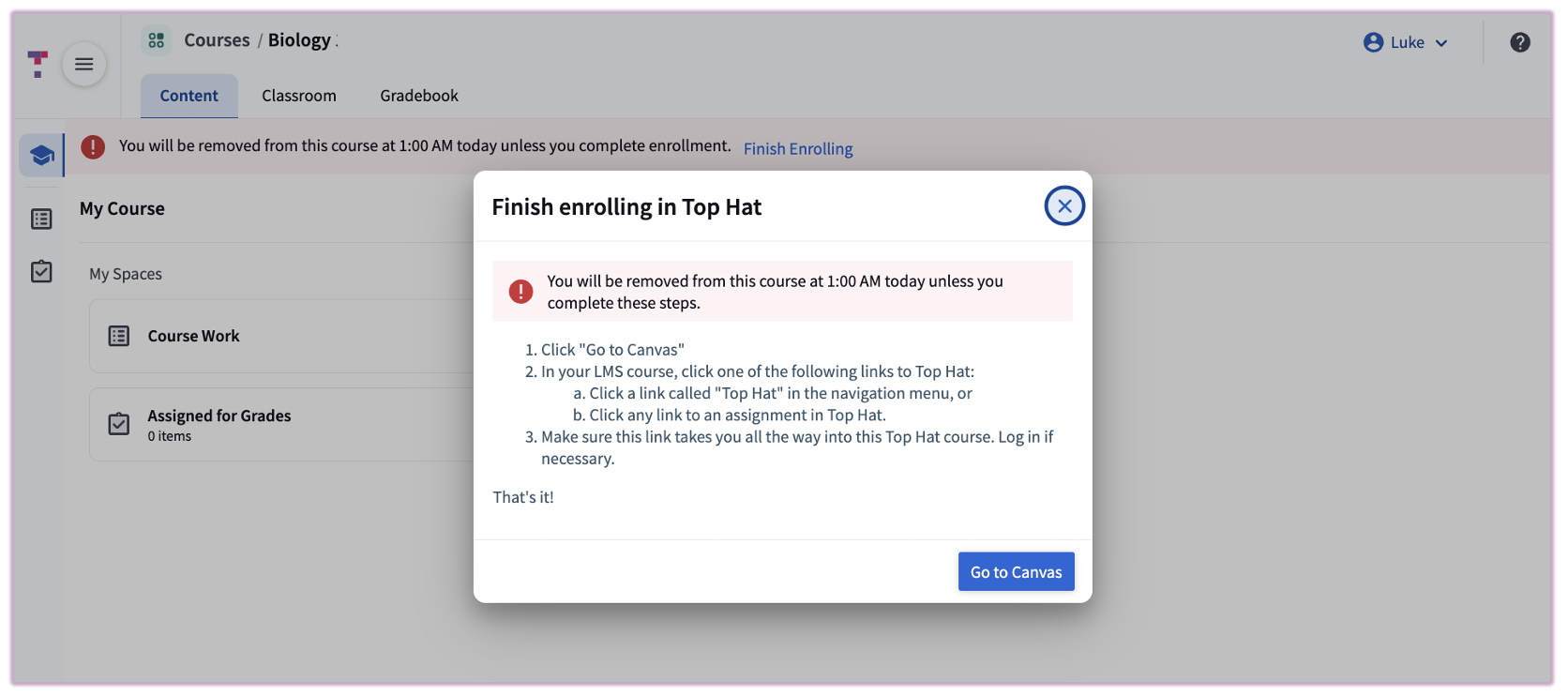 Image: Pop-Up in Top Hat prompting action
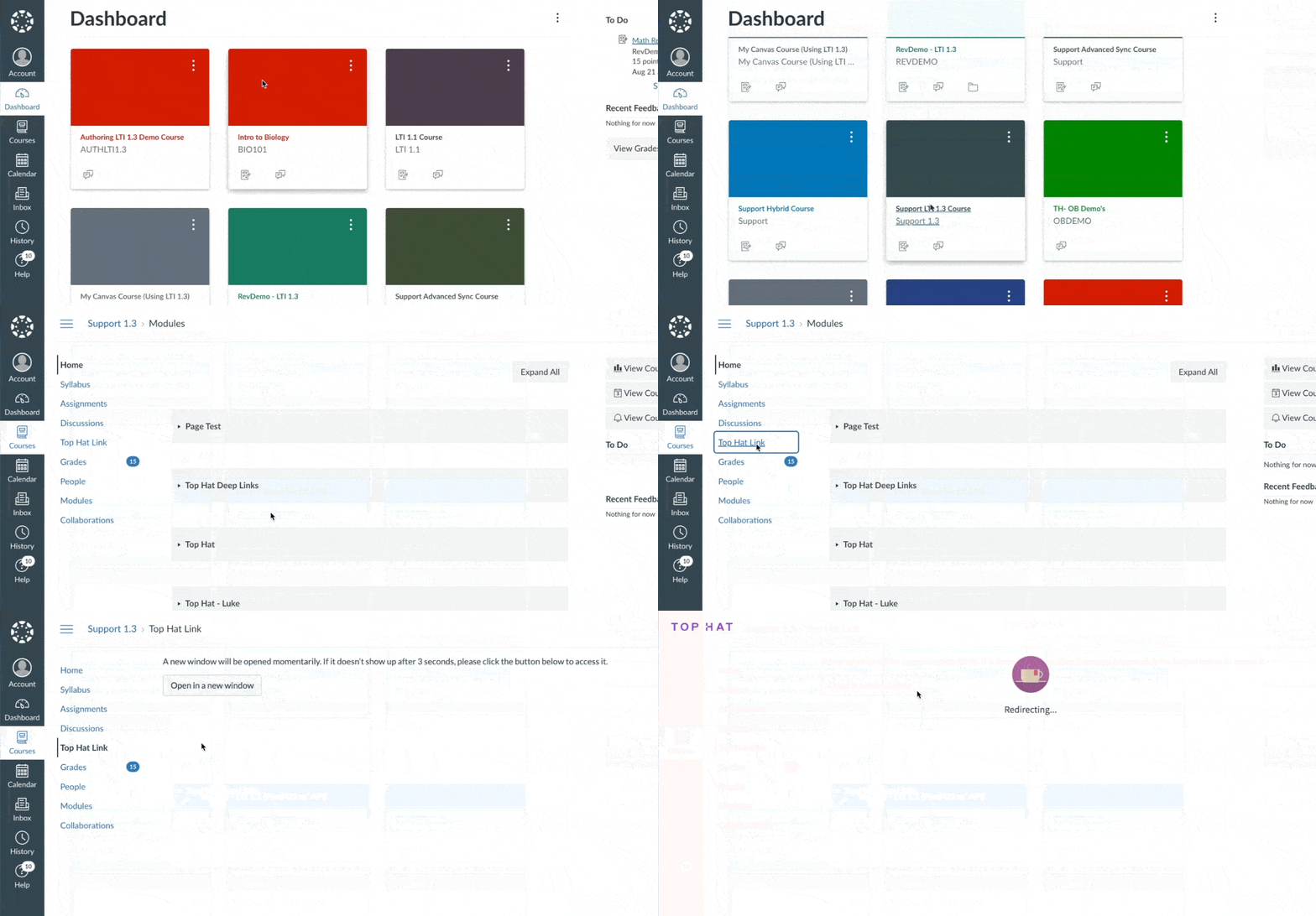 Image: Enrolment completion steps. Please identify the specific course launch link provided by your instructor, as names vary by school setup and may not be labelled "Top Hat Link".
Key Notes
- Grade Syncing: Your grades will not sync to the LMS until the enrollment process is finalized.
- Roster Management: If enrollment is not completed, you will be automatically removed from the course during nightly roster syncs. However, no grades are deleted if you are removed.
- Final Step: Always follow the course-specific Top Hat link from your LMS to complete enrollment.
If you cannot find the Top Hat link in your D2L course, contact your instructor for help. Common link names include:
- Top Hat Registration Link
- Top Hat LTI
- External Tool
- Top Hat
- eText / Course Materials
- LTI 1.1 or LTI 1.3
The enrollment process may look slightly different depending on your school’s configuration. Find the D2L view below that matches your course layout and follow the steps provided.
Table of Contents
- View 1: Content Area - Top Hat LTI Course Launch
- View 2: Direct Top Hat Registration Link
View 1: Content Area - Top Hat LTI Course Launch
Note: Please complete the initial registration process using a web browser (Chrome or Firefox recommended) rather than the mobile app to ensure the LMS connection is established.
- Step 1: Open your D2L course and select the Content tab from the navigation bar.
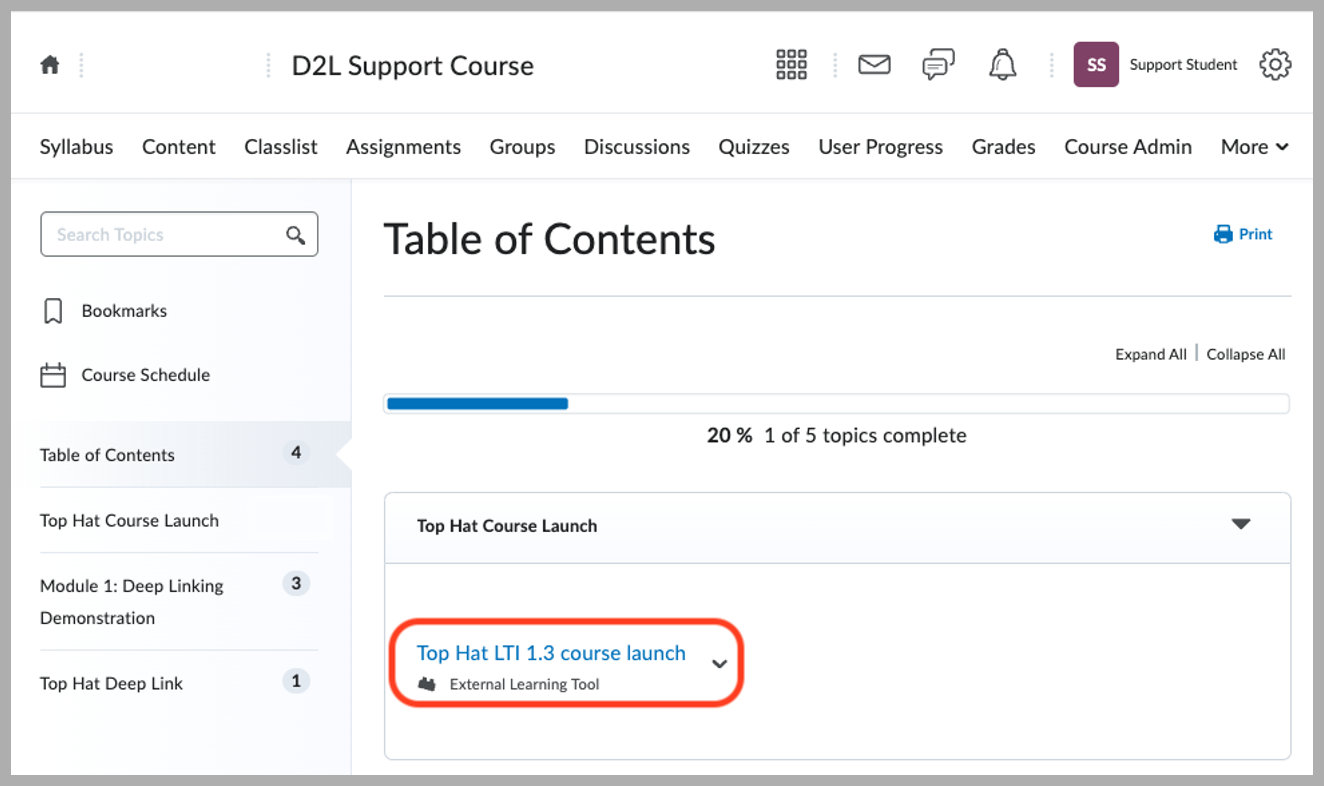 Image: Locating the Content tab in D2L
- Step 2: Locate and click the Top Hat LTI Course Launch link within your course modules.
- Step 3: If a prompt appears, select Open in a new window to proceed to Top Hat.
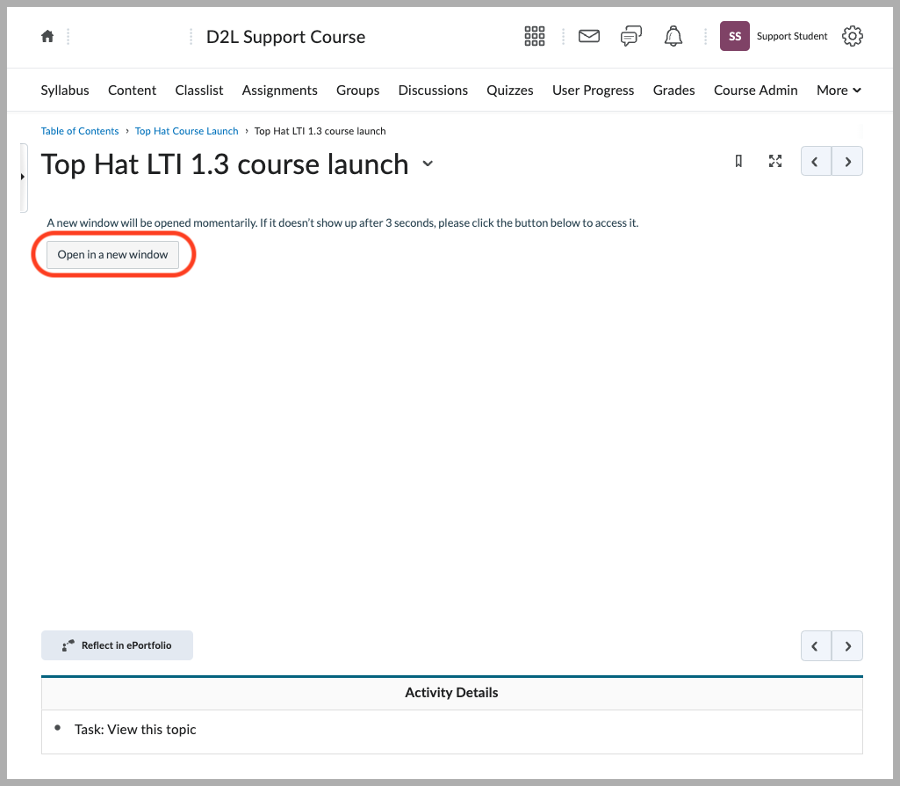 Image: Clicking the Top Hat LTI link
- Step 4: On the Top Hat page, log in with your credentials or create an account if you are a first-time user.
For more help, see: Student Account Creation Instructions
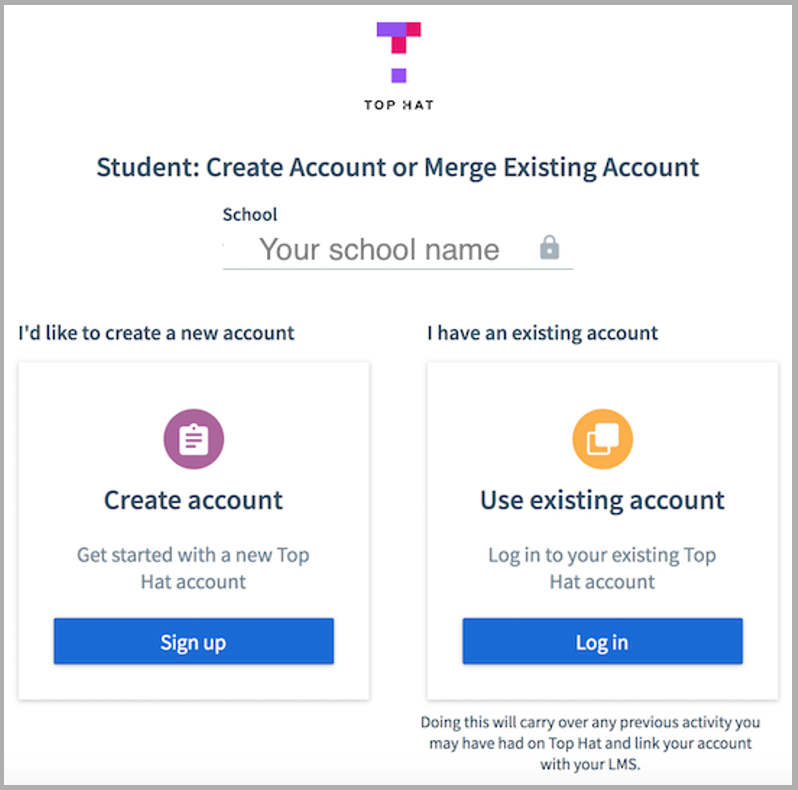 Image: Top Hat Login/Sign-up screen
- Step 5: You will be automatically directed to your LMS-connected Top Hat course.
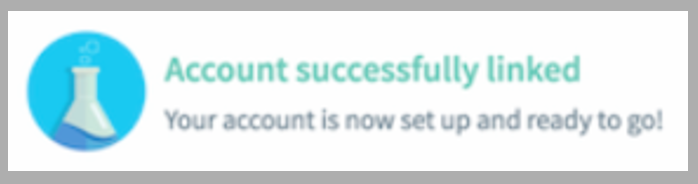 Image: Course entry confirmation
View 2: Direct Top Hat Registration Link
- Step 1: Open your D2L course and locate the link labeled Top Hat Registration.
 Image: Direct Registration Link
- Step 2: Click the link to be directed to the Top Hat portal.
- Step 3: Log in with your credentials or create an account.
Image: Authenticating with Top Hat
- Step 4: You will be automatically directed to your LMS-connected Top Hat course.
Image: Successful LMS course connection