If ACE has been enabled in your course, you will be able to access it from any assigned page or slide in your Top Hat course.
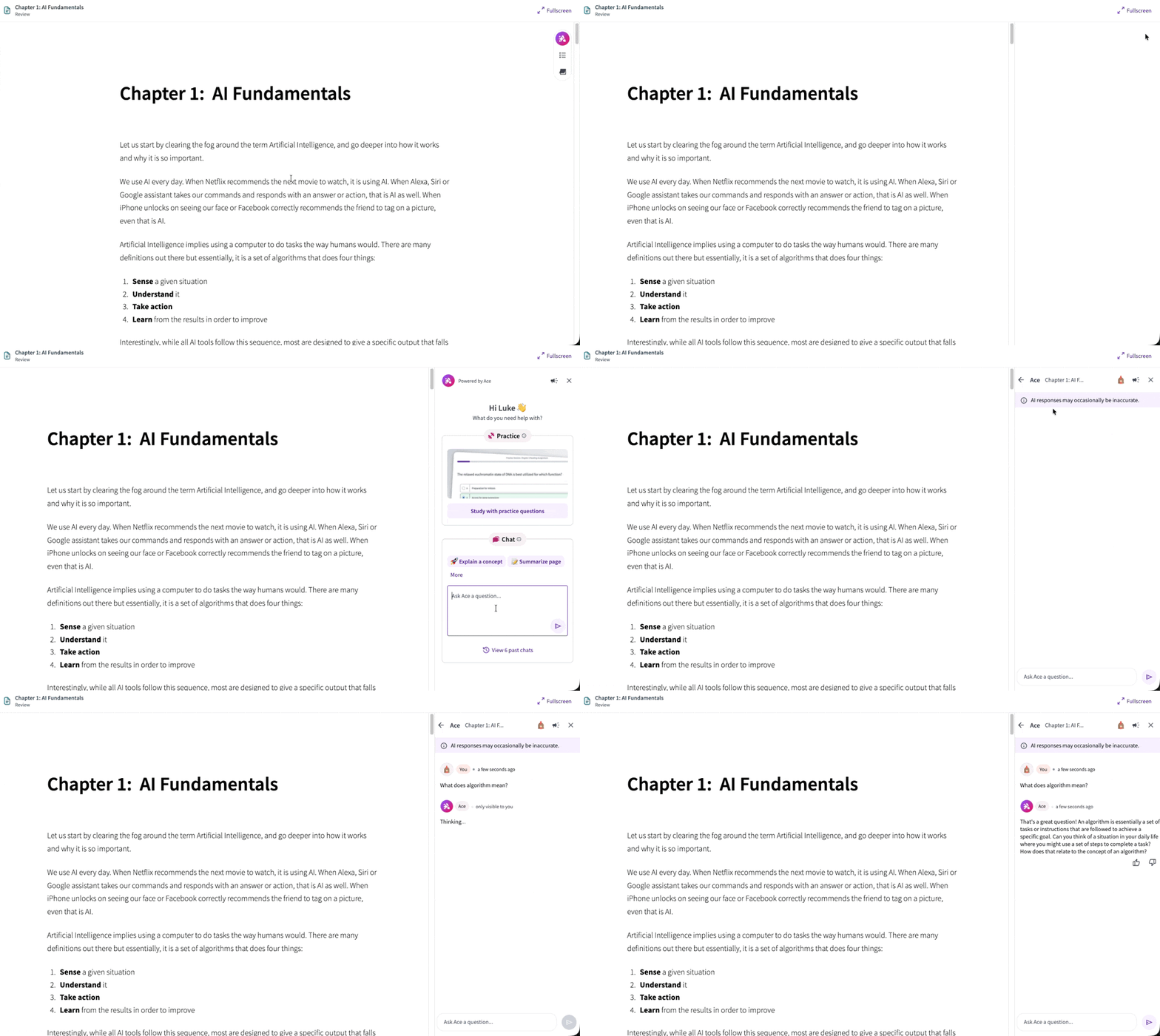 GIF: Chat with ACE entry points within the course (Web)
When you first encounter ACE, it will be accessible at the bottom right corner of your page indicated as "Chat with ACE." On the mobile app, look for the sparkle icon on the bottom navigation bar.
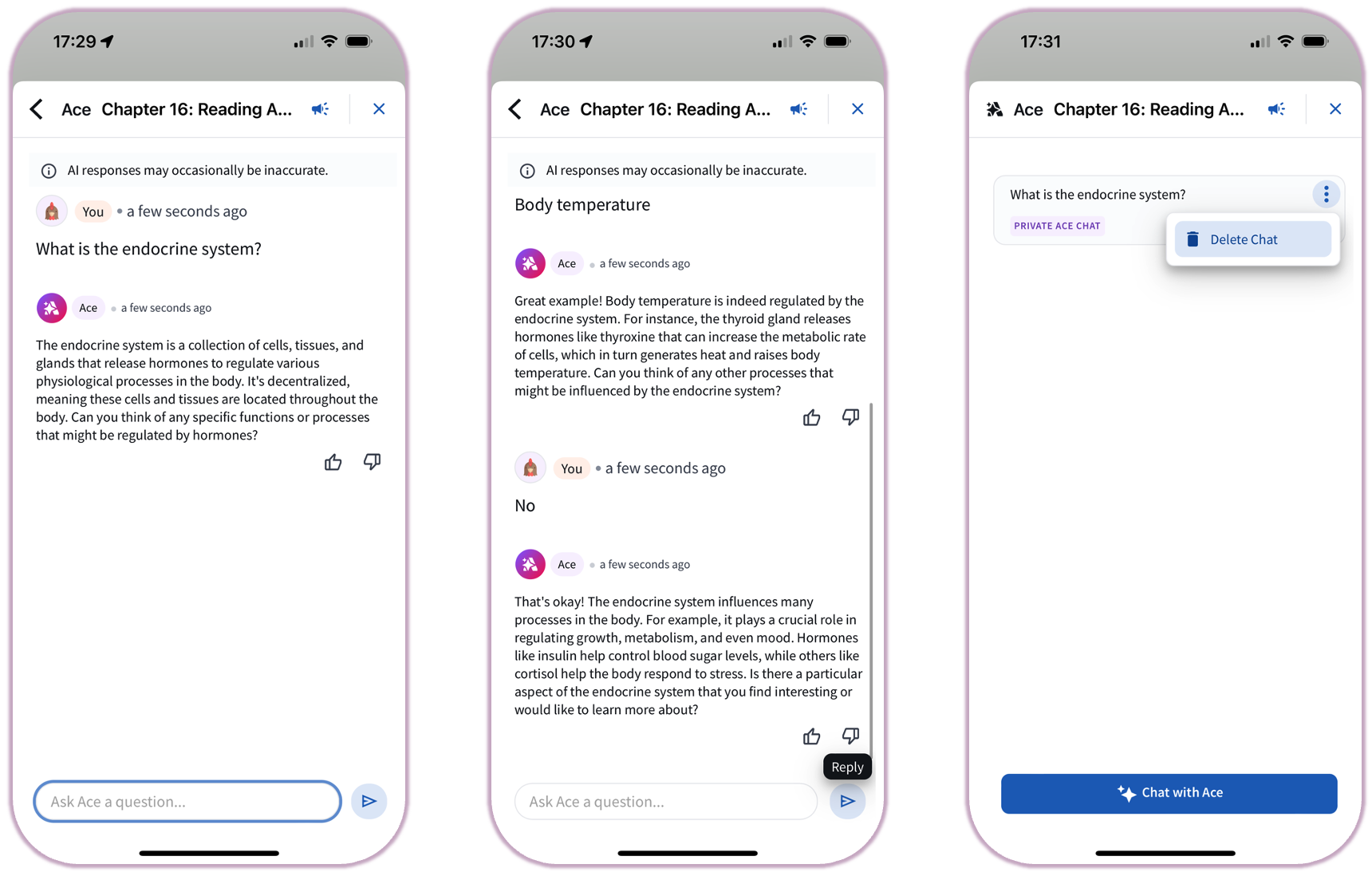 Image: Chat with ACE within the mobile app
How to Interact with ACE
Once you have accessed the ACE side panel, follow these steps to begin your session:
- Launch: Click the "Chat with ACE" button to open the interface.
- Inquire: Type your question in the text field at the bottom of the chat panel.
- To Send: Press
Enter.
- For a New Line: Press
Shift + Enter.
- Submit: Click the arrow icon to send your query. ACE will generate a response based on the specific context of your course materials.
- Evaluate: Use the thumbs up or thumbs down icons to rate the quality of the response. This feedback helps improve the accuracy of the AI.
- Refine: You can ask follow-up questions within the same thread or click the "Chat with ACE" button again to start a separate conversation on the same page.
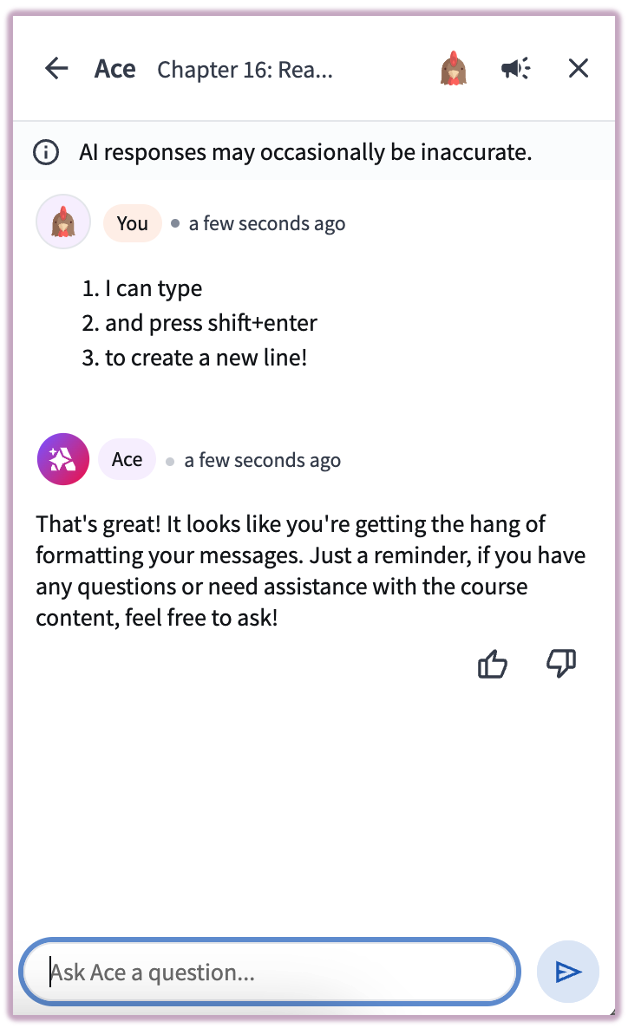 Image: Creating a new line in chat
Privacy Note: Your chats with ACE are private and not visible to your instructor or classmates.
Delete an ACE AI Chat
To delete a chat, select the three vertical dots next to the listed chat in the ACE window and select Delete.