Getting started with Top Hat begins with setting up and managing your educator account. Whether you're creating a new account, updating your profile, or managing account settings, having the right setup ensures a seamless teaching experience.
Creating an Account
Step 1: Open tophat.com (opens in a new window) and select Create Your Account from the top right corner of the page.
Step 2: On the sign-up page, select I'm an Educator.
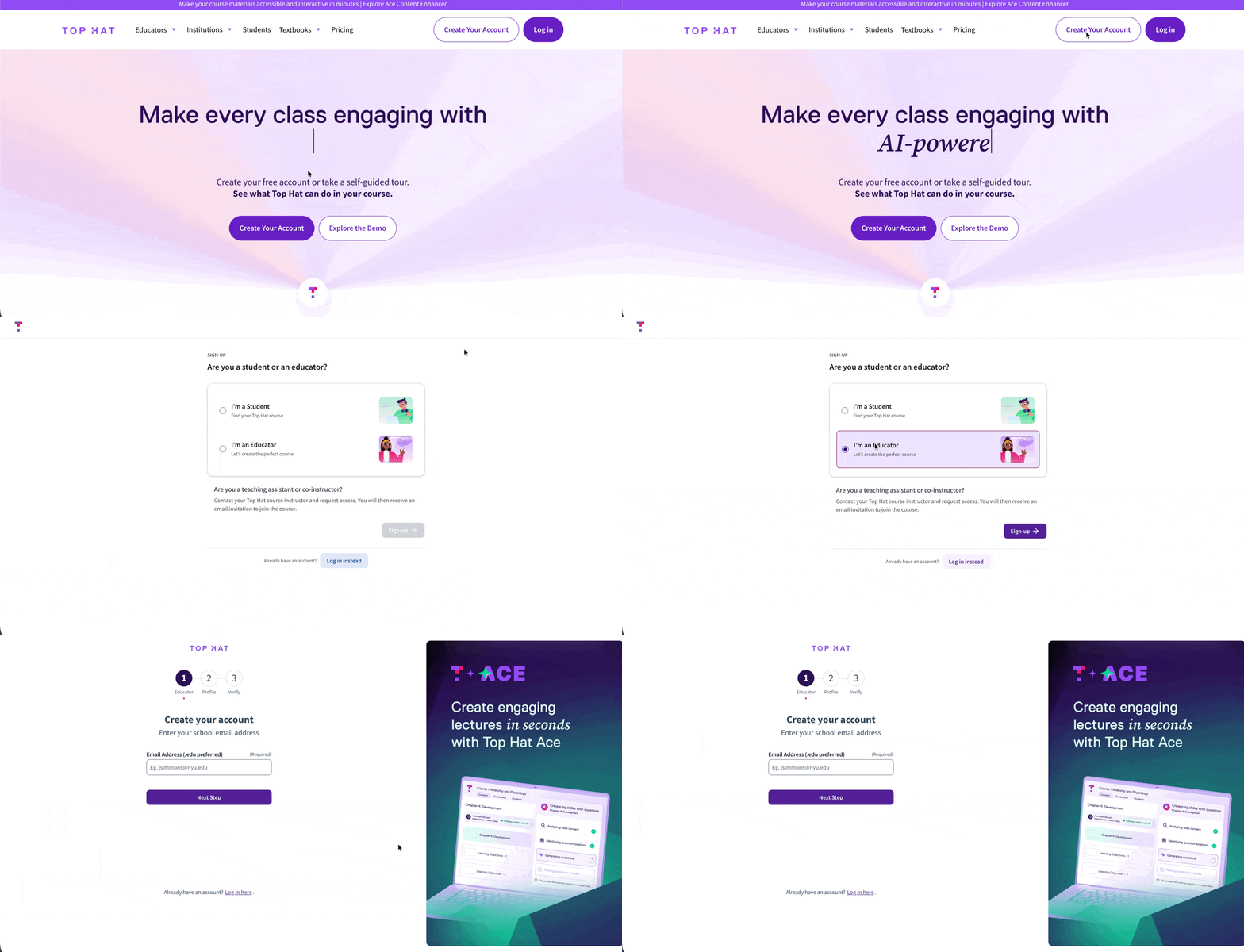 GIF: Educator sign-up menu on tophat.com
Note:
- Teaching Assistants or Co-Instructors: Please connect with the primary course instructor to be invited to the course rather than creating a separate standalone account.
- Single Sign-On (SSO): If your institution uses SSO, it will be indicated when you search for your school. Proceed to complete the SSO Account Linking Process.
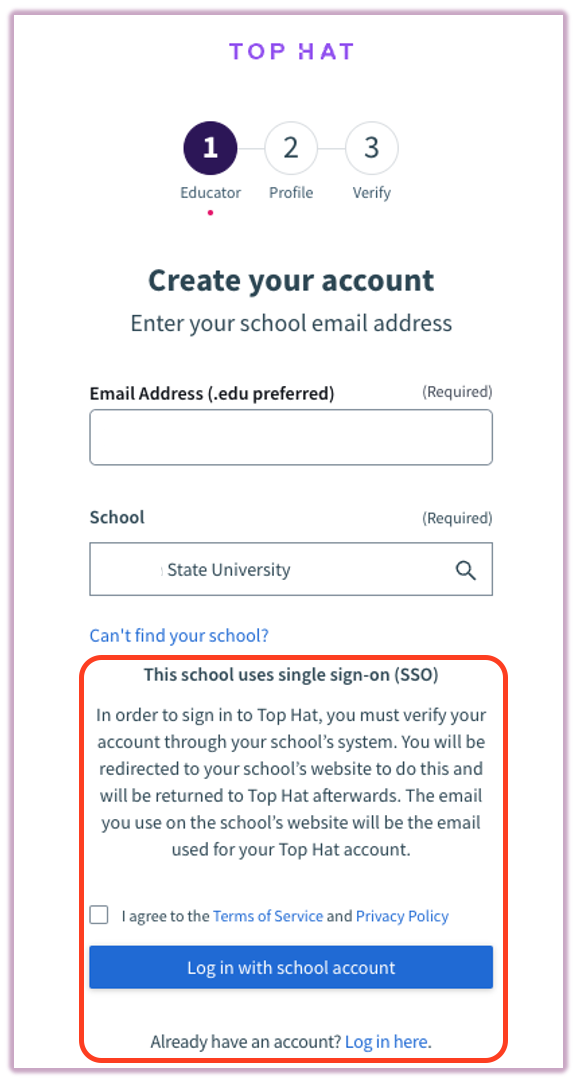 Image: Example of an SSO Prompt
Step 3: You will be prompted to enter your email address and search for your school/institution. Select your institution from the results and click Next Step.
Step 4: Enter your First and Last Name and choose a secure password. Agree to the Terms of Service and Privacy Policy, then select Get Started. A verification email will be sent to the address provided.
Important: Check your junk or spam folders if the verification email does not appear in your inbox within a few minutes.
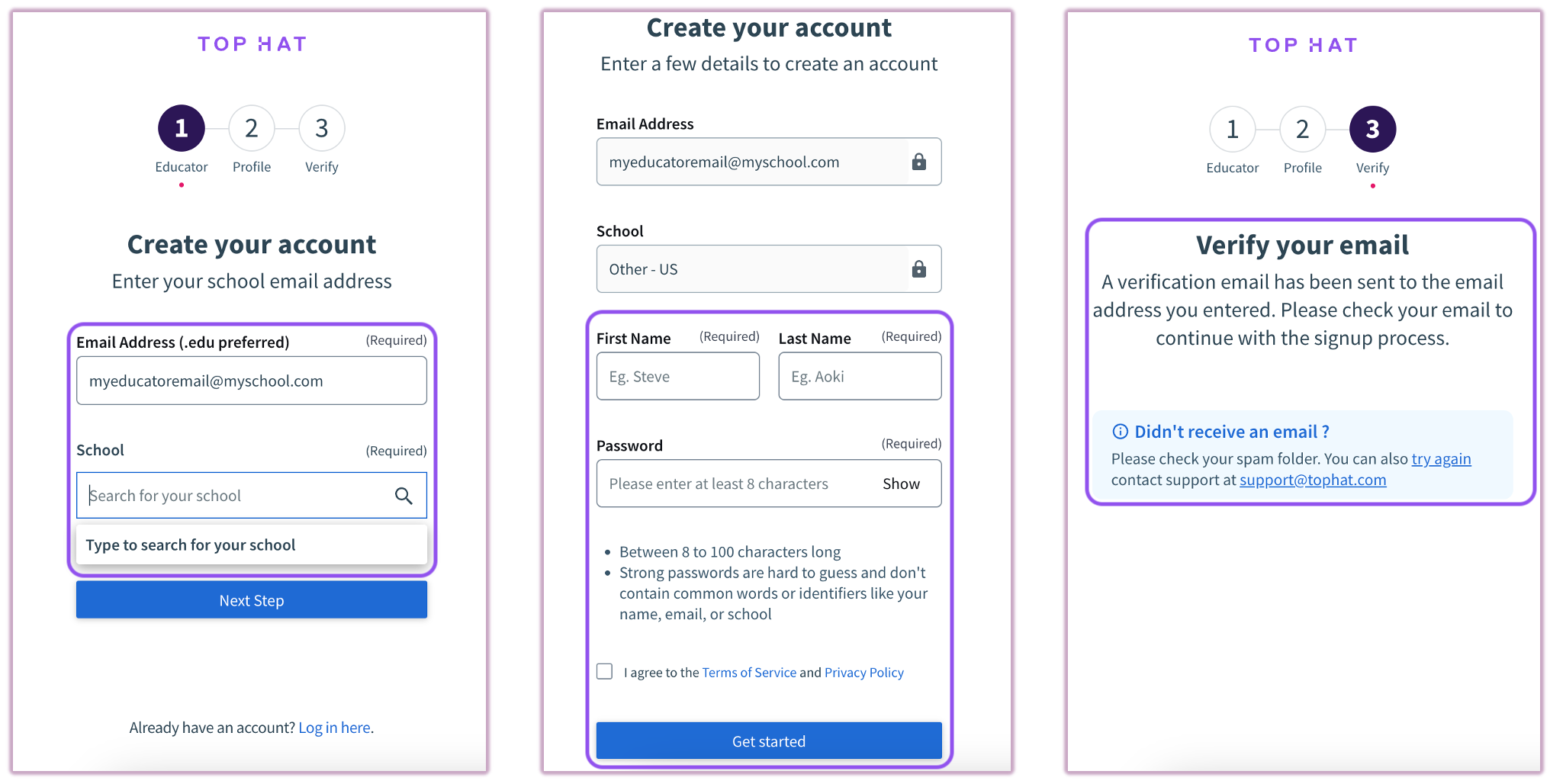 Image: Educator account information form
Once verified, you will be directed to your Top Hat Course Lobby, where you can create your first course and begin adding content.
Related Articles