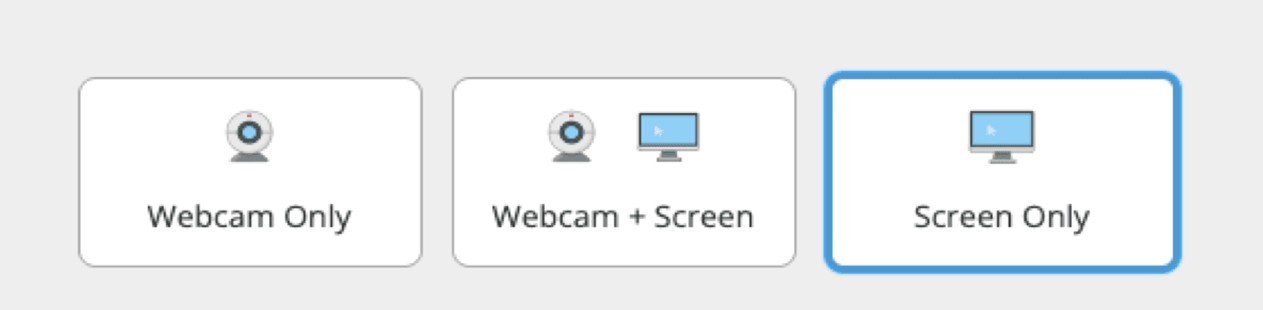
Here’s how “Screen Only” works in Respondus Monitor:
1. The instructor selects “Screen Only” from the Respondus Monitor settings.
2. At the start of the exam, students are prompted to allow their screen to be recorded.
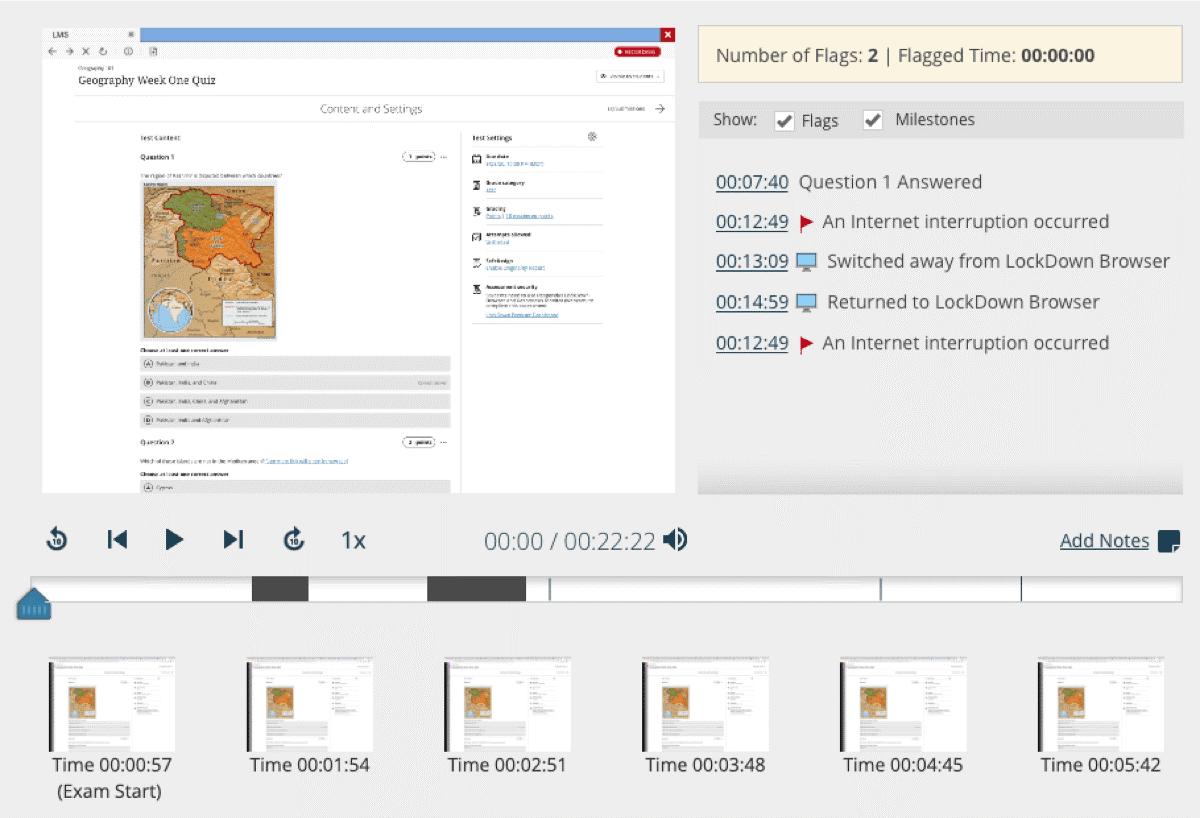
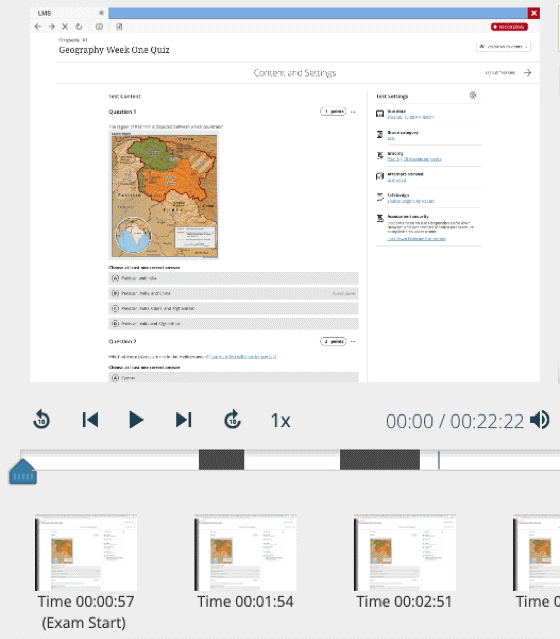
3. Proctoring results allow screen recordings to be played back at 1x - 8x speeds. The thumbnail images below the timeline are also based on the screen recording.
Additional Notes:
• The “Screen Only” setting for Respondus Monitor supports Windows, Mac and Chromebook devices (no iPad).
• If using managed devices (e.g., testing centers), the LockDown Browser version must be 2.1.3.07 (Windows) or 2.1.4.01 (macOS) or higher. Students are prevented from accessing a “Screen Only” exam with an older version of the browser.