Some instructors require the use of two cameras for exams using Respondus Monitor: the primary webcam plus a camera from a mobile device (phone, tablet). The second device must be able to scan a QR code.
Suggested Operating Systems:
- iOS: 18.7.5+
- Android : Most Android versions will work, Chrome browser is recommended
Device Check:
To test whether your device is compatible, visit the Device Check at respondus.com/camera2.
Part 1: Go to the Exam
Navigate to the exam on your main computer. After the initial Webcam Check, follow the instructions for setting up the second camera.
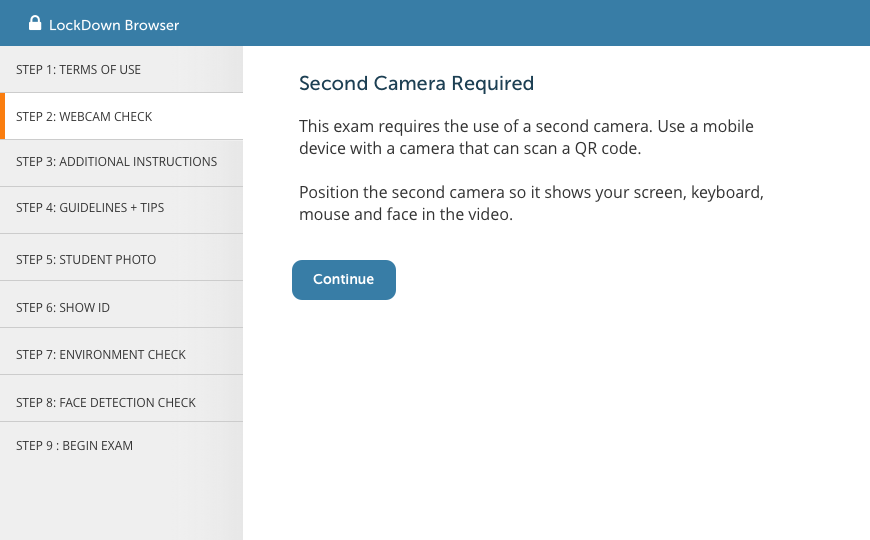
- Second Camera Required: Your instructor's instructions on how to position your second camera will appear here. Follow these carefully.
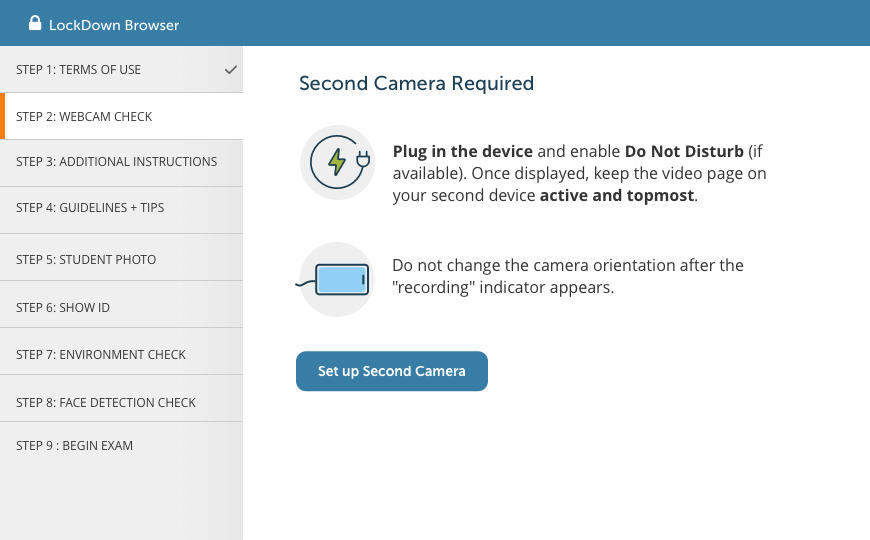
- The next screen reminds you to plug in the second device, enable the Do Not Disturb setting (if available), and to keep the video page on your second device active and topmost once the camera begins.
Also ensure the second device is in a stable position and that you do not change the camera orientation after the recording indicator appears.
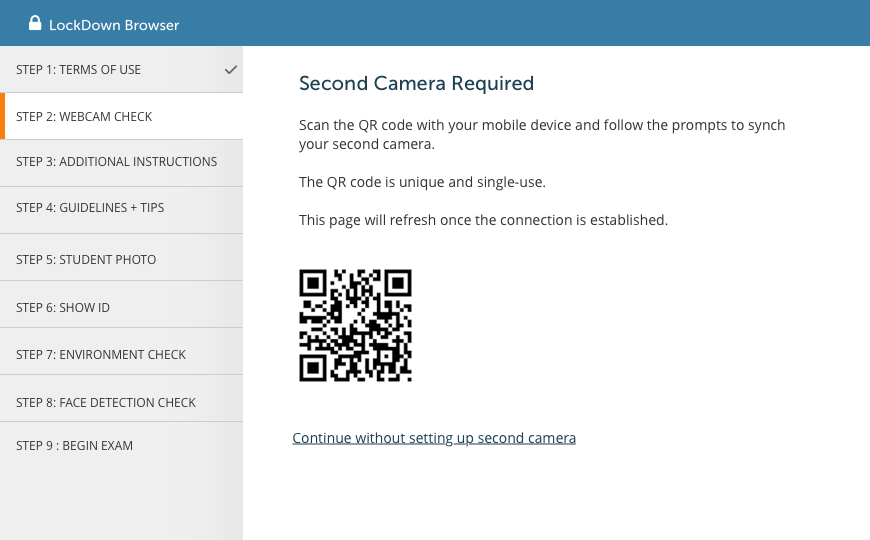
- The next screen will present the QR Code to be used with the camera of the second device.
Part 2: Connecting Your Mobile Device
Use the camera from your second device to scan the QR code shown. This will open a camera page in your browser.
- The browser will ask permission to access your camera and microphone. You must Allow this permission to proceed to the exam.
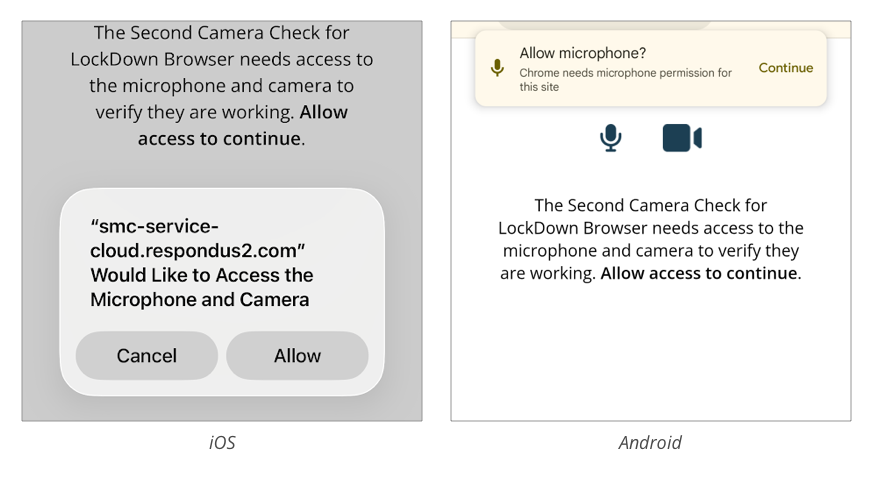
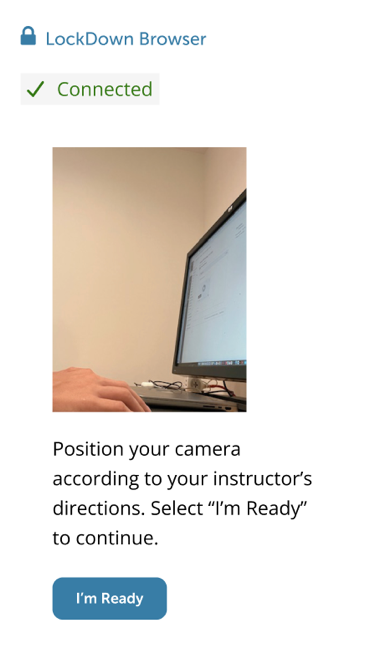
- Ensure the second camera is stable and positioned according to the directions of your instructor. The device should be plugged in and have a clear view of your screen, keyboard, mouse and face.
- Select "I'm Ready" on the second device when everything is positioned correctly. You'll then see a confirmation that the device has connected to the exam session.
Part 3: Start the Exam
On the main computer you should see a message confirming the second camera is connected.
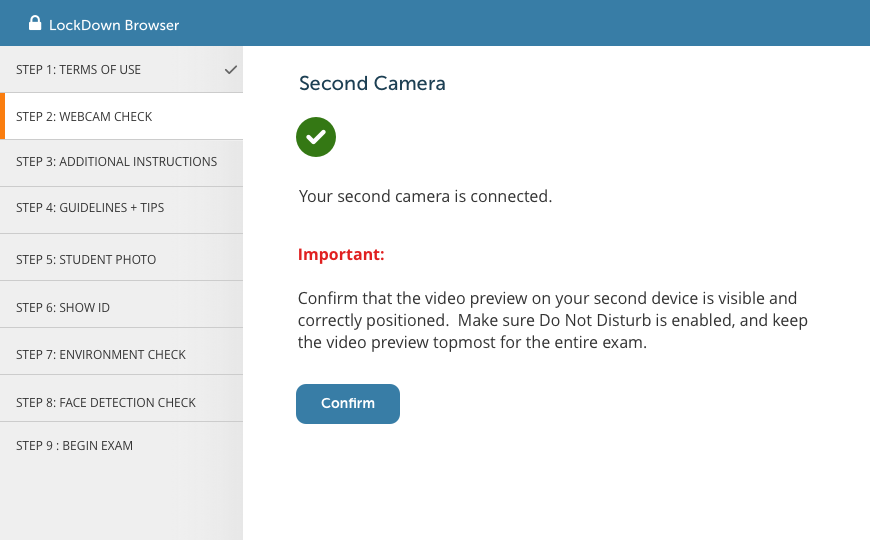
- Several reminders are provided, including the importance to keep the video preview topmost on the second camera.
- Proceed through the remaining pre-exam steps, and take your exam.
After Your Exam
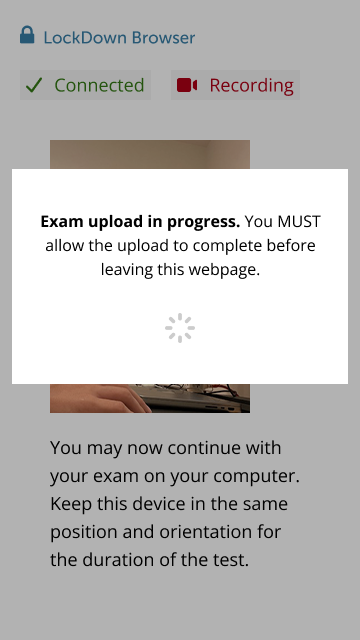
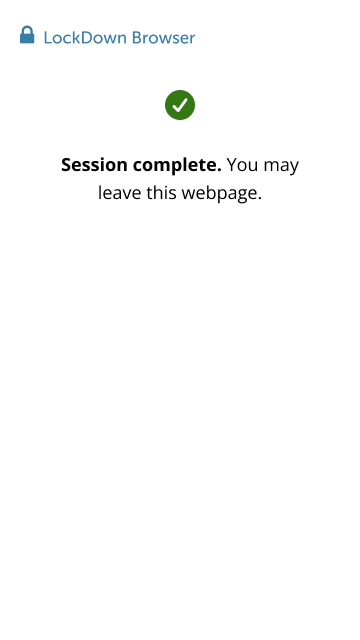
Upon submitting your exam, the recording on the second device will stop automatically. Do NOT close the webpage on the second device until the video upload has completed and the message “Session complete” is displayed.