Some instructors require a second camera angle during Respondus Monitor exams. If your exam requires a second camera, you'll need to use a mobile device and grant it permission to access your camera and microphone.
System Requirements
Supported Operating Systems:
- iOS: 18.7.5+
- Android : Most Android versions will work, Chrome browser is recommended
Setting Up Your Second Camera During Exam Startup
When you start your exam, follow these steps to connect your second camera:
- Start the normal exam startup steps on your computer
- After the Webcam Check step, you'll see a QR code on your screen
- Use your mobile device to scan the QR code
- Your mobile browser will open a webpage
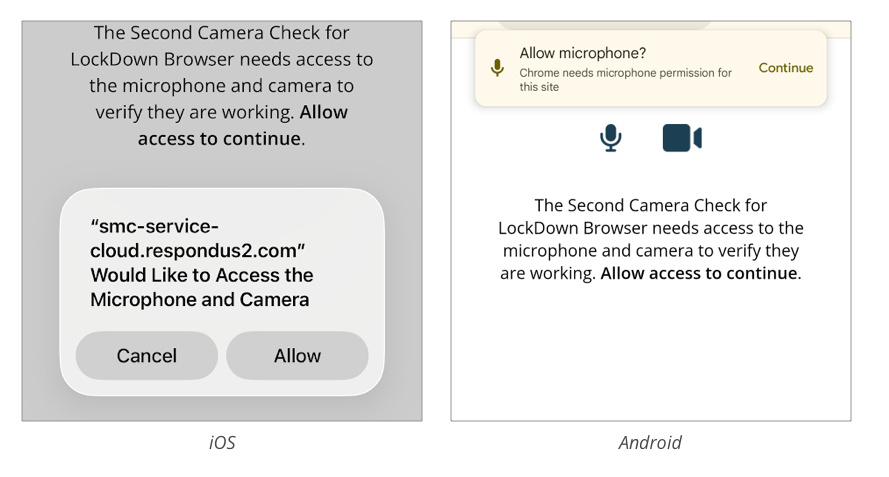
- When the browser prompts you to allow microphone and camera access, allow access.
Troubleshooting: Enabling System Permissions
If the browser doesn't prompt you for permissions, or if you accidentally denied access, you'll need to enable permissions in your device settings.
For iOS/iPadOS Devices
- To enable microphone access:
Open Settings on your device, then tap Apps, then Safari (or your default browser), then Microphone, and select Ask.
- To enable camera access:
Open Settings on your device, then tap Apps, then Safari, then Camera, and select Ask.
For Android Devices
- To enable microphone access:
Open Settings on your device, then tap Security & Privacy, then Privacy Controls, and turn on Microphone Access.
- To enable camera access:
Open Settings on your device, then tap Security & Privacy, then Privacy Controls, and turn on Camera Access.