How to Setup Keyboard Language Switching on ChromeOS
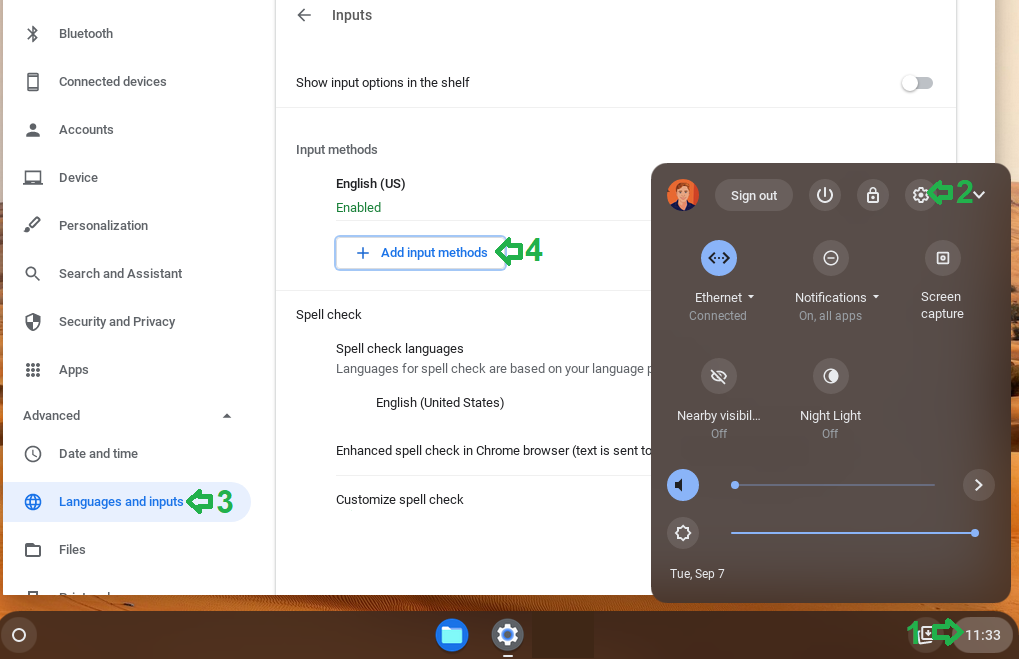
1) At the bottom right, select the time
2) Select Settings  Advanced
3) In the "Languages and inputs" section, select Inputs.
4) Select the "Add input methods" button
5) Search and select the desired language, then select "Add"
6) Select the desired language from the input methods to enable it. Ensure the desired language says "Enabled" underneath it
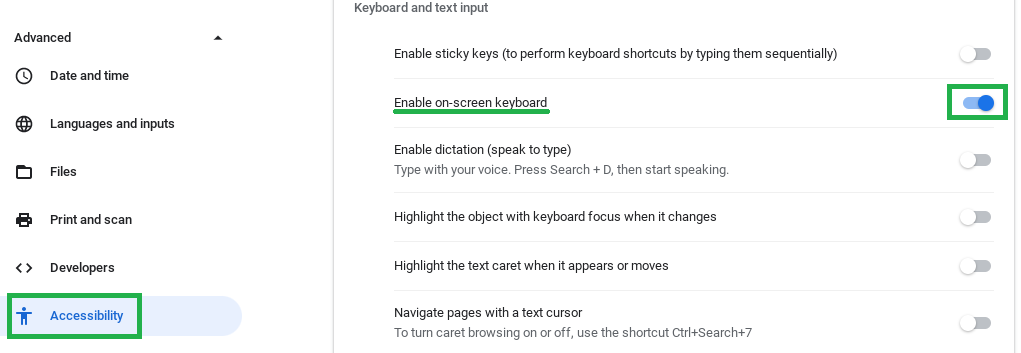
7) Within Settings  , select Advanced > Accessibility > Manage accessibility features
8) Under Keyboard and Text Input Toggle on Enable on-screen keyboard
Once within a secured exam, selecting an input field will make the on-screen keyboard appear.
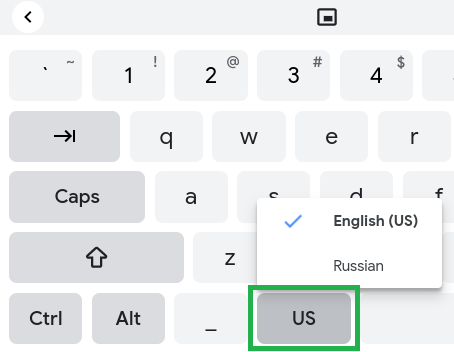
The on screen keyboard will then provide the option to select the input method by pressing the button left to the spacebar.