If you see the below message appear when trying to install LockDown Browser, this means your computer's security settings only permit you to install applications that are available via Microsoft's app store.
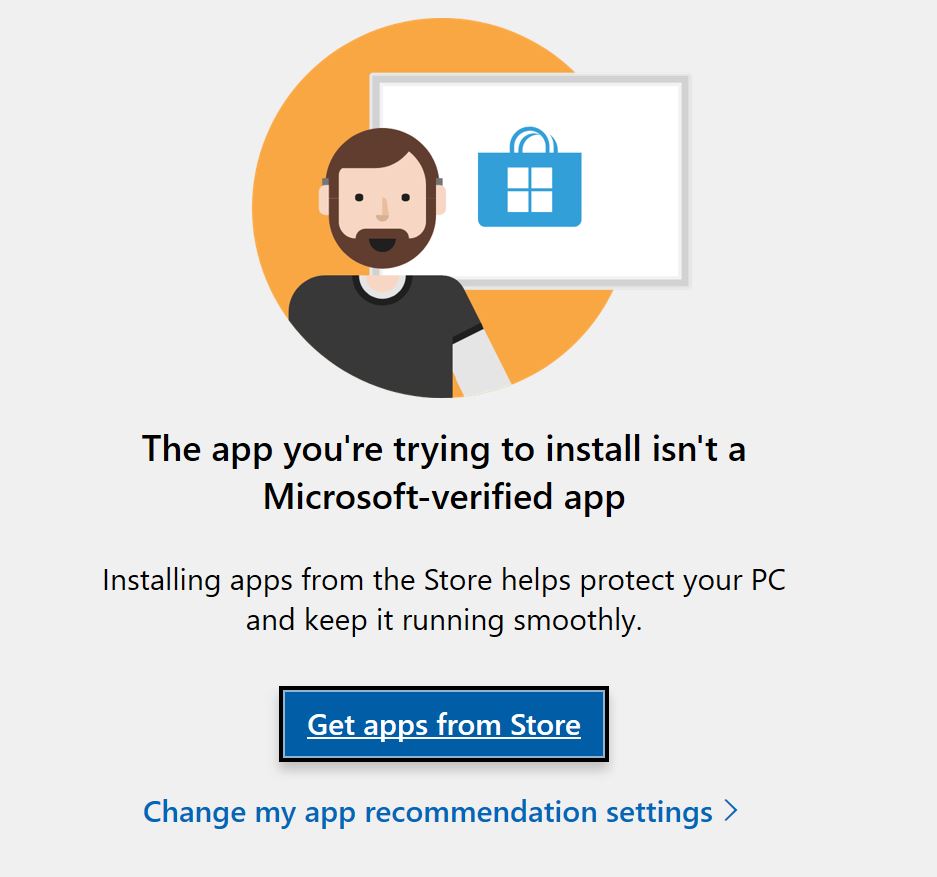
Since LockDown Browser isn't available in that store, you'll need to change the security setting. Click the link provided in the message, which reads "change my app recommendation settings."
You can also access this setting directly on your computer by navigating to:
Windows Settings > Apps > Apps and features > Choose Where to get apps.
Then, on the page that appears, change the setting titled "choose where to get apps" to a value of "anywhere." After doing this, attempt to install LockDown Browser again.
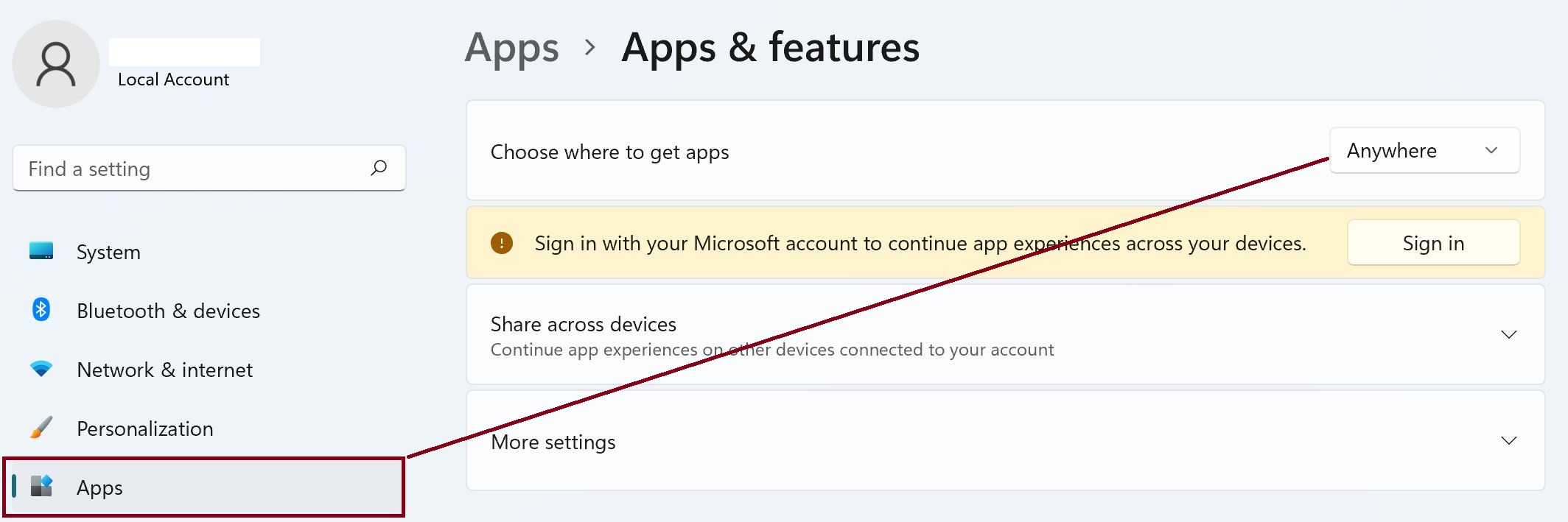
On some computers, it might be found by navigating to:
Settings > Apps > Advanced App Settings > Choose where to get apps
In some cases, a computer running Windows "S" mode can also produce this same error message. If you are running "S Mode," be aware that it is not a compatible operating system for LockDown Browser.
Although we cannot provide specifics on how to disable "S" mode, the below link to the Microsoft FAQ indicates it is possible. Be aware that Microsoft indicates that once disabled, "S" mode can never be re-enabled on the device. In light of this, you might desire to obtain a compatible operating system to take your LockDown Browser-required exams.
For more information, please see Microsoft's FAQ at: https://support.microsoft.com/en-us/help/4020089/windows-10-in-s-mode-faq
For compatible operating systems for LockDown Browser, please see: https://support.respondus.com/hc/en-us/articles/4409607170459-What-are-the-computer-requirements-for-installations-of-Respondus-LockDown-Browser-