LockDown Browser is compatible with "high contrast" settings (Windows 10) and "contrast themes" (Windows 11) set via the Windows operating system, as well as contrast settings available in macOS.
For Windows 10, the high contrast settings are made by navigating to "Settings" > "High Contrast"
You'll first want to turn on the high contrast setting, then you can adjust the colors to your preference.
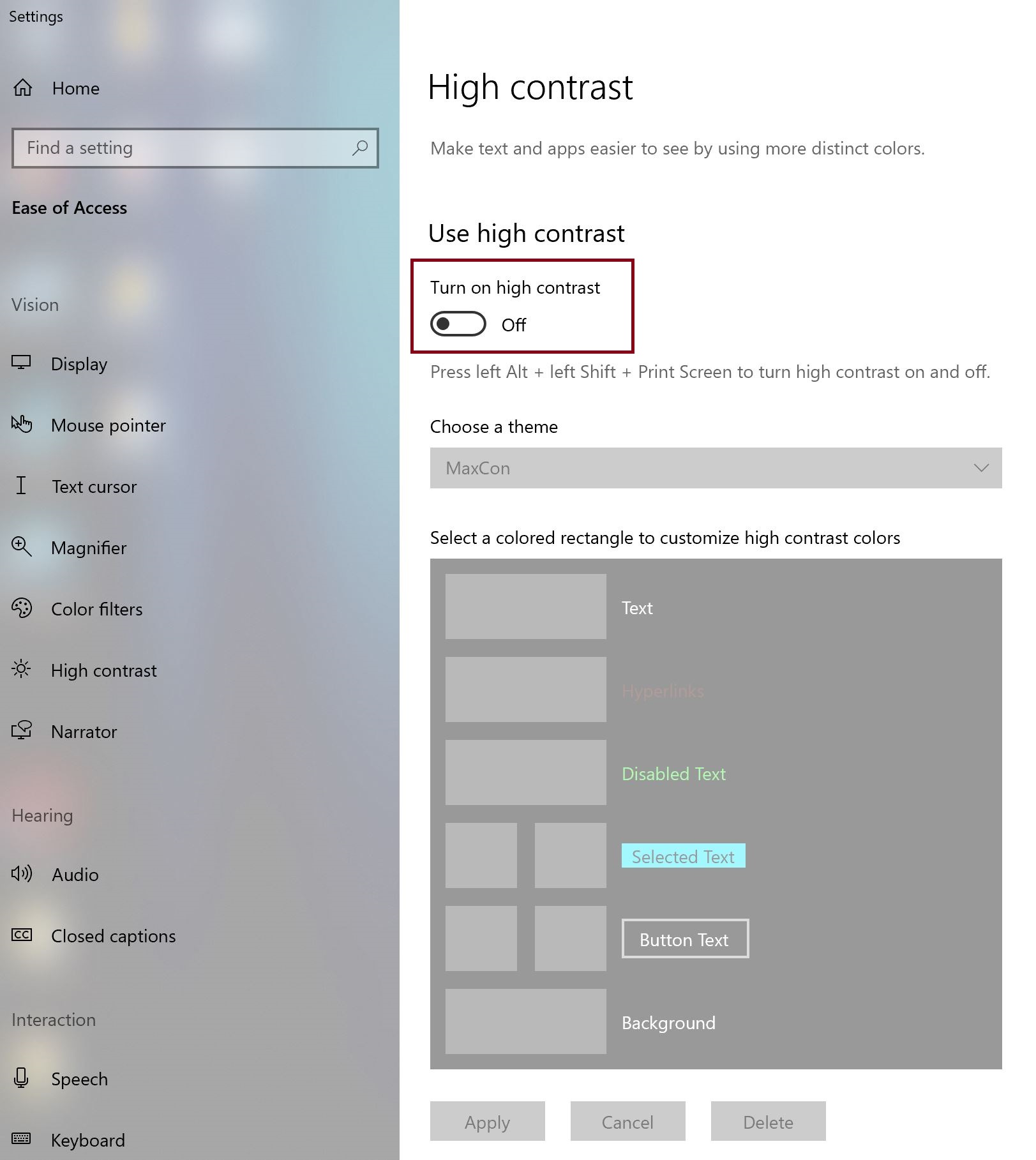
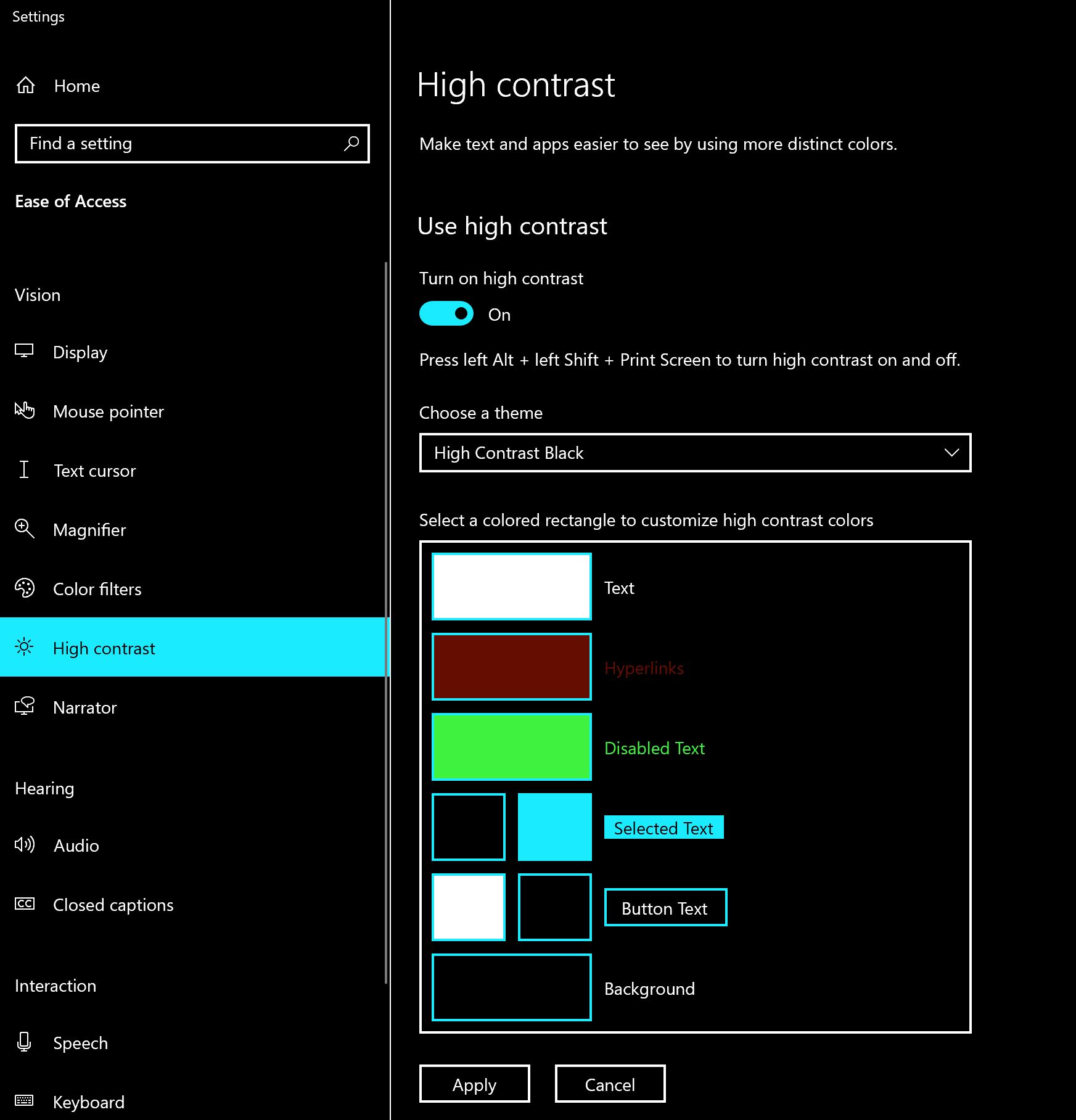
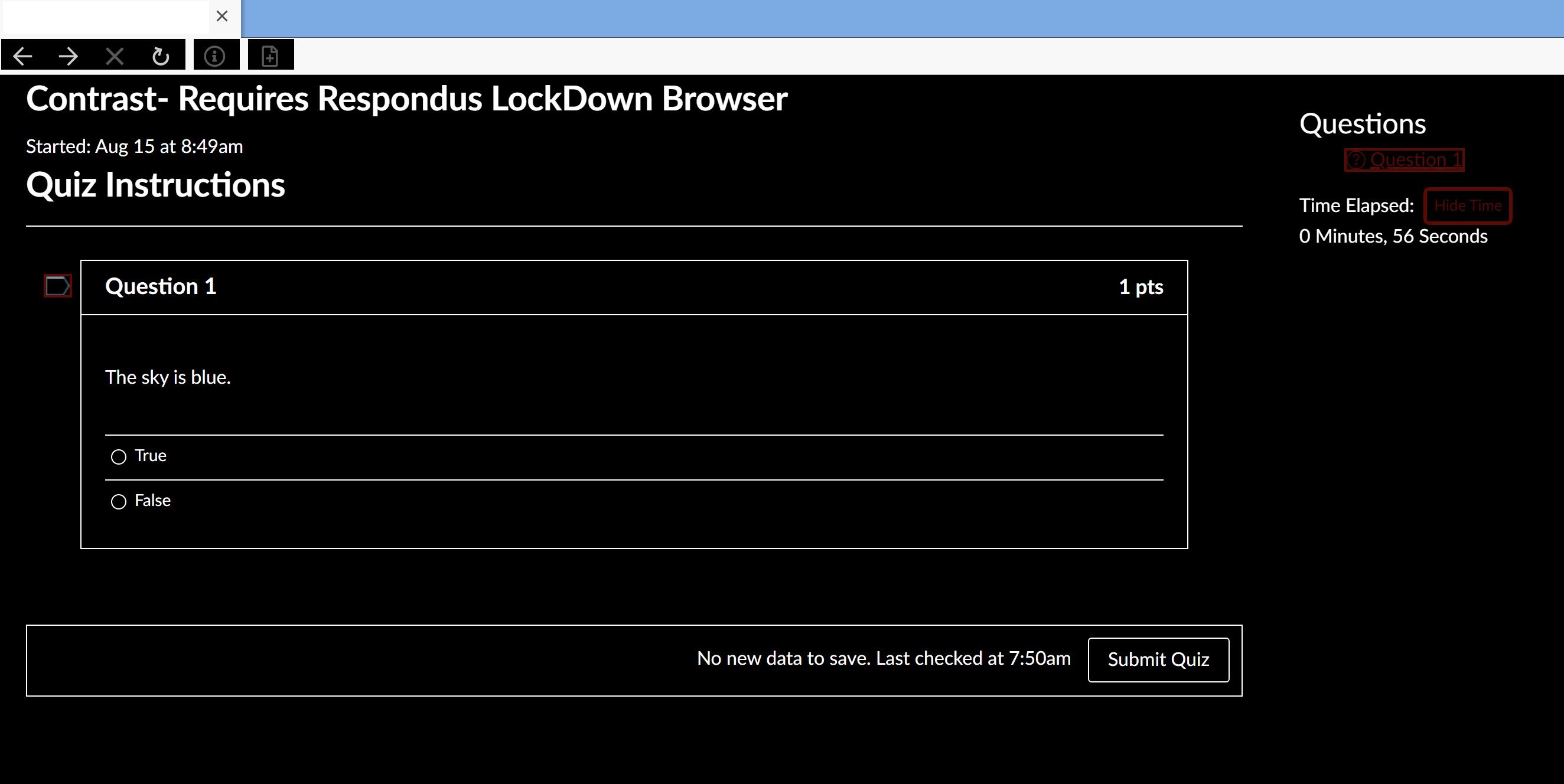
After you make your desired changes, LockDown Browser will use those same settings.
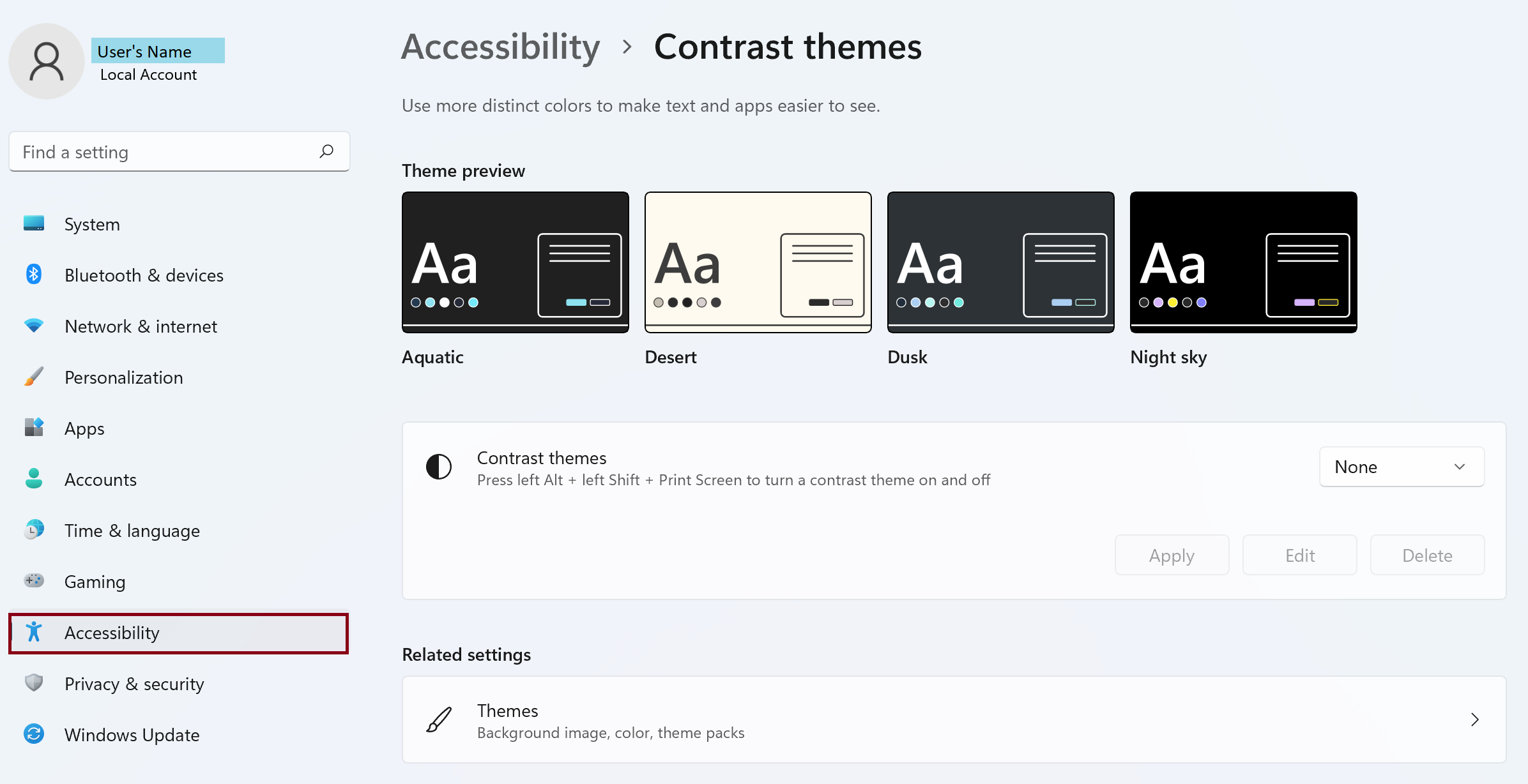
For Windows 11, the "contrast themes" can be selected by navigating to "Settings" > "Accessibility" > "Contrast Themes." LockDown Browser will honor whatever theme you select.
LockDown Browser for Mac also offers a high contrast accessibility option.
- Open System Preferences
- In the System Preferences window, click on Accessibility.
- In the Accessibility sidebar, select Display. Here, you will find several options to enhance visibility.
- Invert Colors: If you prefer a different visual style, you can also check the box to Invert Colors, which changes the color scheme to a high-contrast version.