Follow these steps to enable the Desmos Calculator for students taking quizzes with LockDown Browser.
Step 1: Add the Desmos Link to Your Quiz
Insert a clickable link to the Desmos Calculator in your quiz question:
Link: https://www.desmos.com/
When students click this link during the quiz, the calculator will open in a new tab while the quiz remains open in the original tab.
Step 2: Configure LockDown Browser Settings
By default, LockDown Browser blocks secondary links on the Desmos website. To allow access, you need to allowlist specific domains.
Access the Settings
- Open the LockDown Browser Dashboard tool in your course
- Click the pull-down arrow next to your exam's title
- Select "Settings"
Enable External Domains
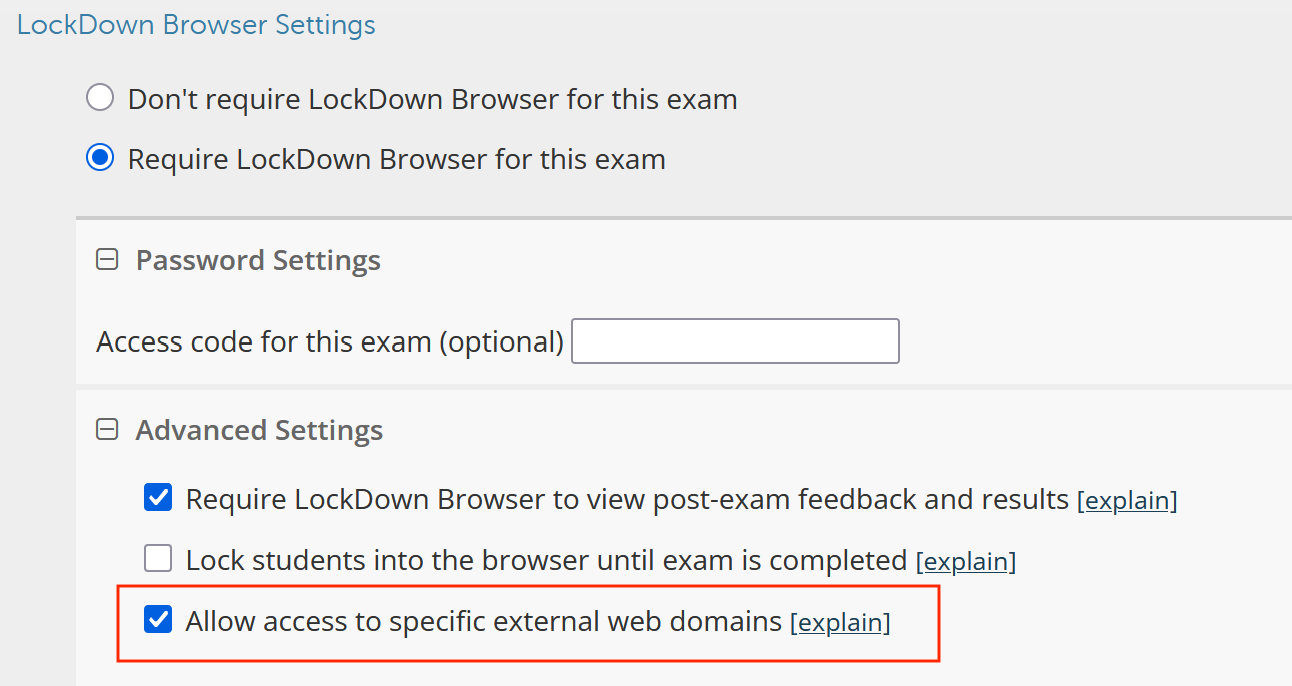
- If not already enabled, turn on LockDown Browser as a requirement for the quiz
- Open the Advanced Settings section
- Enable the setting: "Allow Access to specific external web domains"
Add Desmos Wildcard Domain
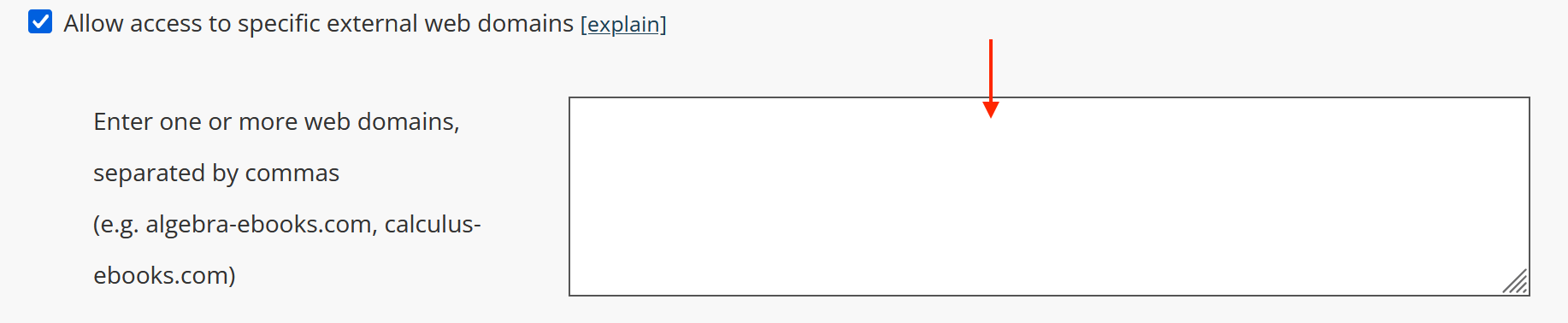
Once enabled, a text field will appear where you can specify which domains LockDown Browser should allow. Enter the following:
*.desmos.com
Note: This solution allows students to use the Desmos calculator and login using a Desmos account. It does not allow logins via Google or Apple.
Save Your Changes
Click Save to apply the settings. Students will now be able to access the Desmos Calculator through LockDown Browser without blocked links.