About
Refreshing your playlists by removing outdated content helps keep your content up-to-date and engaging.
These instructions are for non-Theming users. For Theming users, please see our article 'Remove media from a playlist - Theming'.
Access the edit playlist page
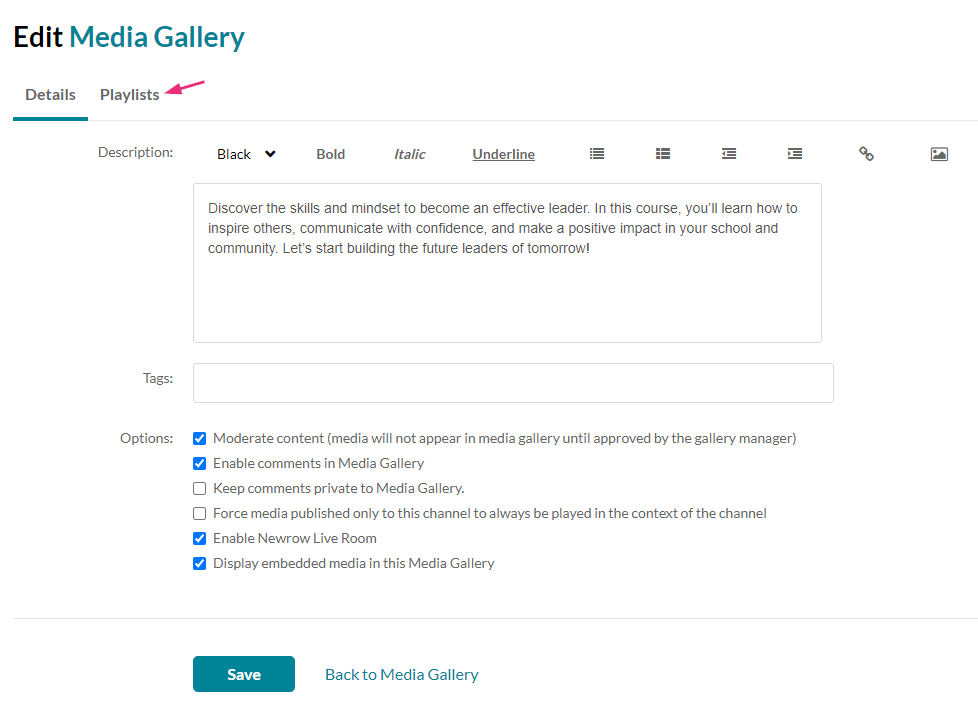
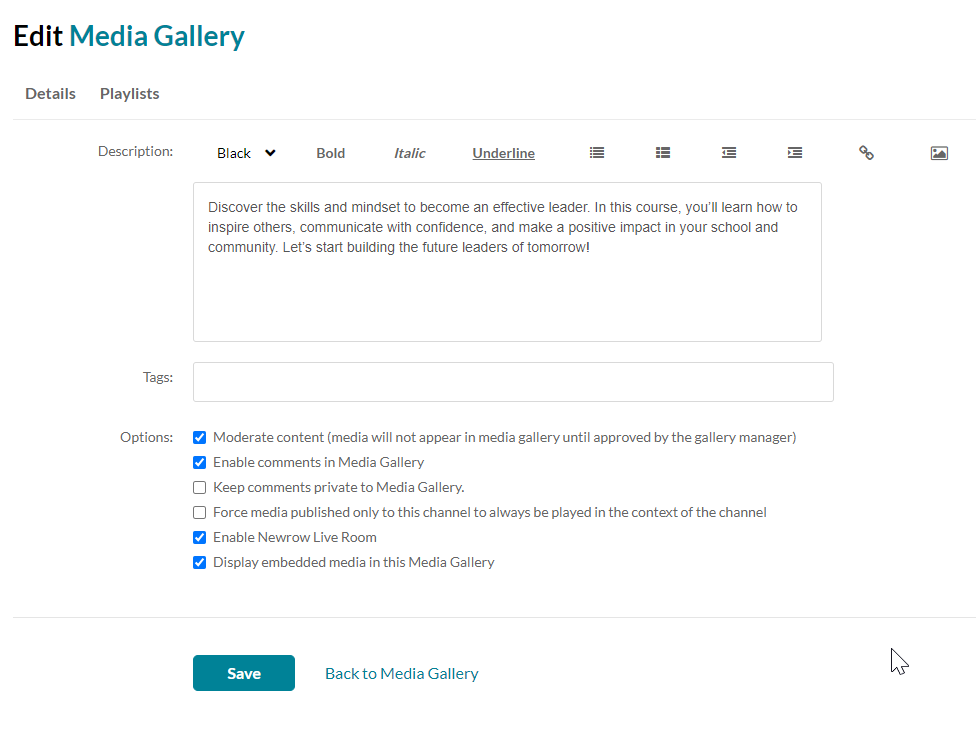
The Edit Media Gallery page displays.
The playlists in your Media Gallery display.
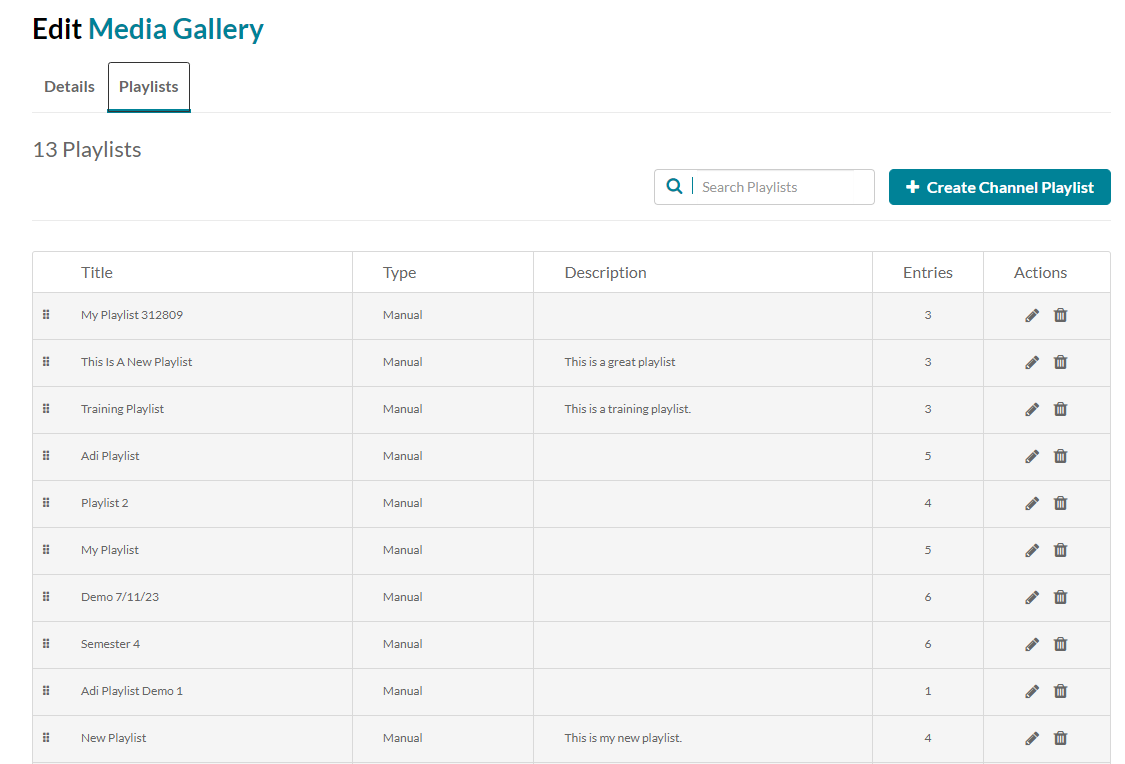
Locate the desired playlist and click the pencil icon at the far right.
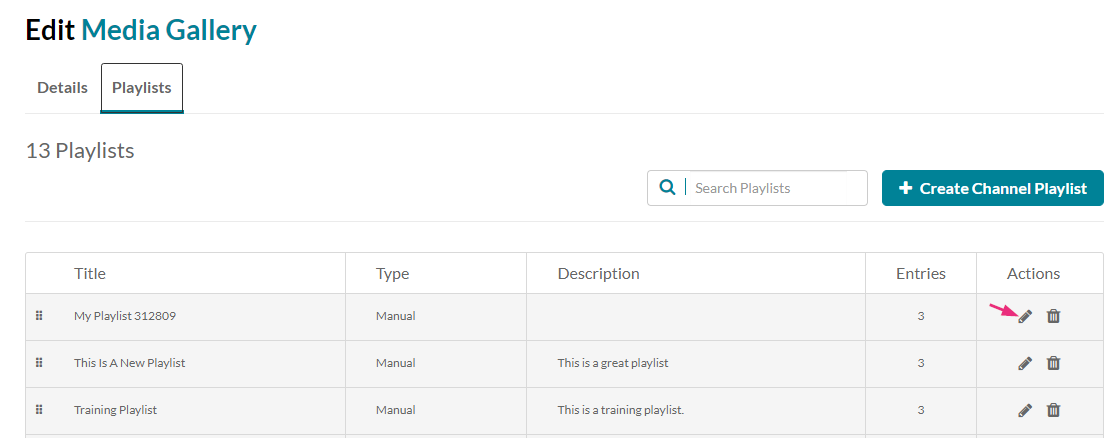
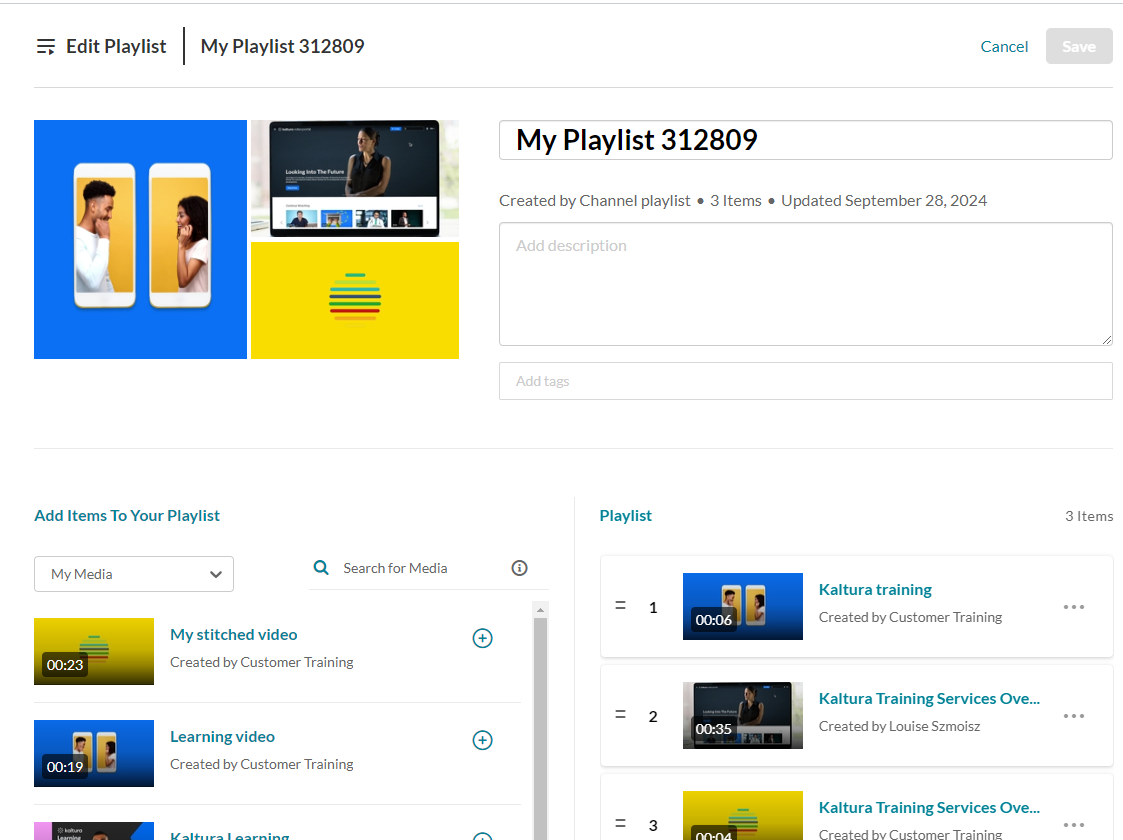
The Edit Playlist page displays.
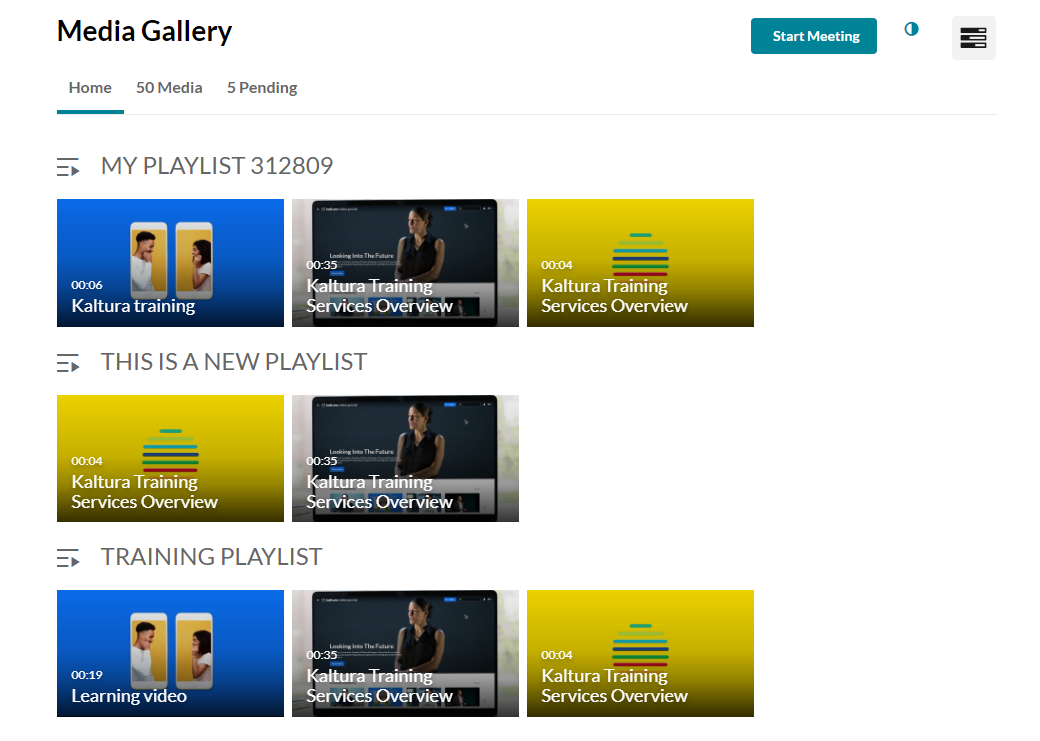
- Access the Media Gallery.
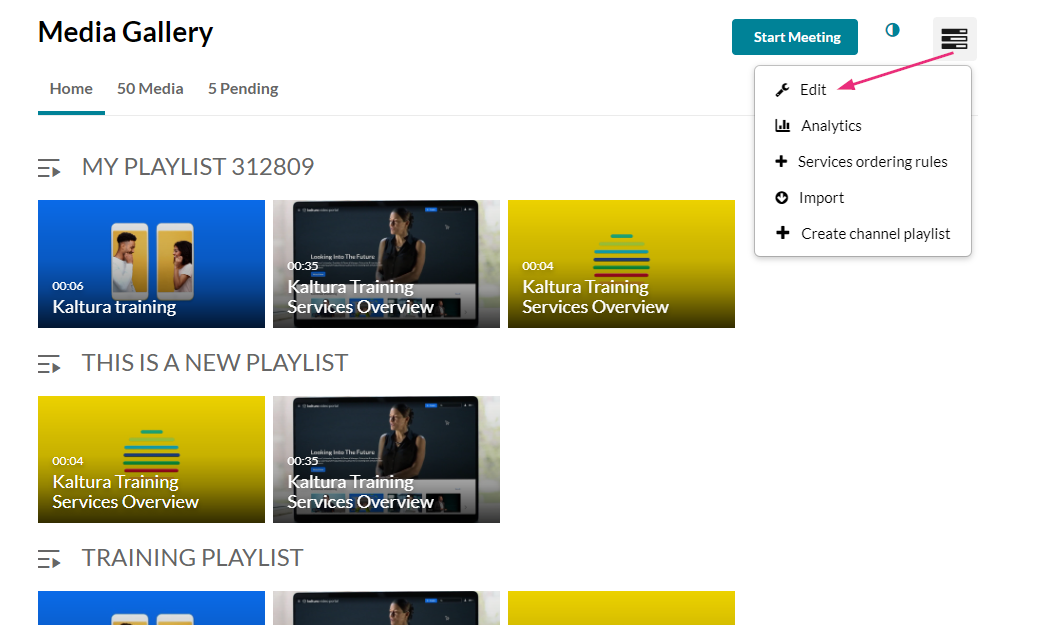
- At the top right of the Media Gallery, click the hamburger menu and select Edit.
- Click the Playlists tab.
Remove media from your playlist
The Edit Media Gallery page displays.
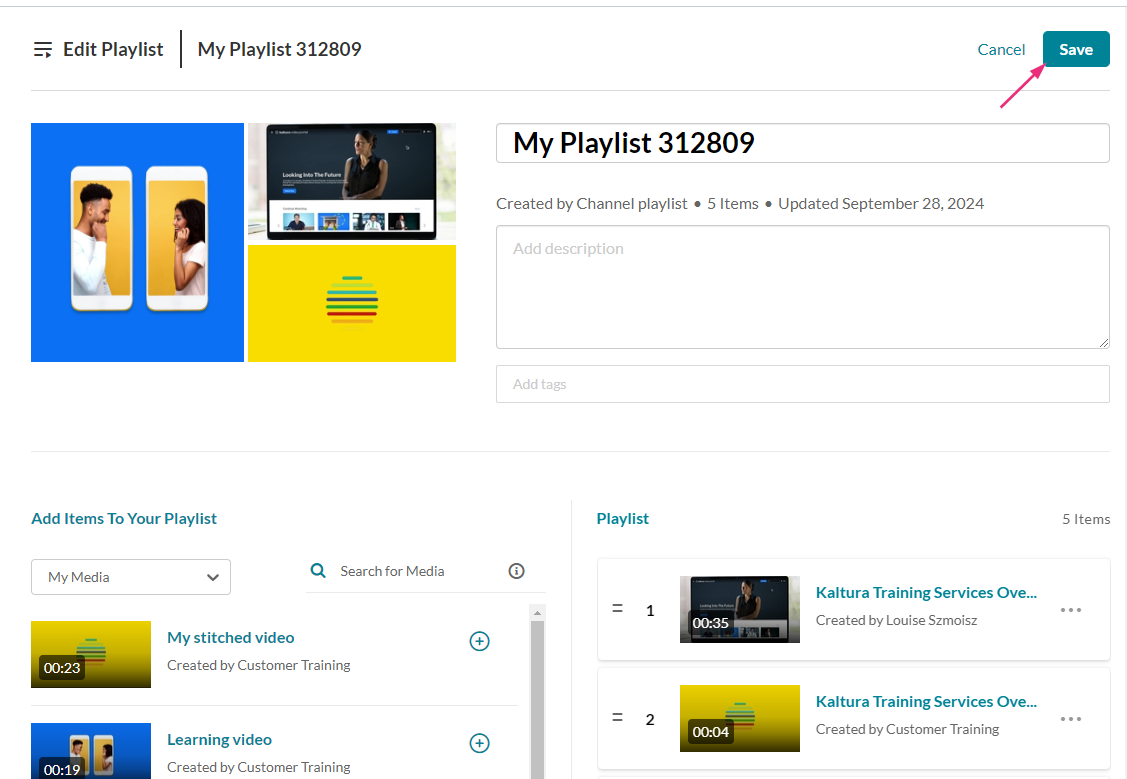
The media has been removed.
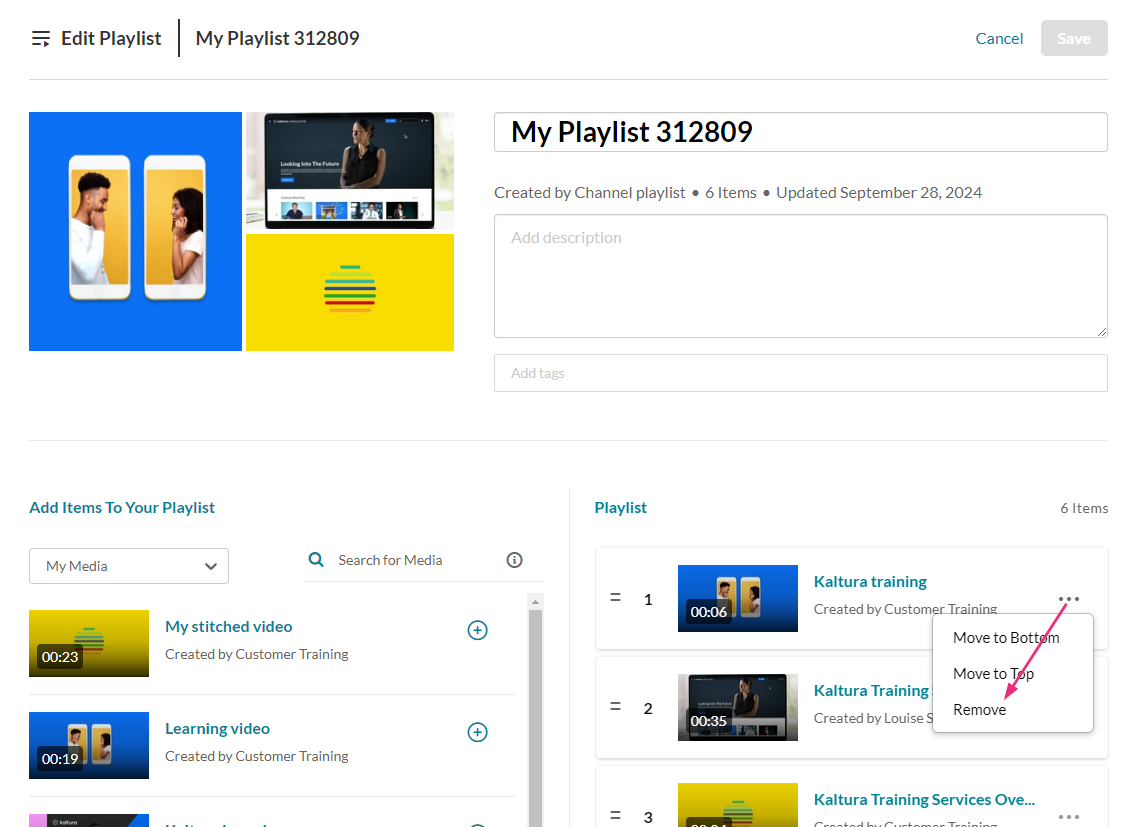
- Locate the media you want to delete from your playlist.
- Click the three dots menu to the far right of that item and select Remove.
- Click Save at the top right.
- Click Save to navigate back to the Media Gallery.