About
Media owners can add metadata (such as name, description, and tags) in different languages for their media via the Languages tab of the edit media page.
Prerequisites
Enable the Multi-Language Instance setting in the Application module to use this feature. For more information, see our article Localization - How to change your Kaltura application language.
Access the language settings
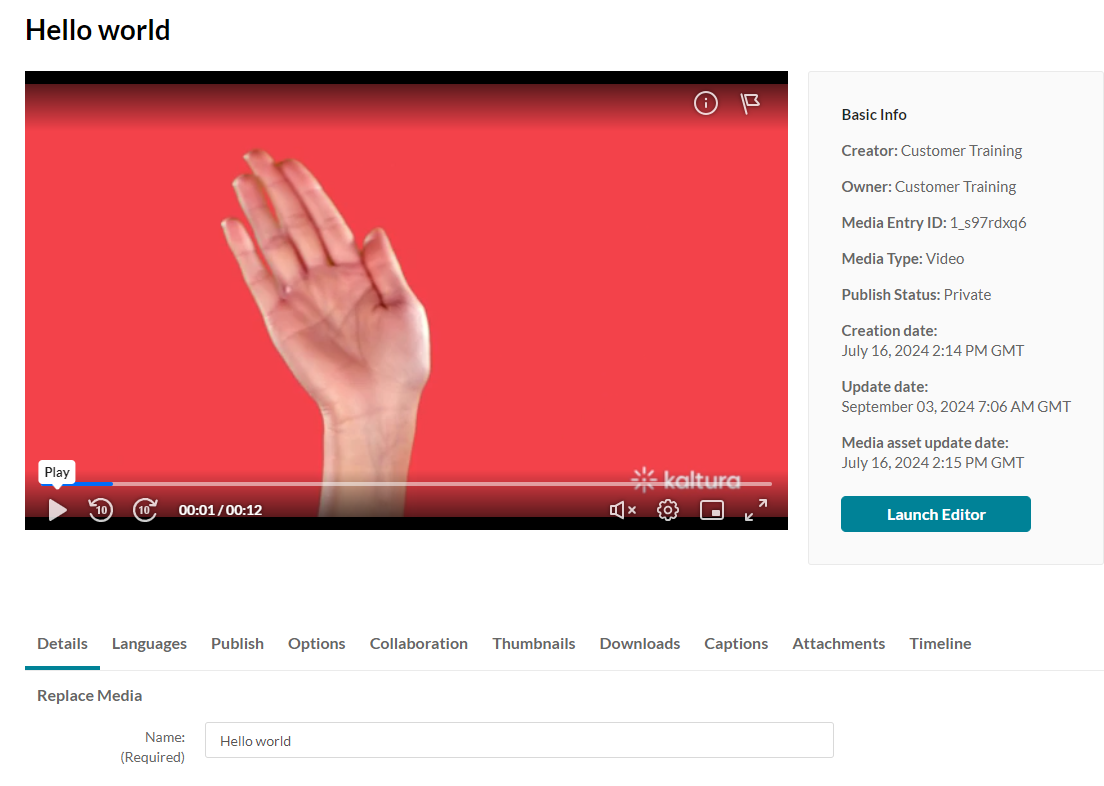
The edit page displays.
- Access My Media.
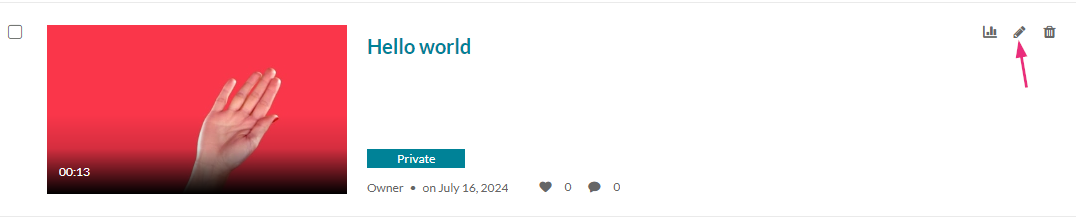
- Click the pencil icon next to the desired media.
- Click on the Languages tab.
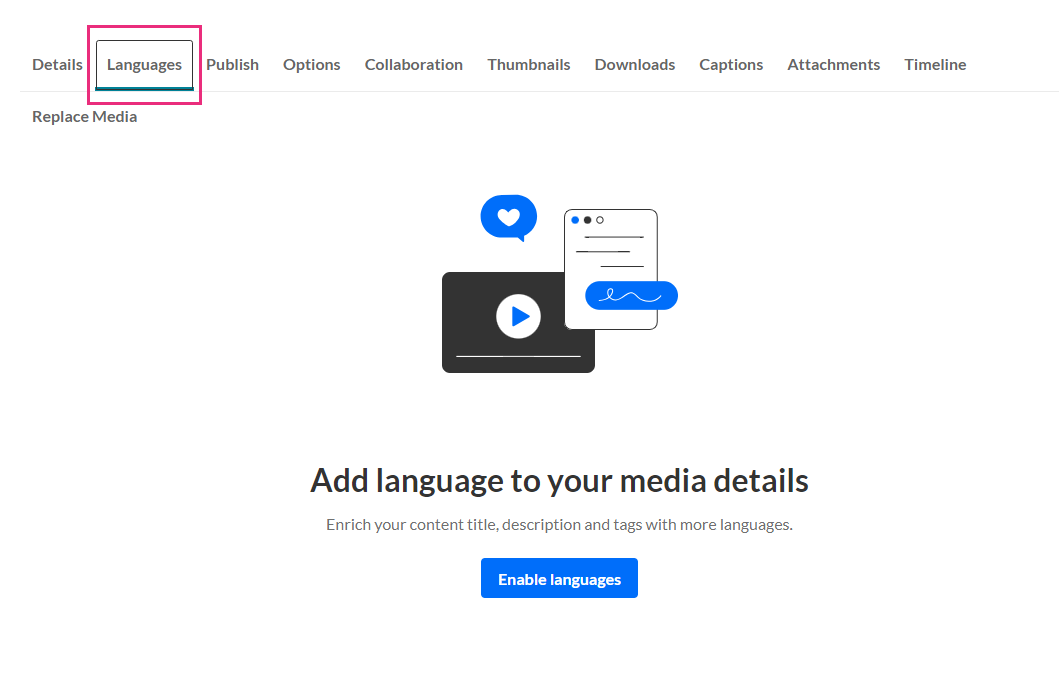
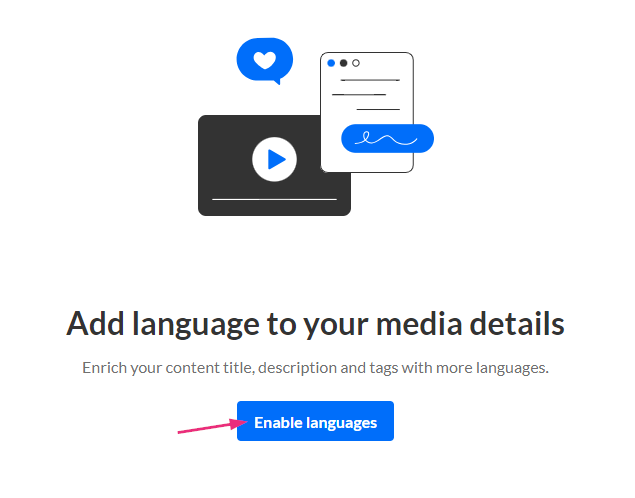
- The Add language to your media details page displays.
Configure languages
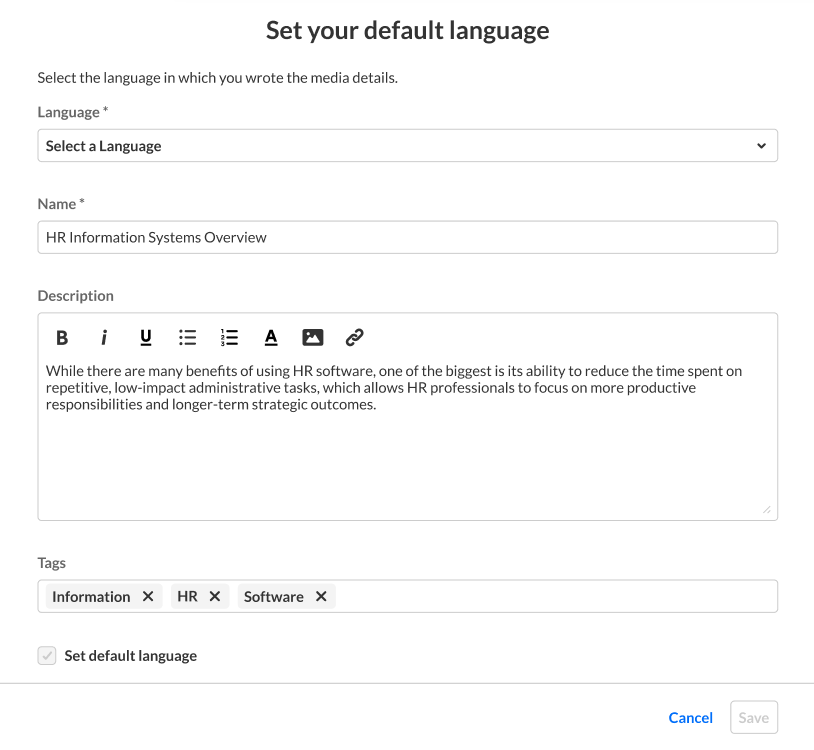
The Set your default language window displays.
- Click Enable languages.
- Select a language from the Language drop-down menu.
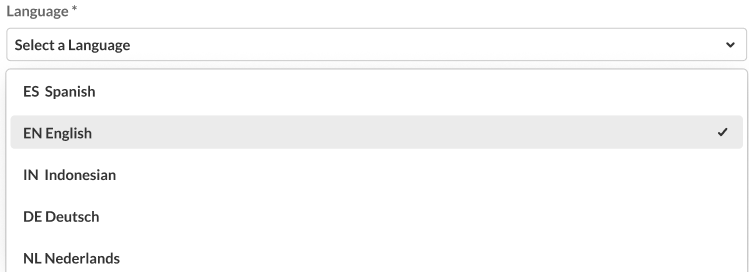
In our example below, the media owner has chosen English.
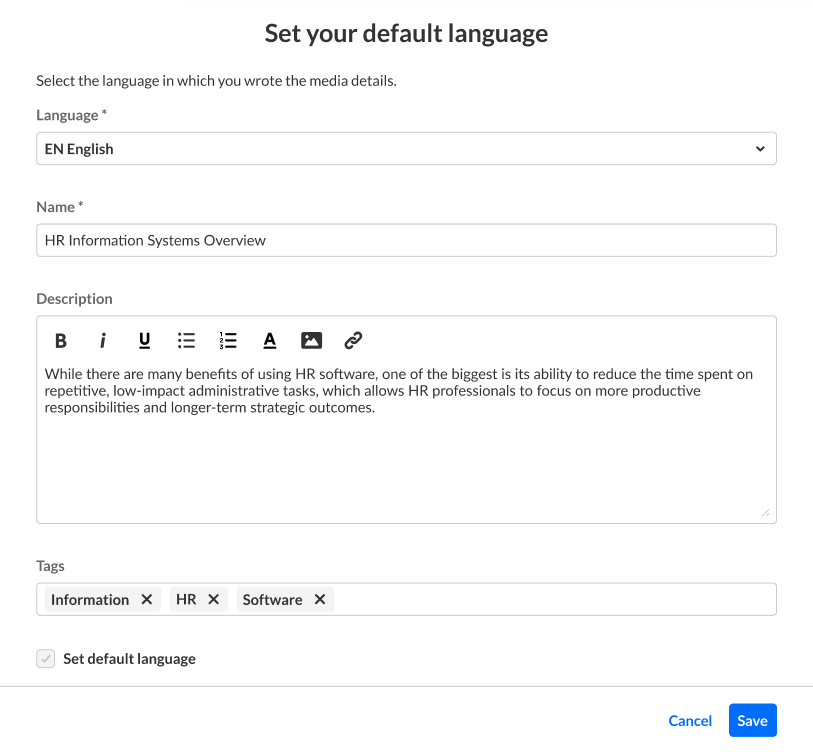
Notice the Set default language check box is deactivated for the first language you enter because the first language entered is always used as the default. When adding subsequent languages, this check box is active, allowing you to adjust the default used.
- Click Save.
- The language is now set for the metadata.
Edit a language
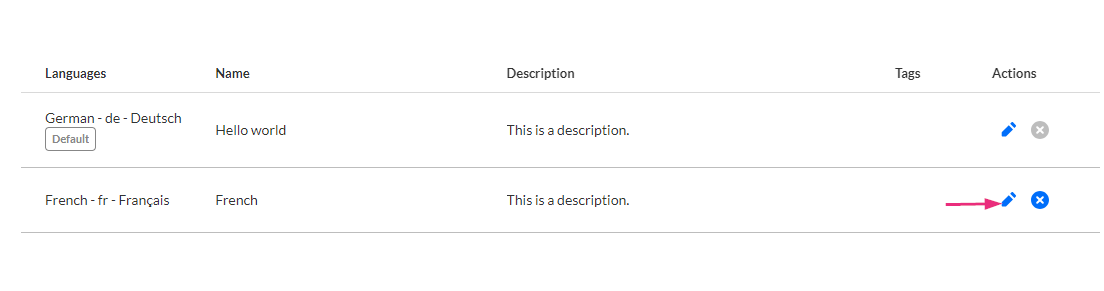
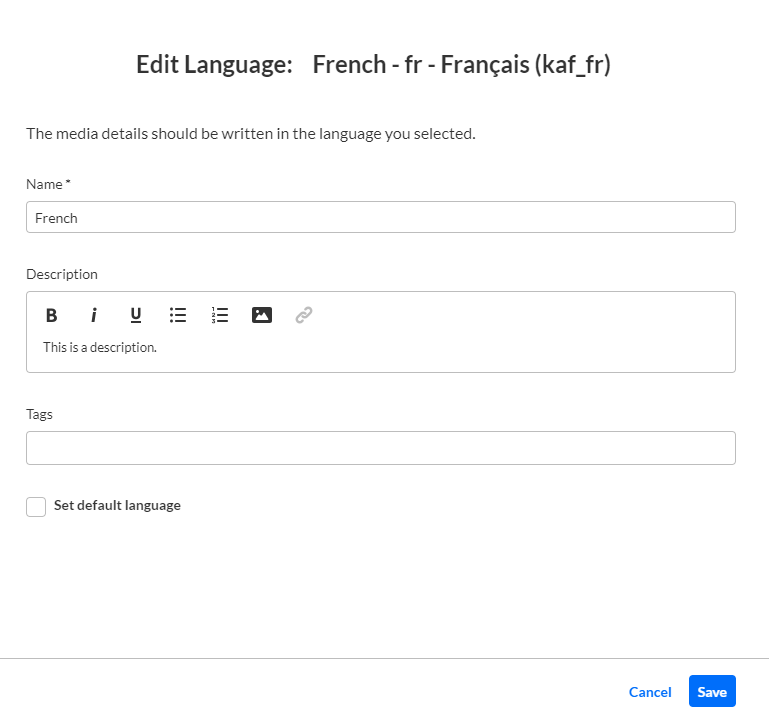
The Edit Language window displays.
- Click the pencil icon to the right of the desired language.
- Edit the details as desired.
- Click Save.
Delete a language

A confirmation message displays: Are you sure you want to delete the media details in the language?
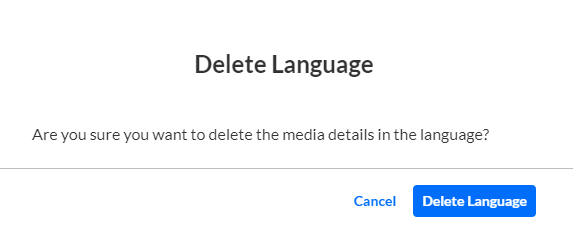
- Click the 'x' button to the right of the language.
- Click Delete Language.
You cannot delete a language marked as Default. The 'x' button will be greyed out.

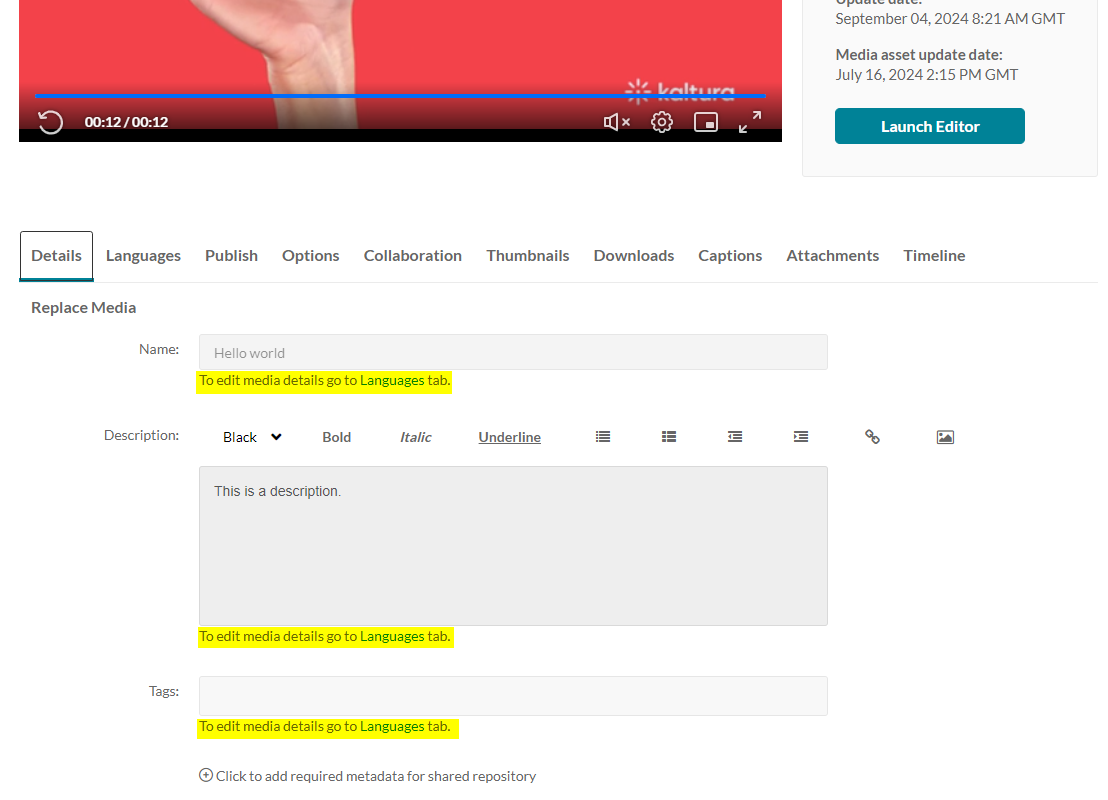
Links to the Languages tab are also provided in the Details tab to help the media owner prepare media.