Use Modify with AI in the New Content Experience to adjust reading level, apply custom instructions, and preview changes in real time. You can replace the original Page or save a remixed version.
What you can do:
- Simplify or elevate reading level to match your audience.
- Apply custom instructions so the AI revises content to your goals and style.
- Preview changes and refine them as needed before applying them.
- Save as a new Page or replace the existing Page.
 |
Note: Modify with AI has the following limitations:
- Input size: Must be under 16,000 characters, including any HTML tags or markup.
- Minimum input length: At least 150 characters are required for accurate language detection in the output.
- Interactive content: The output will not include newly generated Creator+ or H5P elements.
- Media support: Output is optimized for text. We focus on delivering high-quality text responses and do not include images, videos, or other media.
|
Remix a Page with Modify with AI
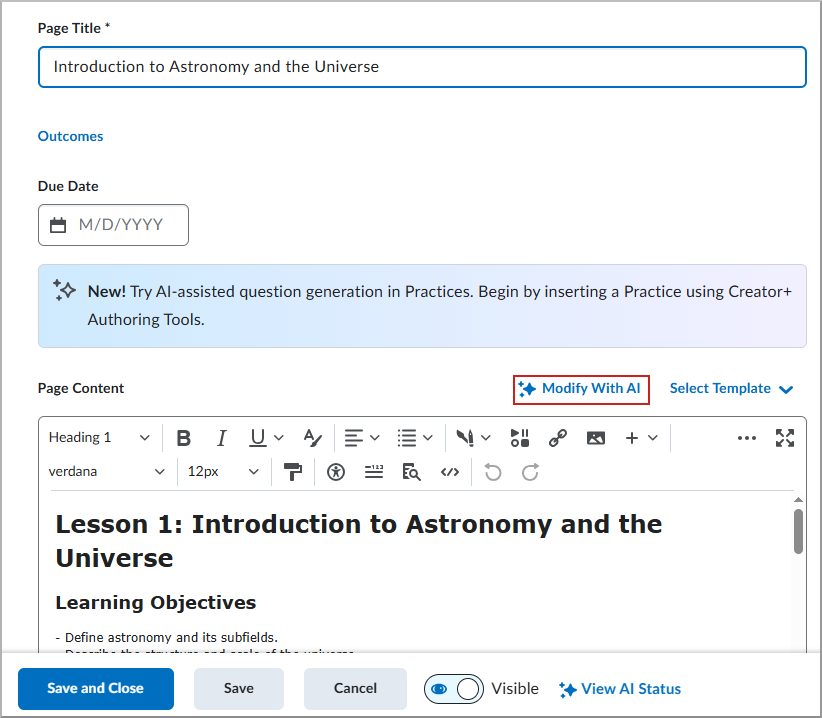
- In the New Content Experience, edit a Page (or create a new Page).
- Click Modify with AI.
- On the Modify with AI page, choose one or both:
- (Optional) Text complexity
- Decrease text complexity (easier to read)
- Replaces difficult vocabulary with familiar words
- Shortens long or complex sentences
- Breaks dense text into smaller chunks
- Rephrases content using more direct language
- Increase text complexity (more advanced)
- Uses more precise or technical terms
- Combines simple sentences into more complex structures
- Strengthens logical flow and cohesion
- Enhances academic tone and vocabulary
|
Note: Adjusting text complexity changes language, not your learning goals. |
- Custom instructions: Enter guidance for the AI to follow (for example: audience, tone, length, reading level, rules, learning outcomes).
- Click Generate to preview the revised content.
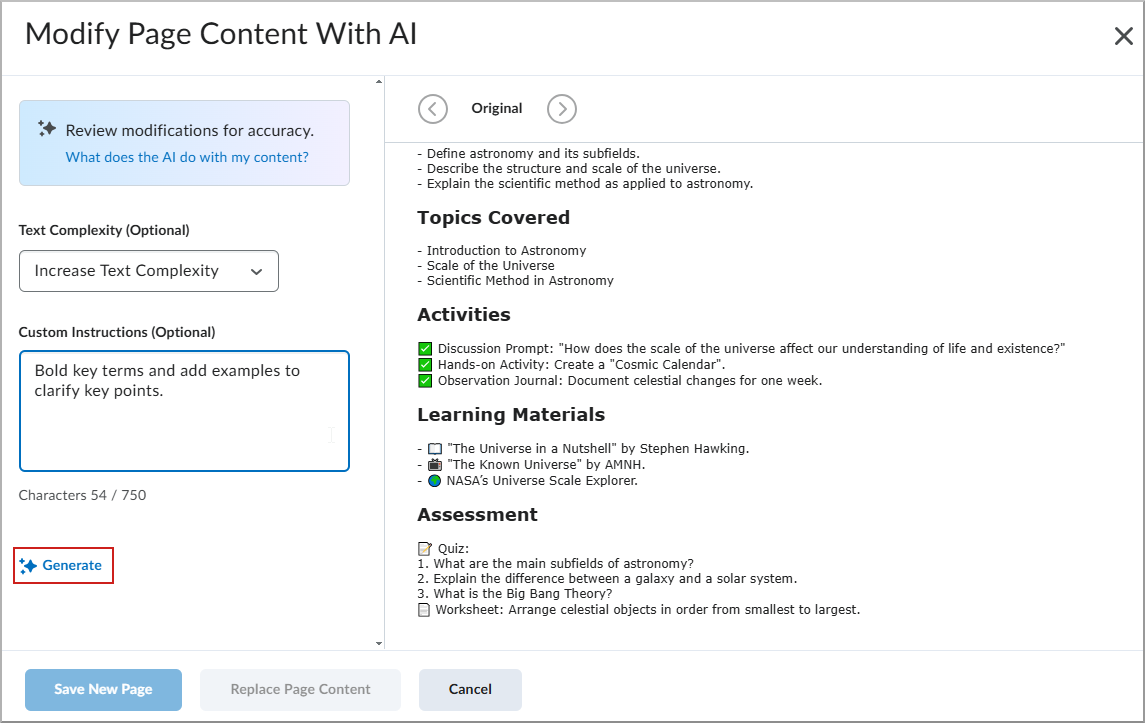
- Review the output. If needed, edit your instructions or Text complexity settings and select Generate again.
- Choose how to apply the changes:
- Save as New Page: Saves a new Page in the same module. Visibility is Hidden and AI Status is Not Reviewed. Availability dates, completion settings, release conditions, and outcomes are copied.
- Replace Page Content: Overwrites the current Page. AI Status is set to Reviewed.
- On the confirmation screen, click Save as New Page or Replace Page Content, depending on the option selected.
- On the Edit Page screen, click Save and Close.