What device and browser should I use for taking a quiz online?
Brightspace is designed to be responsive and function across supported browsers and devices. For the most stable quiz-taking experience, you are encouraged to:
- Use a supported, up-to-date web browser.
- Ensure a stable internet connection.
- Close unnecessary browser tabs or applications.
What happens if I lose internet connection while taking a quiz?
If your internet connection is interrupted during a quiz attempt, previously saved answers remain saved.
The system cannot record activity while you are offline. Once your connection is restored, Brightspace resumes logging activity and saves submitted responses.
You can identify saved questions during the quiz attempt:
- A visual indicator appears beside each question number.
- A checkmark appears in the question navigation panel when a response has been saved.
Where can I find my quiz?
There are different areas within Brightspace where your quizzes can be found:
- Content: Your instructor may have added course quizzes to Content where all other course materials can be found.

- Quizzes: If the Quizzes tool is visible on your course navbar, quizzes will be listed in the Quiz List.
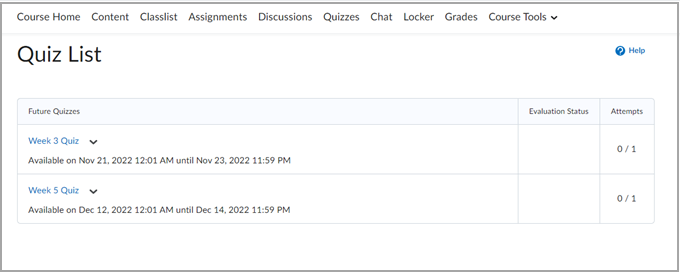
- Other areas where your quizzes might be found include the Announcements tool, the Work To Do widget, and the Calendar widget.
Unable to access a quiz / Missing quizzes
There are several reasons why you may not be able to find or access a quiz:
- The quiz you are looking for is hidden.
- Contact your instructor to verify they made the quiz visible.
- The quiz you are looking for has release conditions that have not been met.
- Instructors can set release conditions for quizzes to appear only after certain criteria are met. For example, a learner must view "Content Topic A" before they are able to view "Quiz A".
- Check your course syllabus as information could be included concerning any release conditions that are attached to quizzes.
- Contact your instructor for further information on whether there is a release condition attached to the quiz that is missing.
- The quiz you are looking for has special access settings set by your instructor.
- Contact your instructor if you believe that you should have access to a quiz outside of the dates set for the rest of the class.
Unable to start a quiz attempt
There are several reasons why you may not be able to start a quiz attempt, even if the quiz is visible:

- Your instructor may have set up your quiz to be available on a specific date and time. The quiz availability is listed above the Start Quiz button on the Quiz Details page. If the availability is set to a future date and time, the Start Quiz button will be grayed out. Contact your instructor if you believe that the quiz availability settings are incorrect.

- The quiz you are trying to complete has a password.
- Your instructor may set a password to access your quiz. If you do not know your password or the password provided is not working, contact your instructor.
Troubleshoot issues with Respondus Lockdown Browser
If you encounter issues while using Respondus LockDown Browser on a quiz, follow these steps to identify and resolve common problems before starting your quiz or exam.
- Restart your computer: Close all unnecessary applications, browsers, and pop-up windows before launching LockDown Browser to prevent interference.
- Run System Check: Inside LockDown Browser, go to the Help Center and select the Run System Check option to diagnose potential issues with your network, operating system, and other applications.
If you are still experiencing issues, visit the Respondus Support knowledge base