As a learner you can access Content in different views, depending on your organization or course:
New Learner Experience
If the content in your course appears like the image below, you are using the New Learner Experience.
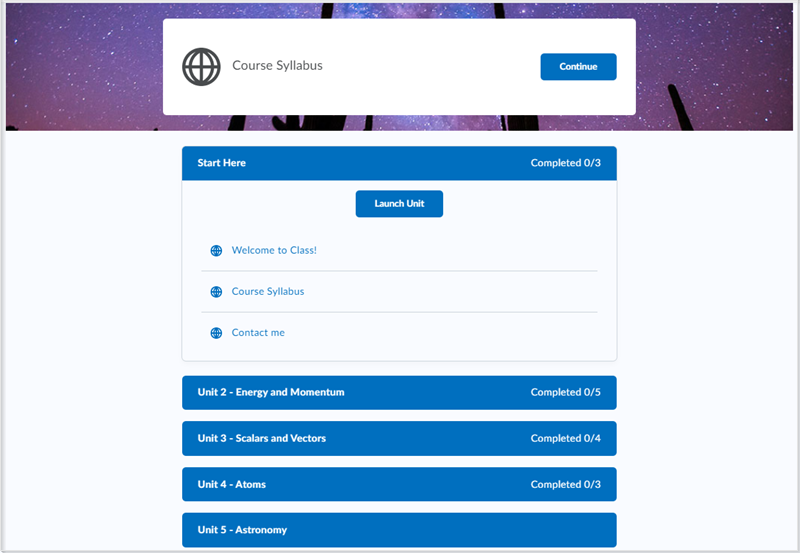
In the New Learner Experience, the table of contents allows you to explore all available content (modules, topics, and activities) within the course. At any time, you can choose an available module to view; you aren't forced to view modules in a specific sequence.
To start and resume your course
To use the Table of Contents (TOC)
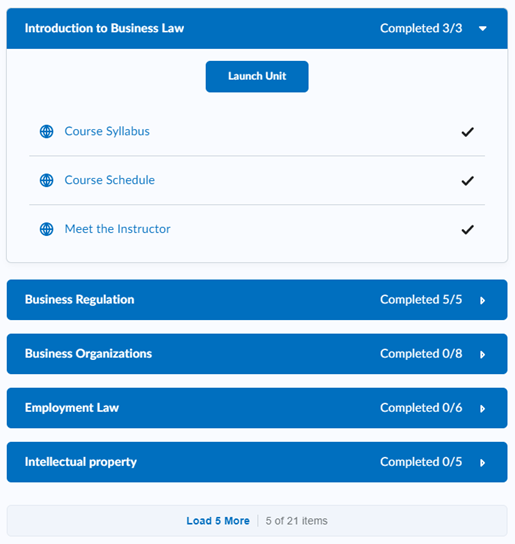
- Access the Table of Contents: Select Content from your course navigation bar. The Table of Contents lists all units, lessons, and activities.
- Expand Modules: Click on a unit or lesson name in the Table of Contents to expand or collapse its content (topics and activities).
- Load More: If your course has many modules, click Load More at the bottom of the Table of Contents to display the rest of the available content.
- View the module description and topics: Click Launch Unit or Launch Lesson.
Navigate through Content
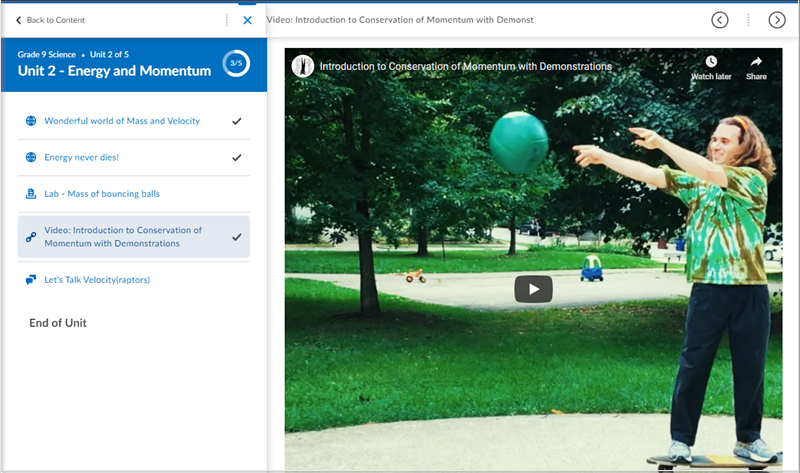
- Sequential Navigation: Use the arrow buttons (Previous / Next) in the title bar to move through topics one by one.
- Jump to Topic: Click the navigation menu icon within the full-screen viewer to select a specific topic.
- Return to Table of Contents: Click Back to Content to exit the full-screen viewer and return to the main Table of Contents page.
Monitoring Progress and Completion
- Progress Tracking: The Table of Contents displays the number of required activities you have completed for each module. A check mark appears beside completed required topics.
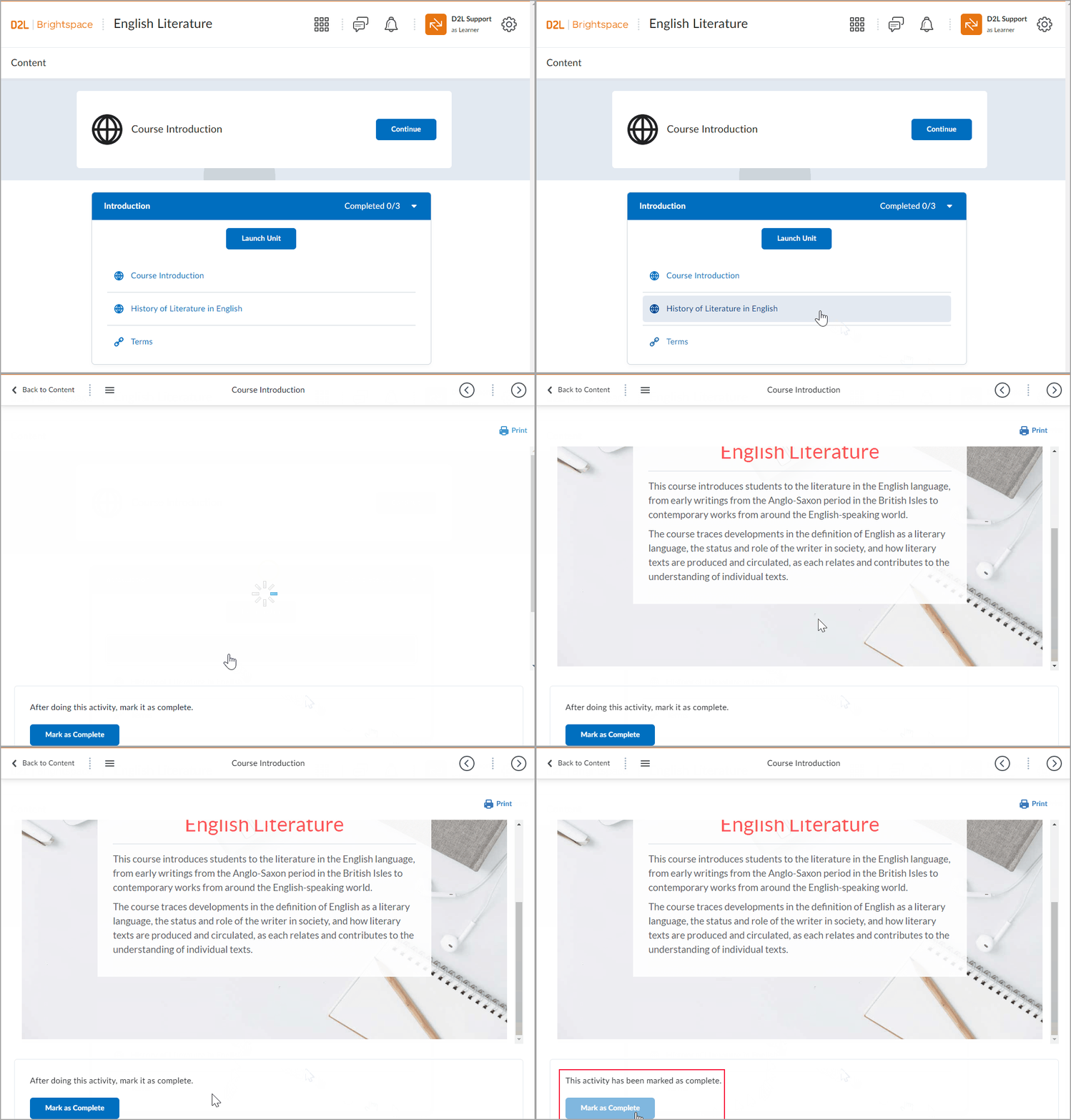
- Mark as Complete: You may see a Mark as Complete button at the bottom of the page if the instructor has set the topic as requiring manual completion. Manual completion is available for the following topic types:
- LTI Links
- Web Links
- Course files
- LOR links, etc.
- Click Mark as Completeto manually confirm completion.
- Note: Once you mark a topic as complete, you cannot undo this action.
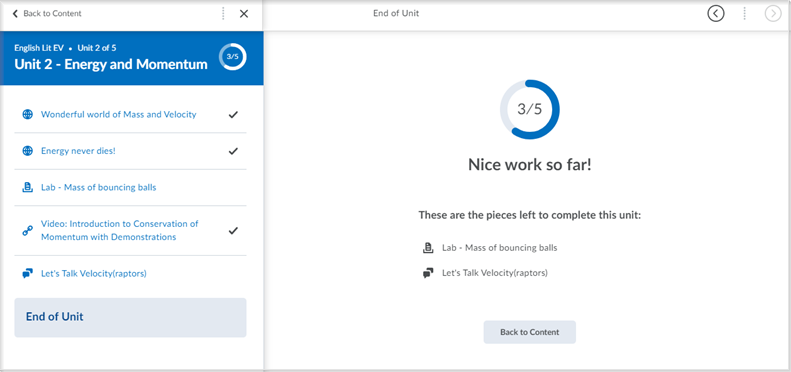
- Module Completion: When you finish a module, a summary page confirms your completion status and lists any remaining incomplete items. Ensure that you end the session properly by using the Log Out option.
Video: New Learner Experience
New Content Experience
The New Content Experience uses a split-screen approach, keeping the Table of Contents visible while you view content.
If the content in your course appears like the image below, you are using the New Content Experience (Lessons).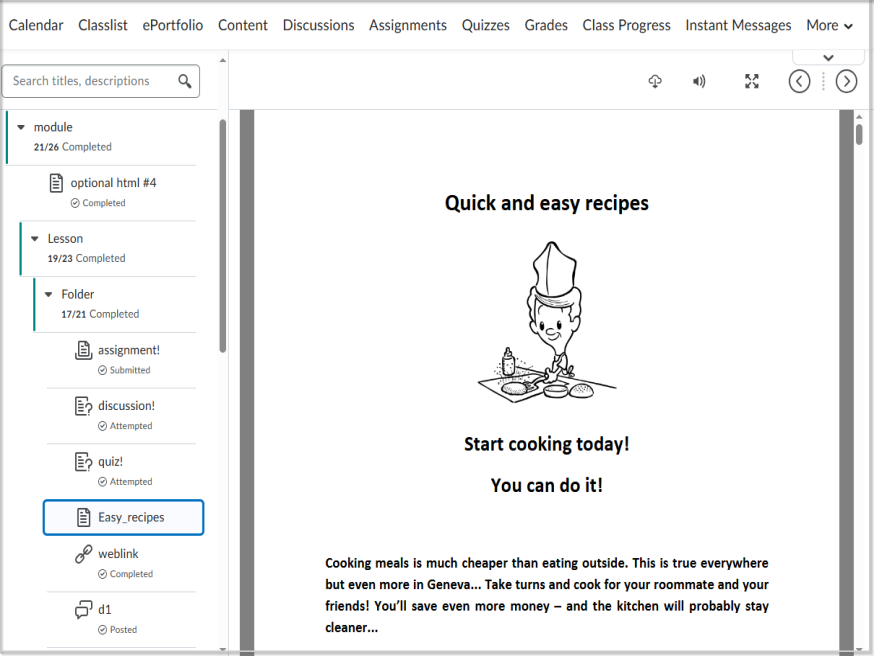
Using the Table of Contents (TOC)
- Navigation: Use the Table of Contents on the left to select a module (unit) or topic. The corresponding content will load on the right.
 |
Note: Note, topics outside of set start or end dates are either:
- Hidden from the TOC
- Displayed but not clickable before the start date or after the end date
|
- Module Details: Sub-modules and topics are displayed directly beneath the module you select.
- Topic Descriptions: Hover over a topic or activity to view tooltips with information like due dates or descriptions (if provided by your instructor). The following topic types can have descriptions if provided by your instructor
- LTI links
- Web links, including Google Drive, Microsoft OneDrive, and Capture
- Files, including media files but excluding HTML files
- SCORM, including imported content and content from Learning Object Repository (LOR)
- LOR items, such as URLs and files
Monitoring Progress
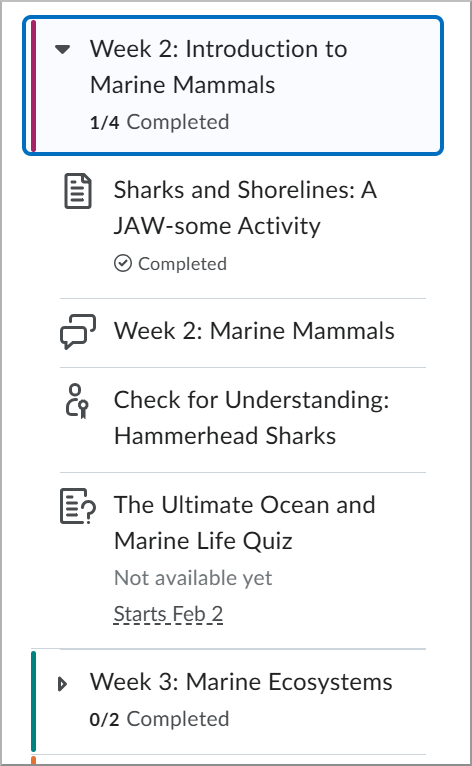
- Fractional Progress: The Table of Contents shows your progress with numerical and visual indicators, such as a fraction showing completed items per module.
- Full Status: If you need a detailed breakdown of all your course activities and completion statuses (including assignments, quizzes), you must use the Class Progress tool, as the Lessons view only shows progress for content topics.
Viewing Files (View as Text vs. Page)
For documents like PDFs or PowerPoints, you have viewing options:
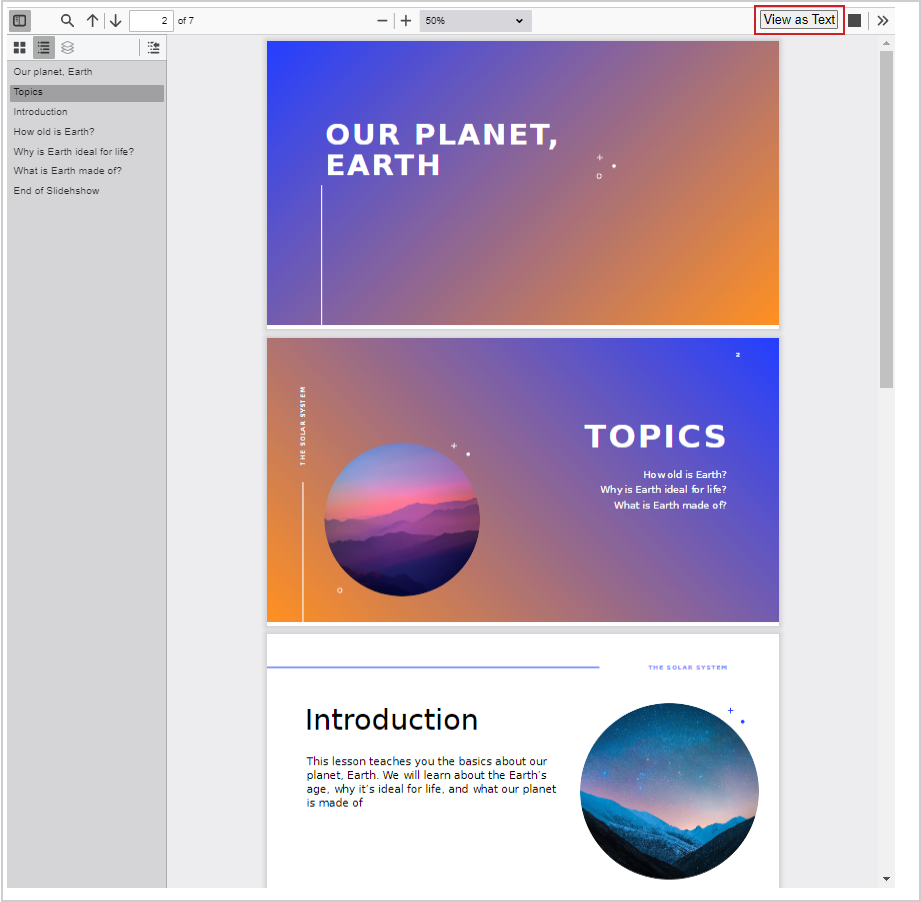
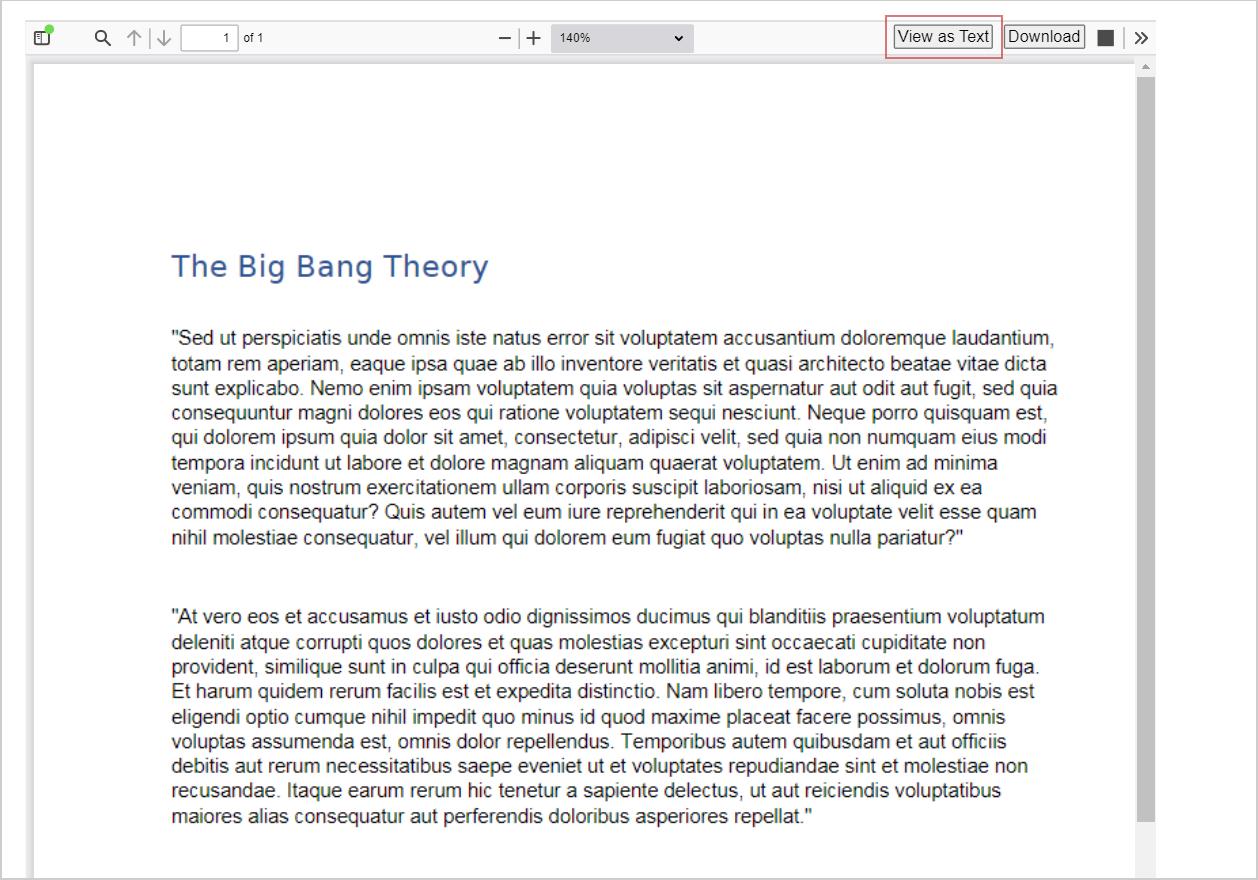
- Default View (Page View): This displays the document in its original formatting, like a slideshow or document preview.
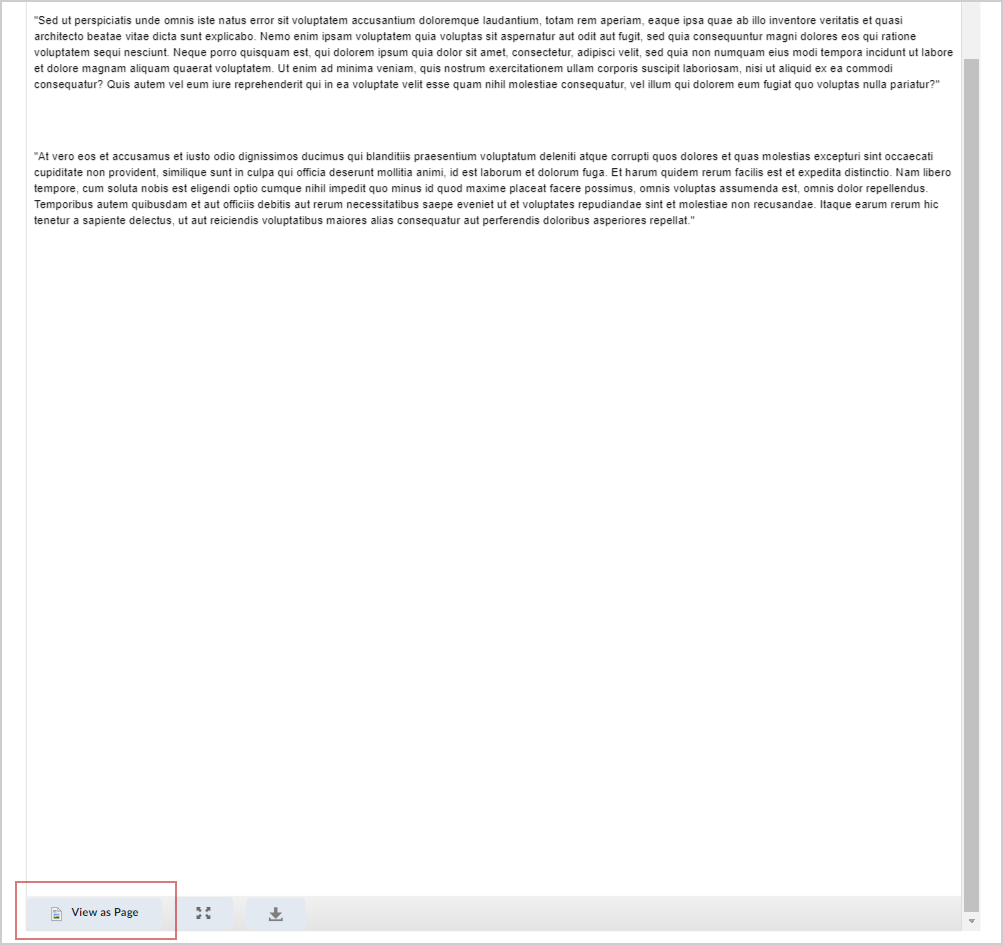
- Switching to Text View: If available, click View as Text to display the document's text content only. This can be helpful for screen readers or simple reading.
- Switching Back: Scroll to the bottom and click View as Page to return to the original formatted view.
- Log Out: When you complete your course session, ensure that you end the session properly by using the Log Out option.
|
Note: Currently, although completion of topics is tracked, completion status is not available directly in the New Content Experience (Lessons). Learners can verify their progress of content topics using Class Progress.
By default, content outside of its availability dates is hidden.
To allow topics to display in the Table of Contents while remaining inaccessible to learners, check with your administrator to enable the following configuration variables:
- d2l.Tools.Content.EnableLessonsEnhancedTOC to use the enhanced the Table of Contents experience.
- d2l.Tools.Content.DisplayContentOutsideofAvailabilityDates to allow topics to appear in the Table of Contents.
|
Video: Navigate the Lessons View in Content
When you complete your course session, ensure that you end the session properly by using the Log Out option on the Learner menu:
|
Note: Currently, although completion of topics is tracked, completion status is not available directly in the New Content Experience (Lessons). Learners can verify their progress of content topics using Class Progress. |
Troubleshoot PowerPoints
You may unintentionally change or open a PowerPoint in a text view. The text view may also make PowerPoints unreadable if they are not formatted in a way that conforms to Brightspace. To change from the text view to view the PowerPoint as a page or slideshow, click View as Page.
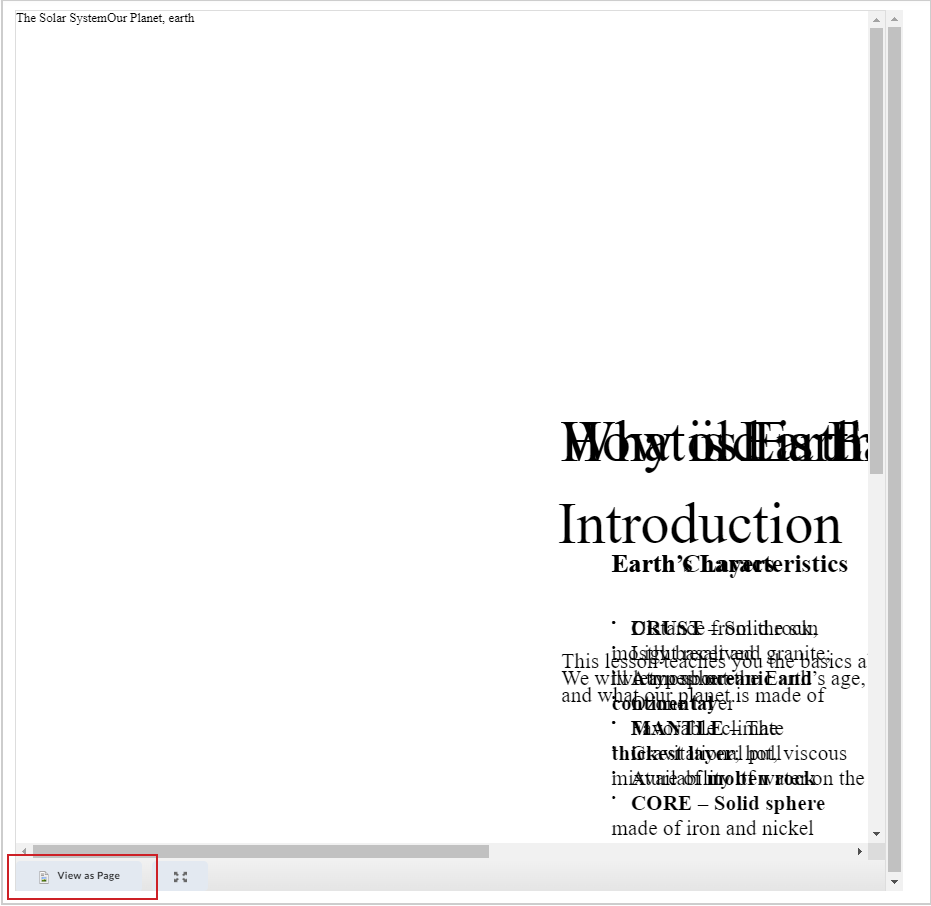
After clicking View as Page, your PowerPoint appears correctly and in the original format. You can click View as Text to switch back to a text view if desired.