Use Classlist to view who is enrolled in your course, send email or instant messages, view shared locker files, and read blogs.
 |
Note: Your course navbar can vary by course. If Classlist does not appear on your navbar, access it from Course Admin. |
Send an email from the Classlist
You can select specific users from Classlist and send them an email.
To send an email from Classlist
- To open Classlist, do one of the following:
- From your course navbar, click Classlist.
- If Classlist does not appear on the navbar, click Course Admin, and then click Classlist.
- Select choose the check box beside each user you want to email.
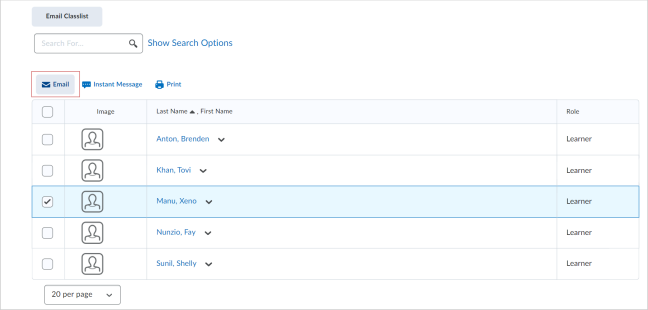
- Click Email above the list of users. The Compose New Message window opens.
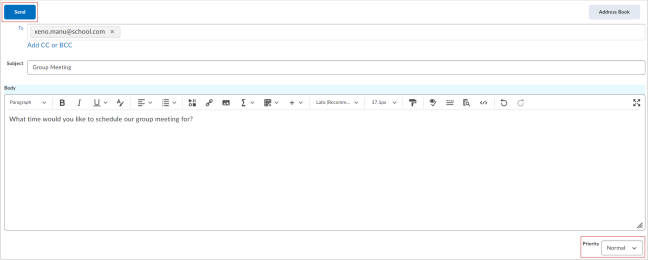
-
Enter recipients in the To field. Click Add CC or BCC to include other recipients.
|
Note: The maximum number of recipients in the To and CC fields is 200. The maximum number of recipients in the BCC field is 3000. |
-
Enter a Subject.
-
Write your message in the Body field.
|
Note: The Body field includes elements of Brightspace Editor. You can include other content by clicking options like Insert Stuff, Insert Quicklink, and Insert Image. Before sending your email, you can change the Priority of your email from Normal to either Low or High. |
-
Click Send.
|
Note: If your email has 100 or more recipients, Brightspace processes the email as a background task. You can continue using Brightspace while your email sends. The status of your email is shown in the Sent Mail folder of the Email tool. |
You have sent an email to the selected users from your Classlist.
Send an instant message from the Classlist
You can send an instant message to users from the Classlist.
To send an instant message from Classlist
- To open Classlist, do one of the following:
- From your course navbar, click Classlist.
- If Classlist does not appear on the navbar, click Course Admin, and then click Classlist.
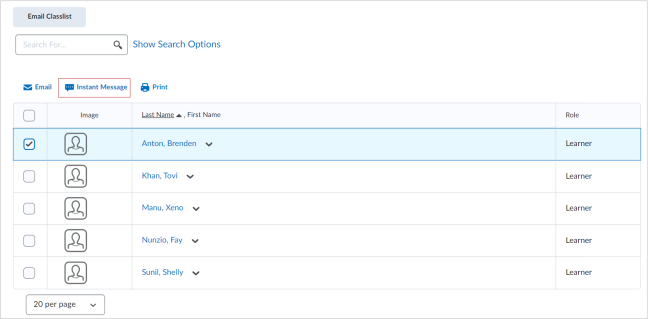
- Select the checkbox beside each user you want to message.
- Click Instant Message above the list of users.
-
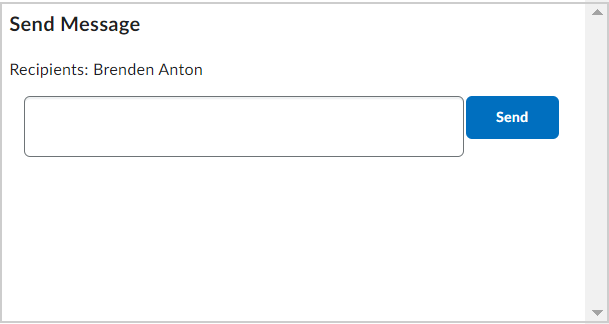
In the Send Message window, write your message.
-
Click Send.
You have sent an instant message to the selected users from your Classlist.