From one central location on a course homepage, communicate with instructors and fellow learners about upcoming assignments, new content, or discussions. Never miss important information related to learning.
To create an Activity Feed post
-
Navigate to the Activity Feed widget in your course.
-
Click anywhere in the Create a post... text box.
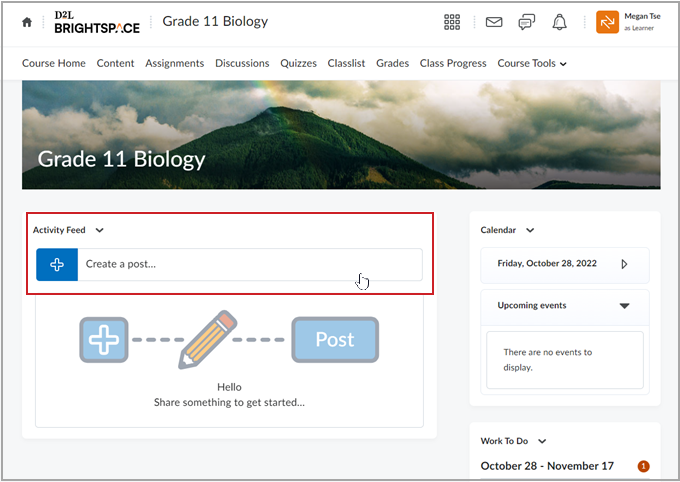
Figure: You can create a post in Activity Feed by clicking Create a post... and entering your message.
-
Enter a message for your instructor and classmates.
-
Click the Attach (paperclip icon) button if you want to add an attachment to your post. You can add:
-
A file from your device.
-
A link to existing course materials.
-
A weblink.
-
An attachment from your Google Drive.
-
An attachment from OneDrive.
-
A video from the web.
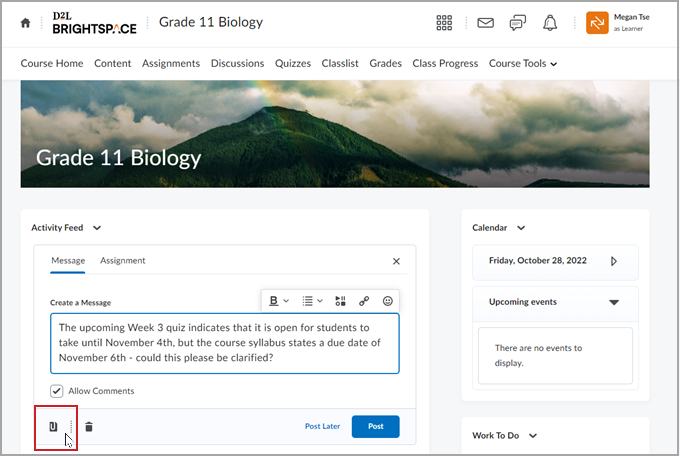
Figure: Click the Attach button in Activity Feed to upload an attachment.
-
Click Post.
Your message is posted and visible to learners and instructors through their Activity Feed widgets.
Add a comment to an Activity Feed post
From one central location on a course homepage, communicate with instructors and fellow learnersabout upcoming assignments, new content, or discussions. Never miss important information related to learning.
To add a comment to an Activity Feed post
-
Navigate to the Activity Feed widget in your course.
-
Find a post that you want to comment on.
-
Click anywhere in the Write a comment… text box.
-
Enter a message.
-
Click Post.
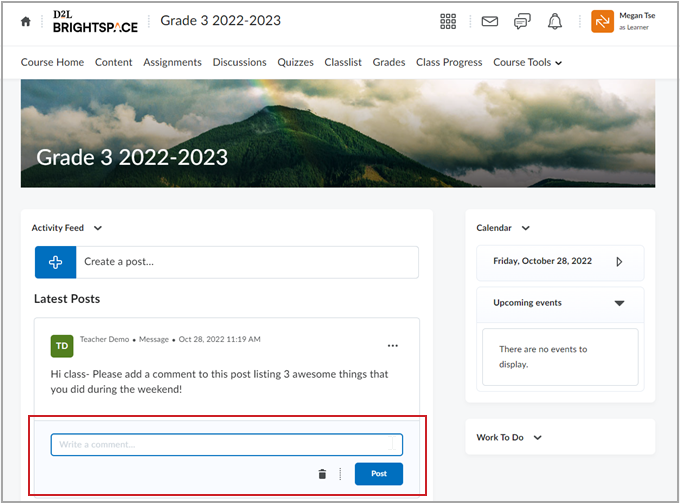
Figure: Enter your comment into the Write a comment... field and click Post.
Your reply is posted and visible to learners and instructors through their Activity Feed widgets.