Become familiar with your course through the homepage elements that are available to you.
Text-based navbar
The text-based course navbar uses text to describe the various Brightspace tools available to you.
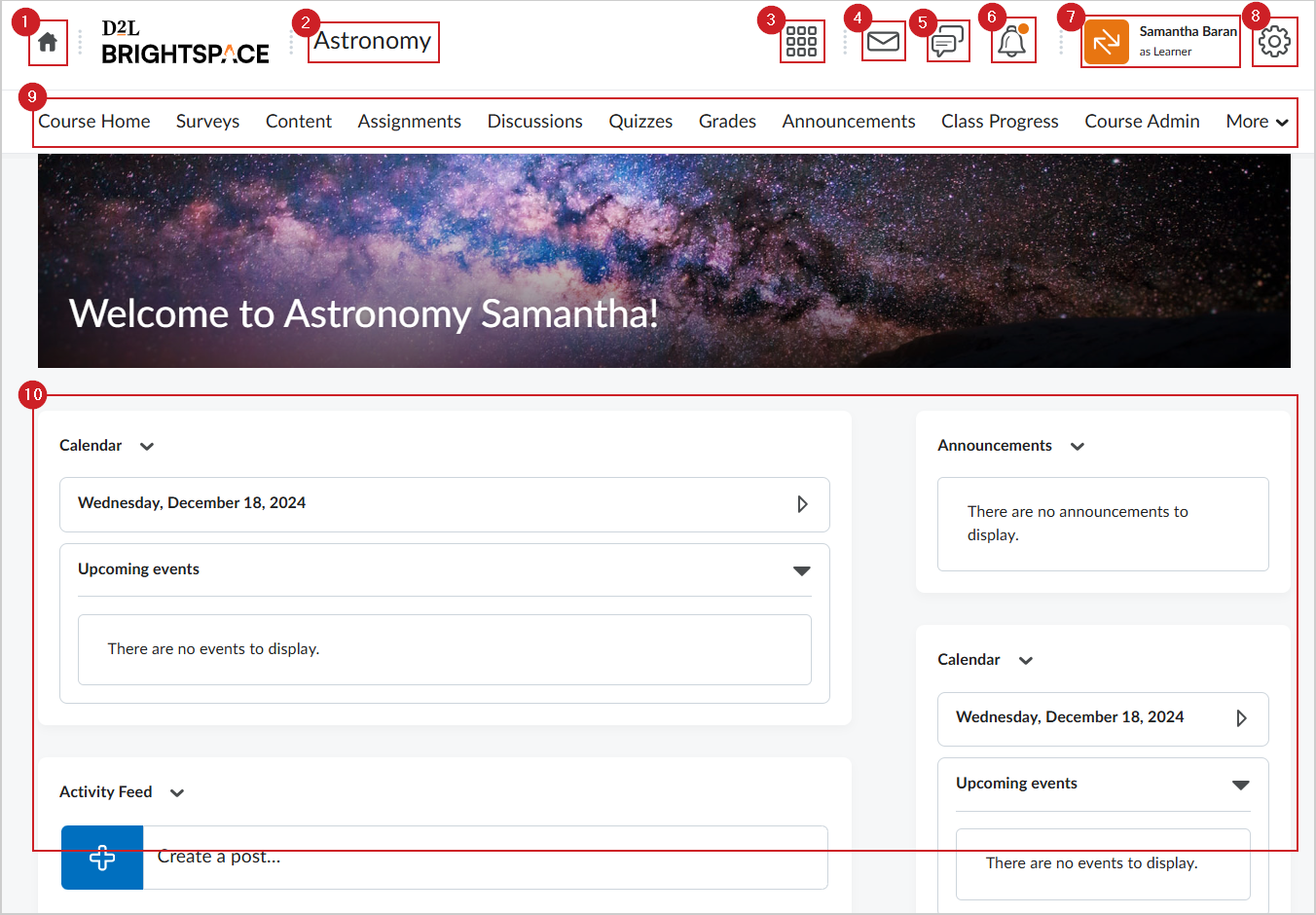
Figure: Course homepage elements with a text-based navbar.
Icon-based navbar
The icon-based course navbar uses icons and text to describe the various Brightspace tools available to you.
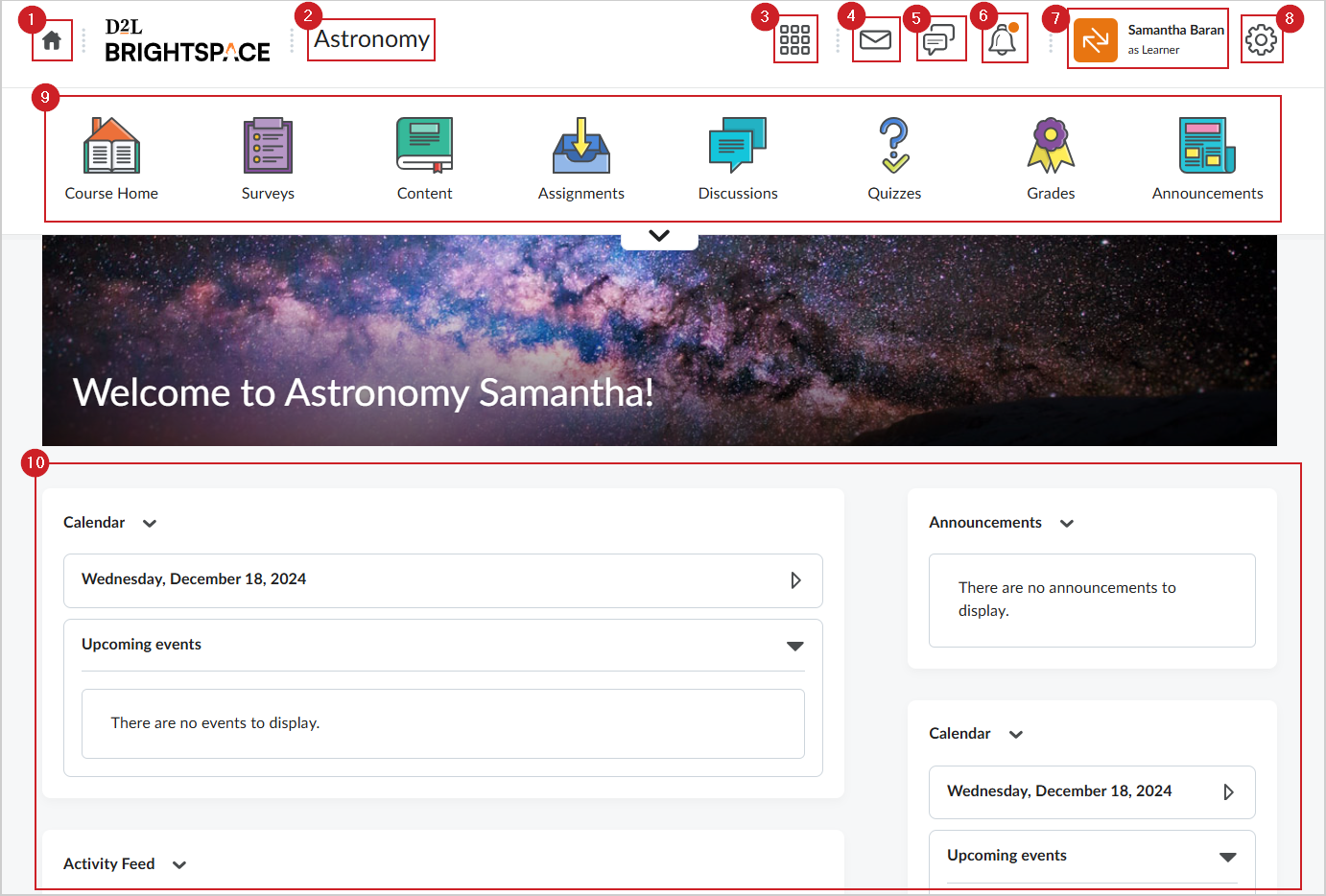
Figure: Course homepage elements with an icon-based navbar.
- My Home: Redirects you to your organizational homepage where you can access all your courses.
- Course Title: The name of your course. Click the course title at any time to be redirected to your course homepage.
- Course Selector: Click to quickly search for and access other courses where you are enrolled.
- Message alerts: Shows you any instant messages or emails you received.
- Subscription alerts: Shows you updates for any activities that you subscribed to. For example, if you subscribe to a discussion activity, you are notified here when updates are made to the thread.
- Update alerts: Notifies you when you receive feedback or grades for different course activities like assignments and quizzes.
- Profile: Access your profile and account settings. You can also log out of Brightspace.
- Admin Tools: Access additional tools in Brightspace.
- Navbar: Lists all your course tools. The navbar appearance and course tools can vary by organization.
- Widgets: Provide you with quicker access to course updates and news. The widgets on your course homepage vary by organization.
Video: Navigate Brightspace