The Multi-Profile widget allows you to introduce yourself and your team to learners in your course. The widget retrieves user information from User Profiles and the Classlist to display a list of users and their roles directly on the course homepage.
Set user display in the Multi-Profile widget
You can choose which users appear in the Multi-Profile widget and control the order in which they display.
To set user display in the widget
- Locate the Multi-Profile widget on your homepage.
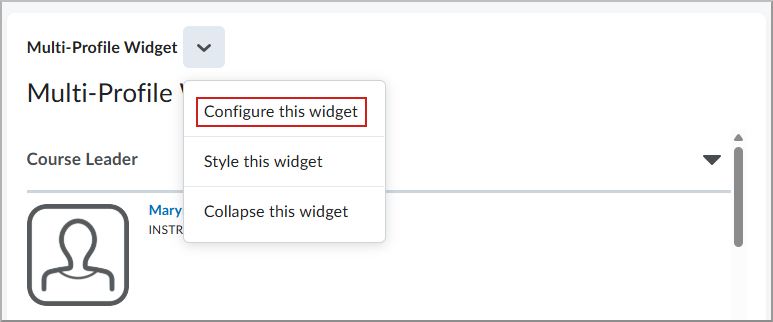
- From the widget, click the Actions drop-down menu.
- Select Customize this widget.
- Click the Update User Settings tab.
- From the User Visibility tab, toggle the Visibility of any User you want displayed by the widget.

- From the User Order tab, click the Order drop-down menus to select an order value for each User.

- Click Save and Close.
 |
Note: If a Multi-Profile widget has no available data, you see an illustration and a clear message that no data is available yet. |
Display profile fields as collapsible panels
The Multi-Profile widget can display profile information using collapsible panels, making it easier to review profile details when multiple users are listed. When enabled, each profile appears in a collapsed state by default and can be expanded or collapsed directly within the widget.
Enable collapsible profile fields
You can enable collabsible profile fields using the Customize this widget option of the widget.
To enable collapsible profile fields
- Locate the Multi-Profile widget on your homepage.
- From the widget, click the Actions drop-down menu.
- Select Customize this widget.
- Open the Display Profile Fields tab.
- Select Display profile field(s) as a collapsible panel in the profile list.
- Click Save and Close.
|
Note: If you enable Display profile field(s), the setting applies to all homepages where the Multi-Profile widget is used within the organization. |