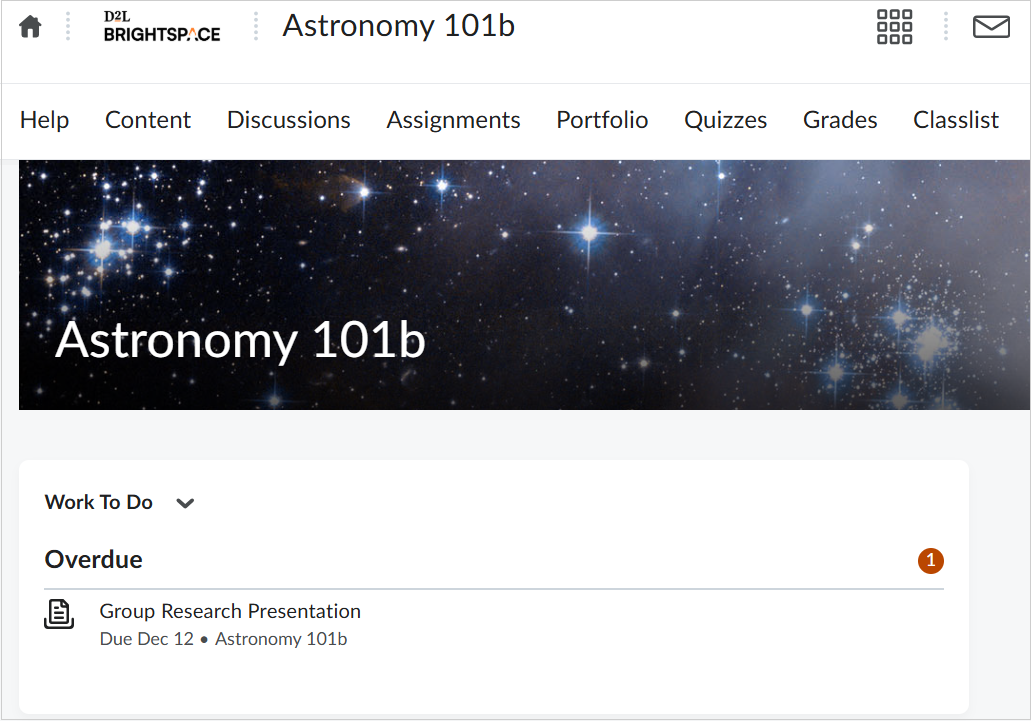
The Work To Do widget provides learners with a summary of assigned learning activities that are overdue or have an upcoming due date or end date.
Where you can add the widget:
You can add the widget to:
- An organization homepage to show work from all your courses.
- A course homepage to show work from only that course.
How the widget behaves:
The Work To Do widget can behave differently depending on where you access it:
- On the organization homepage, the widget displays upcoming and overdue activities from all your courses.
- On a course homepage, it displays upcoming and overdue activities for that course only.
- When you click the widget title or the View All link, the Work To Do tool opens.
 |
Note: The Work To Do tool view displays upcoming and overdue activities from all your courses, even if you navigated there from a course homepage. This is expected behavior. |
Permissions and date range
- To view the Work To Do widget, your role must have the View Work To Do Widget permission at the Organization or Course Offering level, depending on where the widget is placed.
- Learning activities appear only when they have a defined due date or end date.
- By default, the widget shows activities due or ending in the upcoming 2 weeks and overdue work from the previous 12 weeks. These ranges can be changed by your administrator using configuration variables.
|
Note: To change the default date range, contact your administrator. |
Learning activities shown in the widget
The widget displays the following activity types (if they have a due or end date):
- Assignments
- Checklists
- Content
- Courses (only if due dates are set via Learning Groups or end dates are set in Course Offering Information for courses with Completion Tracking enabled)
- Discussions
- Surveys (end date only)
- Quizzes
- Files
- Links
 |
Important: Completed activities are removed from the widget. The widget displays a maximum of 6 items; to see all, use the fullscreen view.
|
Remove an activity from the Work to Do widget
- Overdue activities display based on the configuration variable d2l.Tools.WorkToDo.OverdueWeekLimit.
- To remove an activity from the widget, remove its due date (and any end date, if applicable).
Special Access
If a learner has Special Access with different due or end dates, the widget displays the personalized dates for that learner.