You can publish (add) learning objects from various tools in Brightspace to the Brightspace Learning Repository (LOR). A learning object can be a quiz, presentation, image, video, or any other kind of document or file you use to create course content and learning materials for online learning.
Publish objects from Brightspace to Brightspace LOR
The following table lists learning object types, indicates if they can be published to LOR, and provides additional notes for each:
Figure: Review learning object types.
|
Object Type
|
Can Be Published?
|
Notes
|
|
Course (Table of Contents)
|
Yes*
|
See the About overwriting learning objects heading on this page.
|
|
Content Module
|
Yes*
|
See the About overwriting learning objects heading on this page.
|
|
Content Topic – File-based (HTML, images, PDF, DOC(X), PPT, video, etc.)
|
Yes
|
EXE files are not permitted.
Common Cartridge or other Course Export packages do not function during retrieval.
When publishing video, LOR relies on browser extensions to play the video. This behaves differently than directly adding a video to Brightspace (non-LOR link).
|
|
Content Topic – URL
|
Yes
|
|
|
Content Topic – Link to Other Tools (Quiz, Assignment, Survey etc.)
|
No
|
|
|
Content Topic – External Learning Tool Link
|
No
|
|
|
Content Topic – SCORM
|
No
|
SCORM objects must be published directly to LOR – if they are published from Brightspace, they are published as HTML topics.
|
|
Course Files (from Manage Files)
|
Yes
|
See notes from Content Topic – File-based (HTML, images, PDF, DOC(X), PPT, video, etc.).
Note: Files published from Manage Files do not collect assets used in the file. D2L does not recommend publishing HTML files from this location.
|
|
Announcements
|
No
|
|
|
Assignments
|
No
|
|
|
Awards
|
No
|
|
|
Checklists
|
No
|
|
|
Competencies and Learning Objectives
|
No
|
|
|
Discussions
|
No
|
|
|
FAQs
|
No
|
|
|
Grade Items
|
No
|
|
|
Quizzes
|
Yes
|
|
|
Quiz Questions
|
Yes
|
Can publish Sections or individual Questions.
|
|
Rubrics
|
No
|
|
|
Self-Assessments
|
No
|
|
|
Self-Assessment Questions
|
Yes
|
Can publish sections or individual questions.
|
|
Surveys
|
No
|
|
|
Survey Questions
|
Yes
|
Can publish sections or individual questions.
|
|
Widgets
|
No
|
|
* When choosing an entire module or course, any topic within a module that is a link to another tool object (Quiz, Assignment etc.) in Brightspace will not publish. This is because the link between the topic and Brightspace object breaks when retrieving it from another org unit.
About overwriting learning objects
You can overwrite a learning object. When overwriting an existing learning object consider the following:
-
Overwriting a learning object replaces, but does not delete, an existing learning object in a repository.
-
The new learning object must have the same structure as the object it replaces.
-
Overwriting creates a new version of the learning object or file.
-
The new object appears in all searches. The overwritten object no longer appears in searches. All existing dynamic links point to the new object. However, locked links continue to point to the old object.
- You can overwrite one module with another module, but you cannot overwrite a topic with a module.
- If you rearrange topics ABC within a module to resemble ACB, topic C will inherit topic B's metadata when you overwrite the original with the rearranged version of the learning object. You may want to select Overwrite the existing object's metadata and enter a new set of metadata if you have rearranged topics in your learning object.
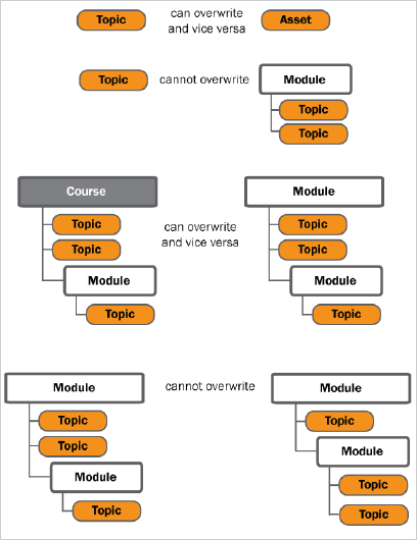
Figure: Review the following examples of learning objects overwriting other objects.
 |
Important: D2L recommends that you only overwrite a file or a topic with a file of the same type. Do not overwrite a learning object or file with a link to itself, as this may result in a circular reference.
|
About publishing objects from your computer
Brightspace Learning Repository (LOR) allows you to publish learning objects formatted in SCORM 1.2 format and to publish quizzes and assessments formatted as QTI packages.
You can also publish individual files and links that are not part of a content package.
Brightspace Learning Repository does not support publishing SCORM 2004 content directly from your computer.
Publish objects from your computer (directly in LOR)
The following table lists learning object types that you can publish from your computer directly into the LOR:
Figure: Review learning object types that you can publish from your computer.
|
Object Type
|
Can Be Published?
|
Notes
|
|
Files (any type)
|
Yes
|
See notes from Content Topic – File-based (HTML, images, PDF, DOC(X), PPT, video, etc.).
Same applies when publishing HTML Files – this is not recommended because it does not pull all assets together in one package
|
|
Quizzes and Quiz Questions
|
Yes
|
Must be in QTI package format.
|
|
SCORM objects
|
Yes
|
SCORM 1.2 only. This can be a course package, if the manifest classifies it as one. This means that when published, it extracts the package into its module/topics
|
|
URL
|
Yes
|
Keyed directly within the publishing interface in LOR.
|
Publish objects from the Bulk LOR Upload Utility
The following table lists learning object types that you can publish using bulk LOR upload utility:
Figure: Review learning object types that you can publish in bulk.
|
Object Type
|
Can Be Published?
|
Notes
|
|
Files (any type)
|
Yes
|
See notes from Content Topic – File-based (HTML, images, PDF, DOC(X), PPT, video, etc.).
Same applies when publishing HTML Files – this is not recommended because it does not pull all assets together in one package
|
|
Quizzes and Quiz Questions
|
No
|
|
|
SCORM objects
|
Yes
|
SCORM 1.2 only.
Same applies when publishing HTML Files – this is not recommended because it does not pull all assets together in one package
|
|
URL
|
No
|
|
Publish objects from Content
You can publish the following types of learning objects to Brightspace Learning Object Repository (LOR) from Content:
- All course content modules and topics
- Single or multiple modules
- Single or multiple topics
When you choose to publish a module or course, the learning repository publishes all the children of that module or course as a single package
Publish objects from Manage Files
Instead of publishing a learning object and all of its associated files, you might want to publish a single file (for example, a graphic) from a course that would be useful to multiple users or departments. Publishing a file such as an HTML file will also publish all of the files to which it links (for example, images, media files, etc).
To publish from manage files
- On the navbar, click Course Admin > Manage Files.
- Locate a file and click Actions (arrow icon) > Publish to LOR.
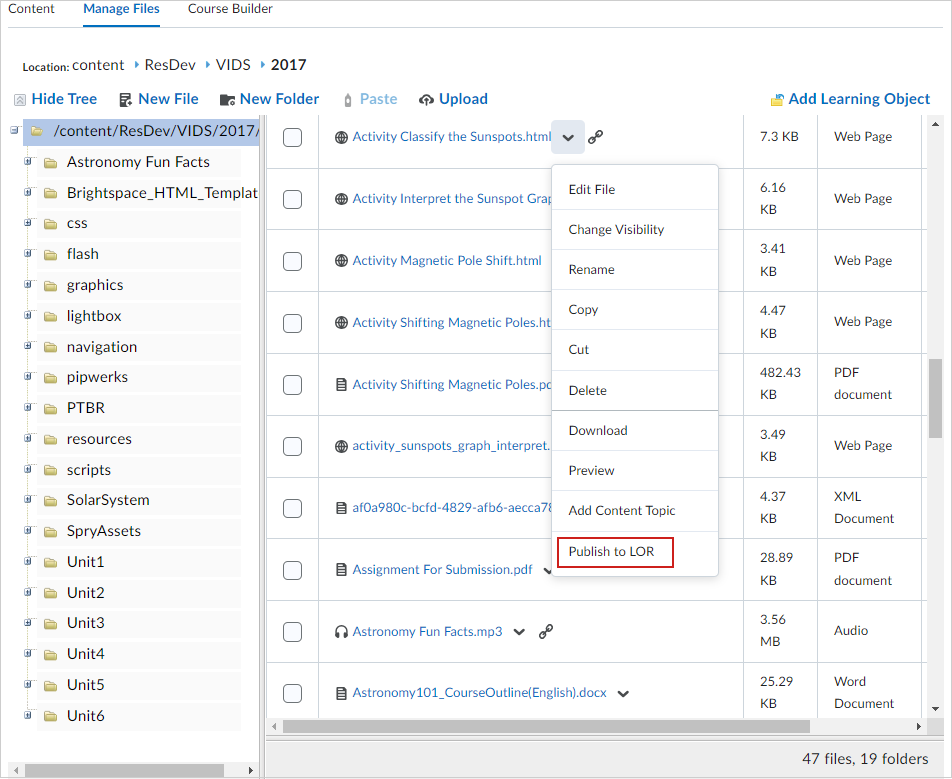
Figure: From the Manage Files tab, click Actions > Publish to LOR.
- Do one of the following:
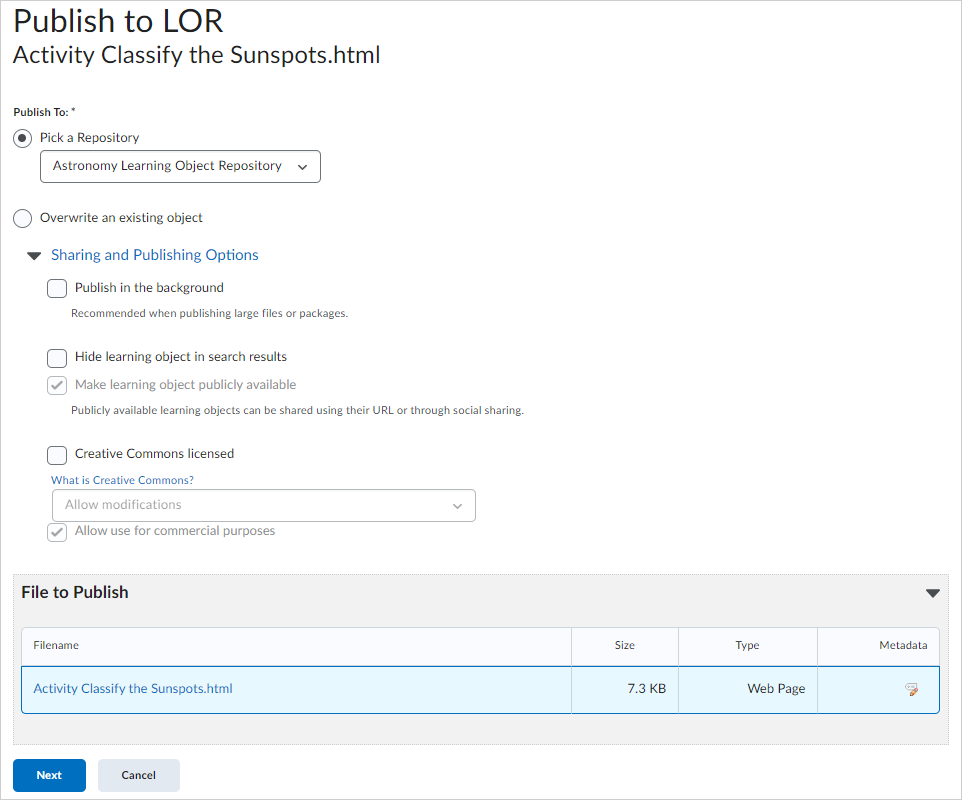
Figure: From the Publish to LOR page, you can publish to an existing repository and choose to overwrite existing learning objects.
- To publish to an existing repository, select Pick a Repository. From the drop-down list, select a repository.
- To overwrite an existing learning object, select Overwrite an existing object and do the following:
- Click Search.
- Locate the repository you want to overwrite.
- To have your learning object inherit the previous object's metadata, clear Replace existing object's metadata.
- Click Sharing and Publishing Options and do any of the following:
- To include all original files in your new learning object, select Include all files from this course.
- To leave the page while your package is being built, select Publish in the background.
- To hide the learning object from searches, select Hide learning object in search results.
- To associate the learning object with Creative Commons rights, do the following:
- Select Creative Commons licensed.
- From the drop-down list, select your modifications preference.
- Creative Commons licensing enables you to retain copyright on your work while allowing different degrees of reuse to other users. Associating a creative commons license automatically populates the metadata rights fields with this information.
- In the Files to Publish area, clear the check box for any item you do not want to include in the package. Clearing a module clears all its associated topics and sub-modules.
- To edit the metadata for any item, click the
 Edit Metadata icon for the item. Make your changes and click Save.
- Click Next.
- On the Metadata page, to classify your learning object, click Classifications. From the Classification Schema drop-down list, select a schema. Click Select. Click the
 Add icon for any classification you want to add. Click Save.
- Click Publish to LOR > Done.
Your file is published to the selected learning object repository.
About publishing image files with thumbnails
If your learning object is an image file, you can set it to display next to learning objects in your search or browse results as a thumbnail. Select your thumbnails when publishing learning objects from your computer or from the Content tool on the Publish to LOR page.
The system only supports image files (.jpg, .gif, .png, .bmp) as thumbnails.
You can select the image you want to correspond with the learning object using the Thumbnail Picker Control which displays all of the available images from the learning object. You can also choose to display the system default icon.
For SCORM packages, name your desired thumbnail .jpg, .png, or .gif image "d2l_thumbnail", and Brightspace Learning Repository will generate a thumbnail using that image.
Publish quizzes, quiz sections, and questions
Publishing a quiz, a quiz section, or a single question to a learning repository depends on where you start the publishing process. Quizzes can be uploaded to LOR but cannot be dynamically linked.
To publish quizzes, quiz sections, and questions
- On the navbar, click Quizzes.
- Do one of the following:
- To publish a quiz, on the Manage Quizzes page, from the context menu of the quiz, click Publish.
- To publish quiz sections or questions, on the Question Library page, select the sections or questions and click Publish to LOR.
- Do one of the following:
- To publish to an existing repository, select Pick a Repository. From the drop-down list, select a repository.
- To overwrite an existing learning object, select Overwrite an existing object. Click Search. Locate the repository you want to overwrite. To have your learning object inherit the previous object's metadata, clear the Replace existing object's metadata check box.
- Click Sharing and Publishing Options. Do any of the following:
- To leave the page while your package is being built, select Publish in the background.
- To hide the learning object from searches, select Hide learning object in search results.
- To associate the learning object with Creative Commons rights, select Creative Commons licensed. From the drop-down list, select your modifications preference. Creative Commons licensing enables you to retain copyright on your work while allowing different degrees of reuse to other users. Associating a creative commons license automatically populates the metadata rights fields with this information.
- In the Learning Objects to Publish area, clear the check box for any item you do not want to include in the package. Clearing a folder clears all its associated questions and sub-folders.
- Click Next.
- On the Detected Files page, do any of the following:
- To add additional files to the package, click Add Files. Locate the file and click Add.
- To add additional folders to the package, click Add Folders. Locate the folder and click Select a Path.
- Click Next.
- On the Metadata page, to classify your learning object, click
 Classifications. From the Classification Schema drop-down list, select a schema. Click Select. Click the Add icon for any classification you want to add. Click Save.
- Click Publish to LOR > Done.
Check background publishing status of a learning object
You can check the status of any learning repository publishing jobs that you run in the background. The Background Publishing page indicates which jobs published successfully along with the date and time. It also indicates which jobs failed along with an error message.
To check background publishing status of a learning object
- On the navbar, click LOR.
- On the Search page, click the Background Publishing link.
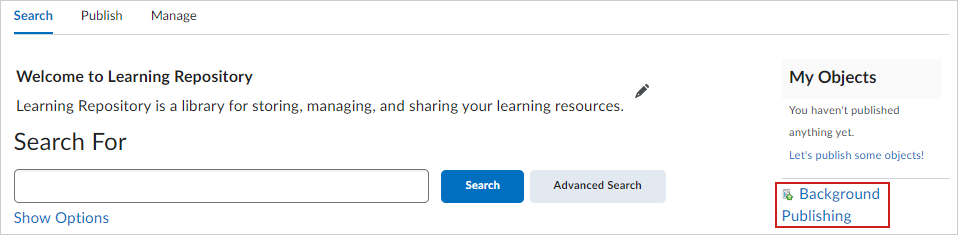
Figure: Locate the Background Publishing link in the My Objects area.
- From the Background Publishing page, review all learning objects that are publishing.