Use Learning Outcomes to associate course content with learning expectations and to add value to your learners' coursework.
 |
Notes:
- Learning Outcomes must be enabled and set up for your organization to see these options in Content.
- The name of the Learning Outcomes tool and some menu items and links therein depend on the language term defined by your organization. Based on that setting, the Standards link in Content might be labeled Competencies, Expectations, Objectives, or Learning Outcomes.
|
Add Learning Outcomes to content topics
Add Learning Outcomes while creating new content topic types including:
- Assignments
- Discussions
- Pages
- Uploaded files (such as PDF documents)
- Weblinks
- LTI
- LOR and SCORM Packages
- Media (audio and video) files
To add Learning Outcomes to content topics
- From Content, click Create New and choose a content topic type that supports Learning Outcomes alignment.
- On the New [content type] page, enter the details in the relevant fields, then click Standards.
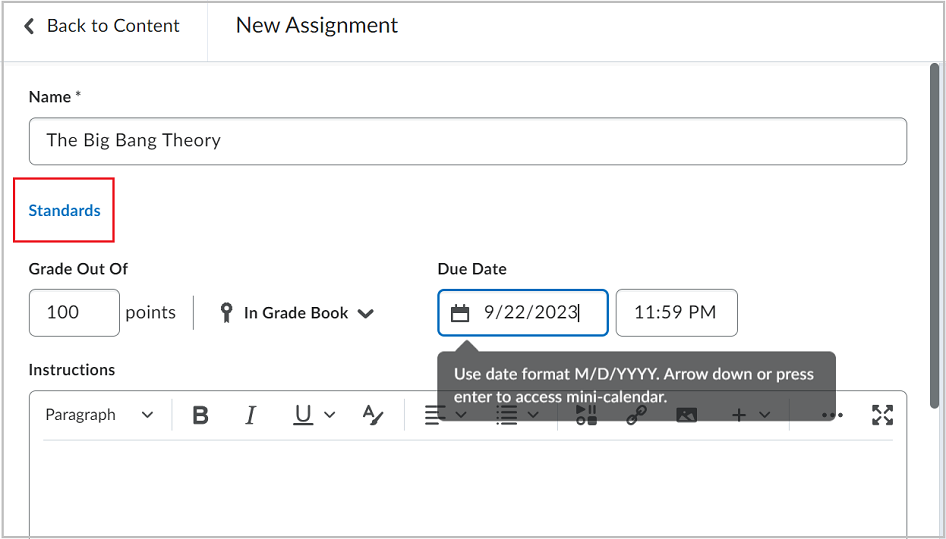
- Select the check boxes for the Learning Outcomes that align to your content topic.
- Click Save.
Edit Learning Outcomes alignments for a course
To edit Learning Outcomes alignments for a course
- From the content area, select a unit or an item of course material.
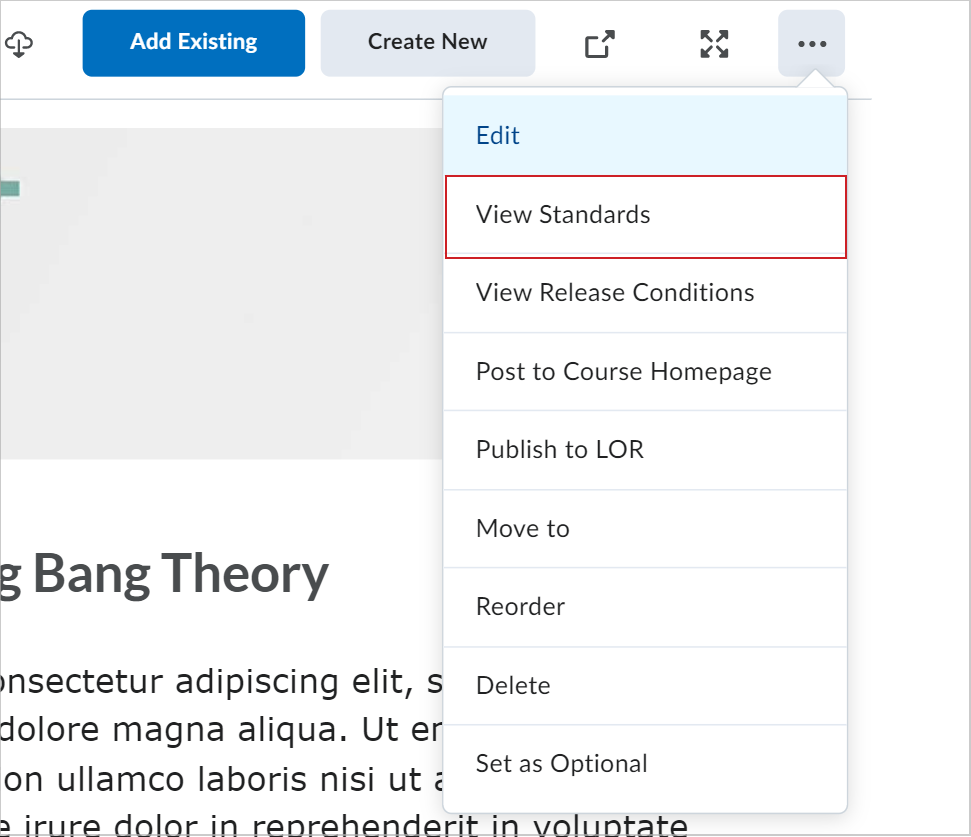
- From the (...) Options menu, select View Standards.
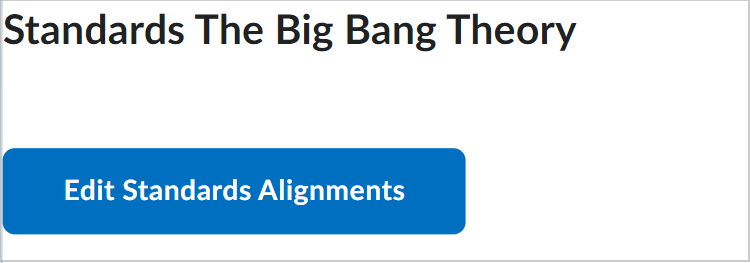
- Click Edit Standards Alignments and select check boxes for the Learning Outcomes that align to your content topic.
- Click Save Changes.
- Click X to exit.
When you delete outcomes from individual management, the following warning messages appear:
- Warning when outcome is linked to deleted activities: if an outcome is associated with a deleted activity (such as an assignment, discussion, or quiz) and a user attempt to delete it, a pop-up message warns the user that the outcome may still have assessments linked to it.
- Confirmation when no assessments are linked: if no assessments are associated with the outcome, a message appears asking the user to confirm the deletion.
Video: Edit Course Standards Alignment
Identify gaps in Learning Outcomes
To identify gaps in Learning Outcomes
- Navigate to Content.
- Click Standards.

- On the Standards Coverage page, select the Display only standards which have no course material check box.
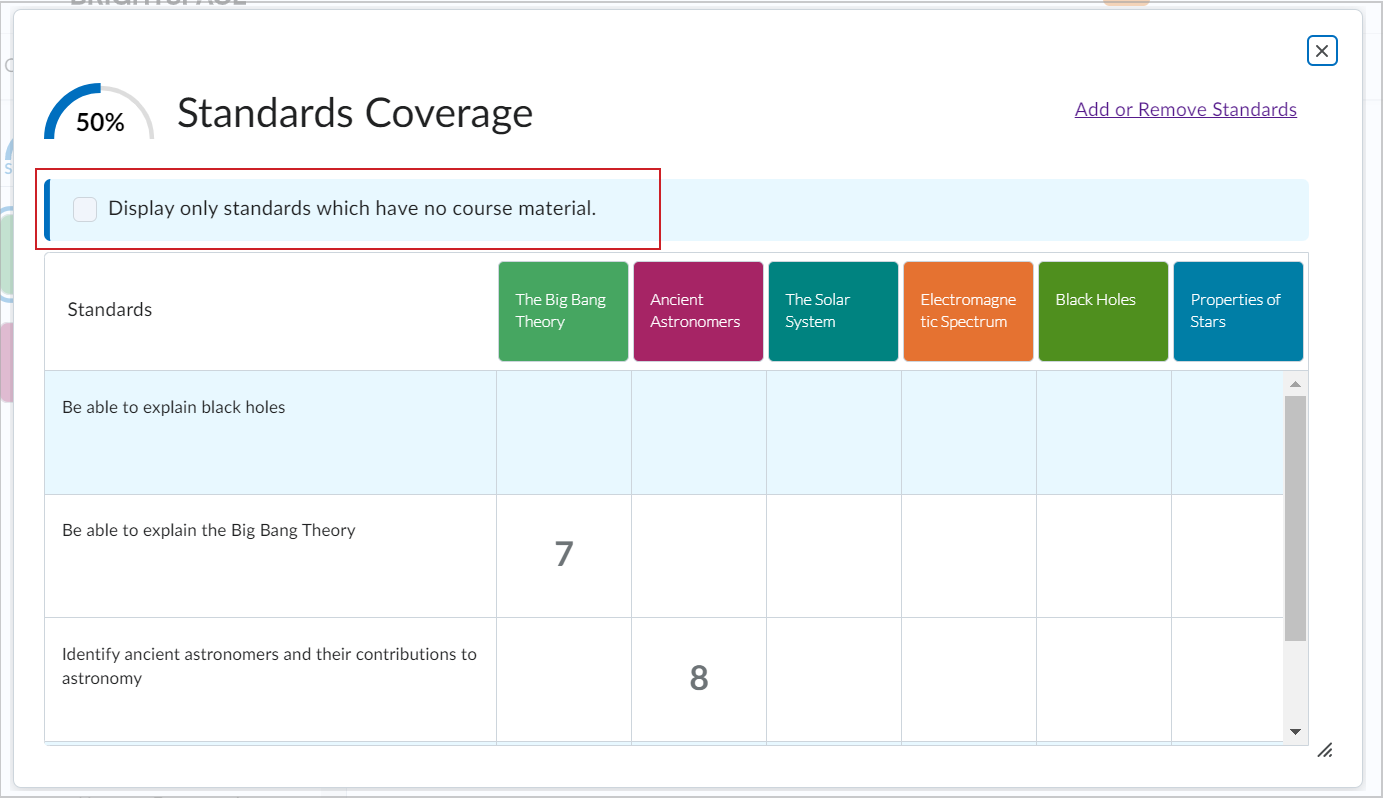
- Determine if any Learning Outcomes are not linked to course materials.
- Close the dialog and select a unit from the table of contents.
- From the Options (...) menu, select View Standards.
- Click Edit Standards Alignments.
- Click the check boxes of any of the available Learning Outcomes to associate them with material from the selected unit.
- Click Save Changes.
- Click X to exit.
Video: Locate Gaps in Course Standards Coverage