You can export course components from your course, import course components into your course, or copy course components from another course into your course. To begin this process, navigate to Course Admin and select Import/Export/Copy Components.
Requirements
The following are required to use Import/Export/Copy Components:
- To see and use Import/Export/Copy Components, you must have the required Import/Export/Copy Components permissions applied to your role. These permissions can only be accessed by your organization administrator.
- To locate, navigate to Course Admin > lmport/Export/Copy Components.
Visual tour of Import/Export/Copy Components
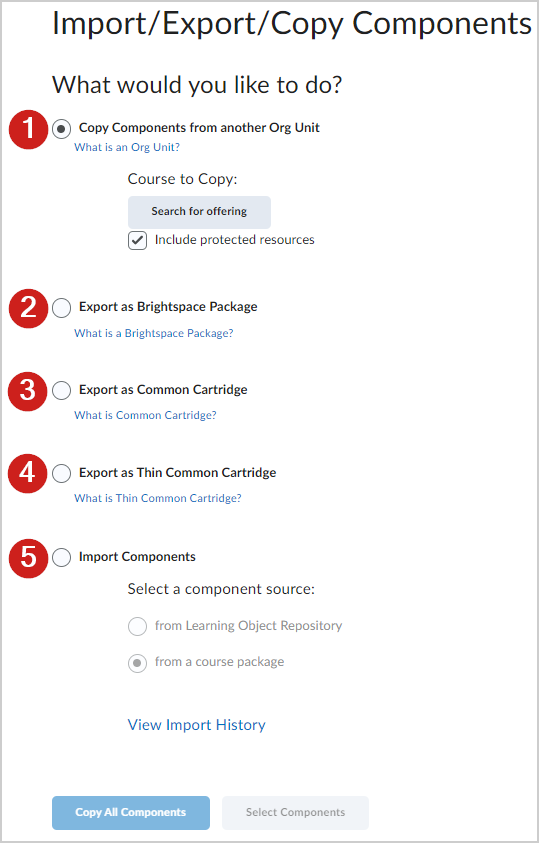
Figure: Select from the options available to import, export, or copy course components.
- Copy course components from another course that exists in another instance of Brightspace (Org Unit).
- Export course components as a Brightspace Package, which contains all the necessary resources you need to share your course with another Brightspace instance.
- Export course components as a Common Cartridge, which is a set of open standards for content, assessment, and digital content that allows publishers and content creators to create LMS-independent course packages.
- Export course components as a Thin Common Cartridge (Thin CC), which is a subset of Common Cartridge developed to package Learning Tools Interoperability (LTI) Links, Web Links, and metadata.
- Import course components from either a Learning Object Repository (LOR) or a course package which includes Brightspace Package, Common Cartridge, and more.
About copying course components between org units
The Copy Components from another Org Unit option enables you to copy quizzes, content, grade items, discussion forums, assignments folders, courses with S3 model configurations, and nearly every other type of component from another course offering or a course offering’s parent template.
You can use the copy components feature to:
- Reuse components created in a previous course offering.
- Add components created by your peers into your own course offering.
- Set up standard components inside a course template and copy them into a new course offering each time a course is re-offered.
- Copy courses with S3 model configurations
- Include the selected course as an additional historic course
Requirements to copy course components between org units
Depending on your role in your organization, you require one or both of the following course copy permissions:
- Copy Components into Org Unit
- Copy Components out of Org Unit.
These two separate permissions offer granular control over copying course components and enable work flows associated with parent content (in a course offering or parent template org unit).
Example
An organization has a Science Course that is intended as a course that instructors can copy from, but not modify:
- Instructors can copy common course components from Science Course to other science courses, for example, Science 101 and Science 202
- Jane has two roles: Reviewer role in Science Course, and Instructor role in Science 101 and Science 202.
- The Reviewer role only has the Copy Components out of Org Unit permission applied.
- The Instructor role only has the Copy Components into Org Unit permission applied.
- In Science Course, as a Reviewer role, Jane cannot see the option to Copy Course Components in Content or Course Admin. She cannot copy any components into the Science Course.
- In Science 101, as an Instructor role, Jane can see the options to Copy Course Components. When she searches for courses to copy, she can see Science Course; however, she cannot see Science 202.
 |
Note: These permissions also affect the Copy From Parent Template option in Copy Course Components. This option is only visible if the instructor is enrolled in the parent template with a role that has the Copy Components out of Org Unit permission at the template level. |
- You must be enrolled in both offerings.
- You need to be enrolled in and have access to the parent template to copy components from the parent into a course offering. Note that all copied intelligent agents are disabled by default, unless your administrator has disabled the d2l.Tools.IntelligentAgents.DisableAgentsOnCopy configuration variable.
- To copy courses with S3 model configurations, you must enable the Student Success System at the instance and org level.
You can also copy components into a course template, and you can create standard components within a template and then copy them into the template’s associated course offerings.
A validation logic step is also included in the copy process. To help reduce duplicate objects and cleanup from the copy process, the validation logic informs you if you have previously copied from the source course.
|
Note: When selecting Copy All Components, all components are copied. However, if you select Copy Select Components, only the tools that a role has permission to manage are available for individual selection and copying. |
Concerns when copying course components
The following table addresses some common concerns around copying course components between org units:
Common concerns when copying course components between Org Units.
|
Concern
|
Answer
|
| Overwriting course files |
Course files from the source org unit overwrite existing files with the same name in the destination org unit.
Important: To preserve any destination course files, it is strongly recommended that you rename them to distinguish them from the files being copied from the source org unit.
|
|
Overwriting and duplicating content
|
With the exception of Course files, copied course components do not overwrite existing course components in the destination org unit, even if they are identical.
For example, if you have three checklists in your current course offering, and copy two checklists from another offering, you will now have a total of five checklists in the current offering. This is true even if the components are identical.
Important: If you are copying components from the same source multiple times, be careful not to copy the same items more than once or you will create duplicates.
|
|
User privacy might be compromised when copying course components
|
User data is not copied. For example, if you copy the discussions component, only the forums and topics are copied, not the posts inside the topics. Similarly, if you copy Assignments folders or quizzes, user submissions and quiz attempts are not copied.
|
|
Links and associations between components
|
D2L recommends that you copy all components between courses to ensure you maintain all desired associations, and then delete any undesired material in the new course.
If you are copying linked or associated components, you must copy all of the related components at the same time. For example, if a discussion topic has release conditions based on the results of a quiz, you must copy all three components—discussions, quizzes, and release conditions—at the same time. Similarly, if you have a quiz that is associated with a grade item, be sure to copy both the quiz and the grade item at the same time. As long as the associated components are copied together, links between them are retained.
To copy release conditions, you must select the Release Conditions component.
|
Special considerations when copying course components
When you are copying course components, ensure that you have considered the following implications or associated tasks.
Implications and associated tasks of copying course components.
|
Component
|
Notes
|
|
Competencies
|
Competencies, learning objectives, and associated activities are copied.
|
|
Content
|
Does not include files or content display settings; you must select these as separate components. Be sure to copy all course files used in the course as well as the content topics or only the content topic structure is copied.
|
|
Checklist
|
Due dates for checklist items are not changed when you copy them.
|
|
Groups and Sections
|
The new course does not automatically enroll groups and sections. You must enroll users yourself.
|
|
Navbars
|
If you have modified the names of any tools, you must also copy the tool names.
|
|
Release Conditions
|
Only release conditions that reference or are attached to other components are copied at the same time as the component. For example, if a quiz has a release condition that refers to a content topic, the release note is only copied if both the quiz and the content topic are copied at the same time. If you copy release conditions without selecting any other component, there is no action.
|
Components for Import/Export/Copy
The following table displays which components from Brightspace can be imported, exported, or copied between courses.
r
List of components that can be imported, exported, or copied.
| Component |
Copy |
Import |
Export |
| Announcements |
Yes |
Yes |
Yes |
| Assignments |
Yes |
Yes |
Yes |
|
Attendance Registers
|
Yes |
No |
No |
| Awards |
Yes |
No |
No |
| Calendar Events |
Yes |
Yes |
Yes |
| Checklists |
Yes |
Yes |
Yes |
| Competencies |
Yes |
Yes |
Yes |
| Content |
Yes |
Yes |
Yes |
| Content Display Settings |
Yes |
No |
No |
| Content Metadata |
No |
Yes |
No |
| Course Files |
Yes
Important: Course files from the source org unit overwrite existing files with the same name in the destination org unit. To preserve any destination course files, it is strongly recommended that you rename them to distinguish them from the files being copied from the source org unit.
|
Yes |
Yes |
| Course Appearance |
Yes |
Yes |
Yes |
| Discussions |
Yes |
Yes |
Yes |
| External Links |
Yes |
Yes |
Yes |
| FAQs |
Yes |
Yes |
Yes |
| Forms |
Yes |
No |
No |
| Glossary |
Yes |
Yes |
Yes |
| Grade Settings |
Yes |
No |
No |
| Grades |
Yes |
Yes |
Yes |
| Groups |
Yes |
Partial. Groups with automatic enrollment cannot be imported. |
Partial. Groups with automatic enrollment cannot be exported. |
| Homepages |
Yes |
Partial. The Homepage's name is imported and set to associate to an existing Homepage if the names match. |
Partial. The Homepage's name is exported to associate to an existing Homepage where possible. |
| Learning Outcomes |
Yes |
Partial. Import available for ASN outcomes but not locally authored or program authored outcomes. |
Partial. Export available for ASN outcomes but not locally authored or program authored outcomes |
| Intelligent Agents |
Yes |
Yes |
Yes |
| Links |
Yes |
No |
No |
| LTI Links |
Yes |
Yes |
Yes |
| LTI TPs |
Yes |
No |
No |
| Navbars |
Yes |
Partial. The Navbar's name is imported and set to associate to an existing Homepage if the names match. |
Partial. The Navbar's name is exported to associate to an existing Homepage where possible. |
| Question Library |
Yes |
Yes |
Yes |
| Quizzes |
Yes |
Yes |
Yes |
| Release Conditions |
Yes |
Yes |
Yes |
| Rubrics |
Yes |
Yes |
Yes |
| Rubric Associations |
Yes |
Yes |
Yes |
| Self Assessments |
Yes |
Yes |
Yes |
| Surveys |
Yes |
Yes |
Yes |
| Tool Names |
Yes |
No |
No |
| Widgets |
Yes |
No |
No |
About exporting course components
You can export components from your course offering to a file. This allows you to reuse these components in another learning management system, including another Brightspace, or to store the components and then re-import them into another course offering or template at a later date.
Components are exported to an IMSCP-compliant zip file, a standard file format based on the IMS Content Packaging specification. This means you should be able to reuse these components in any learning management system that supports this format.
You can export course components from the organization level, except for files in the organization or shared files areas.
The following table addresses some common concerns around exporting course components:
Common concerns when exporting course components.
|
Concern
|
Answer
|
|
User privacy might be compromised when exporting course components
|
User data is not copied. For example, if you copy the discussions component, only the forums and topics are copied, not the posts inside the topics. Similarly, if you copy assignment submissions folders or quizzes, user submissions and quiz attempts are not copied.
|
|
Links and associations between components
|
Associations between components will not be exported (for example, release conditions). The IMS Content Packaging specification, which the format for export files is based on, does not support these associations.
|
What course components can be exported?
- Announcements
- Assignments
- Calendar
- Checklist
- Competencies
- Content
- Course files
- Discussions
- External links
- FAQ
- Glossary
- Grades (except calculated grade items and the Automatic Zero for Missing Submissions setting)
- Gradebook (not Personal Display or ePortfolio Artifacts options)
- Navbar templates (not navbars)
- Question Library
- Quizzes
- Release conditions and any associations
- Rubrics
- Self Assessments
- Surveys