You can leverage D2L Lumi to generate summaries of Content modules and activities in both the New Content Experience (Lessons) and Classic Content Experience.
When you generate a summary of a selected module or unit, D2L Lumi Summary provides you with three summary types to choose from:
- A summary written from thelearner perspective (I will...).
- A summary from the instructor perspective (We will...).
- A summary written about the content module or unit (The module will...).
 |
Note: D2L Lumi Summary generates a summary from the first 5000 characters from each selected topic, up to 15 topics.
The following content topics are supported:
- Pages
- Assignment topics (source drawn from instruction field)
- Quiz topics (source drawn from description field)
- Discussion topics (source drawn from description field)
- Media Library topics (both audio and video are supported but must have existing transcripts in either English, Spanish, French, Portuguese, or Dutch)
- Most file types (.doc, .docx, .odt, .pdf, .ppt, .pps, .pptx, .ppsx, .xls, .xlsx, .rtf, and .txt)
|
To generate content module summaries
- In your course navbar, click Content.

- Click to select a top-level content module or unit.
- Click Options (...) and select Edit.
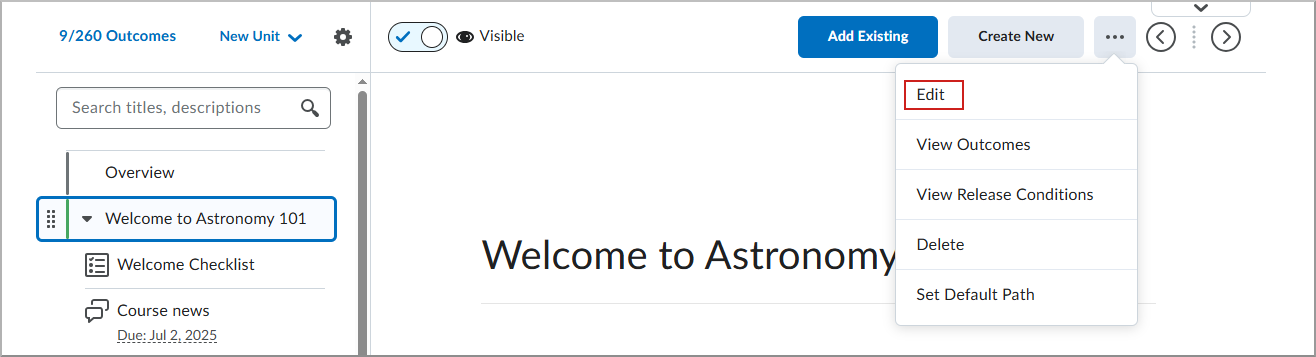
- From the Edit page of the module or unit, click Generate Summary.

- From the Generate Summary dialog choose one of the following:
- Click Generate Summary.
- From the Suggested Summaries dialog, select a summary and click Insert. The summaries are written from a student, module, or instructor perspective.

 |
Important: If your module or unit has an existing Description, you are prompted to click Proceed before replacing that content.
|
- If you wish to review the AI status of your module or unit, click View AI Status:
- The AI Review Status dialog informs you that the summary content is reviewed by a human. AI Review Status is not visible to learners.
- Click Close.
- Click Save and Close.
Your module or unit contains an AI-generated summary based on selected activity content.