Use D2L Lumi Idea to create new assignments or enhance existing ones. Lumi Idea generates assignment suggestions based on related topics within the same content module.
 |
Note: The following content topics are supported:
- Pages
- Assignments (via the instructions field)
- Quizzes (via the description field)
- Discussions (via the description field)
- Media Library items (both audio and video are supported but must have existing transcripts in either English, Spanish, French, Portuguese, or Dutch)
- Various file types, such as .doc, .docx, .odt, .pdf, .ppt, .pps, .pptx, .ppsx, .odp, .xls, .xlsx, .rtf, and .txt
|
Watch how to use Lumi Idea to create assignment ideas in just a few steps.
Generate ideas for assignments
- You can generate ideas from a new assignment or from within the Content tool. In the course navbar, click Content. If Content is not available in your navbar, click Course Admin, and then click Content.

- Select a module that contains existing materials (HTML files, assignments, quizzes, or discussions).
- Click Create New > Assignment.
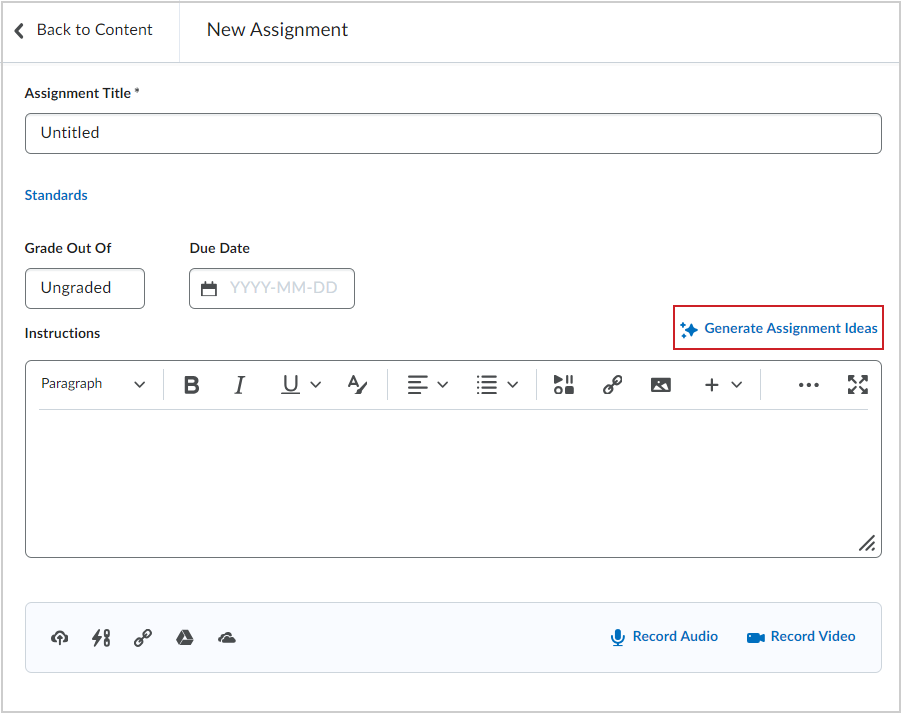
- On the New Assignment page, click Generate Assignment Ideas.
- In the Generate Assignment Ideas dialog, complete the following:
- Number of Ideas: Select how many ideas to generate.
- (Optional) Bloom's Taxonomy level: Select the level that aligns with your assessment goals. If you prefer not to use Bloom’s Taxonomy, leave the field set to Select Level.
- Custom Instructions: Specify focus, tone, audience, or style when generating assignment ideas.
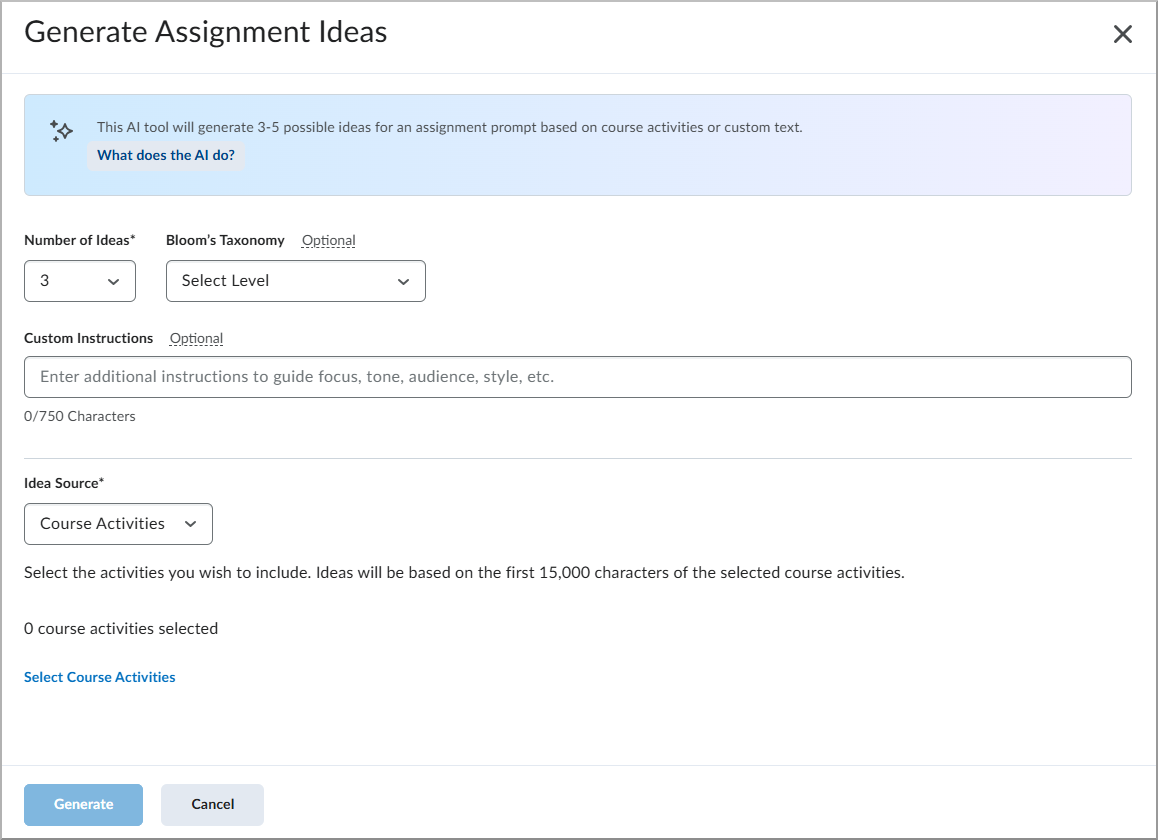
- Select your Idea Source:
- Course Activities:
- Click Select Course Activities.
- Select from the list of Content activities. Icons show whether an activity is hidden or has release conditions. To view items that aren’t included, focus or hover on Unsupported activity types.
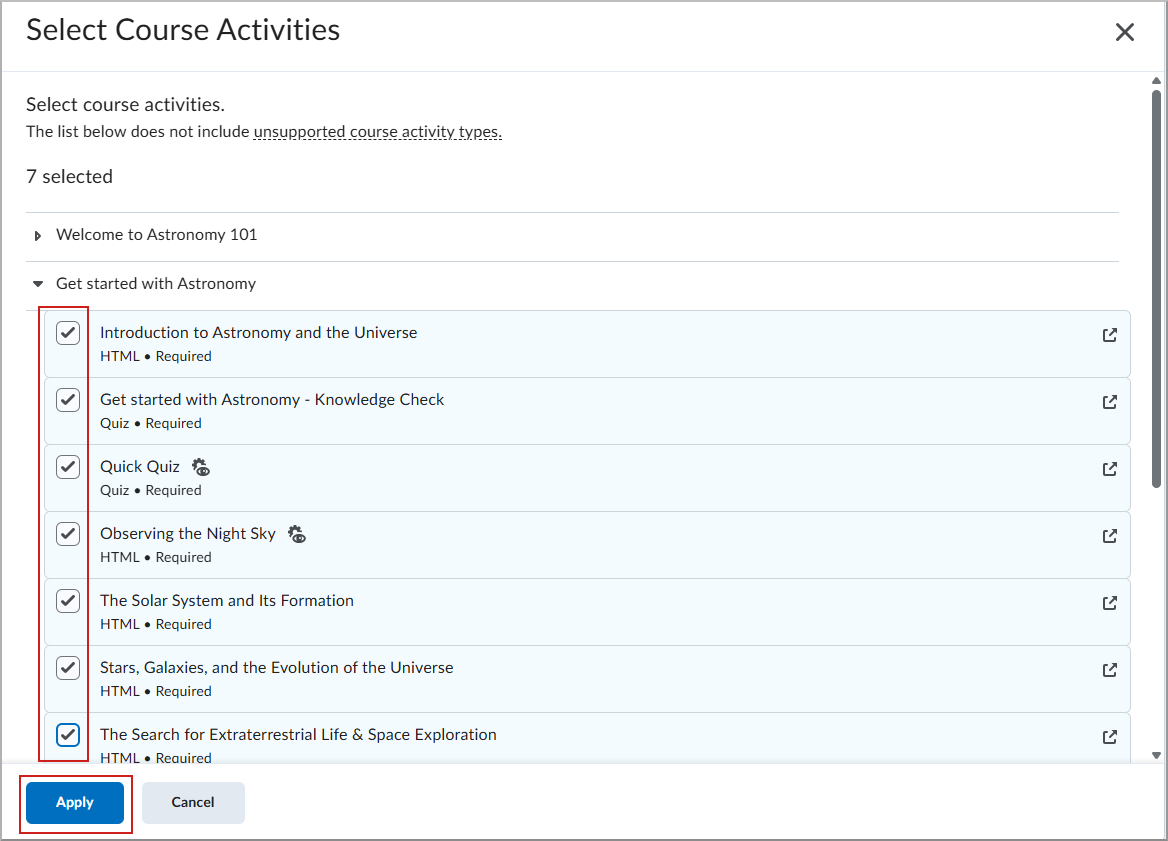
- Click Apply.
- Custom Text: Enter the text you want to use for idea generation. You can enter up to 15,000 characters.
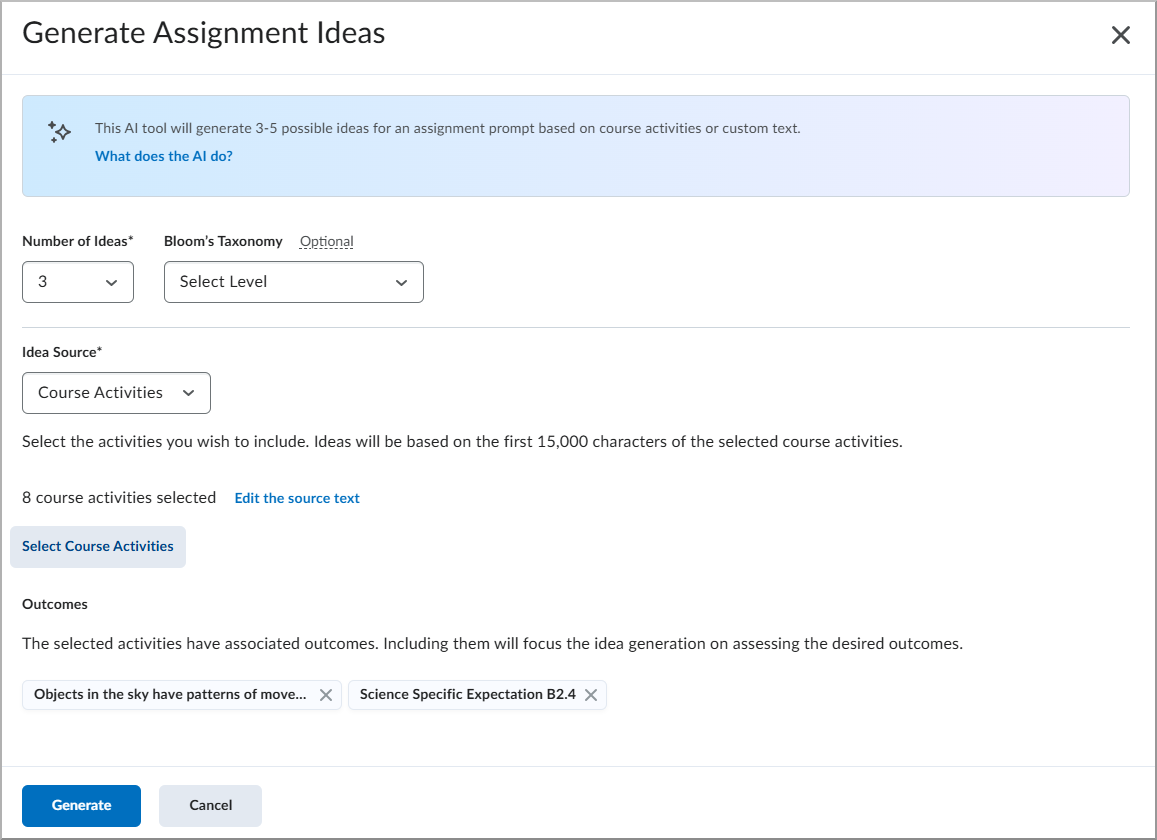
- Click Edit the source text to preview and edit the source text before ideation.
- If the selected activities have associated outcomes, they appear in the Outcomes section. Including these outcomes helps focus idea generation on assessing the intended outcomes. To remove an outcome from ideation, click X beside its name.
- Select the idea you want to use and click Insert.
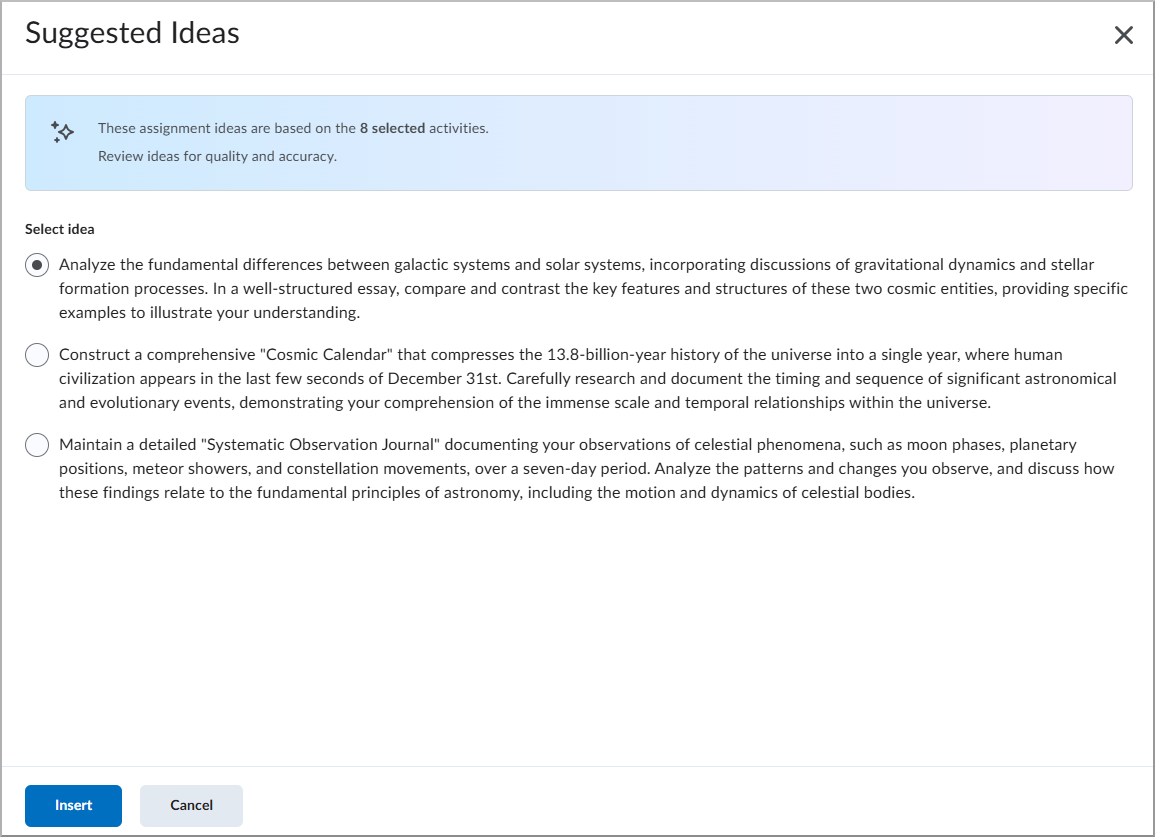
- The New Assignment page appears. The generated assignment is added to the Instructions field.
- Complete your assignment details:
- Enter a title in the Assignment Title field.
- Add a Grade Out Of value.
- Set a Due Date.
- Click the Hidden toggle to make the assignment visible.

- Click Outcomes.
|
Note: The name of this button depends on the language term set by your organization. Other names can include Standards, Competencies, Expectations, Objectives, or Learning Outcomes. |
- Select available outcomes to align to your assignment. Learning objectives must already exist in the course before you can align them to an assignment.
- Click Save.
- On the New Assignment page, click Save and Close.
Your assignment appears in the module. Learners do not see that the assignment was AI-generated.