Note: For more information about the differences between the Classic Content Experience and the New Content Experience (Lessons), refer to Content experiences.
Hide content topics and modules in the Classic Content Experience
You can hide individual topics or entire content modules in the Classic Content Experience.
To hide content topics and modules
- Navigate to Content.
- Open the context menu of the topic or module you want to hide.
- Do one of the following:
- Select Hide from Users.
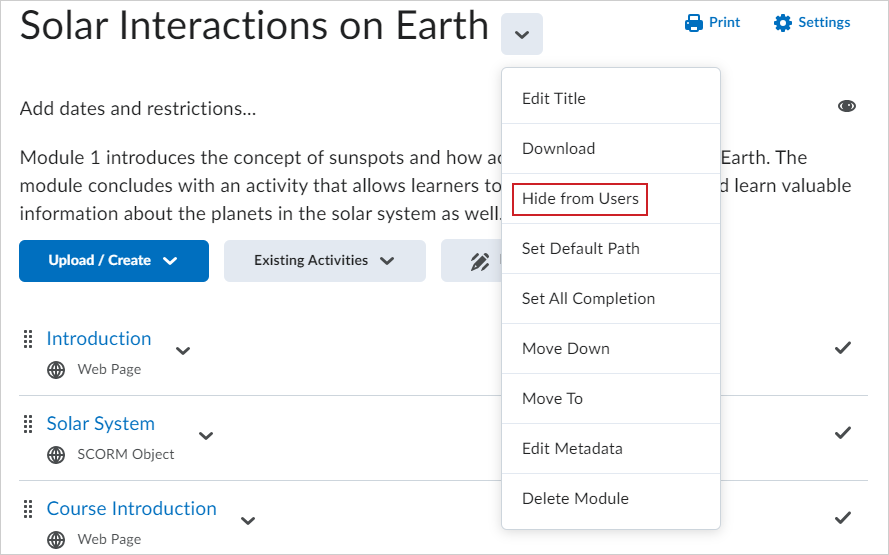
Figure: Click the context menu next to a module title and select Hide from Users.
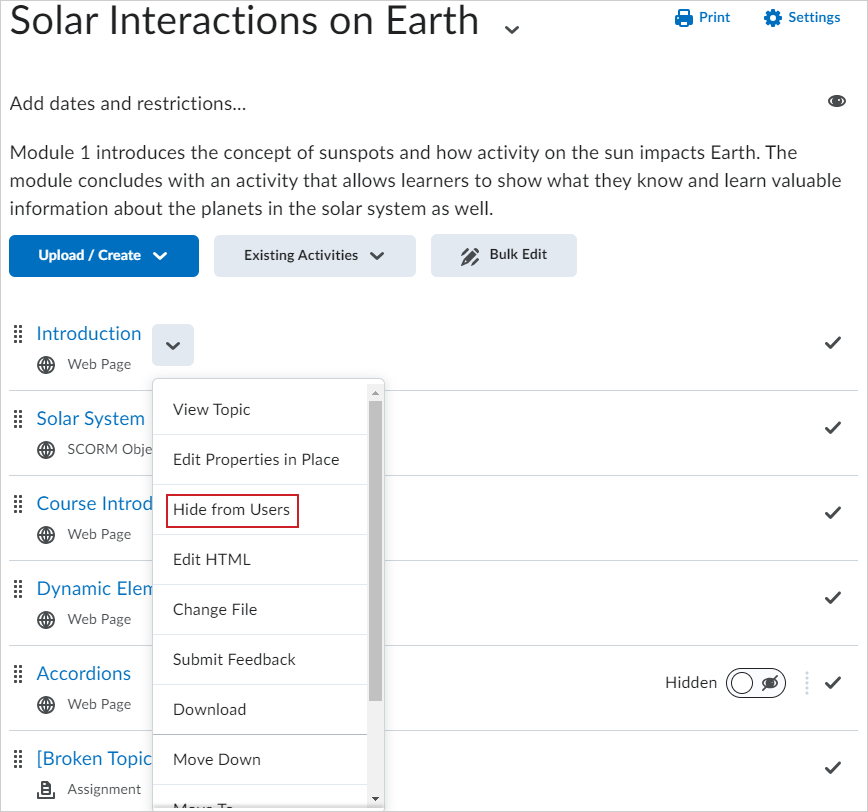
Figure: Click the context menu next to a topic and select Hide from Users.
- Select the visibility icon for the topic or module. A visibility toggle appears to allow you to change between Visible and Hidden.
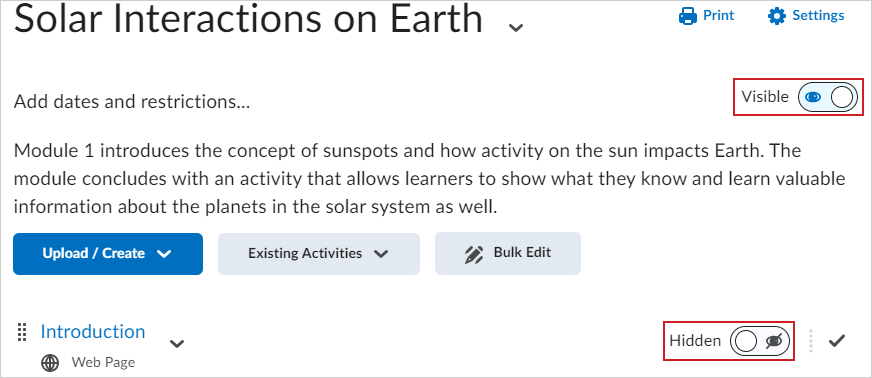
Figure: Toggle a topic or module to Hidden.
 |
Note: When a topic is hidden from users, its visibility status appears under the following conditions:
- The Table of Contents is in Bulk Edit mode.
- The topic is in Edit-in-Place mode.
- The topic itself is not visible to users.
The Table of Contents fly-out menu no longer allows you to change the visibility status of topics or modules. If a topic or module is hidden, a hidden icon appears beside it. To make it visible to users, open the context menu and select Make Visible to Users.
When creating new activities from the Content tool (for example, a new Checklist, Discussion, or Assignment), a Hide from Users checkbox appears below the activity title. This option allows instructors to control the visibility of the new activity before publishing it.
|
Disable download feature in Content
To disable the ability for learners to download content, the following permissions must be disabled for learners in the Content tool:
- Compile and Download Content
- Download Content Topics
Once these permissions are disabled, learners will not be able to see the Download button.
This solution requires an administrator navigate to Roles and Permissions and perform the updates. This is not configurable on a course-by-course basis.