 |
Note: This functionality depends on the configuration variable d2l.3rdParty.GoogleDrive.EnableGooglePicker and one the following permissions:
- Can add files from managed Google account
- Can add files from a personal Google account
|
Link your Google account to Brightspace
Linking your Google account to Brightspace enables you to import content from your Google account into your Brightspace course.
To link your Google account to Brightspace
You can link your Google account to Brightspace by performing any action that requires you to use your Google account. Each action prompts you to link your account if you have not done so already.
- From your course homepage, navigate to Content.
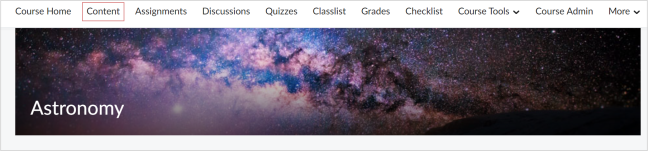
Figure: Course homepage with Content highlighted.
- In the Table of Contents, select the desired module and click Add Existing.
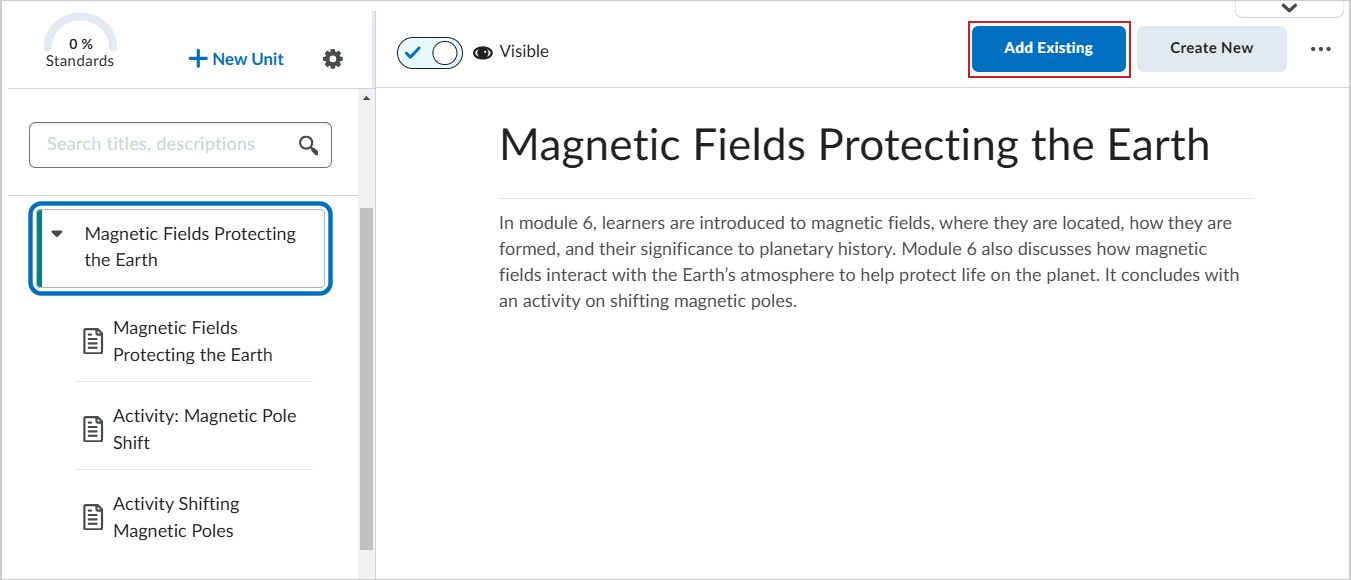
Figure: Click Add Existing in the module where you want to insert content.
- On the What would you like to add? page, click Google Drive.
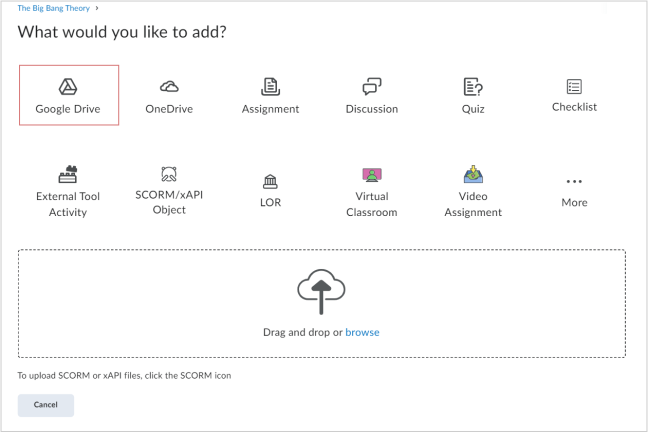
Figure: The What would you like to add? page with the Google Drive option highlighted.
- Click Sign in to Google Workspace or Sign in to a Personal Account.
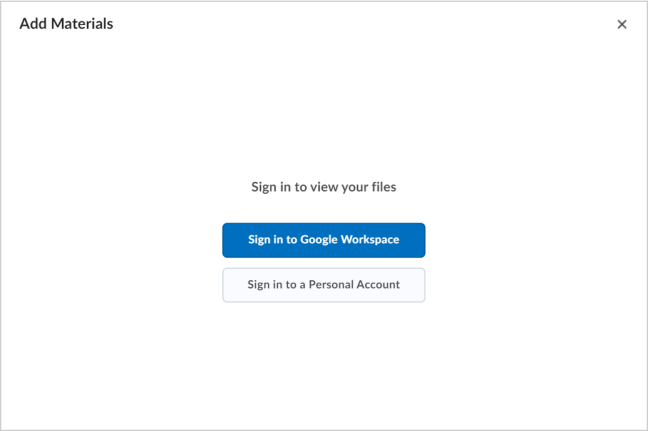
Figure: The Google Drive sign in prompt for both Google Workspace and a personal Google account.
Add existing files from Google Drive to Content
Add existing files from Google Drive to Content to include existing resources in your course.
To add existing files from Google Drive to Content
- From your course homepage, navigate to Content.
Figure: Course homepage with Content highlighted.
- In the Table of Contents, select the desired module and click Add Existing.
Figure: Click Add Existing in the module where you want to insert content.
- On the What would you like to add? page, click Google Drive.
Figure: The What would you like to add? page with the Google Drive option highlighted.
- In the Add Materials dialog, under Files, click the file you want to include and click Add.
Add existing files from Google Drive to Assignments
Add existing files from Google Drive to Assignments to include additional files like an assignment outline.
To add existing files from Google Drive to Assignments
- From your course homepage, navigate to Content.
Figure: Course homepage with Content highlighted.
- In the Table of Contents, select the desired module and click Create New.
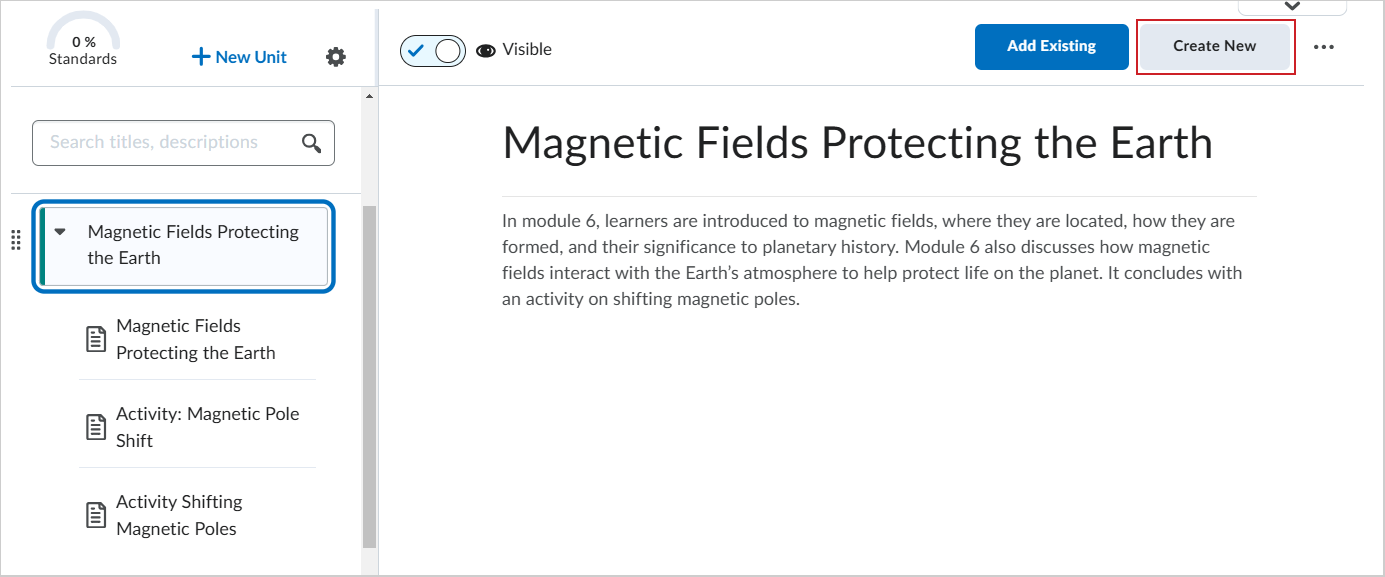
Figure: Click Create New in the module where you want to add content.
- On the What would you like to create? page, click Assignment.
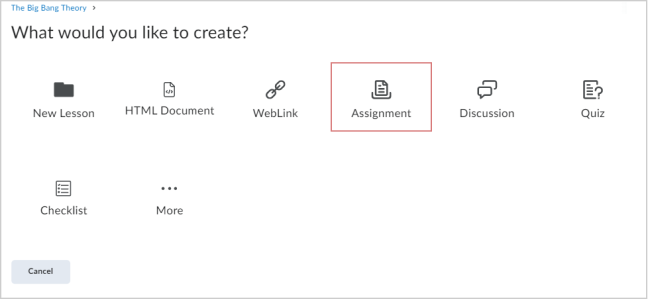
Figure: The What would you like to create? page with Assignment highlighted.
- On the New Assignment page, click the Attach from Google Drive icon.
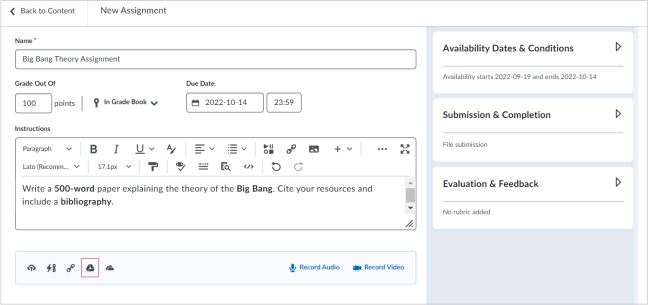
Figure: New Assignment page with the Attach from Google Drive icon highlighted.
- In the Add Materials dialog, select the file you want to attach and click Add.
- Toggle the assignment Visibility to either Hidden or Visible.
- Click Save and Close.

Figure: The Save and Close and Visibility options.