Track learner progress and identify trends in their learning using main indicators in the Class Progress tool.
To modify main indicators in Class Progress
- Navigate to Class Progress.
- On the Class Progress page, click Settings.
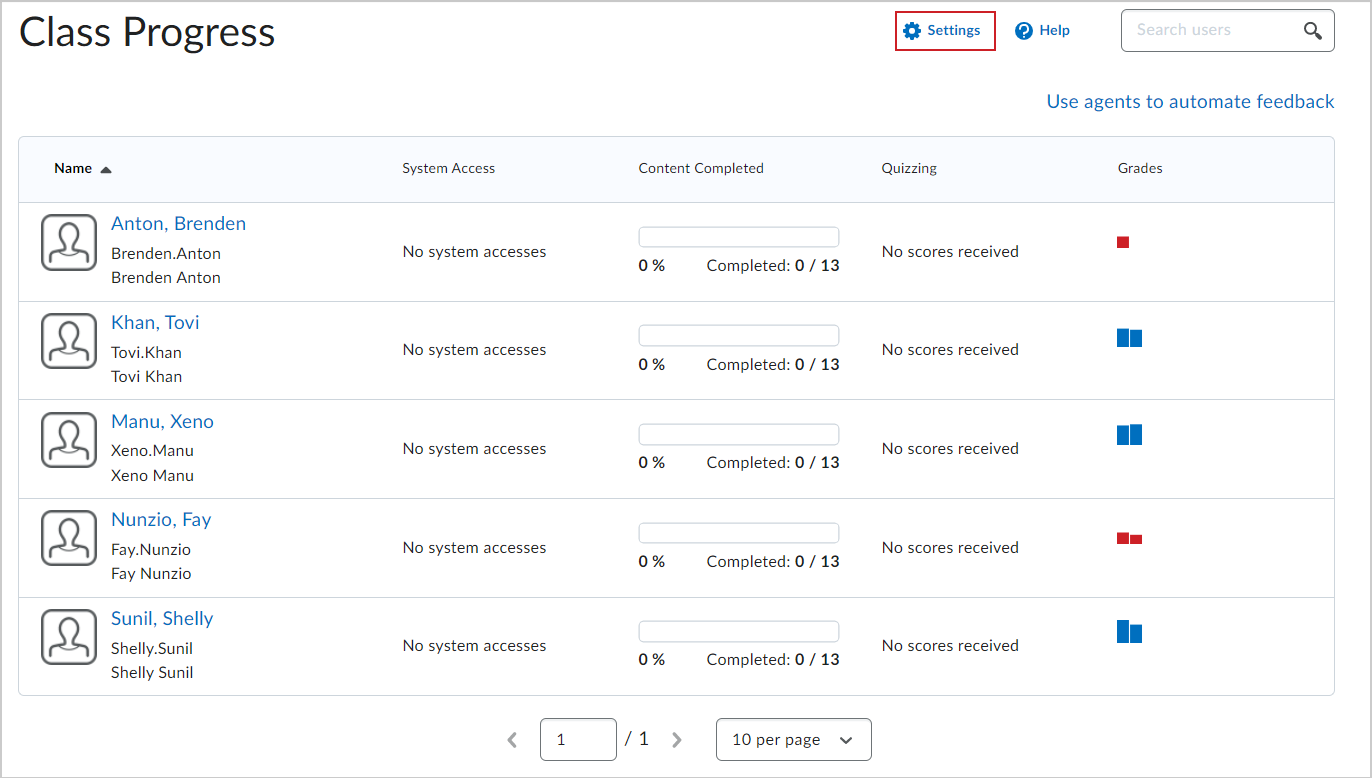
Figure: The Settings icon on the Class Progress page.
- From the drop-down menu of the indicator you want to replace, select Replace.
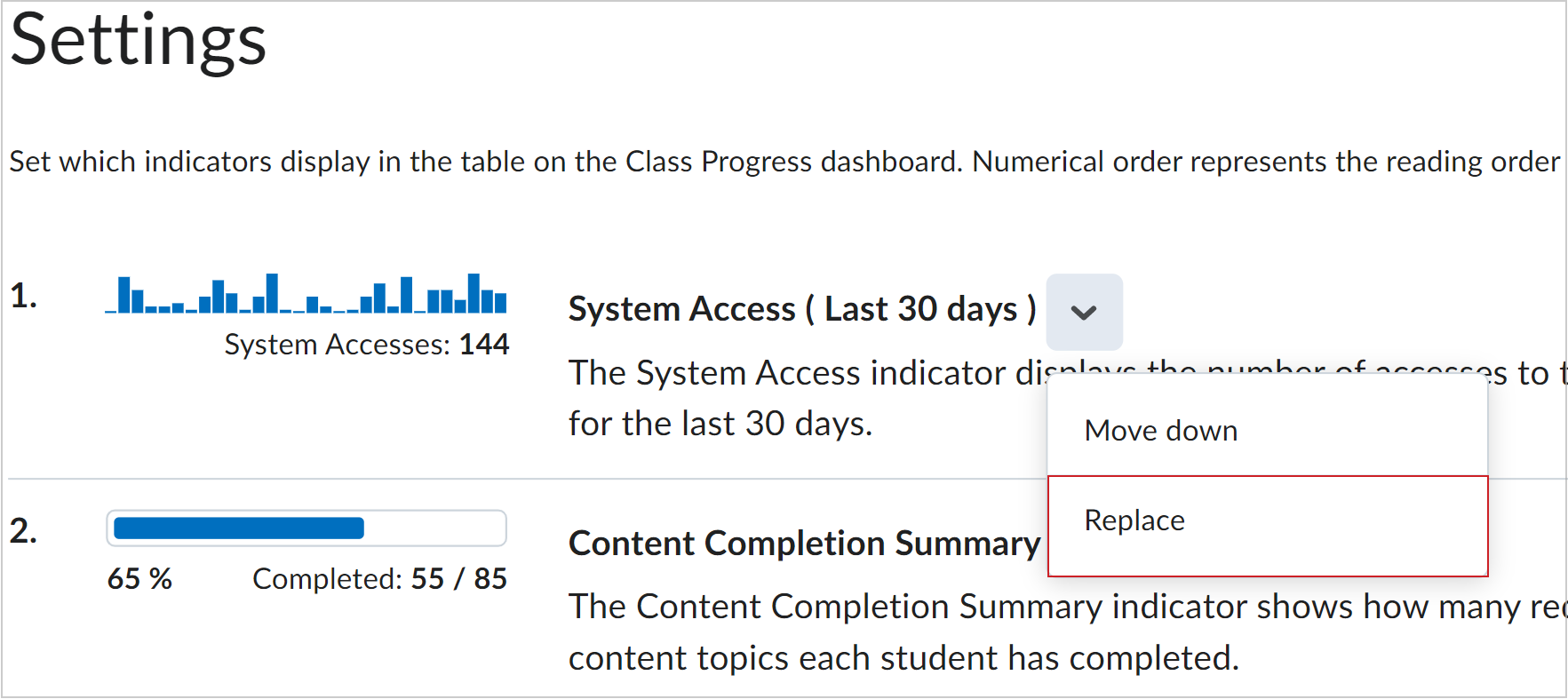
Figure: The Replace option in the drop-down menu for an indicator.
- In the Select Progress Indicator dialog box, click on the indicator that you want to use as a replacement. To replace additional progress indicators, repeat the previous steps.
- From the drop-down menu of a progress indicator, select Move Up or Move Down to rearrange the order that it appears in Class Progress.
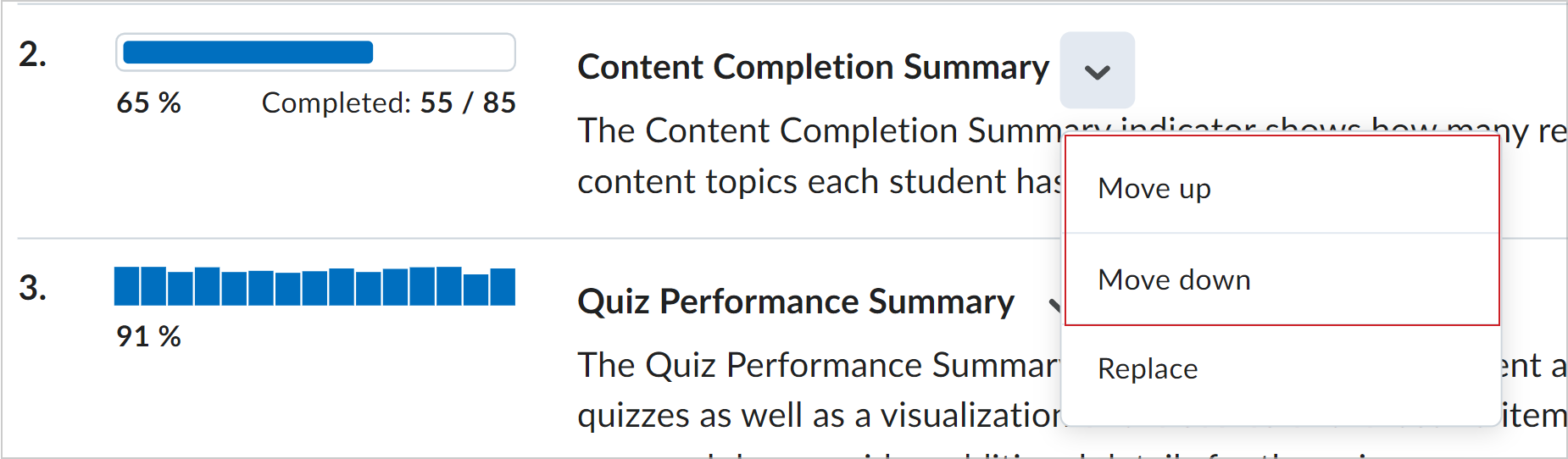
Figure: The Move up and Move down options in the drop-down menu for an indicator.
-
Click Save and Close.