Create and add attendance sessions
- Navigate to the Attendance tool.
- In the Attendance Registers tab, click the Actions menu for the register that you want to add sessions to. Then click Edit Register.
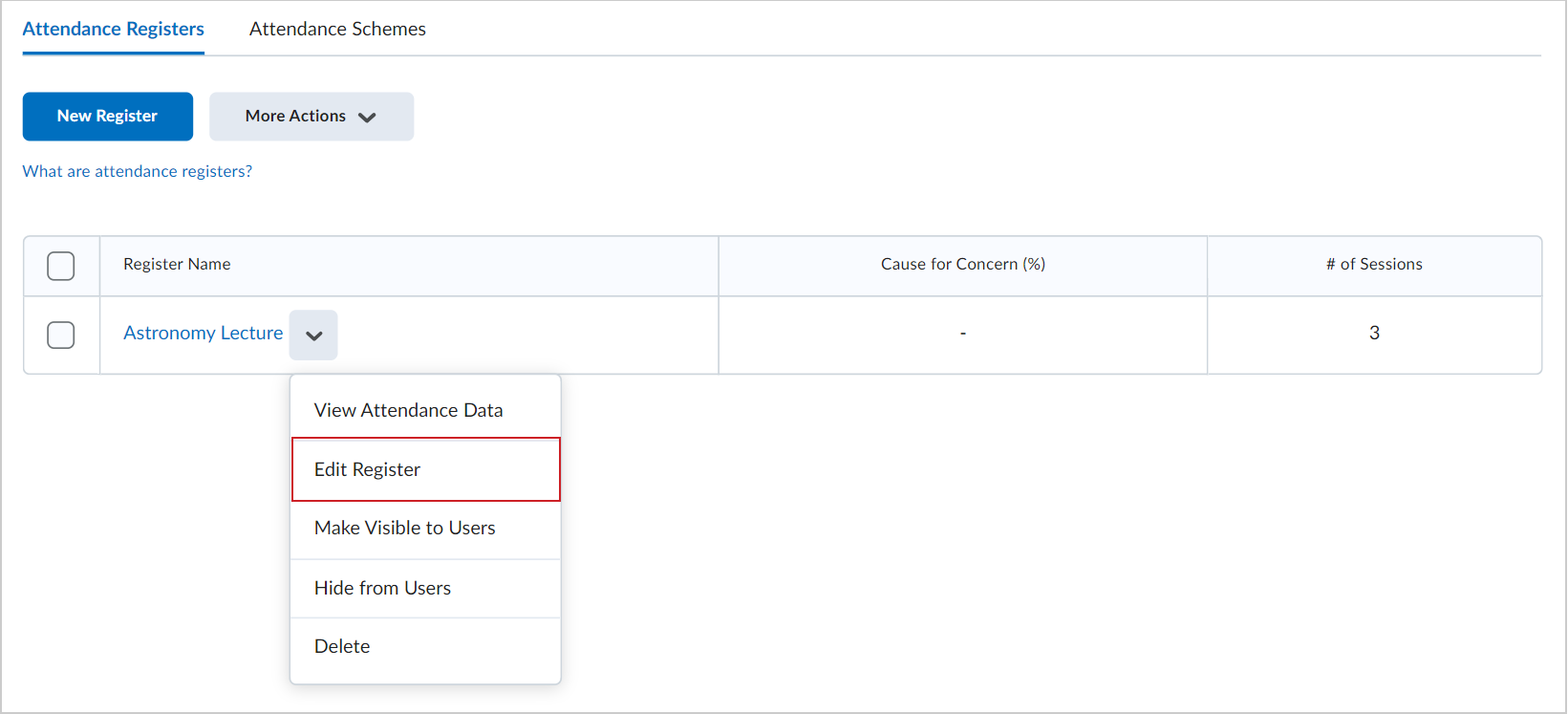
Figure: Click Actions > Edit Register for the register you want to edit.
- On the Edit Register page, scroll down to the Sessions section.
- In the field below the sessions chart, enter the number of sessions you want to add. Then click Add Sessions.
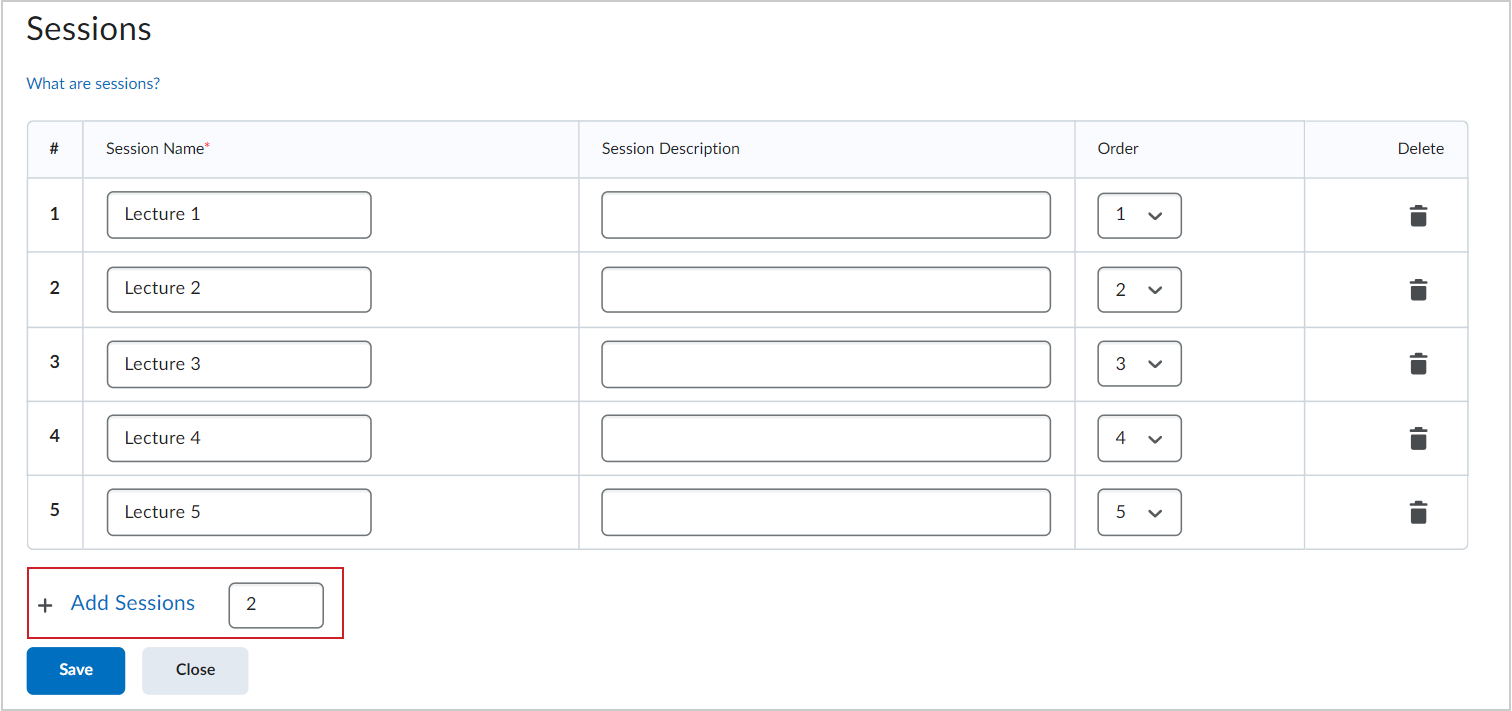
Figure: Enter a number of sessions and click Add Sessions.
- For the new sessions, enter a Session Name.
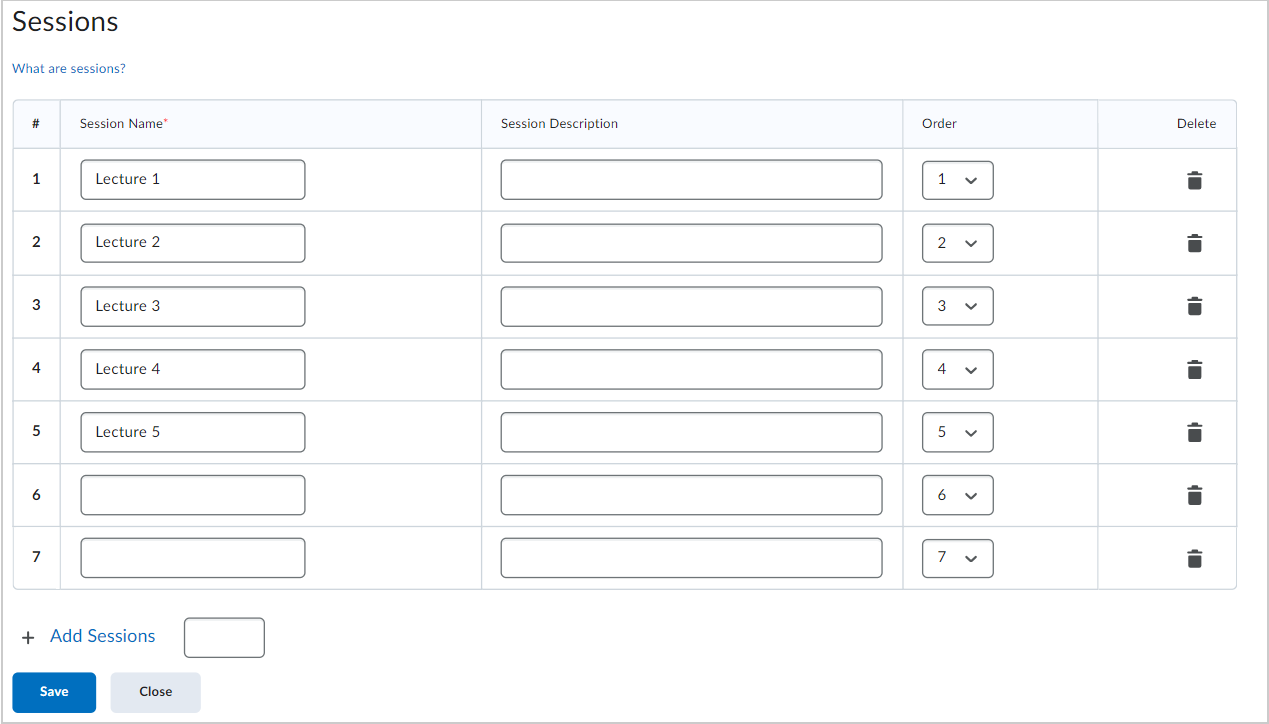
Figure: Enter a name for your new sessions.
- Click Save and then Close to return to the register list.
You have added sessions to your attendance register.