Help boost engagement by scheduling announcements for frequent and regular communication to all learners enrolled in a course. Learners can set notification preferences to be informed of important updates.
 |
Note: When instructors include inline images in an announcement, the images display in both instant notifications and emailed copies of the announcement. The total supported size for inline images is 10 MB. If the combined image size exceeds this limit, the images will not display in notifications or email messages. |
Watch this video to learn how to use the Announcements tool. Review the written steps below.
Requirements
The following are required to use the Announcements tool:
- To see and use the Announcements tool, you must have the required Announcements permissions applied to your role. These permissions can only be accessed by your organization administrator.
- To add the Announcements tool to your course navbar, you must have the required Navbar permissions applied to your role. For more information about how to add a tool or link to your course navbar, refer to the Customize your course navbar topic.
 |
Important: You can also locate available course tools by navigating to Course Admin from your navbar. If you cannot find the Announcements tool in your Brightspace instance, contact your organization administrator to obtain required permissions.
|
Visual tour of the Announcements tool
Once you have satisfied permission requirements and added the tool to your course navbar, select Announcements.
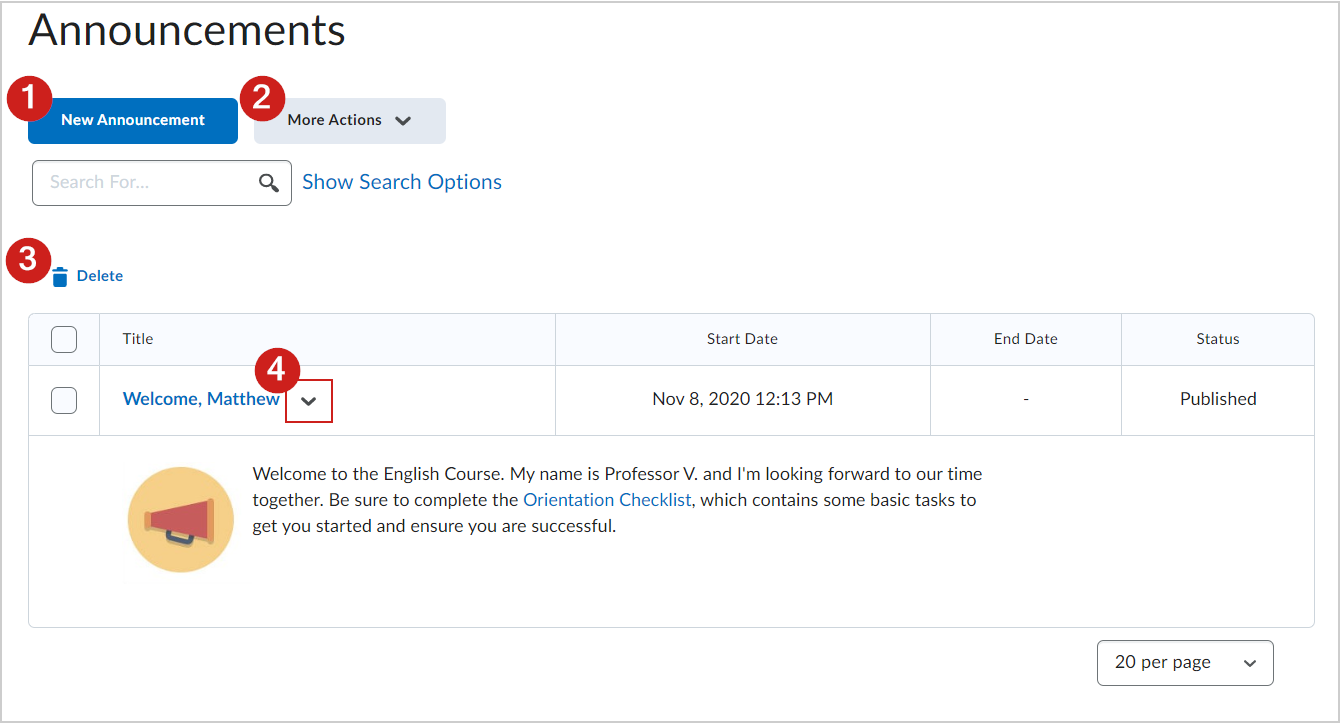
When instructors land on the Announcements tool, the first page that they will see will display all announcements created within the course.
- New Announcement: Create new course announcements.
Note: The body of an announcement cannot have more than 1.5million characters.
- More Actions: Reorder announcements, access notification settings, and restore deleted items.
- Delete: Remove announcements from a course if they are no longer needed.
- After clicking on the drop-down menu next to the title of an announcement, instructors are given the options to View, Edit, Delete, or Copy the selected item, as well as Pin to top or Unpin the announcement to the top of the page as needed.
|
Note: Announcements can be published to the Slim Announcements Widget, which can be embedded in your homepage. For more information, refer to Using the Slim Announcements Widget. |