Top Hat ACE is a personalized, AI-powered study support tool integrated into your course materials. This GPT-powered AI assistant, also known as "Chat with ACE," provides real-time academic help, tailored responses, and seamless interaction on both web and the Top Hat mobile app.
Students can access this AI tutor directly within course pages and slides, while instructors can enable or disable the feature via Advanced Course Settings. Designed to enhance engagement and adaptive learning, ACE uses generative AI to deliver contextual, private support.
Table of Contents
- Students: Accessing and Interacting with ACE
- How to Interact with ACE
- Delete an ACE AI Chat
- Instructors: Enabling and Disabling ACE
- Managing Student Access
- Interacting with ACE
- Instructor Insights: ACE Study Assistant Chats
- Frequently Asked Questions (FAQ)
Students: Accessing and Interacting with ACE
If ACE has been enabled in your course, you will be able to access it from any assigned page or slide in your Top Hat course.
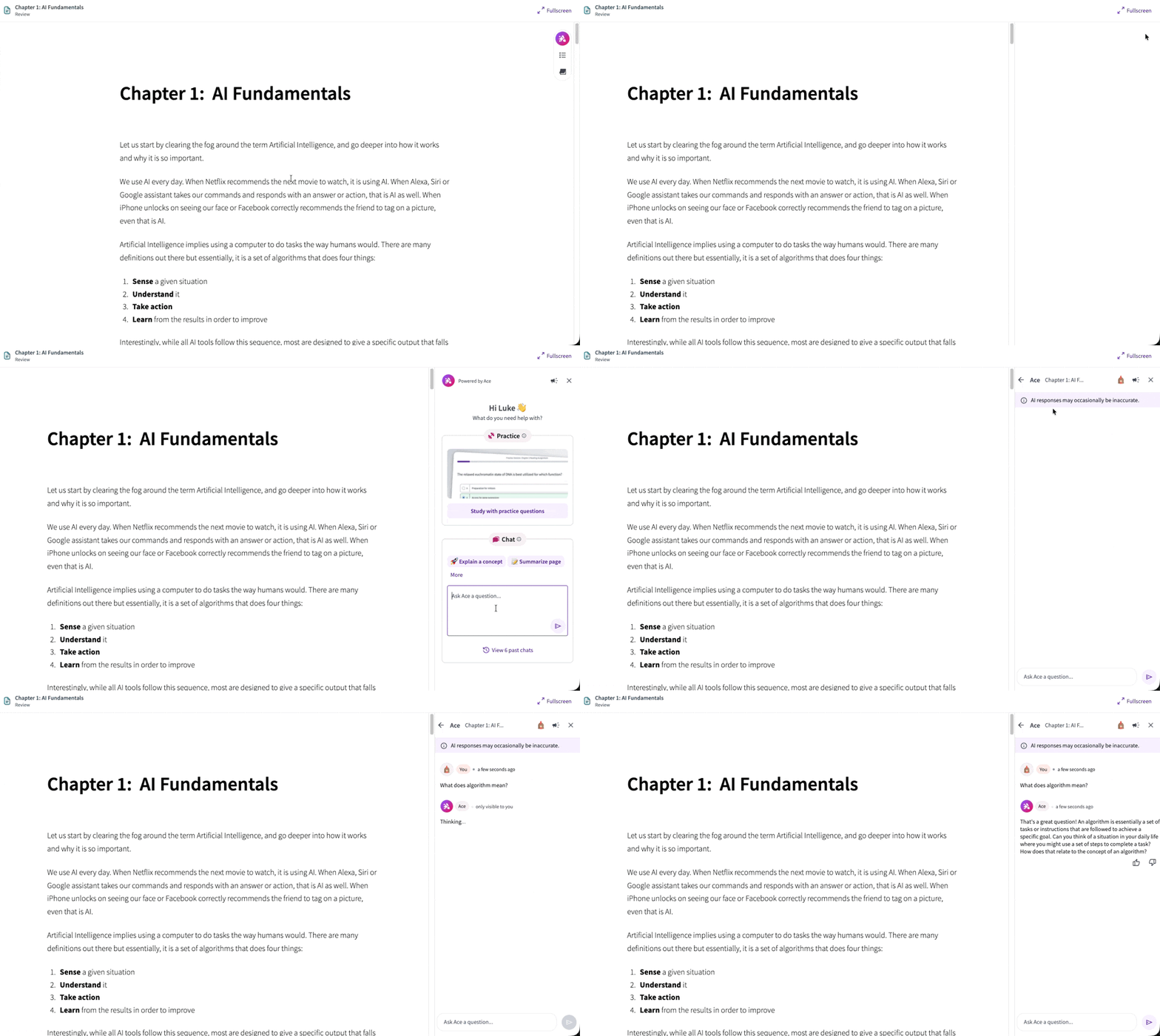 GIF: Chat with ACE entry points within the course (Web)
When you first encounter ACE, it will be accessible at the bottom right corner of your page indicated as "Chat with ACE." On the mobile app, look for the sparkle icon on the bottom navigation bar.
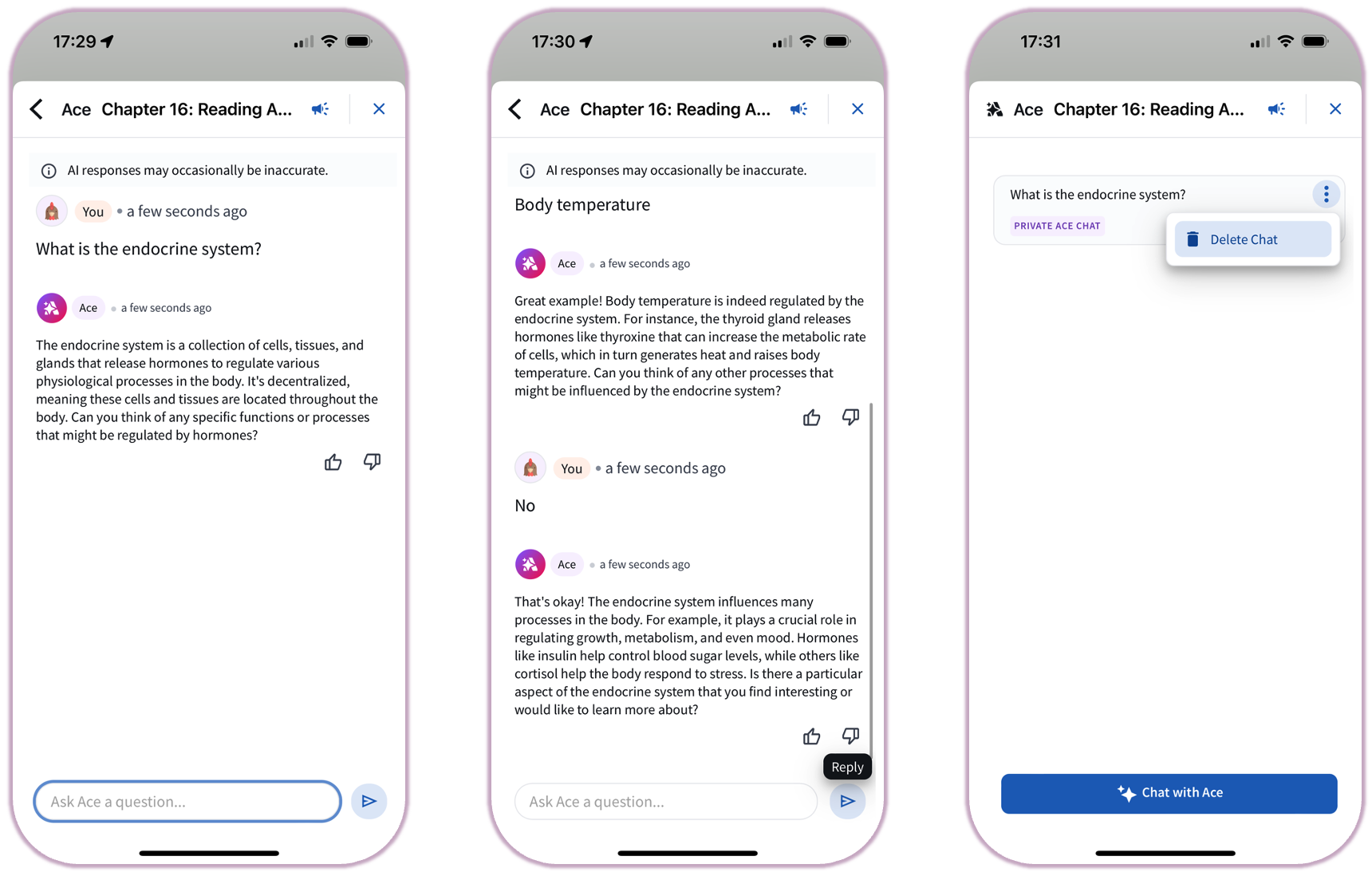 Image: Chat with ACE within the mobile app
How to Interact with ACE
Once you have accessed the ACE side panel, follow these steps to begin your session:
- Launch: Click the "Chat with ACE" button to open the interface.
- Inquire: Type your question in the text field at the bottom of the chat panel.
- To Send: Press
Enter.
- For a New Line: Press
Shift + Enter.
- Submit: Click the arrow icon to send your query. ACE will generate a response based on the specific context of your course materials.
- Evaluate: Use the thumbs up or thumbs down icons to rate the quality of the response. This feedback helps improve the accuracy of the AI.
- Refine: You can ask follow-up questions within the same thread or click the "Chat with ACE" button again to start a separate conversation on the same page.
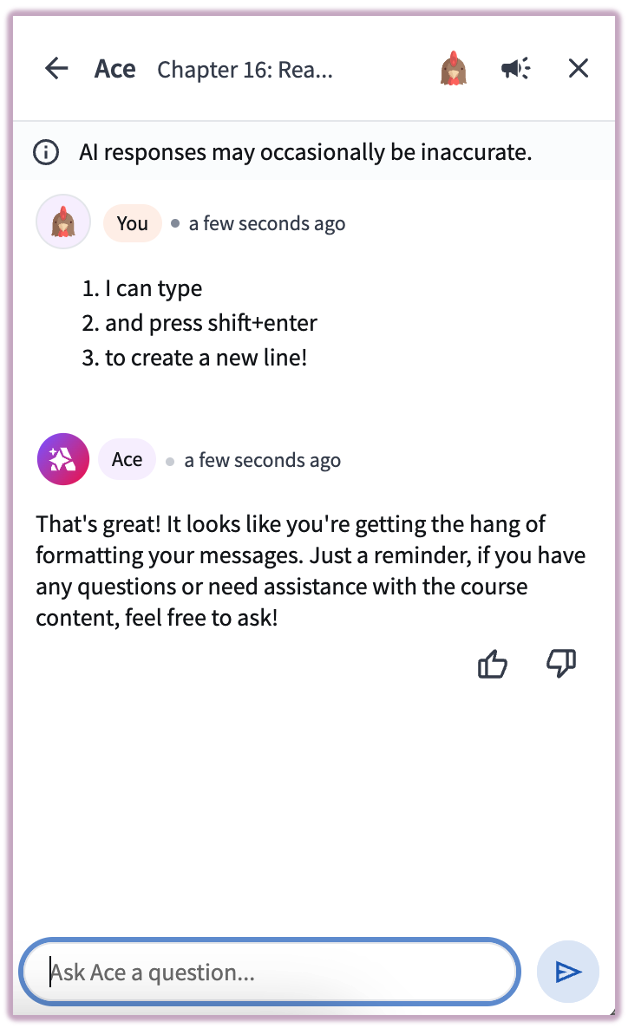 Image: Creating a new line in chat
Privacy Note: Your chats with ACE are private and not visible to your instructor or classmates.
Delete an ACE AI Chat
To delete a chat, select the three vertical dots next to the listed chat in the ACE window and select Delete.
Instructors: Enabling and Disabling ACE
Instructors can interact with ACE using Smart Default buttons to quickly explore student-facing content.
Managing Student Access
- Navigate to Advanced Course Settings.
- Uncheck the Enable ACE option to hide the feature for students.
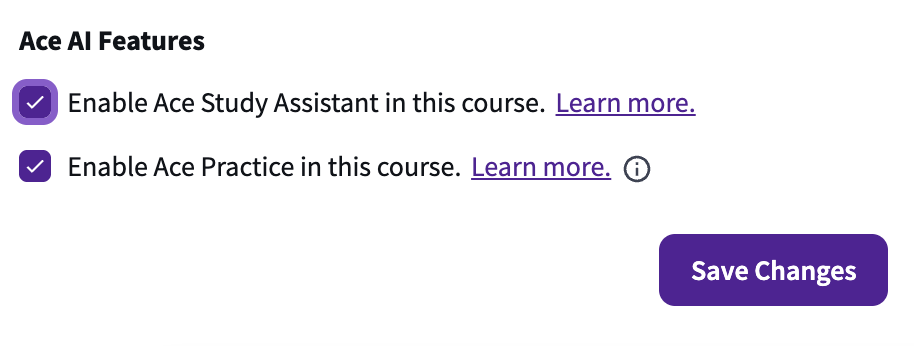
Note: When the tool is disabled for students, instructors will still maintain access to ACE for testing purposes.
Interacting with ACE
To begin interacting with ACE, you can choose one of two methods:
- Custom Query: Type your query into the text field at the base of the chat panel and click the arrow icon to submit.
- Smart Defaults: Select any of the Smart Default buttons located above the input field to instantly launch a pre-set conversation topic.
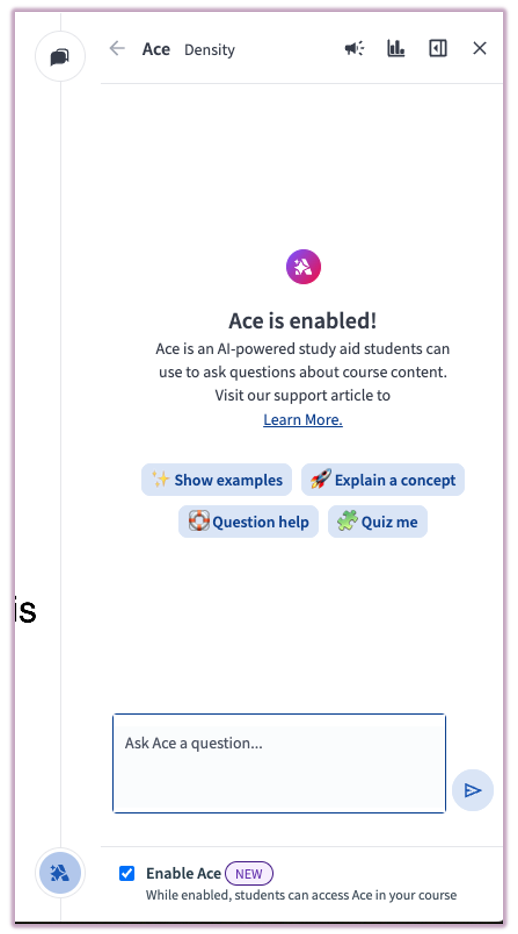
ACE will generate a contextual response based on the course materials and the specific content of the page you are viewing. You may continue the dialogue by asking follow-up questions at any time.
Providing Feedback: You are encouraged to use the thumbs up or thumbs down icons to rate the quality of the AI's responses. This feedback helps refine the accuracy of future interactions.
Instructor Insights: ACE Study Assistant Chats
For courses with the Study Assistant enabled, instructors can access ACE Engagement Insights. This provide a high-level overview of the topics generating the most interest among students. To view these analytics, click the bar graph icon in the ACE side panel.
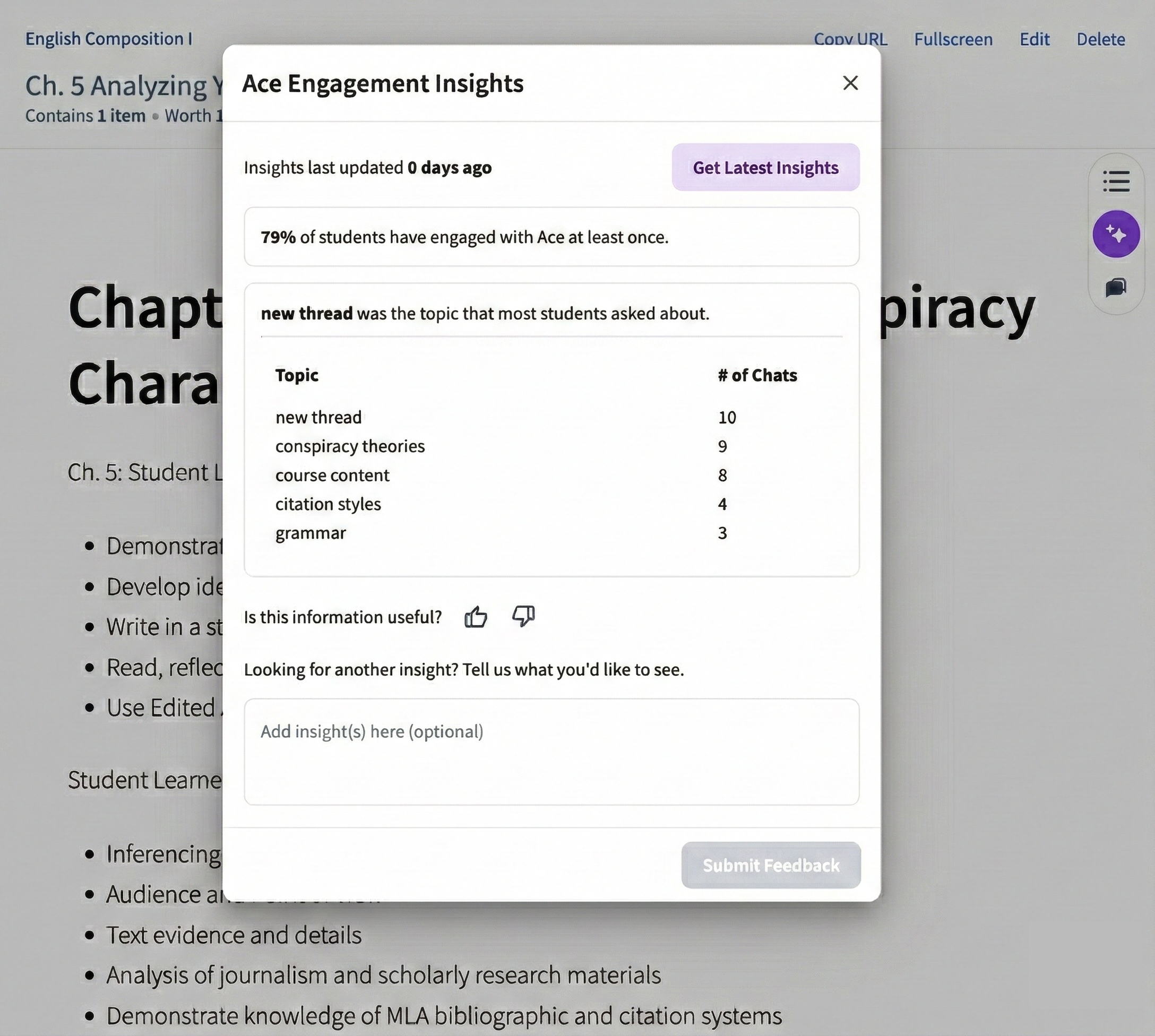 Image: ACE Engagement Insights Dashboard
What's Included
- Topic Breakdown: A list of the most frequent topics students are discussing with ACE
- Engagement Volume: A clear view of the total number or percentage of chats per specific topic
- Engagement Rate: See what percentage of your total student roster has engaged with ACE at least once
Note: Insights become available once a minimum of 10 student chats have been generated in the course.
Frequently Asked Questions (FAQ)
- Are the responses that ACE provides accurate?
- Not always. Like all tools that leverage generative AI, ACE’s AI-generated content may contain inaccuracies about people, places, or facts. Top Hat displays messaging to this effect within our platform wherever AI is being used, reminding users that they should always independently evaluate the accuracy of any generated responses.
- Will you use my generated questions and associated responses to “train” future versions of this feature?
- No, the AI models that Top Hat uses do not train on data provided by user interactions in Top Hat. However, Top Hat does solicit feedback from users within the platform to help us evaluate the effectiveness of our AI features. Users can use the thumbs up and down buttons that accompany AI-powered questions and responses to indicate whether the output provided was helpful. Top Hat users agree to Top Hat using feedback when they accept our User Agreement (see Section 9.4 of the User Agreement).
- How can I provide feedback about ACE?
- We would love your feedback. You can use the thumbs up and down buttons that accompany individual AI responses to indicate whether the response was helpful. For more general feedback on the feature, please use the megaphone icon at the top of the ACE platform to share your comments.
- What AI technology is powering ACE?
- Our AI-powered questions use GPT-class Large Language Models (LLMs), which are secured with enterprise contracts to ensure maximum data protection and privacy.