The Top Hat Catalog contains 2,500+ interactive textbooks and materials created by, and for, educators like yourself. Access high-quality textbooks and course materials featuring dynamic content that can be fully customized to suit your specific course needs.
Table of Contents
- Accessing the Top Hat Catalog
- Browsing the Catalog
- Exploring Content within the Catalog
- Importing Catalog Content to a Course
- Mandatory vs. Optional Settings
Accessing the Top Hat Catalog
To enter the marketplace from your Educator account:
- Sign in to Top Hat and navigate to your specific course.
- Click the Main Menu (≡) icon in the top-left corner.
- Select the Catalog button from the dropdown menu.
The Top Hat Catalog will open in a new browser tab. When you are ready to return to your course, simply close the Catalog tab.
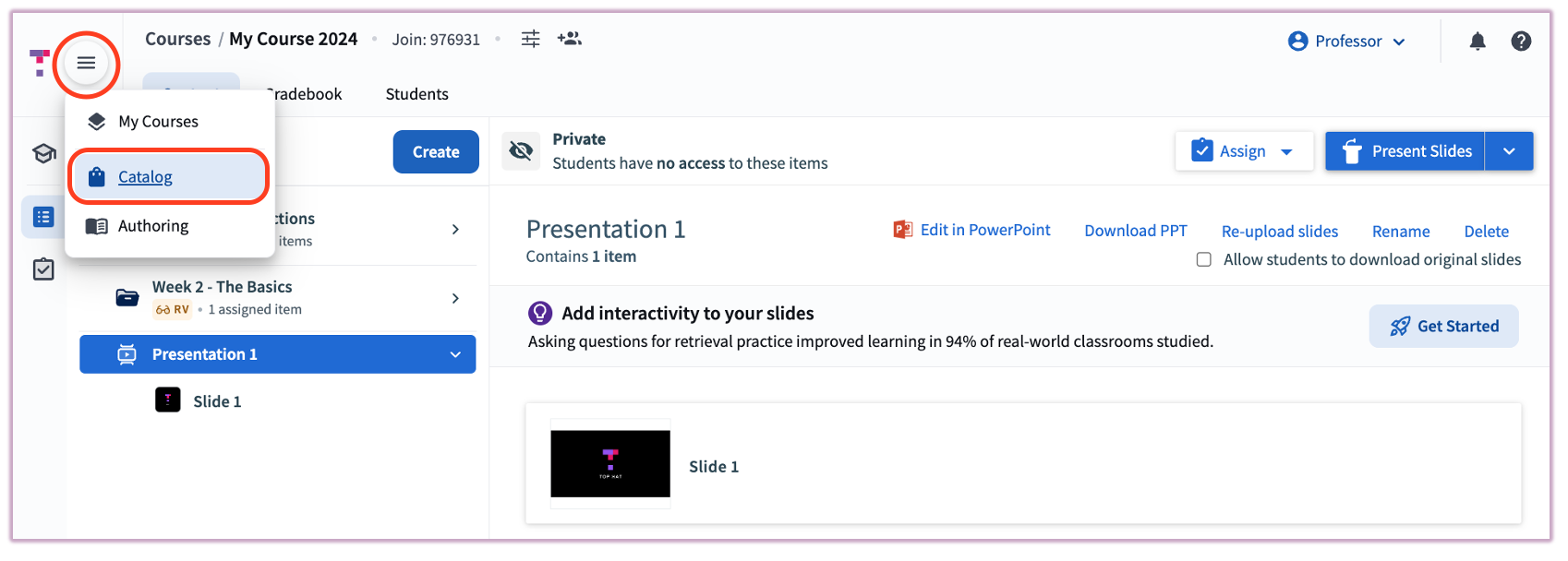 Image: Locating the Catalog button in the navigation menu
Alternatively, you can go directly to app.tophat.com/catalog/ (opens in a new window) from any web browser.
Note: If you are unable to access the Top Hat Catalog from within your Educator account/course, please contact Top Hat Support.
Browsing the Catalog
Our content is always evolving with new learning resources added regularly. Browsing is simple—select from the subject categories provided or use the search bar for a specific title or author.
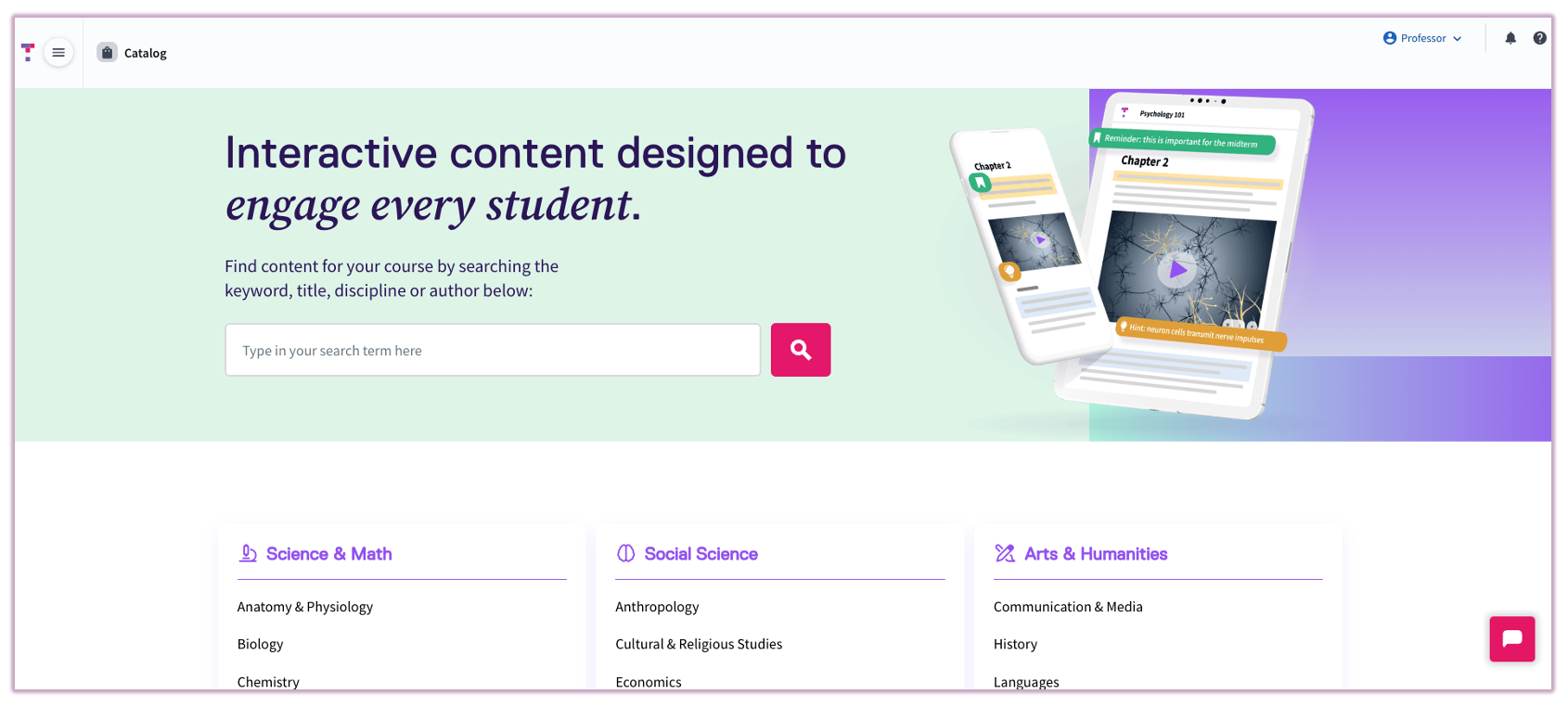 Image: The Top Hat Catalog homepage
Once you have identified your subject area, you may narrow down your results by filtering for specific disciplines and content types, such as:
- Interactive Textbooks
- Course Notes
- Question Packs
- Slide Decks
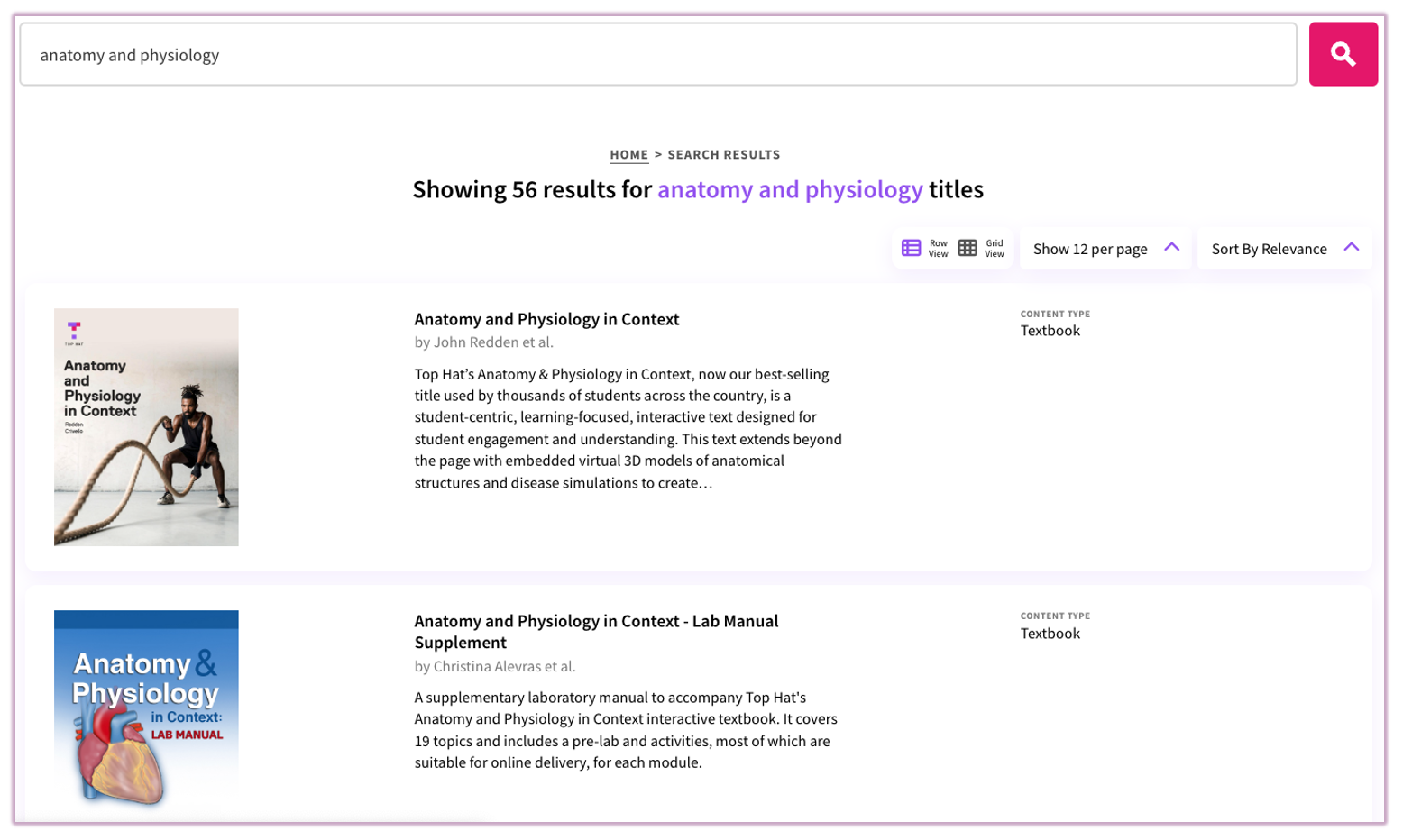 Image: Searching and filtering titles in the Catalog
Exploring Content Within the Catalog
Each item in the catalog features a content card that provides a snapshot of its details. Depending on the item, this may include the title, author(s), number of questions/slides, and the student price.
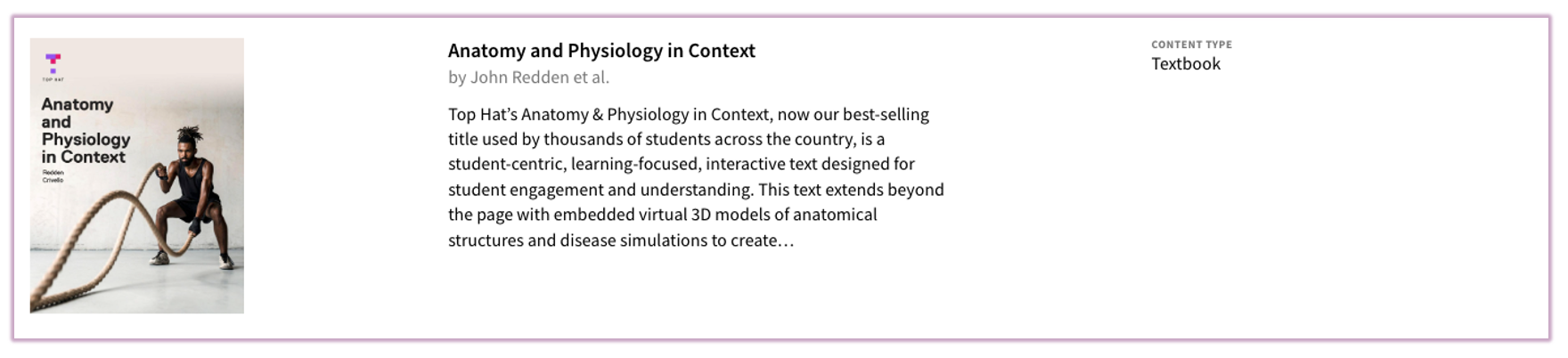 Image: Catalog content card details
To take a deeper look, simply click the title to enter Preview Mode. The left-hand index allows you to navigate through the chapters or sections to review the material before importing.
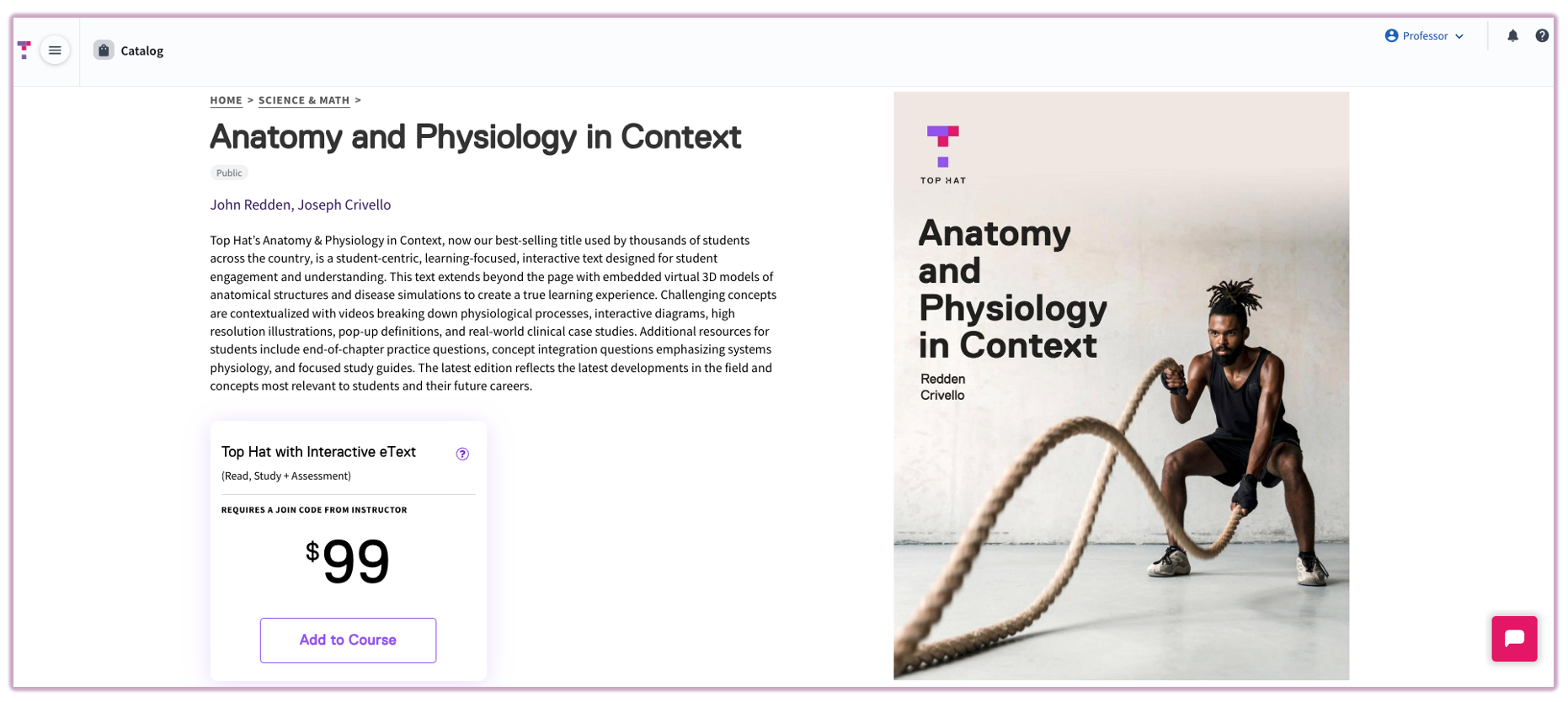 Image: Previewing a textbook within the Catalog
Importing Content to a Course
If some content is locked, you can click Unlock All Content to request access. To add the materials to your course, click the purple Add to Course button.
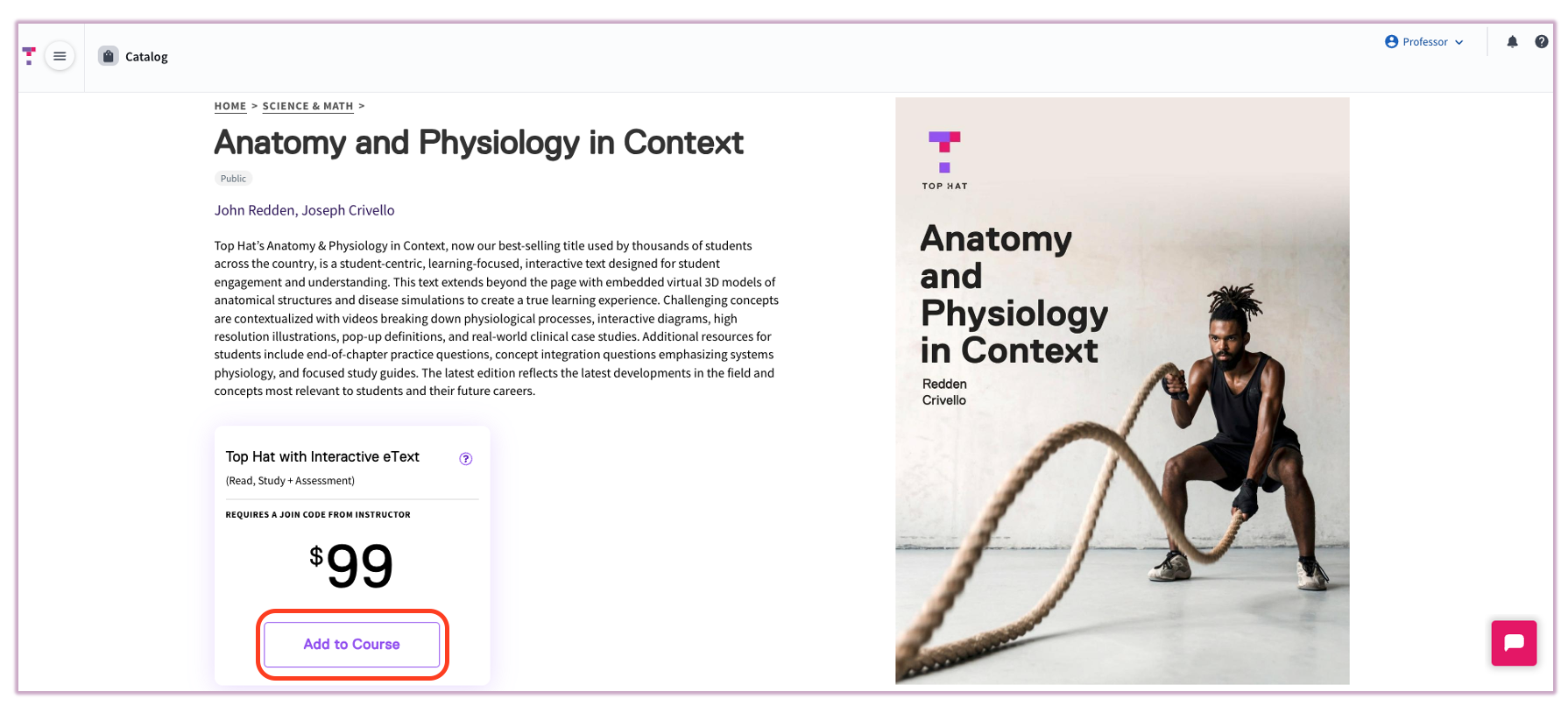 Image: Adding content to your course
You can add content to multiple sections simultaneously by selecting all relevant courses from the list provided.
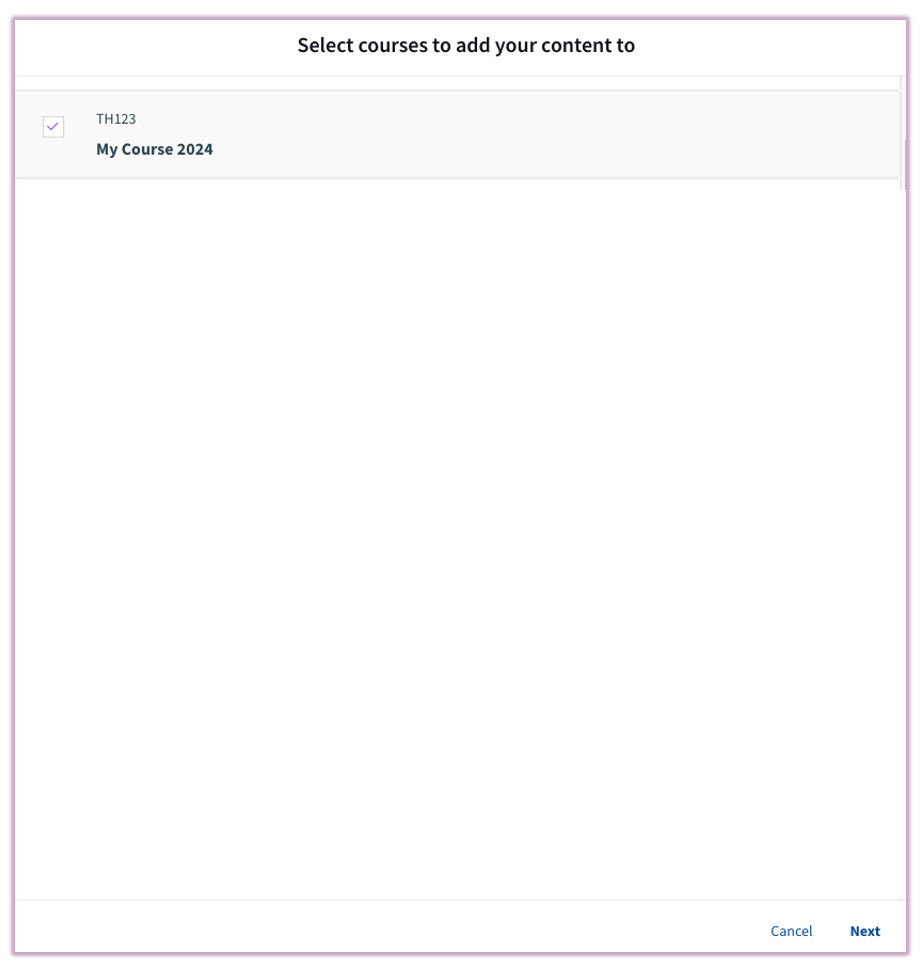 Image: Selecting courses for import
Note: The Catalog currently imports entire content collections. If you only need specific portions, you can delete unwanted sections from your course's content tree after the import is complete.
Mandatory vs. Optional Settings
If the content has a student price, you must decide how students will access it:
- Mandatory: Students are required to purchase the content to access the course. Best for core curriculum materials.
- Optional: Students are only prompted to pay if they choose to access the specific content. Ideal for supplemental practice or extra resources.
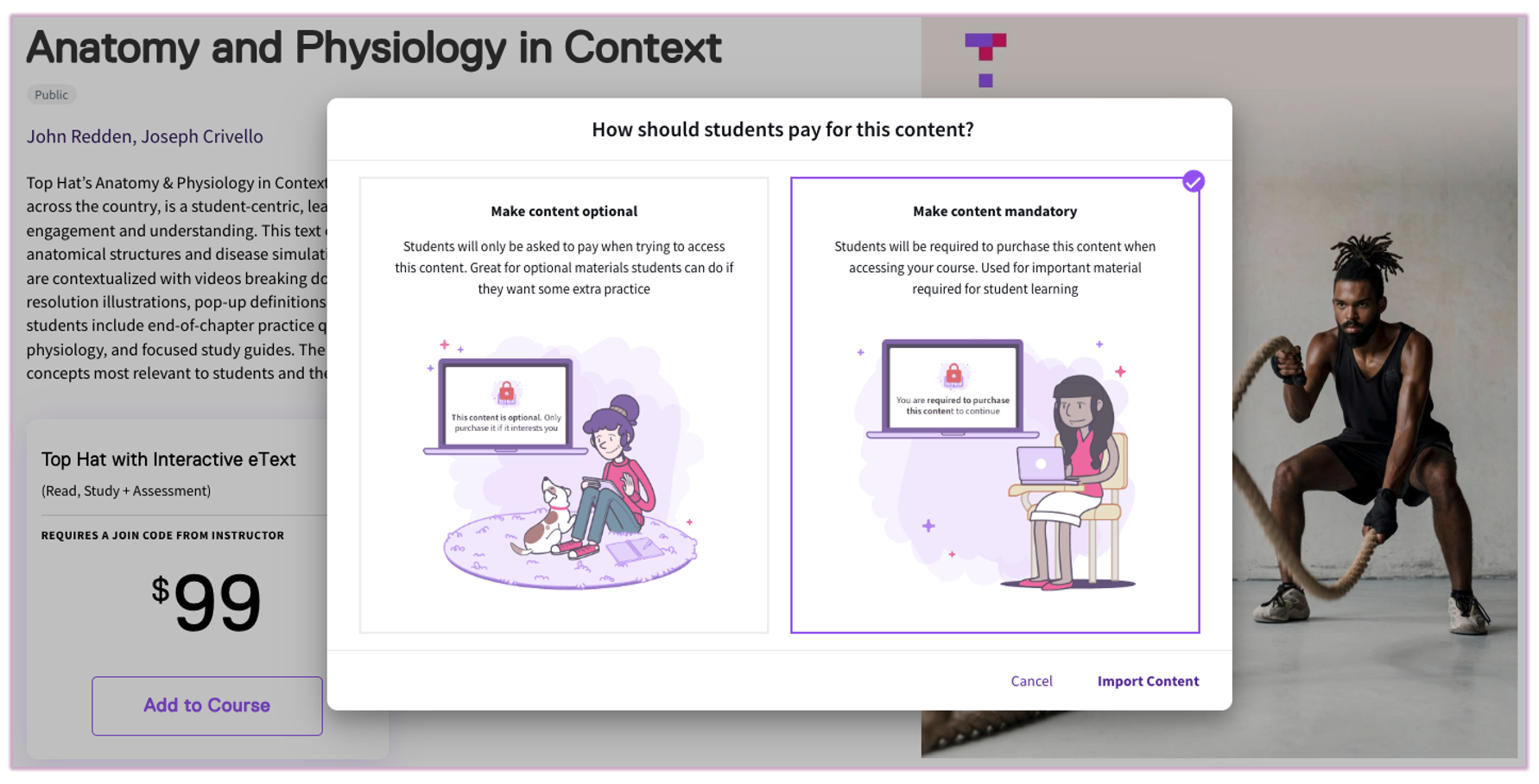 Image: Setting student access requirements
The process may take a few minutes depending on the size of the collection. You can continue working in Top Hat while the import runs in the background.
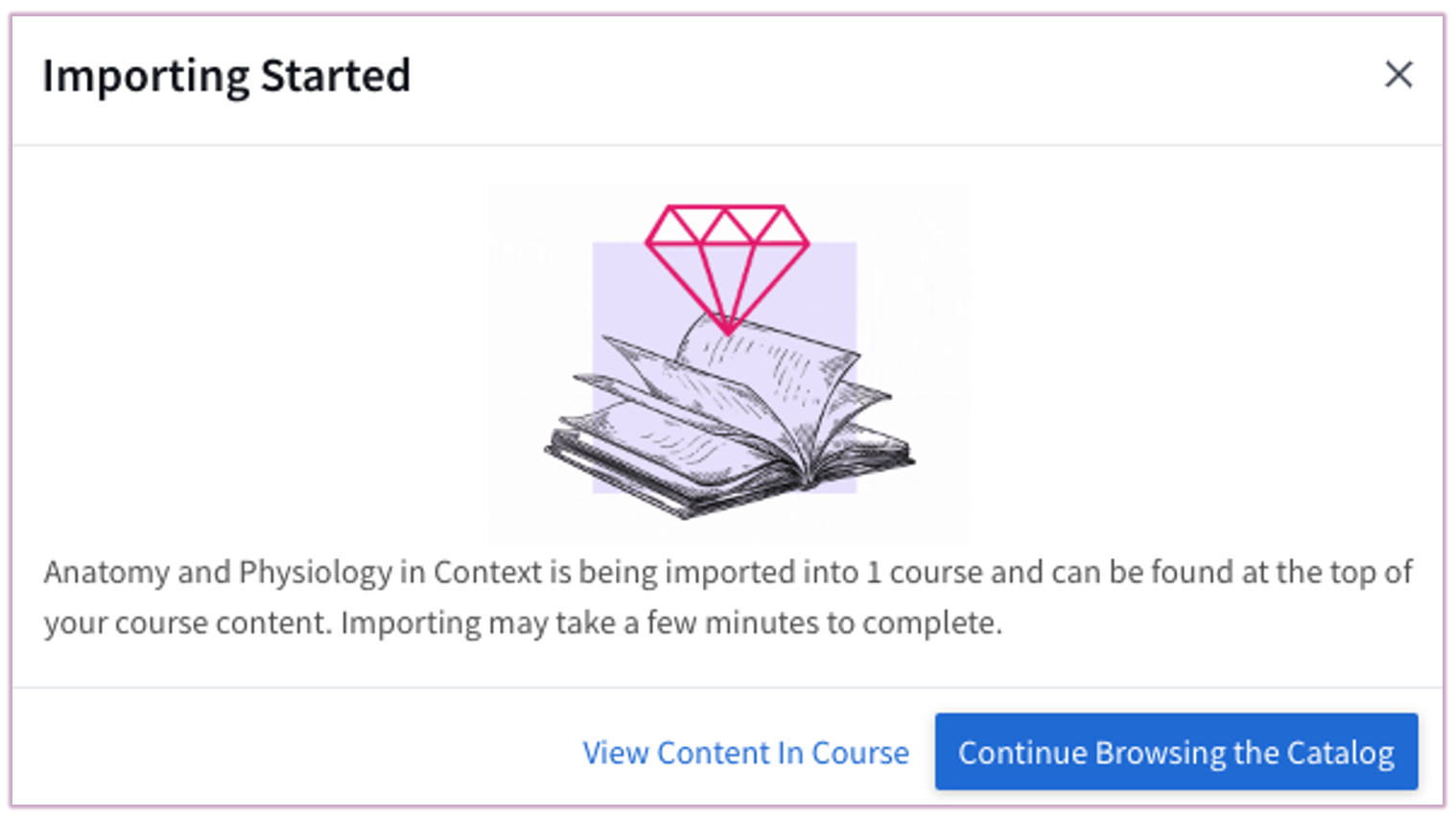 Image: Content importing progress