Welcome to the support guide on using Top Hat’s Presentation Tool! This article is designed to help educators benefit from the full potential of Top Hat’s Presentation Tool for enhancing classroom engagement and interaction.
Table of Contents
- What is the Presentation Tool?
- System Requirements
- Downloading the Presentation Tool
- Using the Presentation Tool
- Device Permissions (Fixing Blank Screenshots)
What is the Presentation Tool?
The Top Hat Presentation Tool is a desktop application designed to integrate effortlessly with your preferred presentation software.
It enables educators to:
- Seamlessly overlay interactive features on software like PowerPoint, Keynote, and others, eliminating the need to switch between windows.
- Create and present questions on the fly to foster real-time engagement.
System Requirements
The Presentation Tool is compatible with the following platforms:
- Windows: Version 10 or higher
- MacOS: The three most recent major releases
Ensure your computer meets these requirements for optimal functionality.
Downloading the Presentation Tool
Steps to Download:
- Log in to your Top Hat Educator account on your computer.
- Select the Help ("?") icon in the top-right corner of your screen.
- Choose Presentation Tool from the dropdown menu.
- Click Download Presentation Tool. The correct version for your operating system will automatically download.
- Save and install the file as you would any other application.
Administrative Permissions: If you cannot install software on your school computer, you can download and transfer the tool via a USB drive.
Platform-Specific USB Instructions
For MacOS Users:
- Drag the Presentation Tool icon to the USB drive.
- Eject the drive and plug it into your school computer.
- Test beforehand to ensure security settings allow USB-launched programs.
For Windows Users:
- Use the provided link to download the .exe version of the tool directly to your USB.
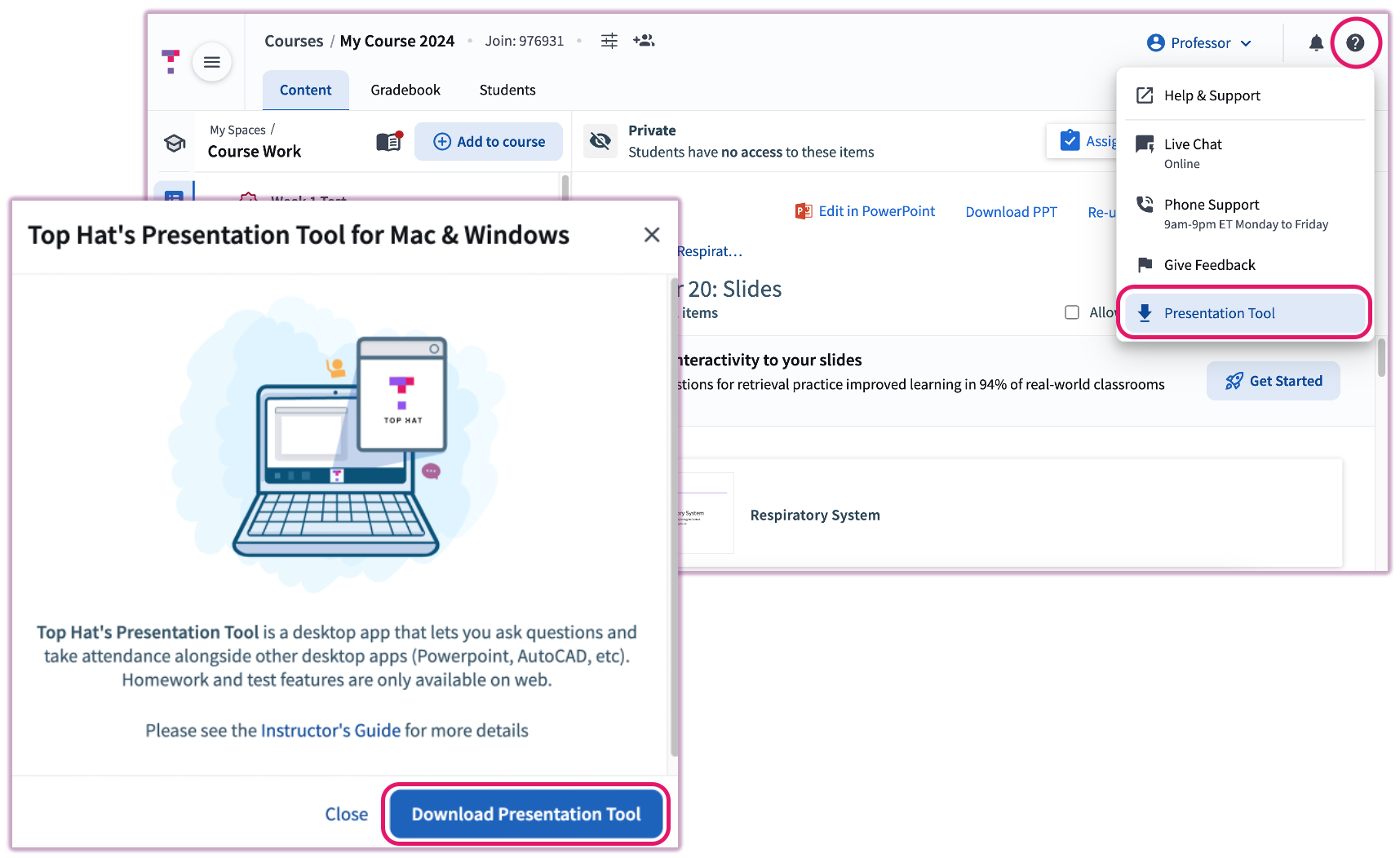 Image: Presentation Tool Download Menu
Using the Presentation Tool
Logging In:
- Open the Presentation Tool and log in using your Top Hat credentials.
- Select the course you are currently teaching.
Key Features:
- Quick Ask Questions: Present Multiple Choice, Word, or Numeric questions on the fly. Use the Present option to ask questions directly over your slides.
- Take Attendance: Click the Hand icon in the upper-right corner. A code will display for students; select Close Attendance when finished.
- Content Presentation: Navigate through slides or pre-created questions by selecting your desired content within the tool.
- Minimize/Maximize: Use the Arrow icon to toggle the interface size.
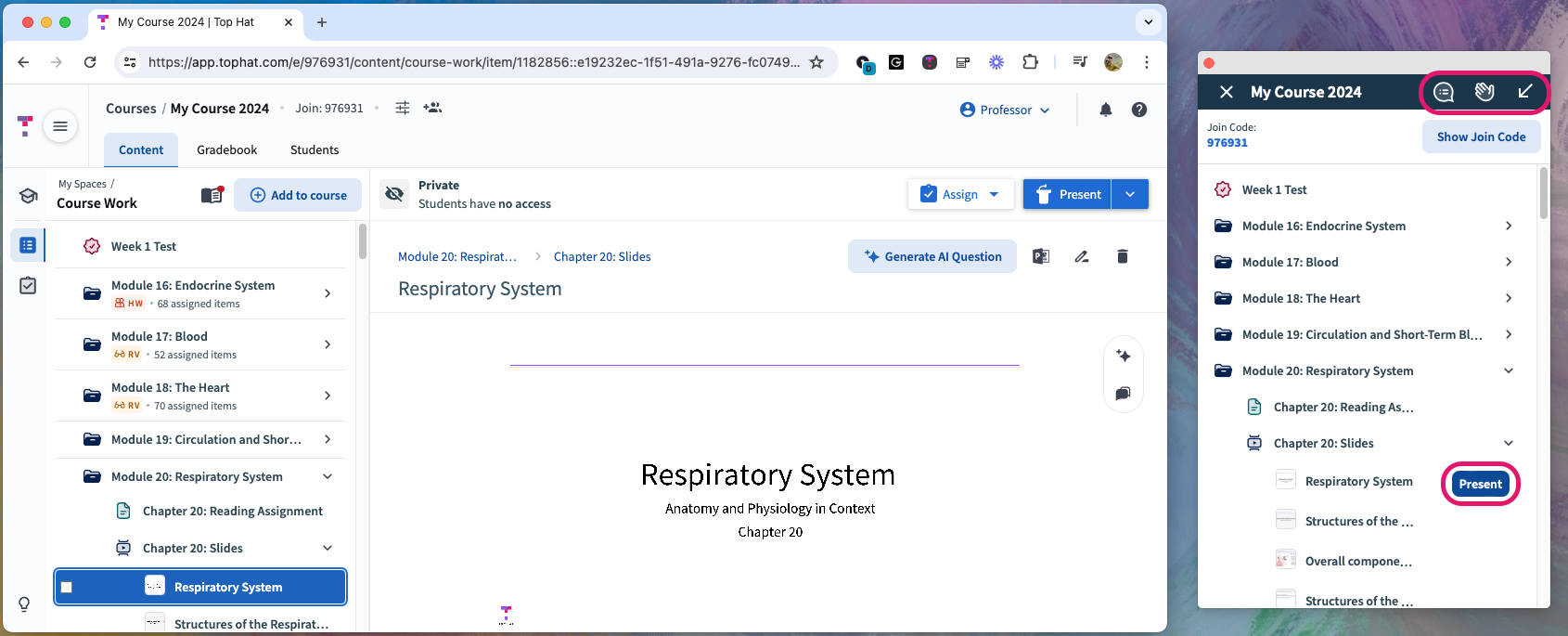 Image: Presentation Tool alongside the browser
Window States and Views
The following images demonstrate the various window states, including Quick Ask, Attendance, and the collapsed view.
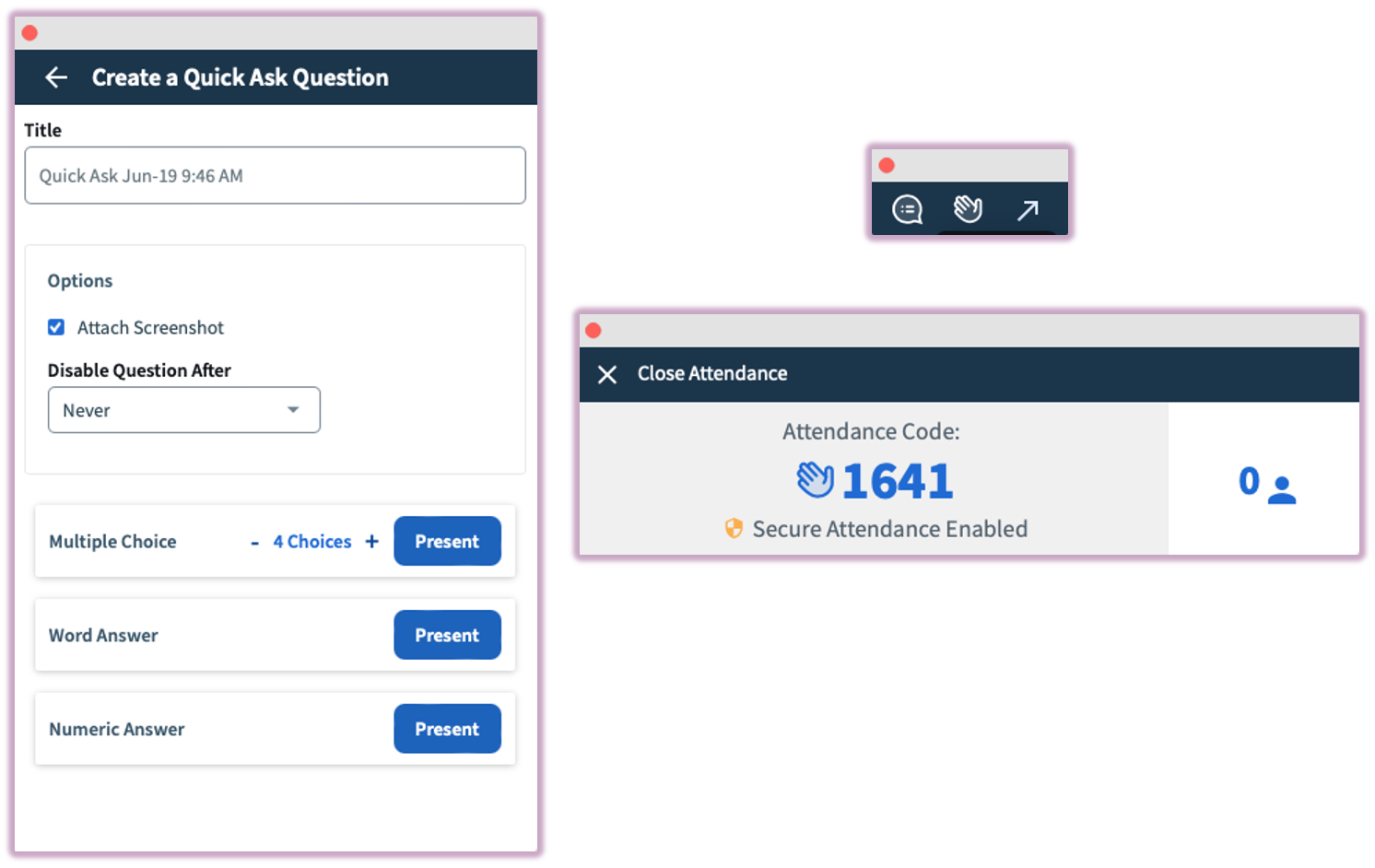 Image: Quick Ask Question, Collapsed View, and Attendance windows
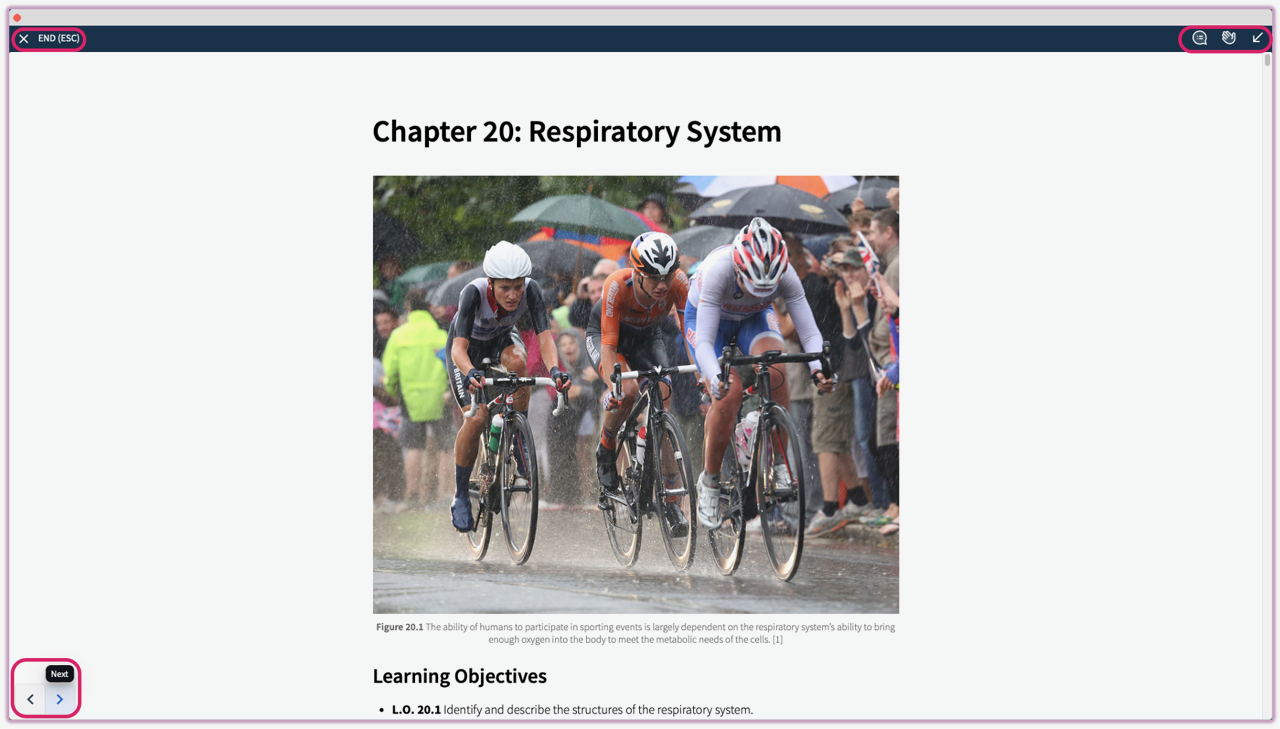 Image: Slide Presentation View
Device Permissions (Fixing Blank Screenshots)
If screenshots appear blank or only show your desktop background, you must adjust your MacOS Screen Recording permissions.
- Quit the Presentation Tool.
- Open System Preferences > Security & Privacy > Screen Recording.
- Remove Top Hat Presentation Tool from the list by selecting it and clicking the Minus ("−") button.
- Re-add it by clicking the Plus ("+") button and selecting the application.
- Close System Preferences and restart the Presentation Tool.
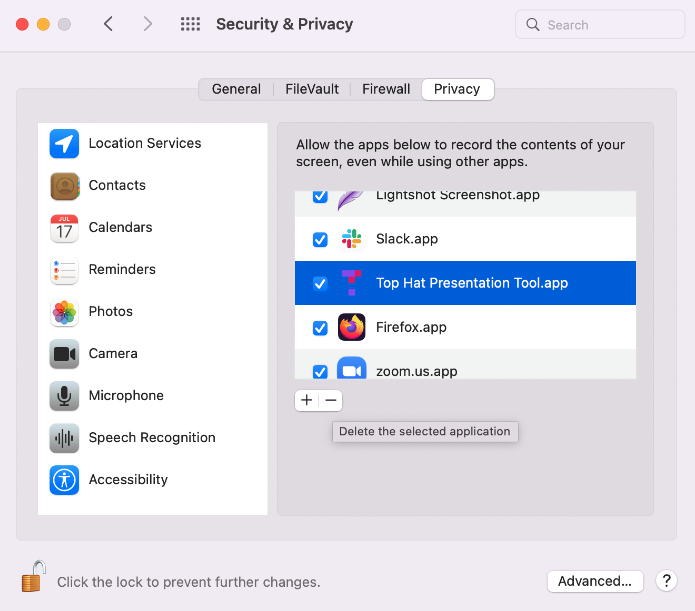 Image: MacOS Security & Privacy Settings - Removing the tool
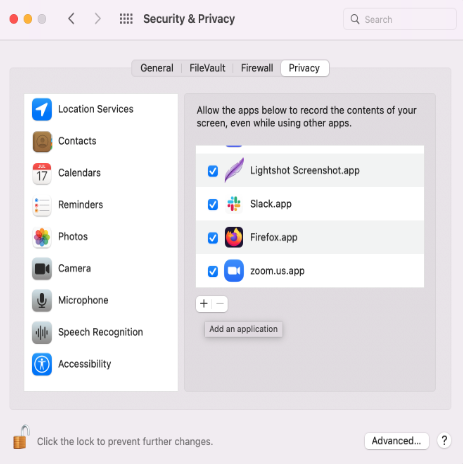 Image: Tool successfully removed from permissions
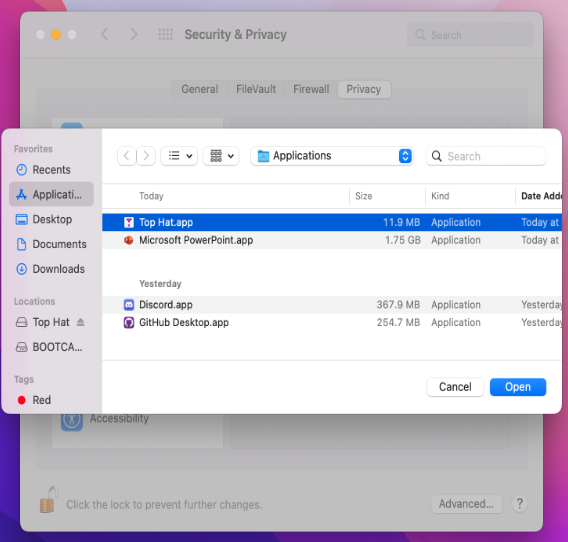 Image: Re-adding the tool to MacOS permissions