Applying special formatting such as bolded or italicized text within a Top Hat question or discussion can be accomplished through the use of Markdown or LaTeX—simple syntaxes used to customize your text.
Note: The "New Builder" interface for creating questions does not currently support Markdown or LaTeX inputs. These methods apply specifically to the legacy question editor and discussion prompts.
Table of Contents
- Asterisks
- Blank Lines / Spaces
- Bold
- Bulleted Lists
- Code - Blocks using [code] tags
- Code - Inline using backticks
- Coloured Text
- Font Size
- Indent
- Italics
- Line Break
- Links
- Subscripts & Superscripts
Asterisks
To display a literal asterisk without triggering Markdown formatting, use a backslash \ as an escape character.
- Entered Text:
(2\*3) = (Pi \* R)
- Published Text: (2*3) = (Pi * R)
Blank Lines / Spaces
Create visual underscores for fill-in-the-blank prompts.
- Entered Text:
Add a blank line here \_\_\_\_\_\_.
- Published Text: Add a blank line here ______
Bold
Surround text with double asterisks **.
- Entered Text:
This is **bold** text.
- Published Text: This is bold text.
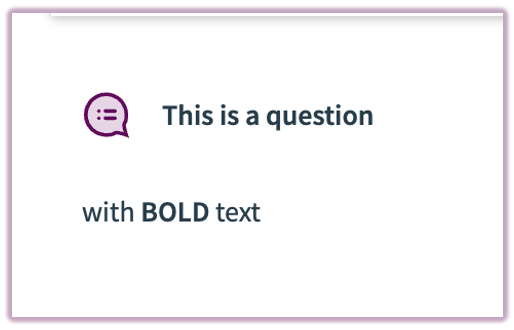 Image: Bold text rendering in a Top Hat Question
Bulleted Lists
Use an asterisk followed by a space at the beginning of a line.
- Entered Text:
* Item one
- Published Text: • Item one
Code - Blocks using [code] tags
Use [code] tags to display multi-line snippets of programming logic. This applies a monospaced font and maintains your specific indentation.
 Image: Code block rendering in Top Hat
Code - Inline using backticks
To highlight short snippets of code (like variables or function names) within a sentence, wrap the text in backticks `.
- Entered Text:
The value of `int x = 10` is constant.
- Published Text: The value of
int x = 10 is constant.
 Image: Inline code rendering in Top Hat
Coloured Text
Use LaTeX syntax within [math] tags to change text color.
- Entered Text:
[math]\color{blue}{\text{SKY}}[/math]
- Published Text: SKY
- Note: Supported colors include black, red, green, blue, cyan, magenta, and yellow.
Font Size
Adjust text size using LaTeX tags within [math] blocks.
- Entered Text:
[math]\Large{\text{elephant}}[/math]
- Note: Options include \tiny, \small, \normalsize, \Large, \huge, and \Huge.
Indent (Blockquote)
Use the "greater than" symbol > before your text.
- Entered Text:
> Indented quote.
- Published Text:
Indented quote.
Italics
Surround text with single asterisks *.
- Entered Text:
This is *italicized*.
- Published Text: This is italicized.
Line Break
Hold Shift + Enter to force a line break. Note that completely empty lines may not be retained in the final student view.
Links
Use the syntax [Link Text](URL).
 Image: Hyperlink rendering
Subscripts & Superscripts
Use LaTeX notation within [math] tags for scientific or mathematical scripts.
| Type |
Entered Text |
Result |
| Subscript |
[math]H_{2}O[/math] |
H₂O
|
| Superscript |
[math]2^{3}[/math] |
2³
|