This guide covers how to assign content in Top Hat as Homework or Review, set start and due dates, and assign to either all students or specific individuals. You'll also learn about question options, including limiting attempts and enabling feedback.
Whether you're assigning interactive textbooks, slides, or questions, this article explains how to customize content delivery to match your teaching goals.
Table of Contents
- Selecting Content
- Assign As (Homework or Review)
- Assign To (All or Specific Students)
- Start & Due Dates
- Assign Options
Selecting Content
To assign content, select the item(s) in your content tree and click the Assign button located above the preview pane.
Choose Homework or Review mode (further details in the next section).
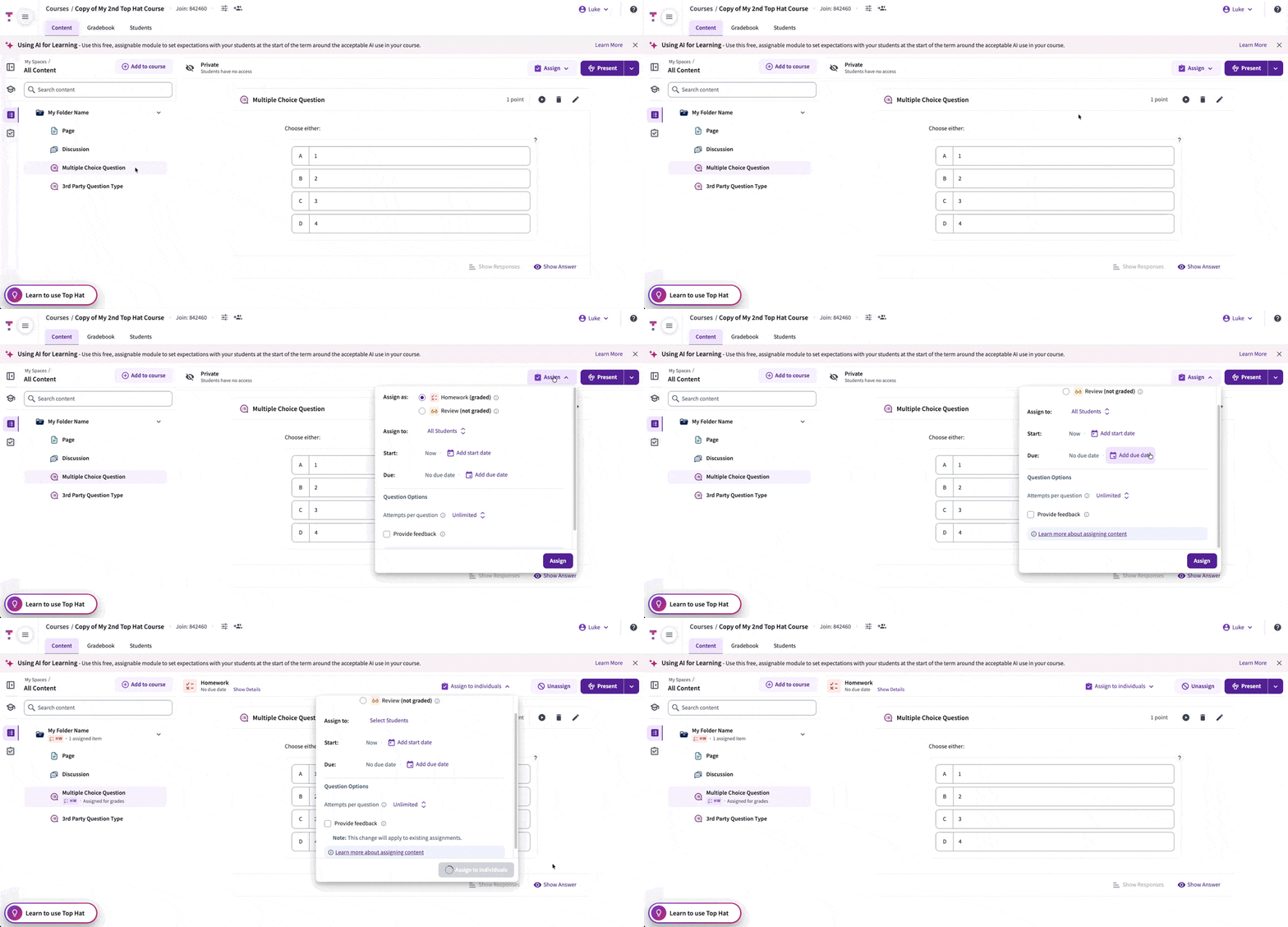 Image: Assign Content
Assign As (Homework or Review)
Homework (HW): Graded. Requires student responses. Items are auto-graded or flagged for manual grading.
Review (RV): Not Graded. Students can check their work and see correct answers for study purposes.
Content that is not assigned will be marked as Private in the content window and is invisible to students.
Assign To (All or Specific Students)
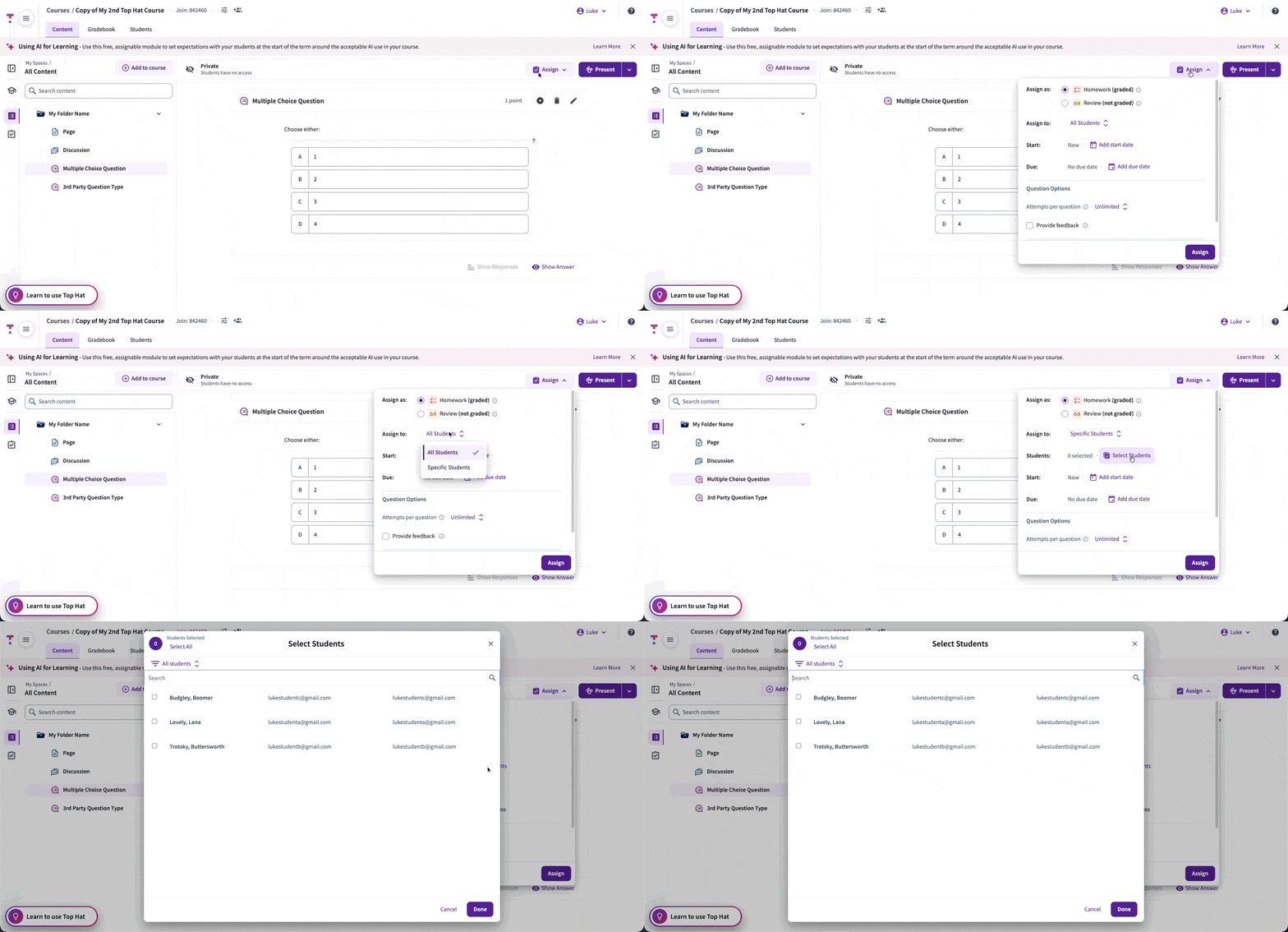
By default, All students is selected. If you need to assign a makeup or specific task, choose Specific Students to search and select individuals from your roster.
You can review who has access by clicking Show Details. This allows you to have different statuses (e.g., one student in HW mode for a makeup while the rest of the class is in RV mode).
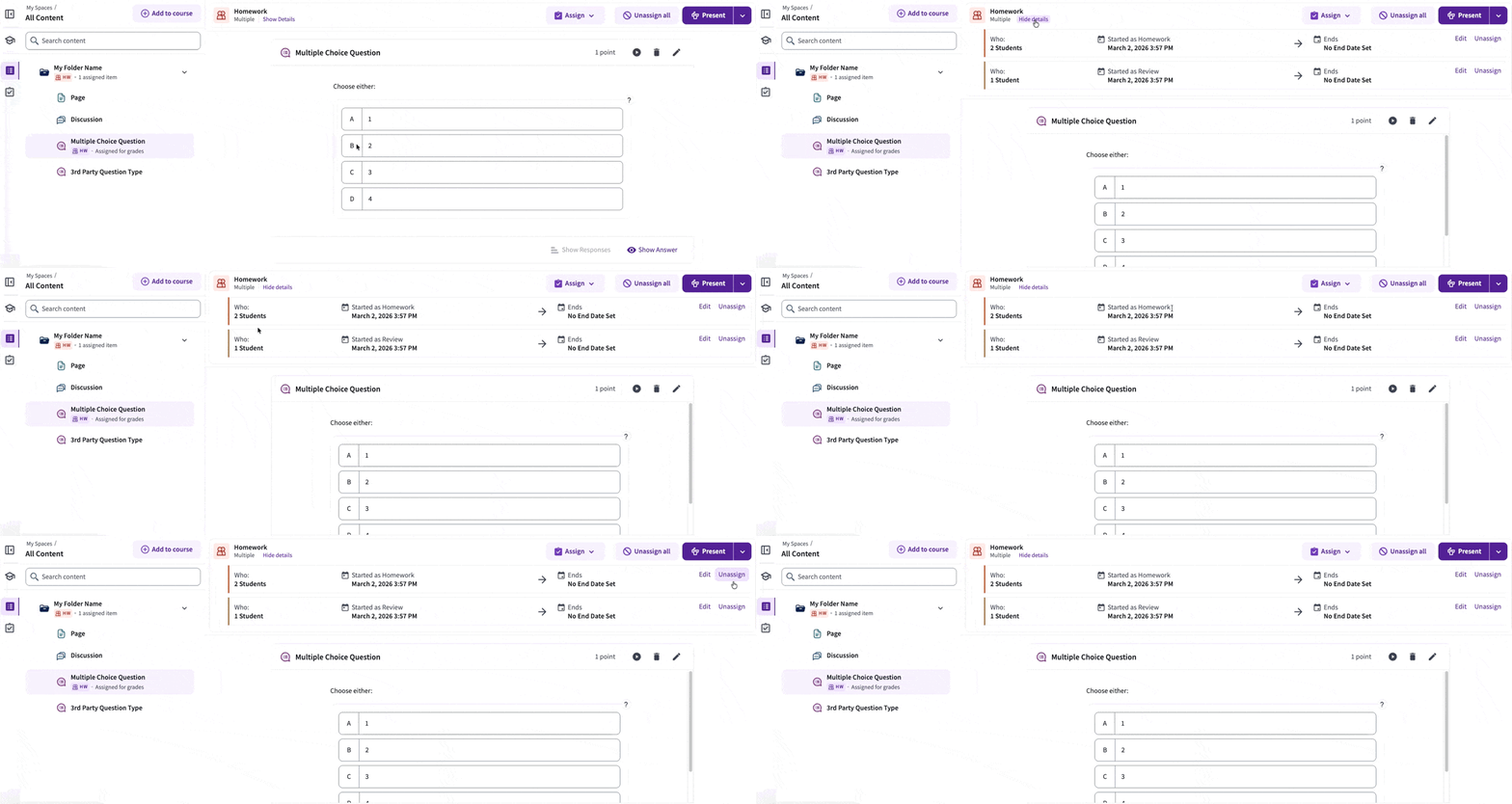 Image: Show details when assigned in multiple statuses
Reassigning for Make-Ups: If a student has used all their allowed attempts (e.g., they used 2 of 2), you must increase the total number of attempts when reassigning the content.
- Example: If they have already used 2 attempts, set the new limit to 3 to give them one additional try.
Start & Due Dates
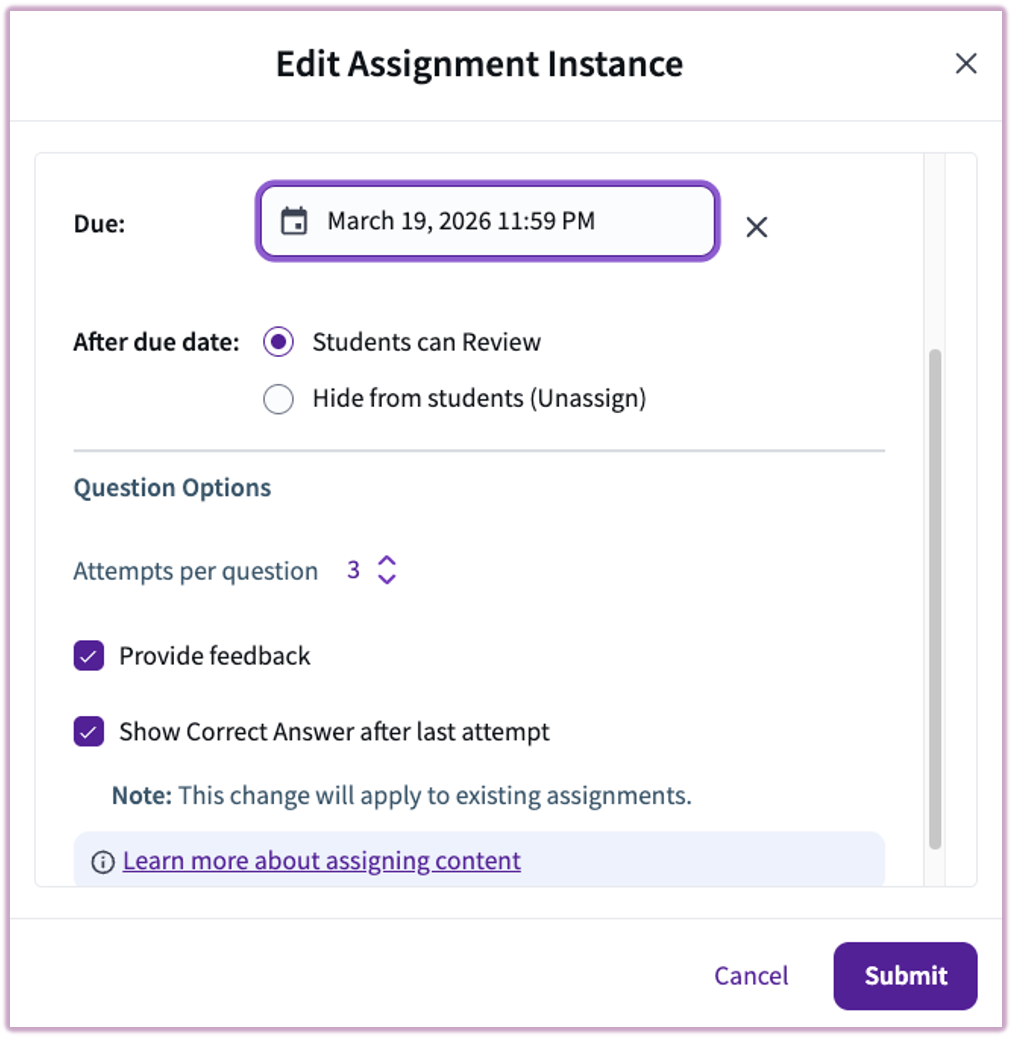
You can choose to start an assignment Now or schedule a future date. When a due date passes, you can automate whether the content becomes Private or shifts into Review mode.
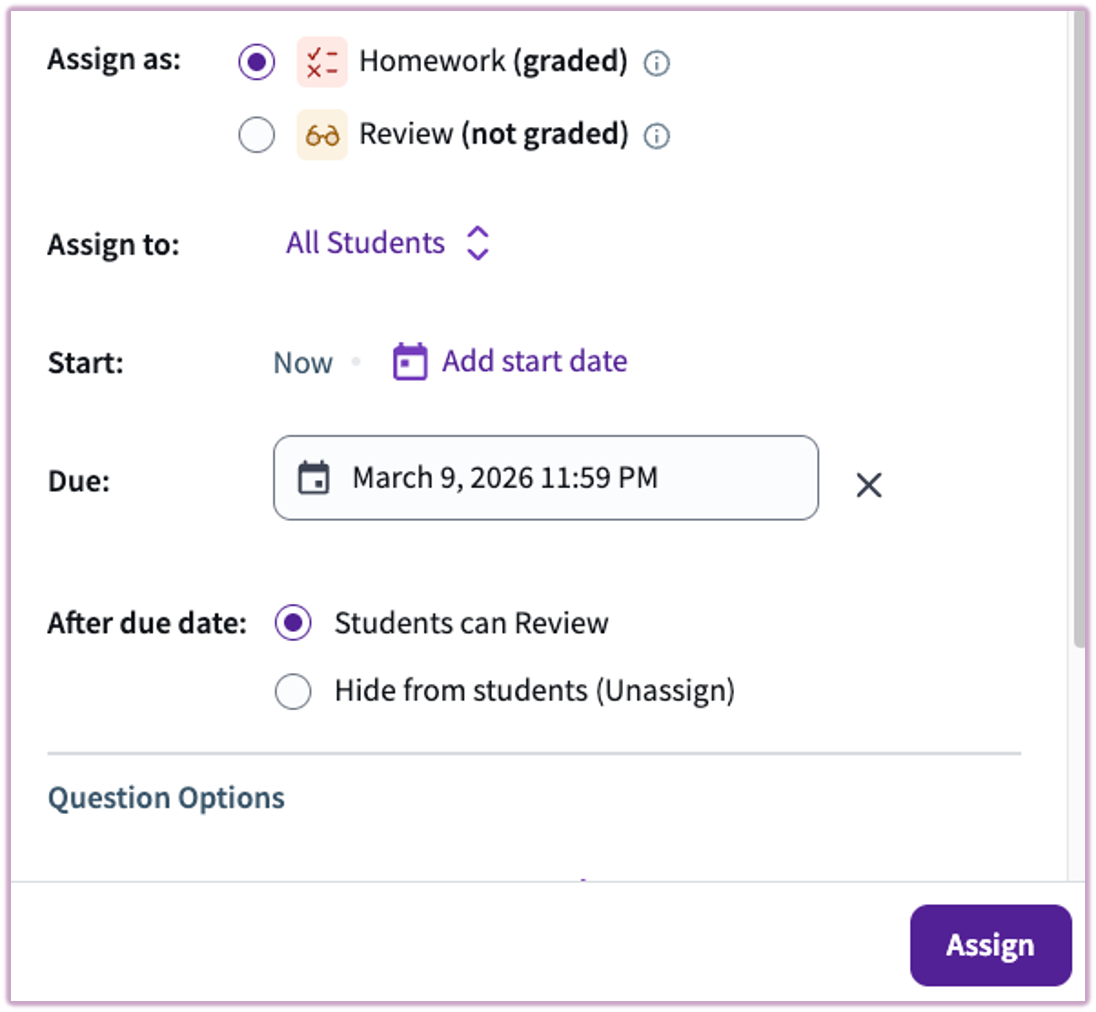 Image: Assign options
Time Zones: Due dates automatically reflect the student's local time zone. If you set a 4:00 PM Central deadline, an Eastern student will see 5:00 PM.
Assign Options
Attempts Per Question
By default, students have unlimited attempts. You can limit this (1-5 attempts) in the assignment model. Note that any attempts made during a live presentation count toward this limit.
Feedback & Correct Answers
- Provide Feedback: Informs students if their response is correct/incorrect immediately.
- Show Correct Answer: Becomes available if feedback is enabled. You can choose to show the answer only after their final attempt.