Video: Navigate Content
Visual Tour: New Content Experience (Lessons)
In the Lessons interface, the table of contents for the course is represented by a tree structure, allowing you to easily navigate your course. Arrow icons display on tiles that contain additional course components, that indicate the tiles can be expanded by clicking them.
You can use the navigation buttons at the top right to move sequentially between topics in the course content structure, following the established sort order.
Hovering over a component displays a tooltip. This is useful if the complete heading is too long to display in the table of contents.
Each material type displays a unique icon, making it easier to visually distinguish materials.
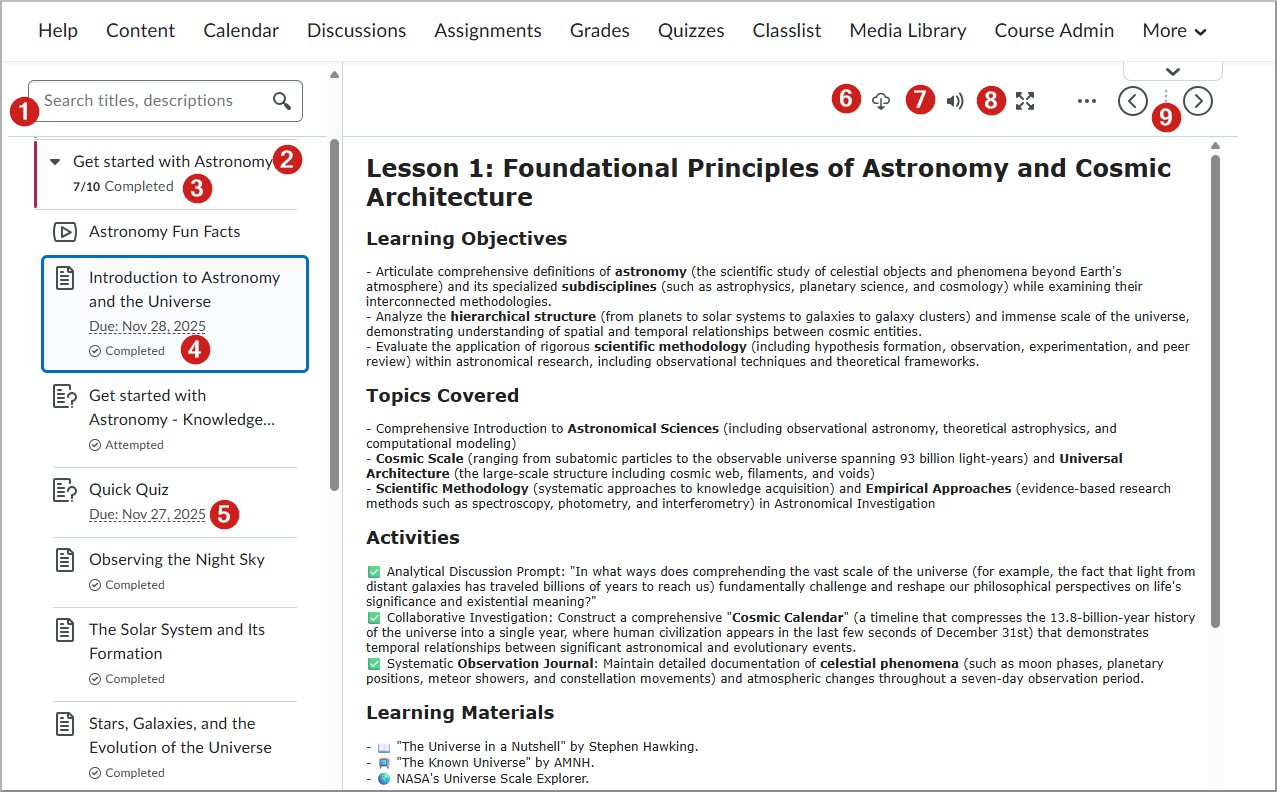
- Search: Enter text in the search field to search through titles and descriptions in your course content.
- Unit: Click to expand and review content.
- Unit Progress: Fractional summary of progress for each content module.
- Check mark: Check marks for completed items.
- Due dates: Due dates with a tooltip appearing on hover for additional details.
- Download: Click to download the content as a PDF.
- Audio icon: Click to open the text with ReadSpeaker and have the content read to you.
- Full screen: Click to expand your content into full screen.
- Arrows: Use the navigation buttons to move sequentially between topics in the course content structure, following the established sort order.
Video: New Content Experience