To make rubrics more accessible without navigating directly to Rubrics, you can access Rubrics through the Quicklinks menu of Brightspace Editor.
Note: To ensure that you can create quicklinks directly to rubrics and to ensure that learners can see the rubrics, you must have required permissions. Contact your administrator for more information. Only rubrics with Visible to all Users selected can be added as a quicklink. To learn more about creating a rubric, refer to Create a rubric using the Rubrics tool. To learn more about Brightspace Editor, refer to About Brightspace Editor.
Create a quicklink to a rubric in the New Content Experience
You can create a quicklink to a rubric when creating a new lesson in the New Content Experience.
To create a quicklink to a rubric in the New Content Experience
Figure: Select New Lesson to being creating a lesson.
- Navigate to Content.
- Click Create New > New Lesson.
- Enter the details for your new lesson.
- In the Description field, click the Insert Quicklink icon.
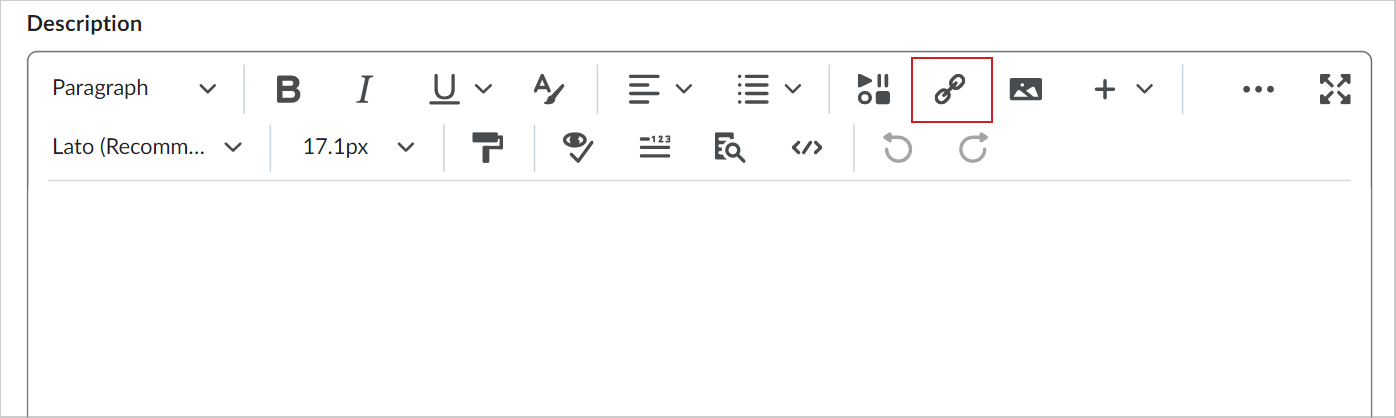
Figure: From the top menu bar, click the Insert Quicklink icon.
- In the Insert Quicklink dialog, click Rubrics.
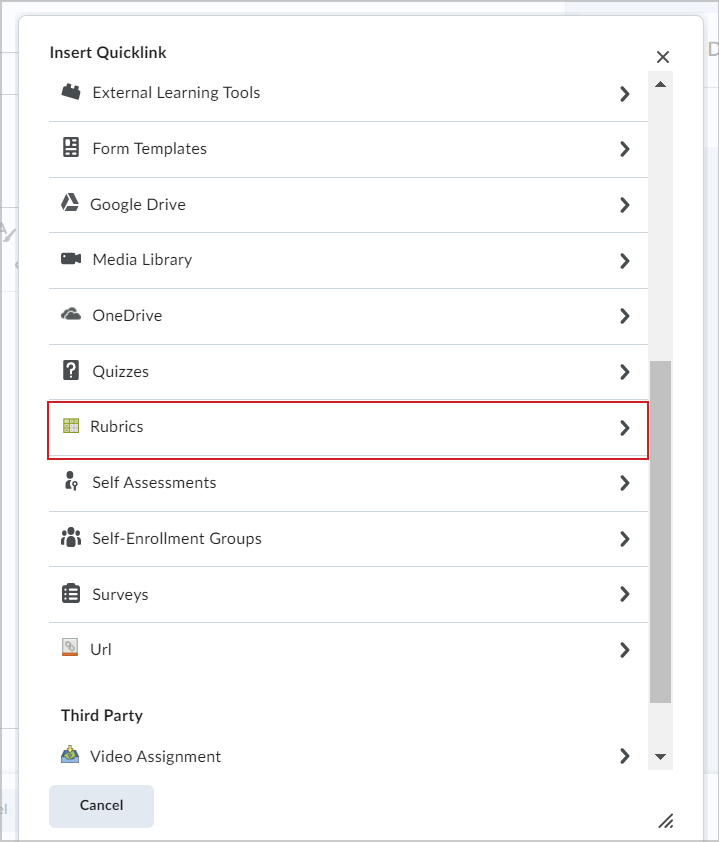
Figure: Select Rubrics from the Insert Quicklink dialog.
- Do one of the following:
- Search for and click a rubric displayed in the list. The rubric is added to the text editor as a link.
- To create a new rubric to add, or edit an existing rubric, click Manage Rubrics.
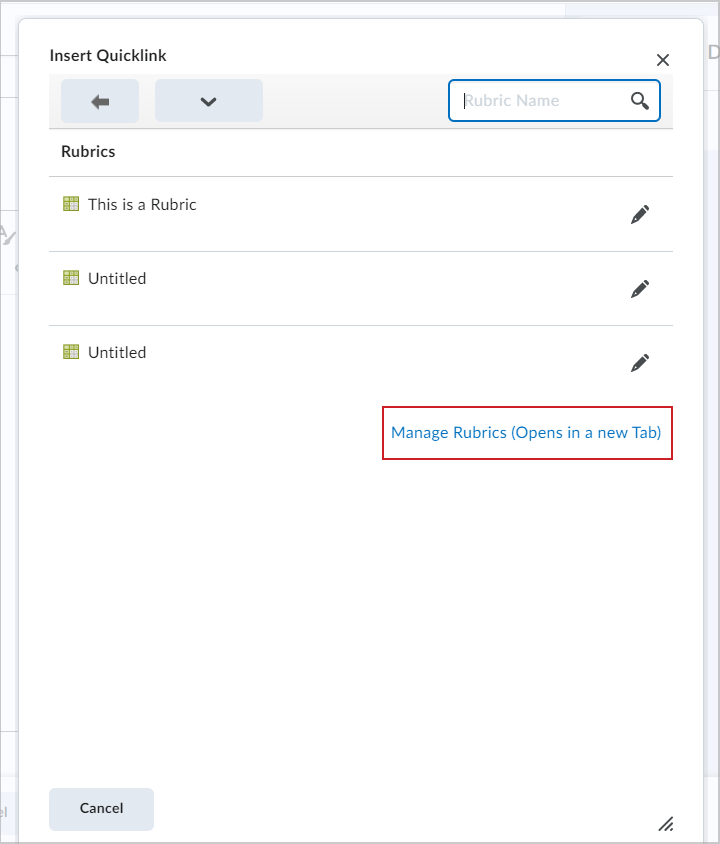
Figure: Click Manage Rubrics to go to the Rubrics page of the Rubrics tool.
- Toggle the Visibility to either Hidden or Visible.
- Click Save and Close.

Figure: Choose whether you want your new lesson to be Hidden or Visible before saving.