Recommendation generation in D2L Lumi Study Support
D2L Lumi Study Support prioritizes content recommendations based on existing learning outcome alignments between quiz questions and topics. If no alignment is found, it uses semantic comparison to match quiz questions with relevant content. In cases where multiple topics align with the same outcome, semantic comparison identifies the most relevant one.
For optimal results, associate your content and quiz questions with Standards (Learning Outcomes).
 |
Note: D2L Lumi Study Support applies to the following content topic types:
- Pages
- File topics (.doc, .docx, .odt, .pdf, .ppt, .pps, .pptx, .ppsx, .odp, .xls, .xlsx, .rtf, and .txt)
- Web Links
- Media Library topics
|
Supported activities and quiz configurations
Study Support supports only auto-graded quiz questions and content configurations.
 |
Important: Study Support does not support quizzes that have:
- More than 20 quiz questions.
- Written response questions.
- Non-auto-graded questions.
Only auto-graded questions are supported.
|
Turn on Study Support for a quiz
You must turn on Study Support and configure settings for your quiz.
|
Important: Ensure the quiz has the following:
- Auto-graded question types
- 20 or fewer questions
- Learning outcomes are aligned to quiz questions and course content for the best results.
|
When you enable Study Support for a quiz, the following settings are automatically configured:
- The Customize Quiz Results Displays option is disabled.
- Auto-publish attempt results immediately upon completion is enabled.
- Attempt grade is enabled.
- The No Questions option for When published, display to learners is disabled.
- The list of questions in the quiz is set to read-only and cannot be edited.
To enable Study Support for a quiz
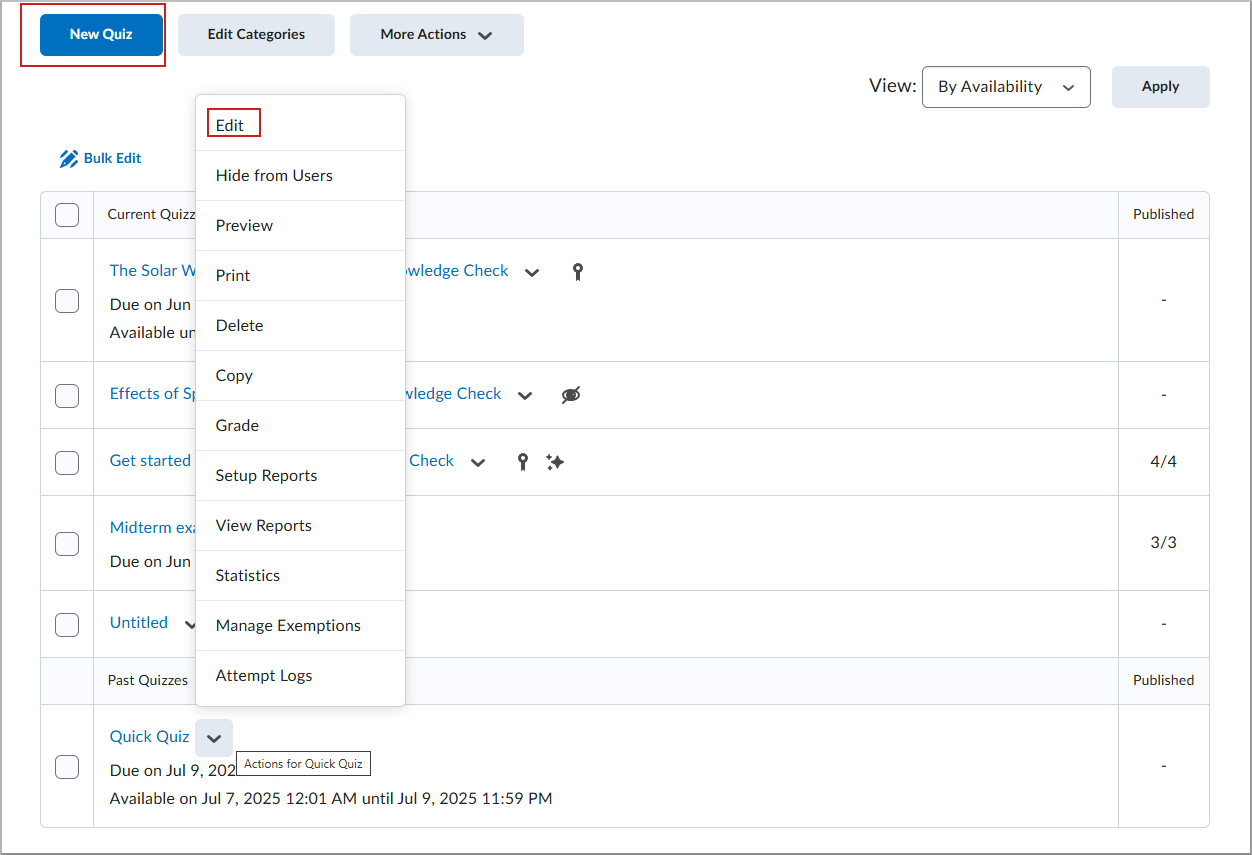
- In your course navbar, click Quizzes.

- Do one of the following:
- Click New Quiz.
- Click the Actions menu of an existing quiz and select Edit.
- Under Evaluation & Feedback, enable Study Support.

- Under Set up Study Support, select from the following:
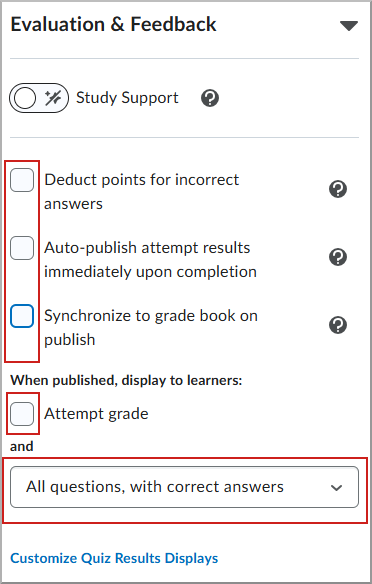
- Select from the additional Evaluation & Feedback settings:
- Deduct points for incorrect answers: Learners receive negative points for incorrect answers.
- Auto-publish attempt results immediately upon completion: Auto-evaluated results are published and appear to learners.
- Synchronize to grade book on publish: Publishes the learner's grade to the grade book after evaluation. This option requires the quiz to be connected to the grade book.
- When published, display to learners:
- Attempt grade
- Select an option from the dropdown:
- No questions
- Incorrect questions only, with correct answers
- Incorrect questions only, without correct answers
- All questions, with correct answers
- All questions, without correct answers
- Click Save and Close.
- After a learner completes a quiz attempt, an AI-generated overview appears and recommended Content topics are suggested for review.
Copy quizzes with Study Support enabled
When you copy a course, quizzes with Study Support enabled retain their Study Support configuration in the destination course.
This behavior reduces manual setup when reusing quizzes across multiple courses.
For optimal results, D2L Lumi Study Support recommends associating your content and quiz questions with Standards (Learning Outcomes).
To learn how to align your quiz with Standards, refer to Associate course content with Standards.
For information about a learner's view of AI-generated feedback, refer to Using the Quizzes tool.
|
Note: When Study Support is enabled on a quiz for the first time, one generation is consumed. This applies when the quiz is newly configured or copied from another course. |
What learners see
After completing a quiz attempt with Study Support enabled, learners receive AI-generated feedback and recommended Content topics based on their incorrect answers.
Recommendations vary by quiz attempt and are intended to guide learners to relevant course materials for review.
Review generated feedback and recommendations
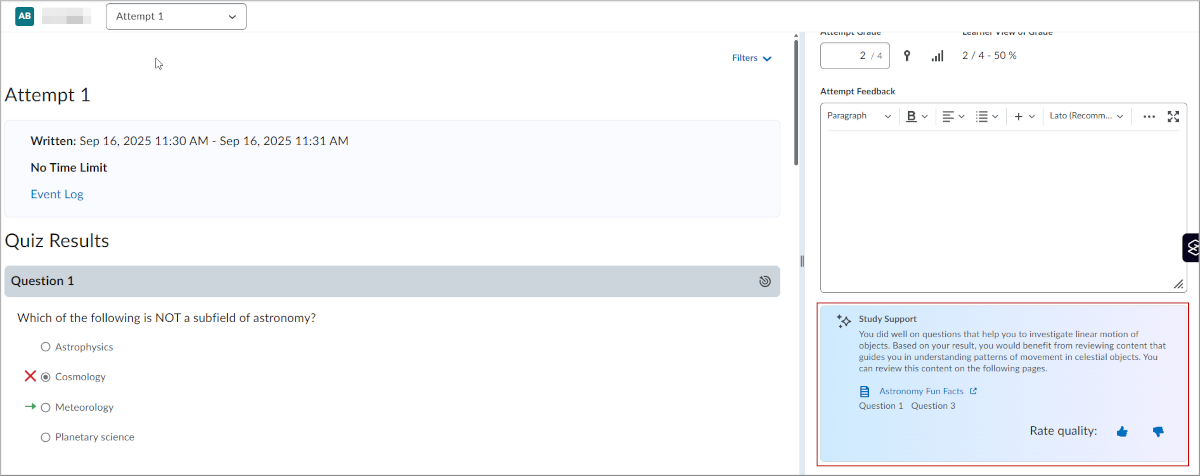
You can review the feedback and recommendations D2L Lumi Study Support provides to users who have completed a quiz attempt from Quizzes, the New Content Experience.
Review generated feedback from Quizzes
- From your course navbar, click Quizzes.
- Locate a quiz with completed attempts and with Study Support enabled.
- Click the Actions menu for the quiz and select Grade.
- Click to open a quiz attempt.
- Review generated Study Support feedback.
Review generated feedback from the New Content Experience
- From your course navbar, click Content.
- Select a quiz activity to view the Completion Summary for that quiz.
- Click to open a quiz Attempt.
- Review generated Study Support feedback.
Review Lumi Insights for quizzes with Study Support
Watch this video to learn how to review analytics for completed quizzes when Study Support is enabled. Review the written steps below.
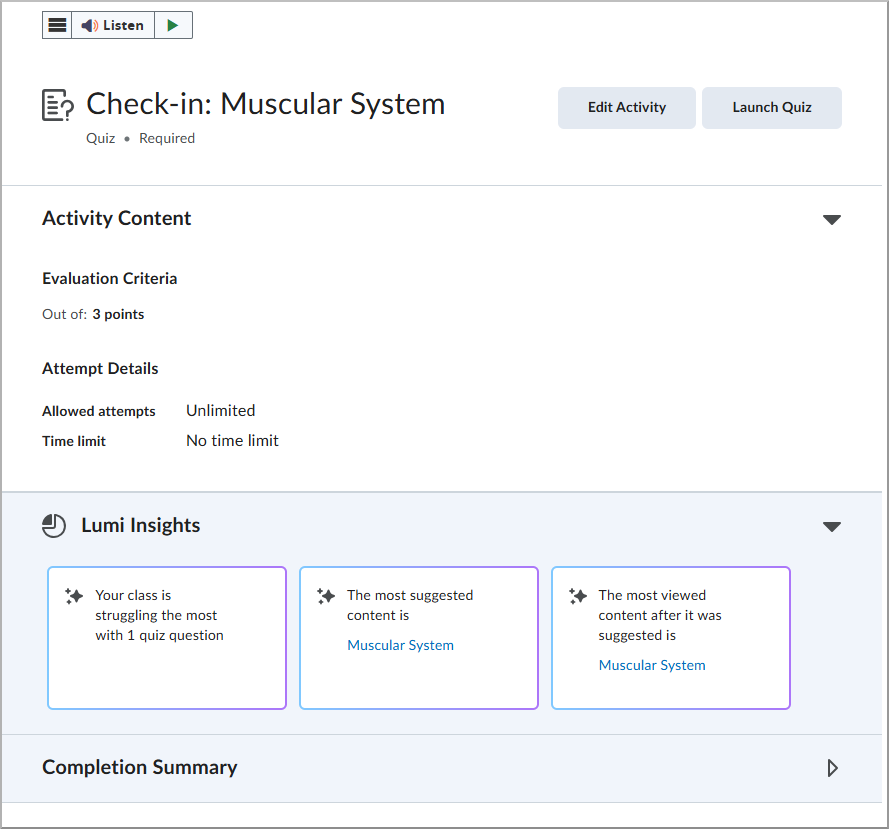
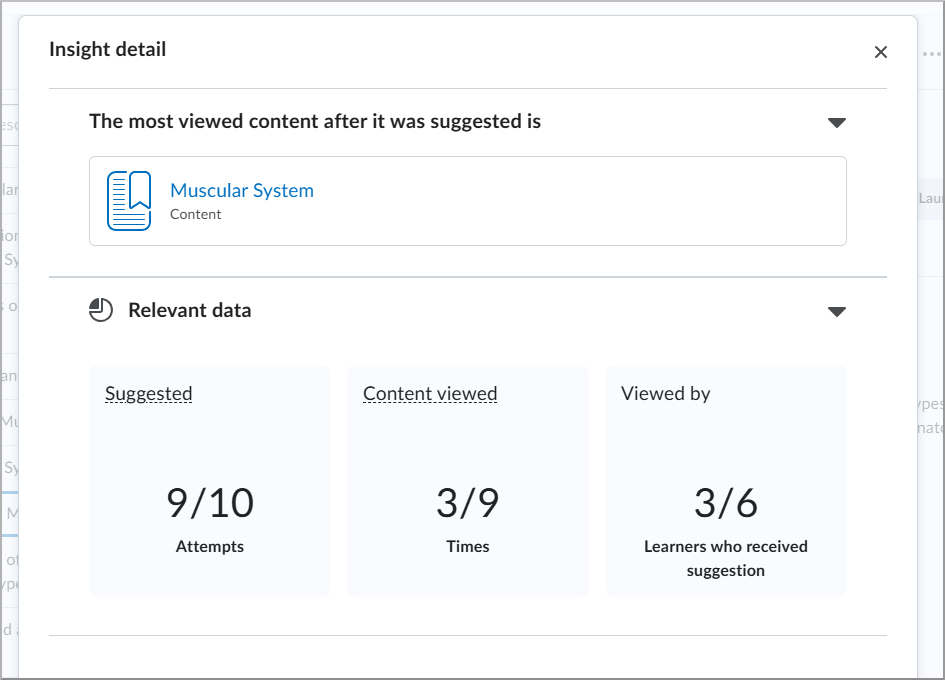
When Study Support is enabled for a quiz, Lumi Insights appear on the quiz topic page in the New Content Experience. Insights highlight where learners may need support and which resources help most.
|
Important: Ensure Study Support is enabled for the quiz. If Lumi Insights are not visible, verify the setting and check that learner activity exists for the quiz.
|
To review the Lumi Insights:
- From the course navbar, click Content.
- Open the module that contains the quiz, then select the quiz topic.
- In the Lumi Insights panel, select the card to view more details.
Troubleshoot D2L Lumi Study Support
If Study Support feedback, recommendations, or Lumi Insights do not appear as expected, review the following:
- Ensure Study Support is enabled for the quiz.
- Ensure the quiz has 20 or fewer questions.
- Ensure the quiz uses supported auto-graded question types.
- Ensure the quiz does not include written response questions.
- Ensure the quiz has completed attempts.
- Ensure learning outcomes are aligned to quiz questions and supported content topics for best results.
- Ensure selected course activities use supported content topic types.
- Ensure copied quizzes still contain supported content topic alignments and learning outcomes.