An auditor in Brightspace is a user with permission to see (audit) another user's information. Specifically, auditors can view the Class Progress of the users they are assigned to audit (auditees). This feature is useful if you want to grant access to someone who can view and monitor another user's (auditee's) Class Progress data in a specific course offering without having to enroll them in the course offering. This is useful for parents of learners, instructor assistants, or mentors. Auditors don't have to have their own role in the organization or be enrolled in the course offering of their auditees to access and see specific data. For more information about the Class Progress tool, refer to About Class Progress.
Required role permissions
If you are an instructor who wants to add auditors and assign them to auditees, you must have the User Auditors > Manage Auditors role permission.
An auditor must have the User Auditors > Audit users and the Class Progress > See User Progress role permissions to access their assigned auditee's class progress information.
Refer to User Auditors permissions and Class progress permissions for more details and contact your administrator for assistance.
Access to user data for Auditor roles
If you make a user an auditor of another user, they gain access to the Class Progress data for their specified auditees only.
Add an Auditor
You can add a new Auditor user to your Classlist.
To add an Auditor
- From your course navbar, click Classlist.
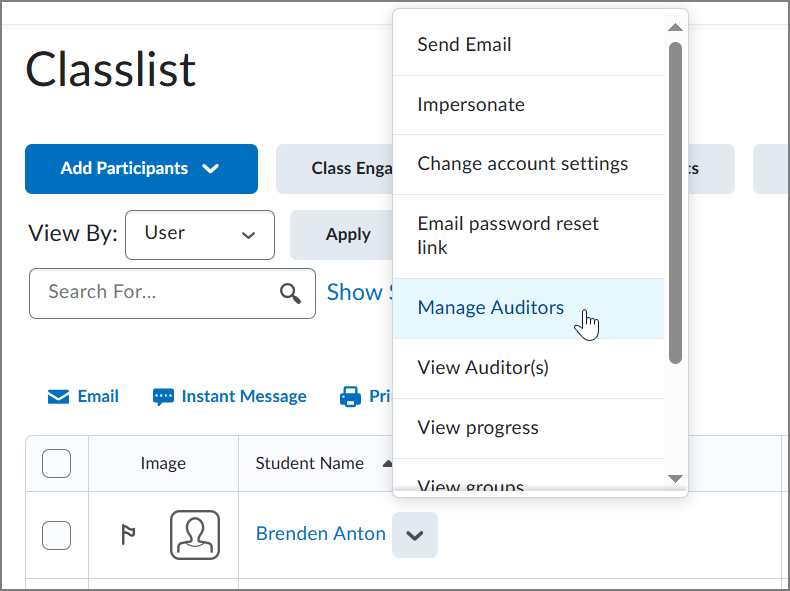
- On the Classlist tool page, from the context menu of the user you want to add auditors to, click Manage Auditors.
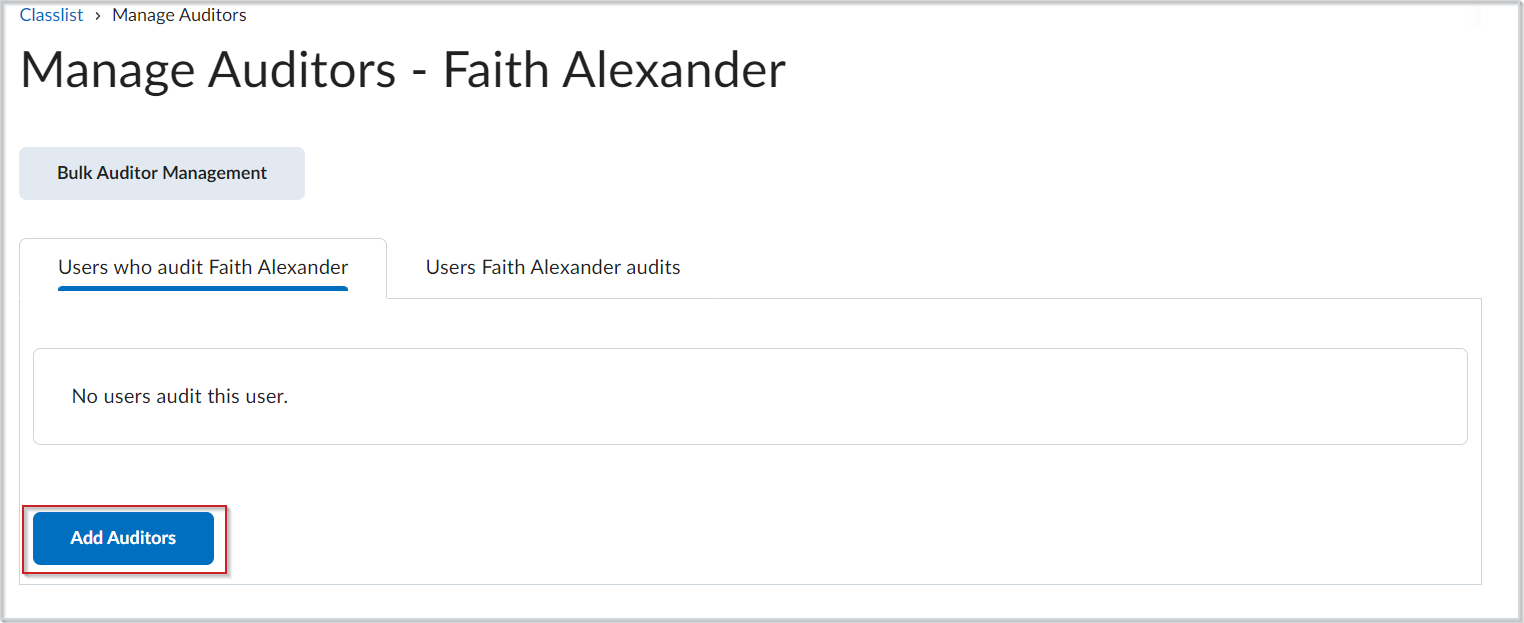
- Click Add Auditors.
- Select the users you want to add as auditors.
- To delete an auditor, select the check box beside the user and click Delete.
- To choose who your auditor will audit, on the Manage Auditors page, click the Users {user} audits tab.
- Click Add.
You have added an auditor and selected the users they will audit.
Enroll or unenroll multiple auditors with Bulk Auditor Management
Bulk Auditor Management allows you to enroll or unenroll multiple auditors by uploading a comma-separated CSV file. This file must be in .txt format.
Actions available for Bulk Auditor Management
You can perform the following actions:
- CREATE,AuditorUsername,UserToAuditUsername
- REMOVE,AuditorUsername,UserToAuditUsername
- REMOVE,AuditorUsername,*
- REMOVE,*,UserToAuditUsername
AuditorUsername is the username for the auditor.
UserToAuditUsername is the username for the user to be audited.
An asterisk (*) is used to match all users who are either an auditor for a user or audited by a user.
To use Bulk Auditor Management
- From your course navbar, click Classlist.
- On the Classlist tool page, from the context menu of the user you want to add auditors to, click Manage Auditors.
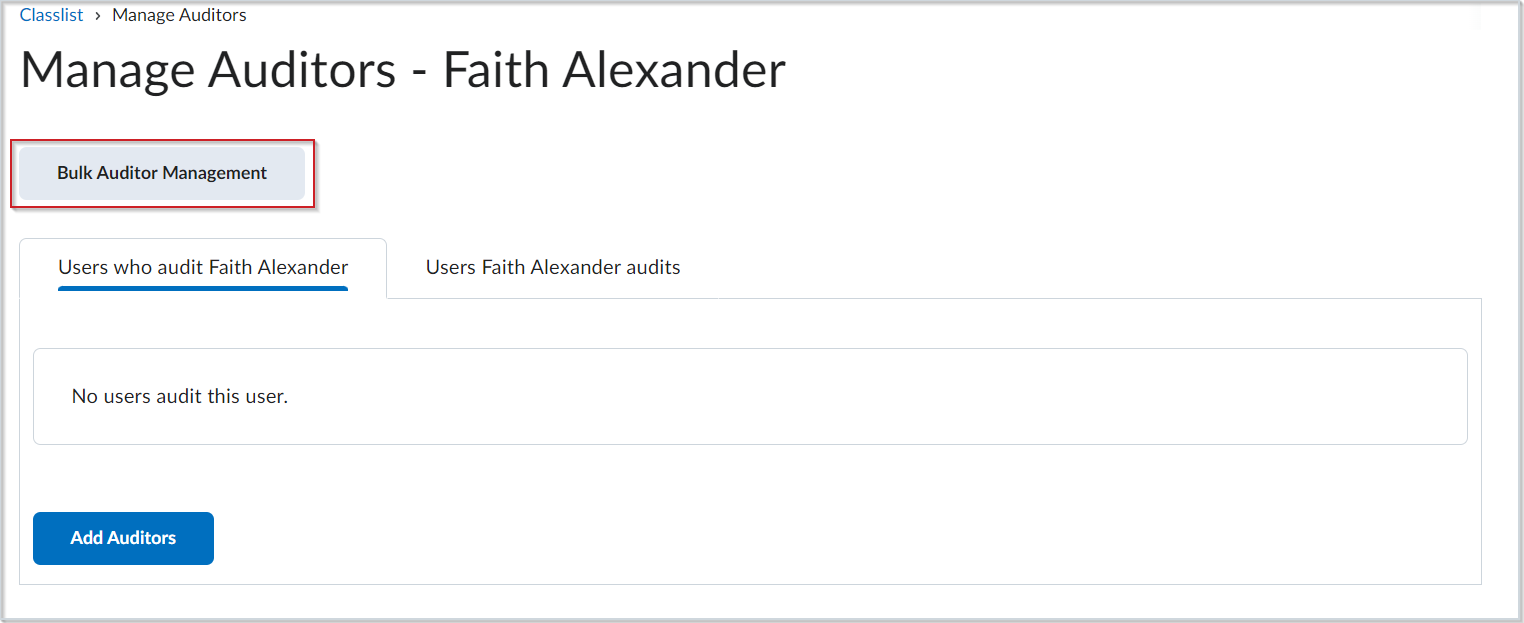
- Click Bulk Auditor Management.
- Click Choose File and select a CSV file from your computer.
- Click Continue.
You have bulk enrolled auditors.