Make your course available and active
You can use the Course Administration page to access the Course Offering Information page of your course and set your course to an active and visible status.
To make your course available and active
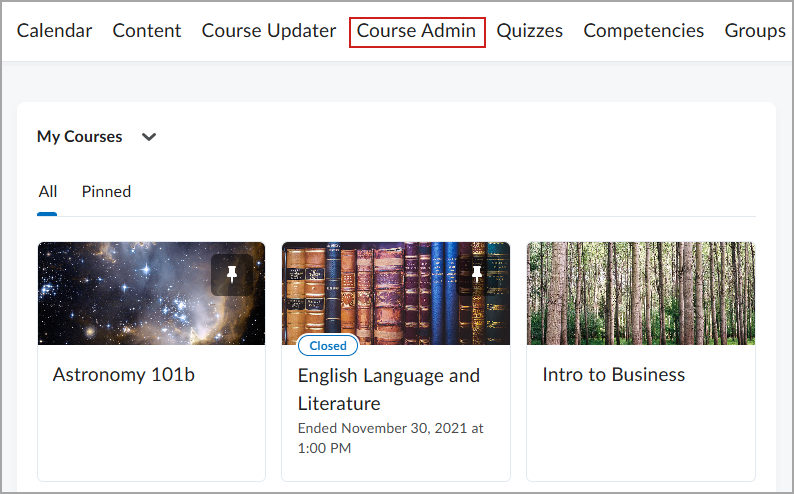
- From your organization homepage navbar, navigate to Course Admin
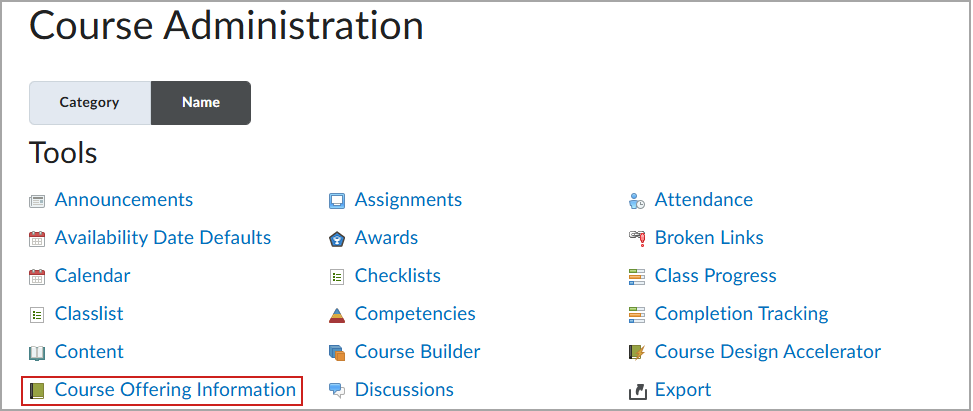
- Click Course Offering Information.
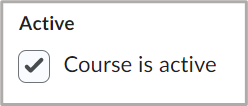
- Scroll down and select Course is active.
 |
Note: You can deactivate a course offering to hide it from learners by clearing the Course is active check box. |
- Click Save.
Course activation troubleshooting
The following section addresses some issues that may arise if you are attempting to make your course active from the Course Offering Information page of a course.
You have selected Course is active, but the course is still not visible to your learners:
Your course may not yet be available or visible to students, or the end date for the course has passed:
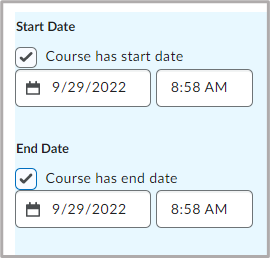
- If no Start Date or End Date is set in the Course Offering Information, the course is immediately available for learners to access through the My Courses widget or the Select a Course menu.
- If a course is active but the start date has not yet passed, it appears in the My Courses widget. However, learners cannot access it until the start date.
- If a course is active and the end date has passed, it remains visible in the My Courses widget, but it cannot be opened.
Your course is not visible to students, even though the set Start Date has passed
Ensure that Course is active is selected. If a Start Date and End Date are set but the instructor does not select Course is active, the course will not be accessible to learners on the specified Start Date. The course must be activated by selecting Course is active; only then will the Start Date and End Date control course visibility.