Body
The Top Hat Android app gives students full access to course content, attendance, eTextbooks, homework, and grades from supported Android devices. With support for Android 10 and above, the app enables you to join courses using a six-digit Join Code, view assigned homework, submit responses to interactive questions, and check grades from anywhere.
This guide walks you through installing the Top Hat app from the Google Play Store, signing in, enrolling in a course, navigating the Classroom and Gradebook, and troubleshooting common issues, all from your mobile device.
Table of Contents
- The Top Hat App
- Signing In
- Home
- Enrolling in a Course
- My Library
- App Layout
- Submitting Responses
- Frequently Asked Questions (FAQs) & Top Hat Support
The Top Hat Mobile App
To install the Top Hat app on your Android device, search for and download "Top Hat" from the Google Play Store on your Android device (Android 10 or above required).
Download Top Hat on your Android device (Google Play Store) (opens in a new window)
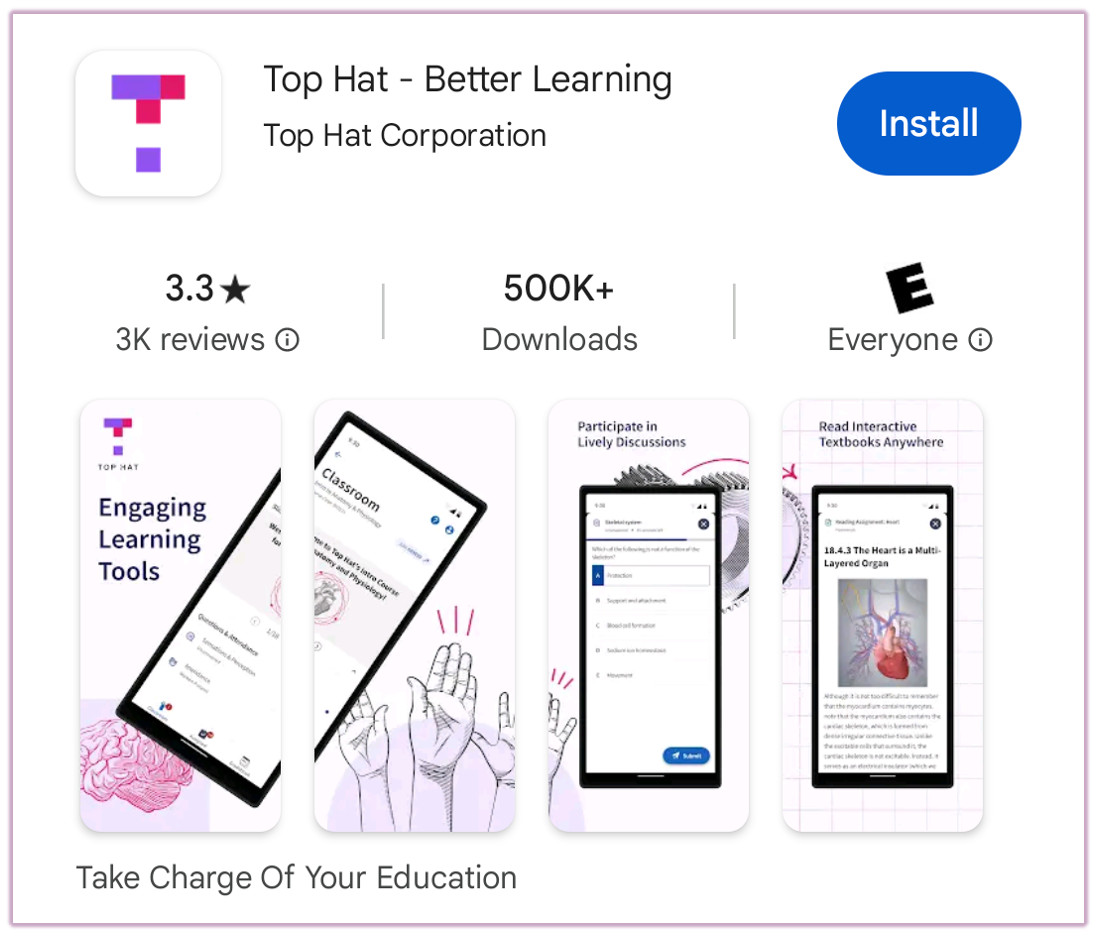 Image: Top Hat Application as shown in the Google Play Store
Related Support Articles:
Signing In
Open the Top Hat App and select "Log-In". Search for your school/organization and proceed to log in with your existing Top Hat credentials.
If you have not created an account previously, please visit: Creating your account
Note: Accounts cannot be created using the app; please use a web browser.
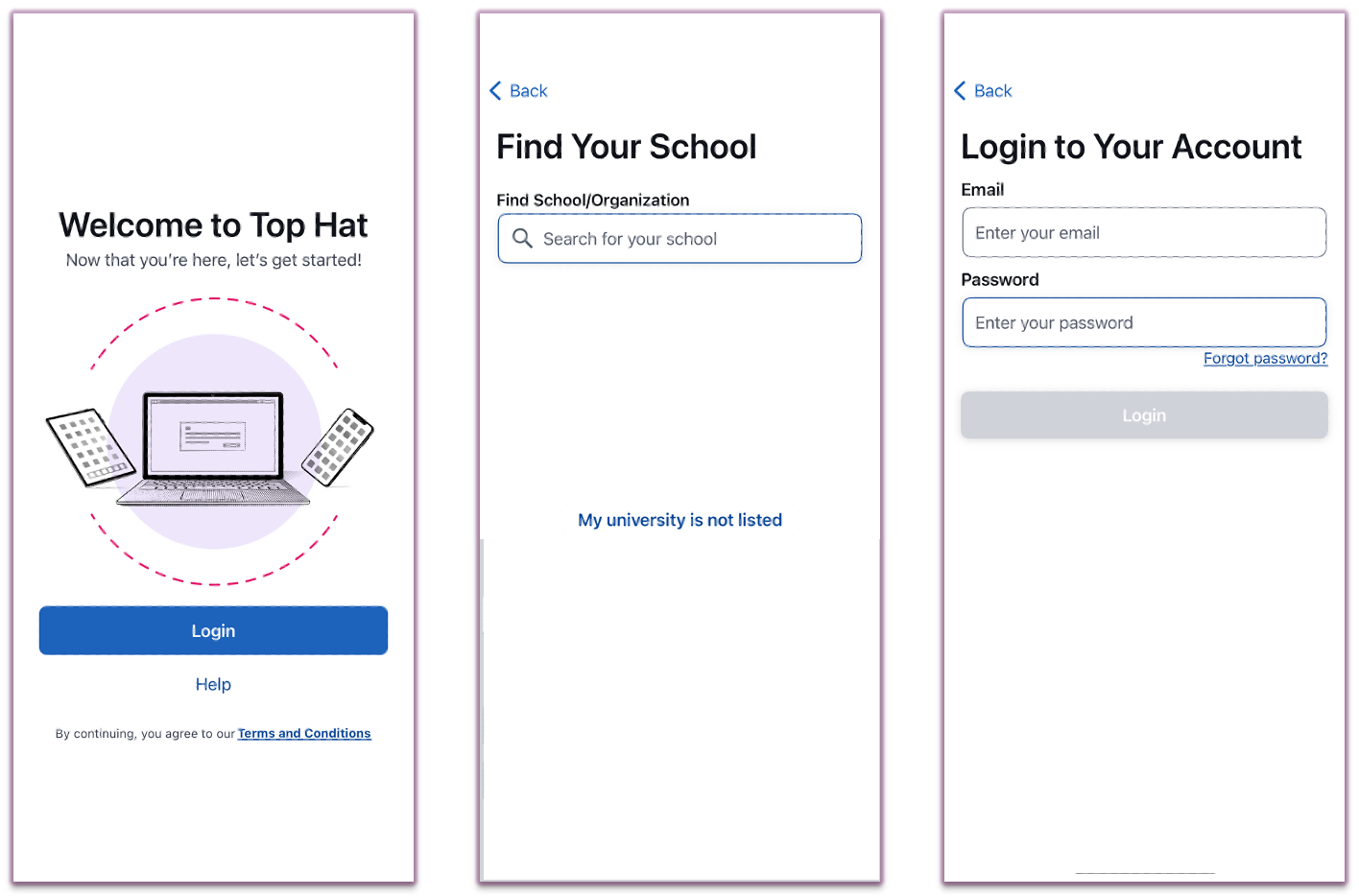 Image: Android phone screens depicting the Welcome page, Find Your School, and Log Into Your Account
Related Support Articles:
Home Screen Overview
If you are logging into the mobile app for the first time, please set your preferences for our app notifications.
You will be taken to the Home screen. If you have previously enrolled in any courses, they will be listed here.
You will also have the option to view "My Library" which contains any eTextbooks on your account.
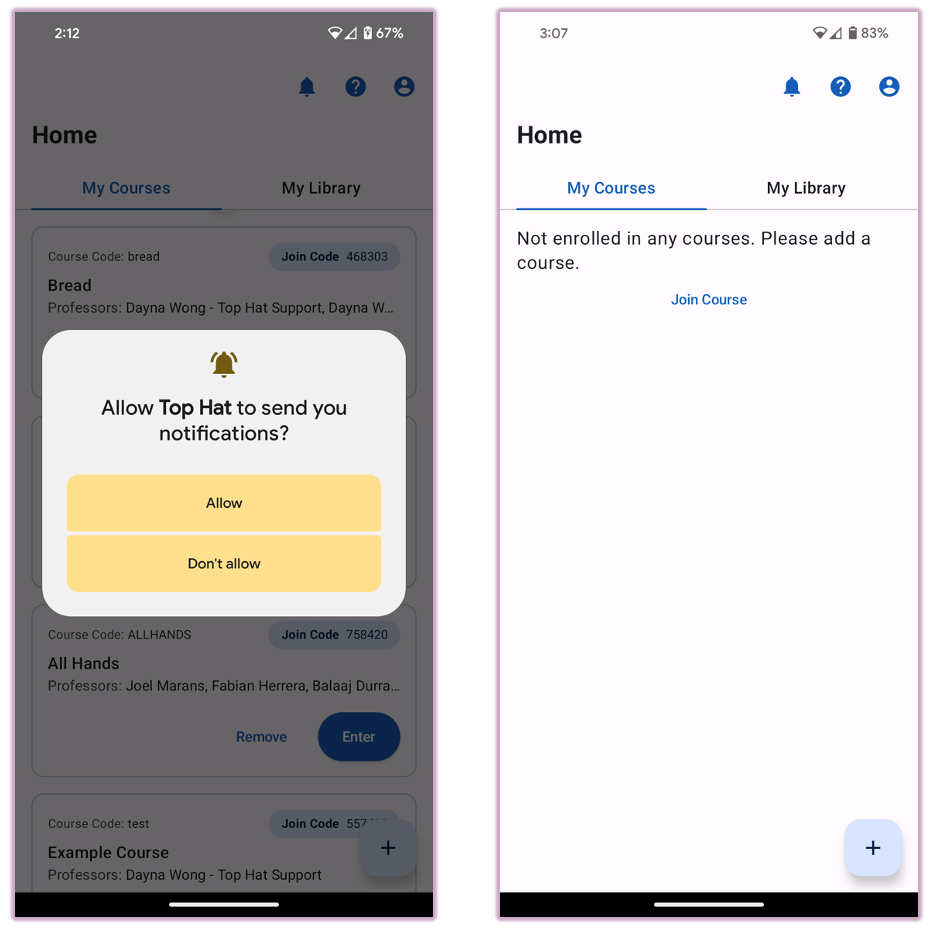 Image: Android phone screens showing Push Notification and Course Lobby menus
Related Support Articles:
Enrolling in a Course
To enroll in a Top Hat course, select either the "+" icon or "Join Course".
Enter the six-digit course Join Code provided to you by your course instructor. Confirm the course details and select "Enroll".
Note: If you have been invited to your course through a Learning Management System (LMS) such as Canvas, Blackboard, D2L, or Sakai, please follow the course launch link directly in your LMS course to enroll fully.
Please visit: Course Enrollment Instructions (LMS connected Courses)
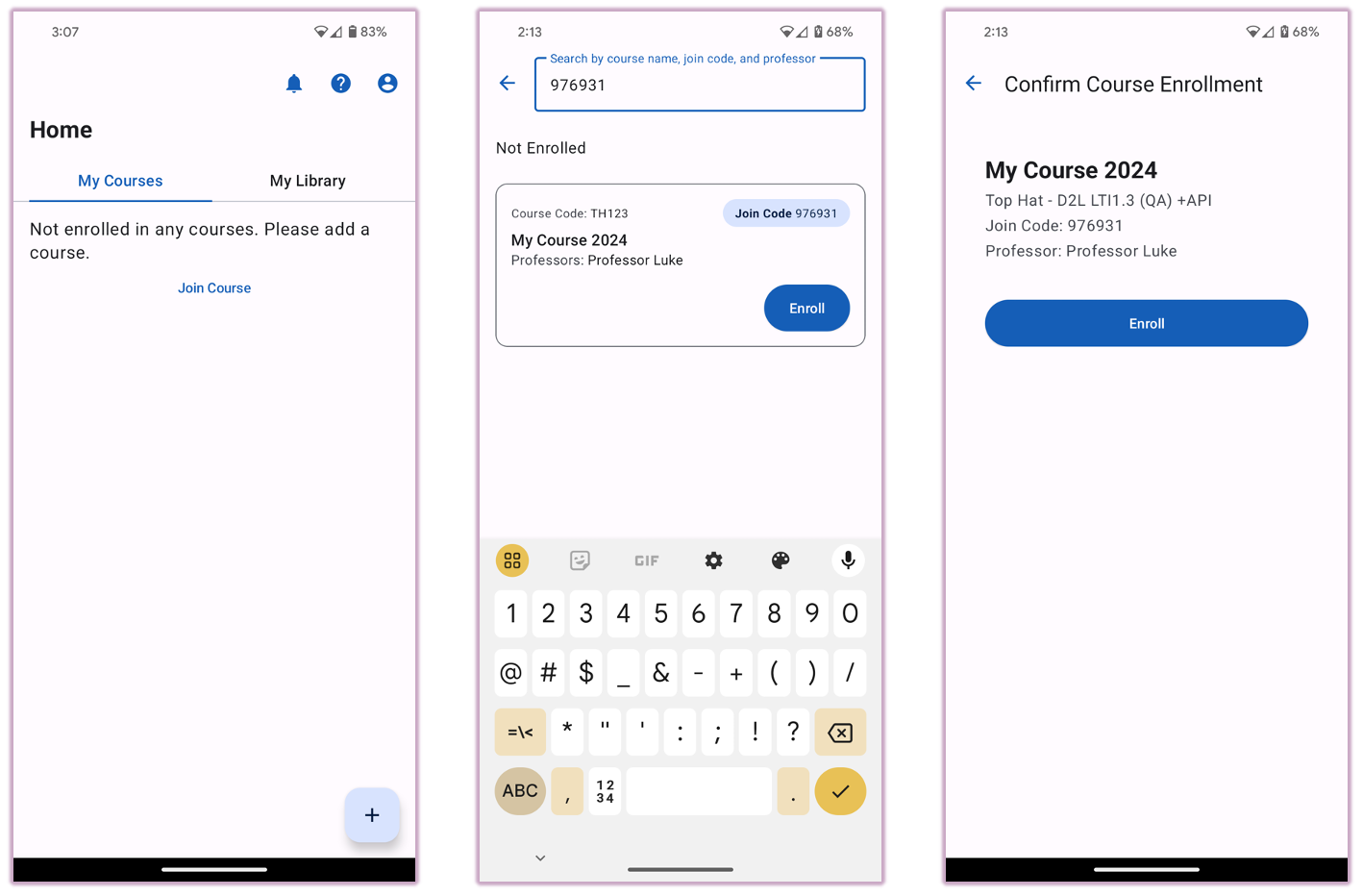 Image: Android phone screens showing Course Lobby, Course Results, and Enrollment Confirmation
Note: If your course requires any purchases such as a "Bundle" (Top Hat + Top Hat Interactive Text), and your account does not already have it, you will receive the message "Your action is required to access this course" when attempting to enroll via the app.
First, enroll using a web browser to make the required course purchases or redeem a Top Hat Access Key.
Related Support Articles:
My Library
The "My Library" contains all the eTextbooks you own on your Top Hat account.
My Library eTextbooks are read-only. Question submissions made within the My Library version do not count toward your course grade.
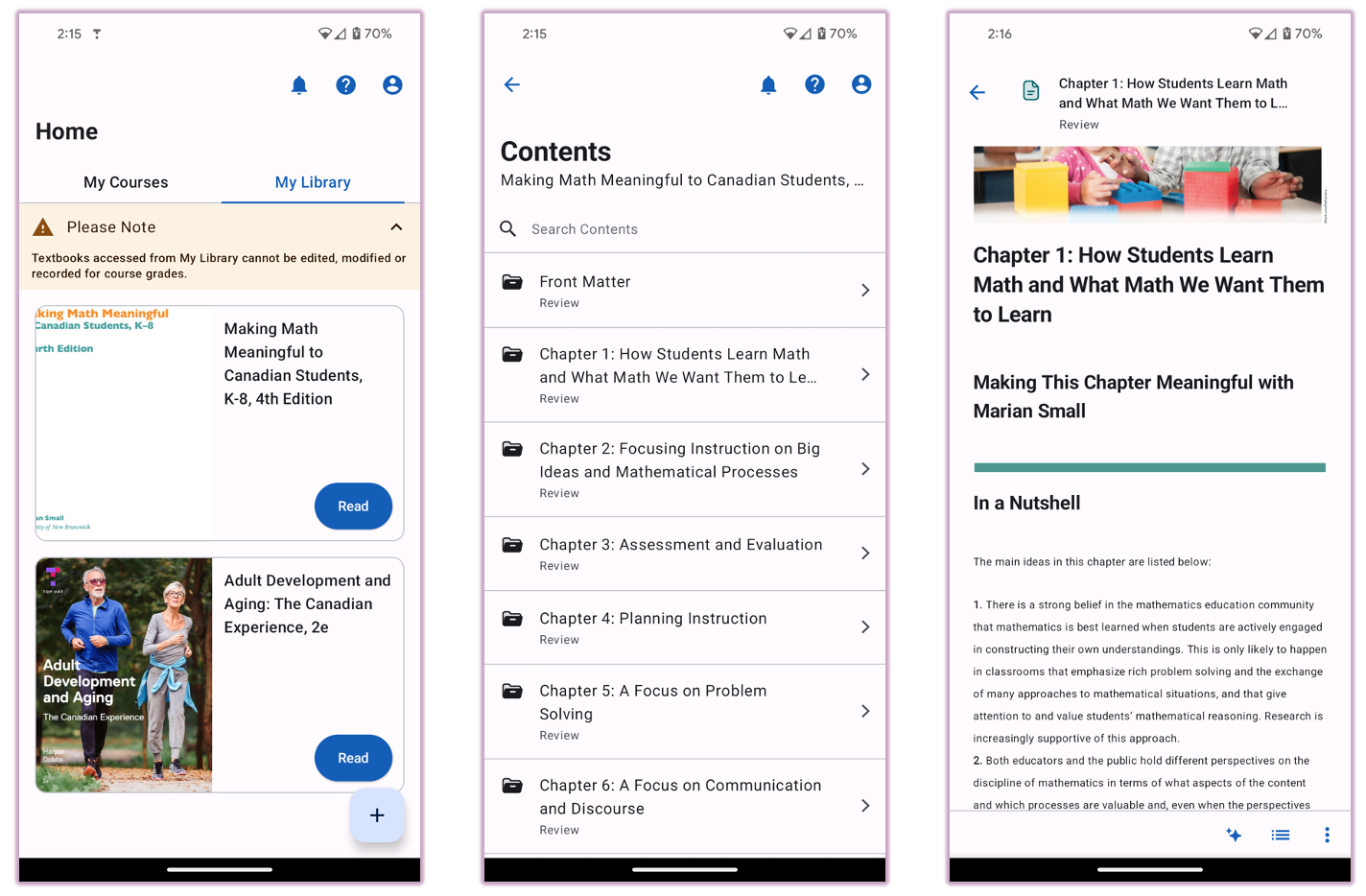 Image: Android phone screens showing My Library, Book Contents, and an eTextbook Chapter
Related Support Articles:
App Layout
In your Top Hat App, there are three main spaces: Classroom, Assigned, and Gradebook.
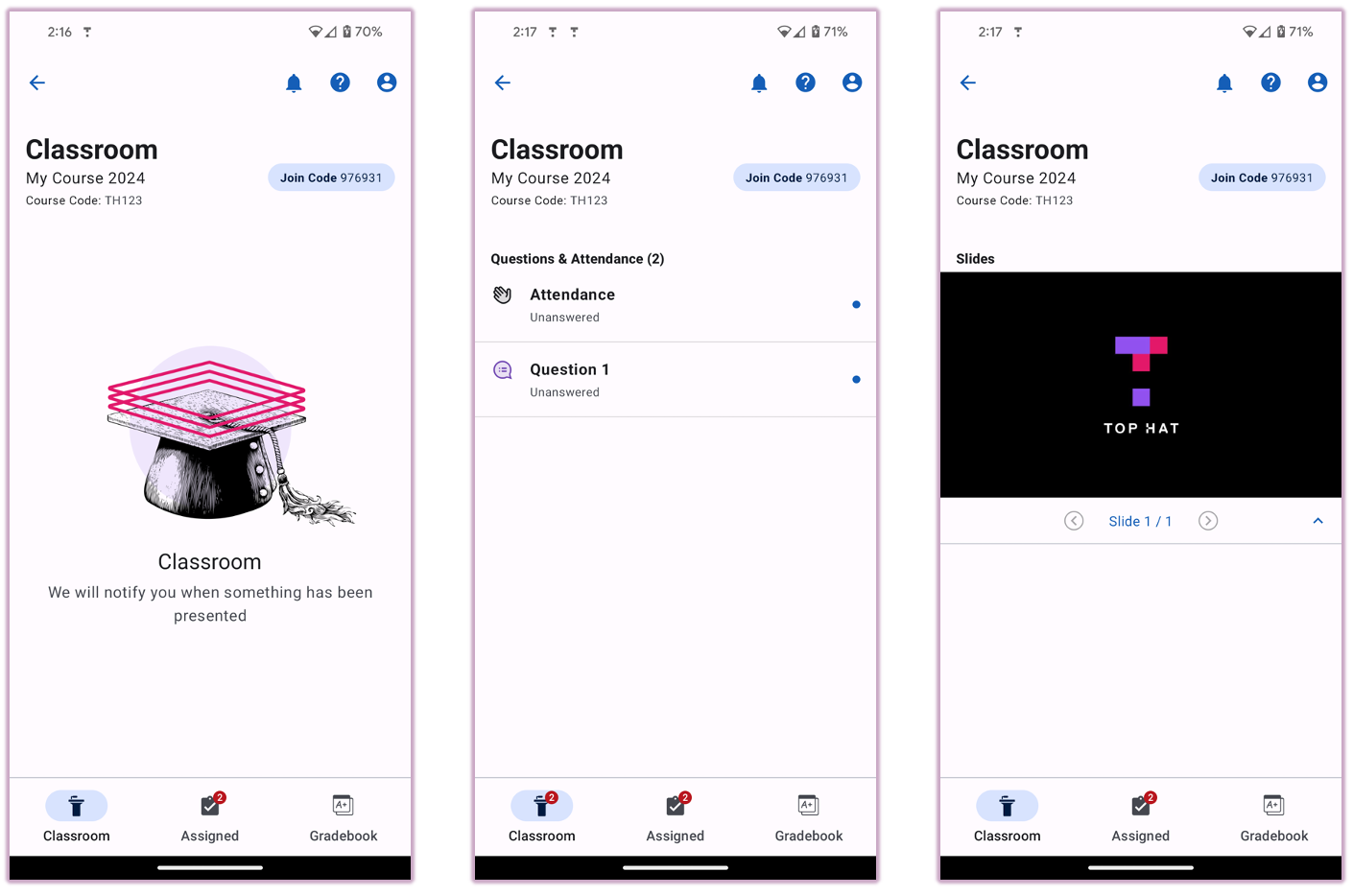 Image: Android phone screens showing the Classroom space, Presented Content, and Slide Deck
Classroom: All live content is shown in here. This will include presentations hosted by your instructor, as well as in class questions, polls, discussions, and attendance.
Assigned: Course content assigned to you by your instructor. This can include Interactive eText chapters, discussions and slides, and various question types including tests, exams, and quizzes.
Content can be assigned in either two modes: "Homework" mode or "Review" mode.
- Homework mode (HW): typically has a due date and is graded.
- Review mode (RV): is not graded or saved.
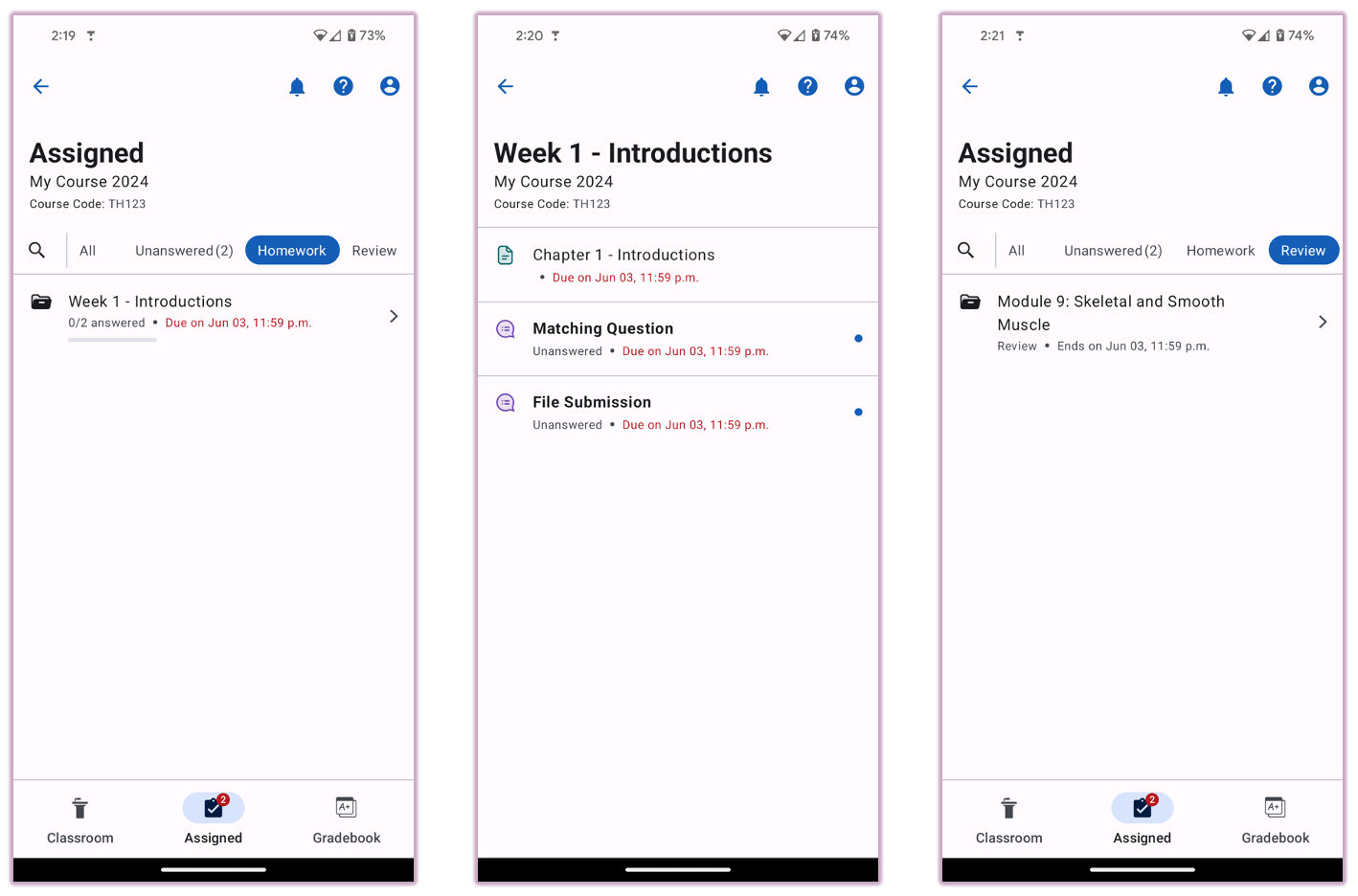 Image: Android phone screens showing the Homework tab, assigned questions, and Review content
Gradebook: The Gradebook contains your course responses, awarded grades and submission feedback from your instructor.
How it works:
- Grades may appear immediately after you've made a submission (if enabled).
- "Submissions awaiting to be graded": Will grade after the due date or after manual grading by the instructor.
- Your "/Total Grade" is based on total items assigned while enrolled.
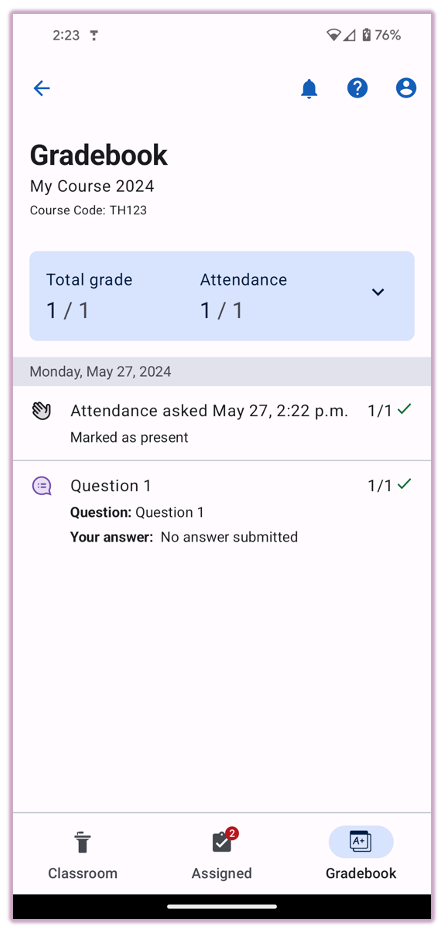 Image: Android phone depicting a gradebook with graded submissions
Related Support Articles:
Submitting Responses
Submitting responses in Top Hat requires you to "Submit" for your choices / responses to be recorded.
Instructors may present and close questions at any time. They may also assign a question timer (keep the app open to avoid missing in-class questions!). There are various question types including Multiple Choice, Word or Numeric Answer, Fill in the Blank, Matching, and Click on Target.
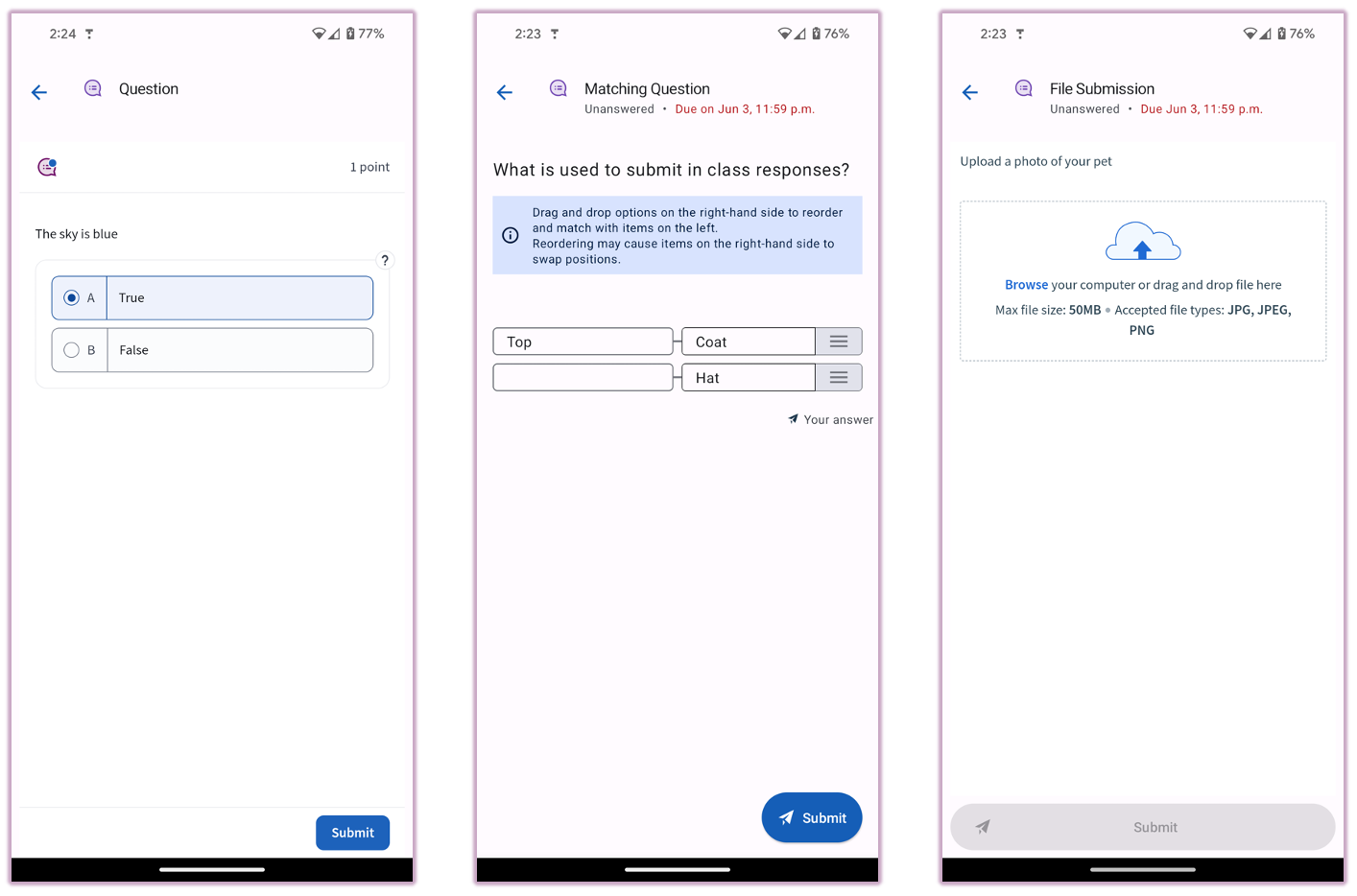 Image: Android phone screens showing true/false, matching, and file upload questions
Related Support Articles:
Frequently Asked Questions (FAQ) and Top Hat Support
- My response wasn't recorded:
-
- The "Submit" button wasn't selected.
- The Question Timer ran out or the instructor closed the submission window.
- My grades are not showing in the Top Hat Gradebook:
-
- The content is still assigned in Homework mode.
- The instructor is required to manually grade the submission (e.g., Long Answer questions).
- My homework submissions didn't save:
-
- The content is in "Review" mode. Only content assigned in "Homework" mode is saved to the gradebook.
- My attendance prompt didn't appear:
-
- Attendance was already taken—confirm the start time of your class.
- You left class early—instructors can initiate an attendance session at any time.
- The app says "Account Not Active" or "Your action is required":
-
- Course purchases cannot be made directly within the mobile app. You must first enroll and complete your purchase using a web browser.
- I have been marked as absent:
-
- Your location was detected as too far from the classroom (this applies to Secure Attendance sessions only).
- My Access Key isn't working:
-
- You may be entering a bookstore redemption code instead of an Access Key. Redemption codes must be traded on the bookstore website for a Top Hat key first.
- Ensure the Access Key is for the correct product assigned to your specific course.
Top Tips for reaching out to us:
- Provide your account email address.
- Provide details: six-digit Course Join Code, Instructor Name, Question Details, Links, Screenshots, and Submission Method (e.g., App, Browser, or SMS).
Contact Top Hat Support:
Press "?" in your app or upper right corner of your screen or visit our Support Site Articles: https://support.tophat.com/
Through our contact form: https://support.tophat.com/s/contact-main
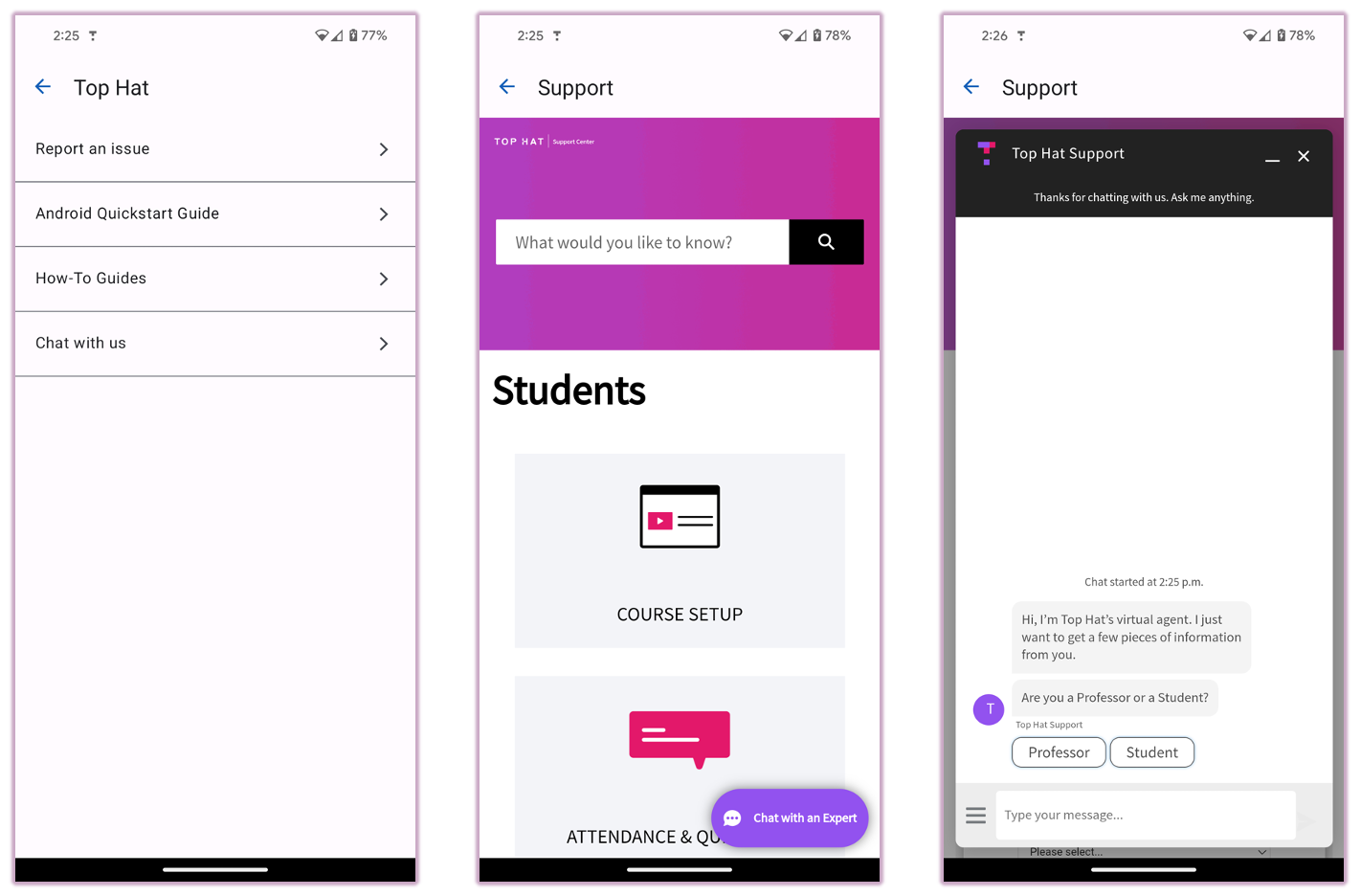 Image: Android phone screens showing Report, Support, and Support Chat menus