Body
Use Top Hat’s Read Aloud feature on the mobile app to improve accessibility, enhance audio learning, and follow along with course content hands-free. This guide explains how to access and use Read Aloud from your course pages, control playback with the built-in audio player, and engage with features like Read Along mode and Background mode.
You’ll also learn how to adjust playback speed and navigate chapters—all designed to support auditory learning and flexible studying on the go.
Table of Contents
- Accessing Read Aloud
- Entry Point
- Audio Player Controls
- Using Read Aloud
- Read Along Mode
- Background Mode
- Audio Settings and Customization
- Playback Speed
Accessing Read Aloud
Entry Point
Students can access the Read Aloud feature directly from their course content pages. Look for the Read Aloud controls in the toolbar at the bottom of the page within the mobile app.
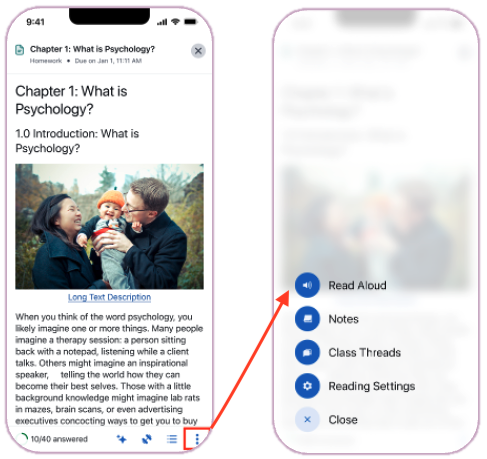 Image: Entry point to Read Aloud in the bottom toolbar
Audio Player Controls
The Read Aloud feature includes a comprehensive audio player with the following functions:
- Play/Pause: Start or pause the audio playback.
- Progress Bar: Shows current position and allows seeking to specific parts of the text.
- Volume Control: Adjust the audio output level.
- Speed Control: Change playback speed for comfortable listening.
- Chapter Navigation: Quickly jump between different sections of the content.
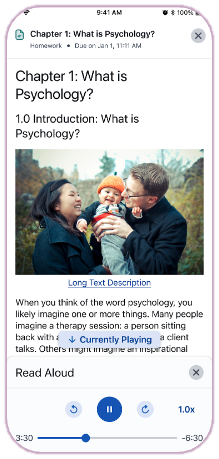 Image: Read Aloud audio controls on mobile
Using Read Aloud
Read Along Mode
Read Along mode synchronizes the visual and auditory experience:
- Automatic Highlighting: The app highlights text in real-time as it is being read.
- Auto-Scroll: The page automatically scrolls to keep the current sentence in view.
- "Currently Playing" Button: If you scroll away from the active text, a floating button will appear to instantly take you back to the playback location.
Background Mode
Students can continue listening to course content even when their device screen is locked or while using other apps:
- Start playback using Read Aloud.
- Lock your device or navigate away from the app.
- Use lock screen controls to pause, play, or skip sections without unlocking your phone.
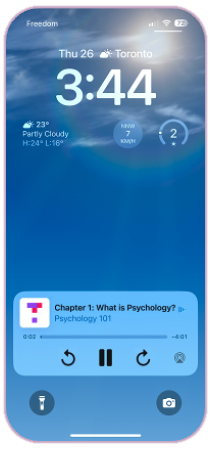 Image: Read Aloud controls on the device lock screen
Audio Settings and Customization
Playback Speed
Adjust the reading speed to match your learning preference. Available options typically range from 0.5x (slow) to 2.0x (fast) normal speed.
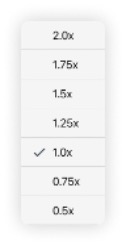 Image: Customizing playback speed