Body
Download slides, PowerPoints, and instructor-uploaded files in Top Hat from the Content tab under Homework or Review mode on your web browser. This guide walks students through how to locate and download shared course materials—including slide decks and additional file types such as Excel, Word, or PDF documents.
Downloads are available only if enabled by your instructor and will retain their original file format. Learn where to find these resources, how the download process works, and where files are saved on your device.
Table of Contents
- Downloading Slides and Files
- Downloading Slides
- Downloading Files
Downloading Slides and Files
Instructors may share materials with you through Top Hat. These could be slide presentations or other files that your instructor has uploaded to Top Hat and made available for you to download.
Downloading Slides
In your Top Hat course, locate the presentation that has been assigned to you in either Homework or Review.
Locate the presentation in the Content tab and select the slide folder (selecting any slide in the folder will automatically include the full deck).
Note: If your instructor has enabled downloads, click the Download slide deck button in the bottom right corner of your screen to prompt a download from your web browser.
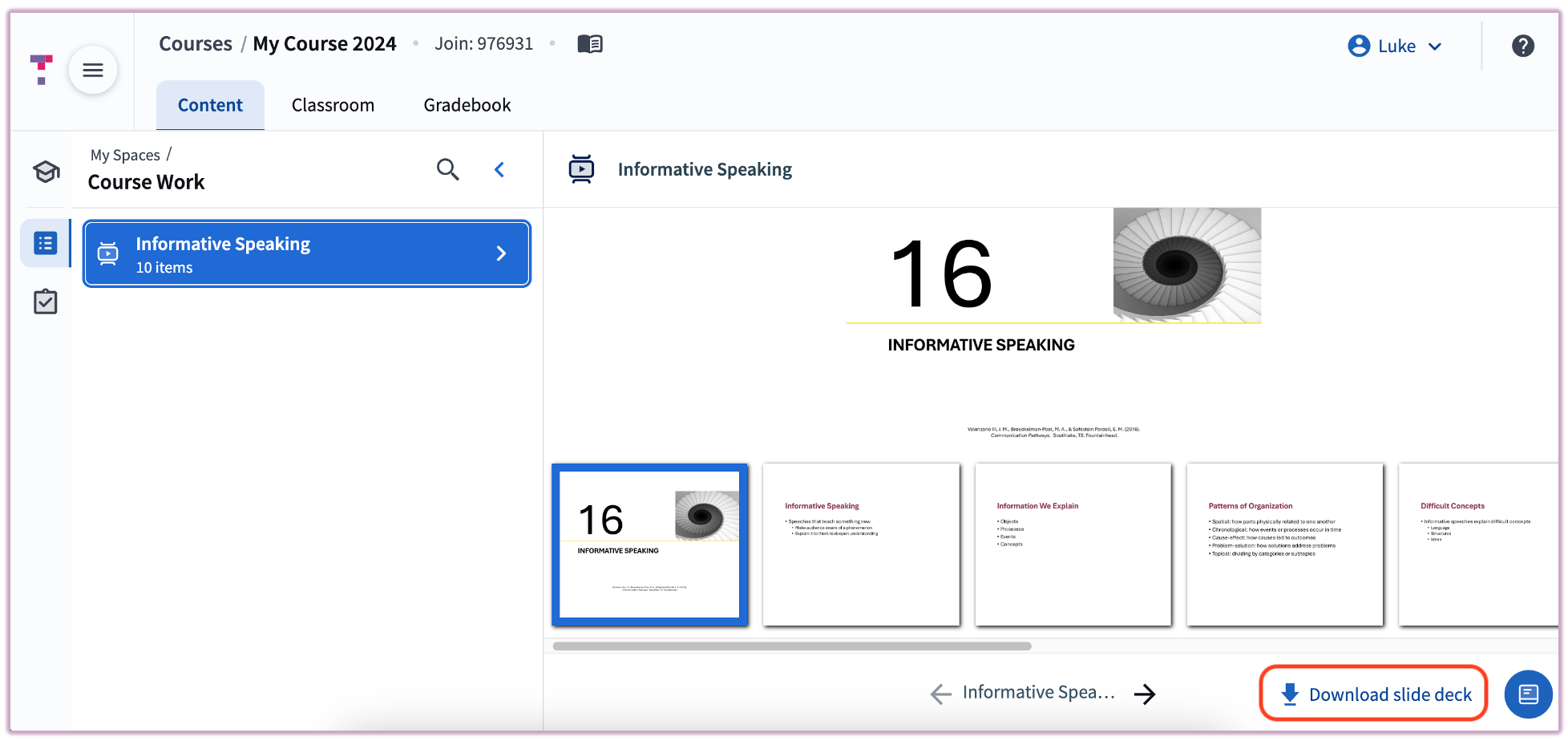 Image: Download Slide Deck Button
Depending on which web browser you are using, the file will likely be available in your Downloads folder. When you access the downloaded slides, they will appear in the format in which they were originally uploaded. For example, if the slides were uploaded as a .pptx file, they will open as a PowerPoint file.
Downloading Files
To download other file formats, click on the Download File button.
When you access this downloaded file, it will be available to you in the format in which it was originally uploaded by the instructor. For example, if it was uploaded as a .xlsx file, it will open as an Excel file.
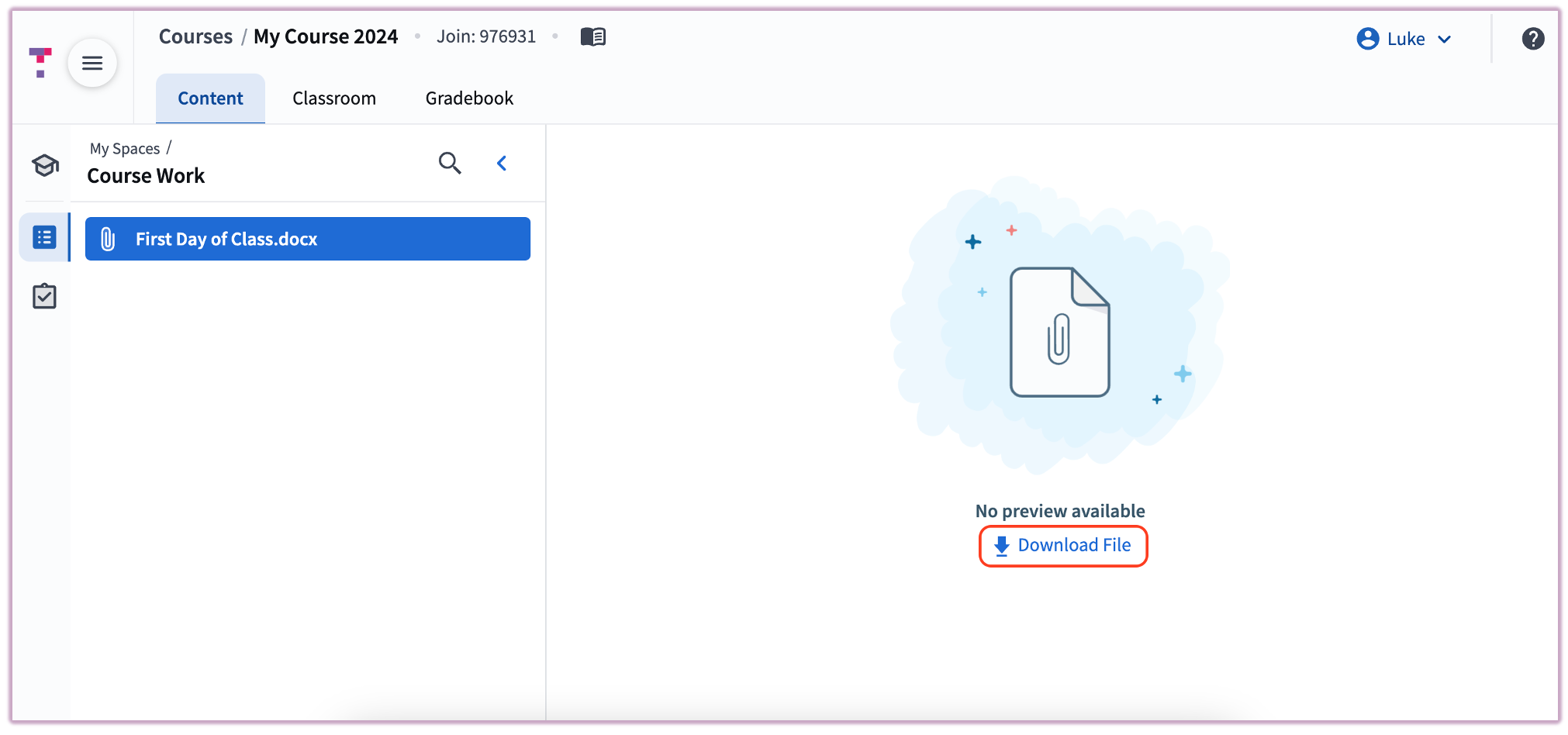 Image: Download File