Body
Learn how Top Hat Tests work—monitored vs non-monitored—including test codes, lockout warnings, auto-saving, test grades, and device requirements. This guide helps students understand the differences between monitored and non-monitored assessments in Top Hat.
You’ll learn how test behavior is tracked (e.g., screenshots, notifications), how to avoid lockouts, how to navigate the test interface, and how to view your results. Whether you're using a browser or mobile app, we’ve included tips, system requirements, and troubleshooting steps for a smooth testing experience.
Table of Contents
- Monitored vs. Non-Monitored Tests (The Difference)
- Navigating the Test Space
- Taking a Non-Monitored Test
- Taking a Monitored Test
- Laptop/Desktop
- Top Hat Mobile App
- Viewing Test Results / Grades
- In-Test Warnings and Messages
- Device Locked After Taking Test
- FAQ
Monitored vs. Non-Monitored Test
A non-monitored test is an "open book" style assessment with no suspicious activity tracking. In contrast, a monitored test tracks the following activities to ensure academic integrity:
- Screenshots: You will be locked out of the test if you take a screenshot.
- CTRL+F (Find): You will be locked out of the test if you attempt to search the page.
- Screen Refresh: Refreshing the browser will cause a lockout.
- Notifications: If your device receives a notification while testing, you will be locked out. Ensure "Do Not Disturb" mode is enabled.
Note: All selections and text entries are automatically saved as you work!
Navigating the Test Space (Monitored and Non-Monitored)
The following elements are displayed at the top of the test interface:
- Time Remaining: Displays only on non-monitored tests if a timer has been set by the instructor.
- Progress Indicator: Shows the number of Answered vs. Unanswered Questions.
- Hand In: Use this button once you have completed all questions and are ready to submit.
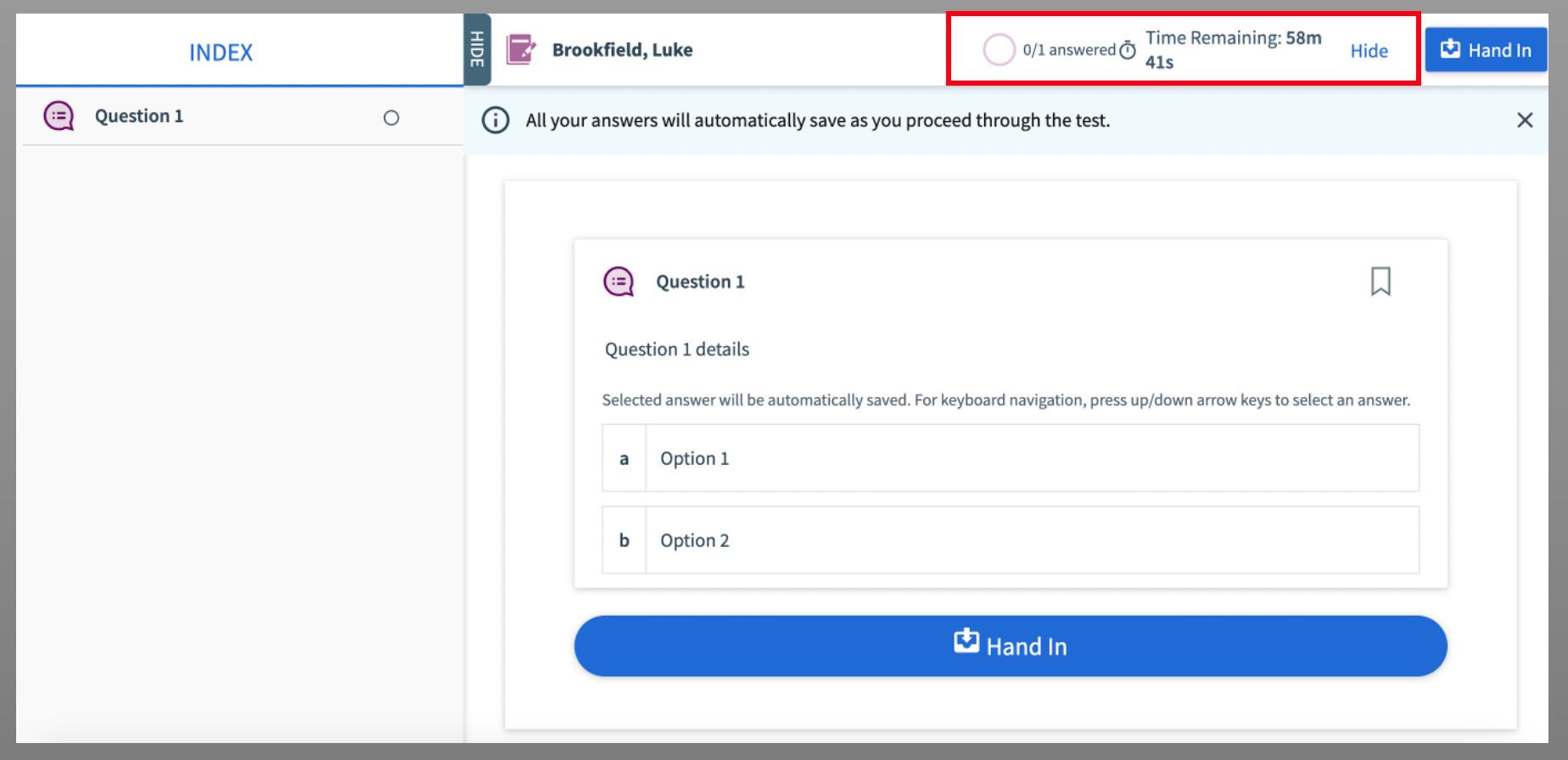 Image: Question progress and time remaining indicators
Answer test questions as you would standard Top Hat questions. For more details on specific formats, see: Student: Answering Questions
The Interactive Index allows you to jump directly to any question. Attempted questions are marked with a blue circle, while unattempted ones remain grey.
Taking a Non-Monitored Test
Non-monitored tests do not restrict behavior like tab-switching or external tool use, making them ideal for flexible assessments.
Steps to Begin:
- Navigate to the Assigned tab in your course.
- Locate the test in the content tree (marked with a test icon).
- Select the test to view information in the preview pane.
- Click Start Test.
During the Test:
- Use the question index on the left-hand side to navigate.
- Monitor your completion via the progress wheel at the top.
- If a timer is active, click the timer icon in the upper-right to reveal the countdown.
- Leave the test screen at any time; your work is auto-saved, though the timer continues.
Taking a Monitored Test
Laptop/Desktop Computers
Important: Monitored tests are only supported on Google Chrome or Mozilla Firefox web browsers.
Top Hat Mobile App
If using a phone or tablet, ensure you:
- Update the app to the latest version.
- Access the test through the app directly, not a mobile browser.
- Adjust your Auto-Lock settings so the screen does not turn off. A sleeping device will trigger a lockout.
Auto-Lock Adjustment Guides:
Starting the Test
Locate the test in your course and click "Start Test". You will be prompted to enter a 4-digit test join code provided by your instructor in the classroom.
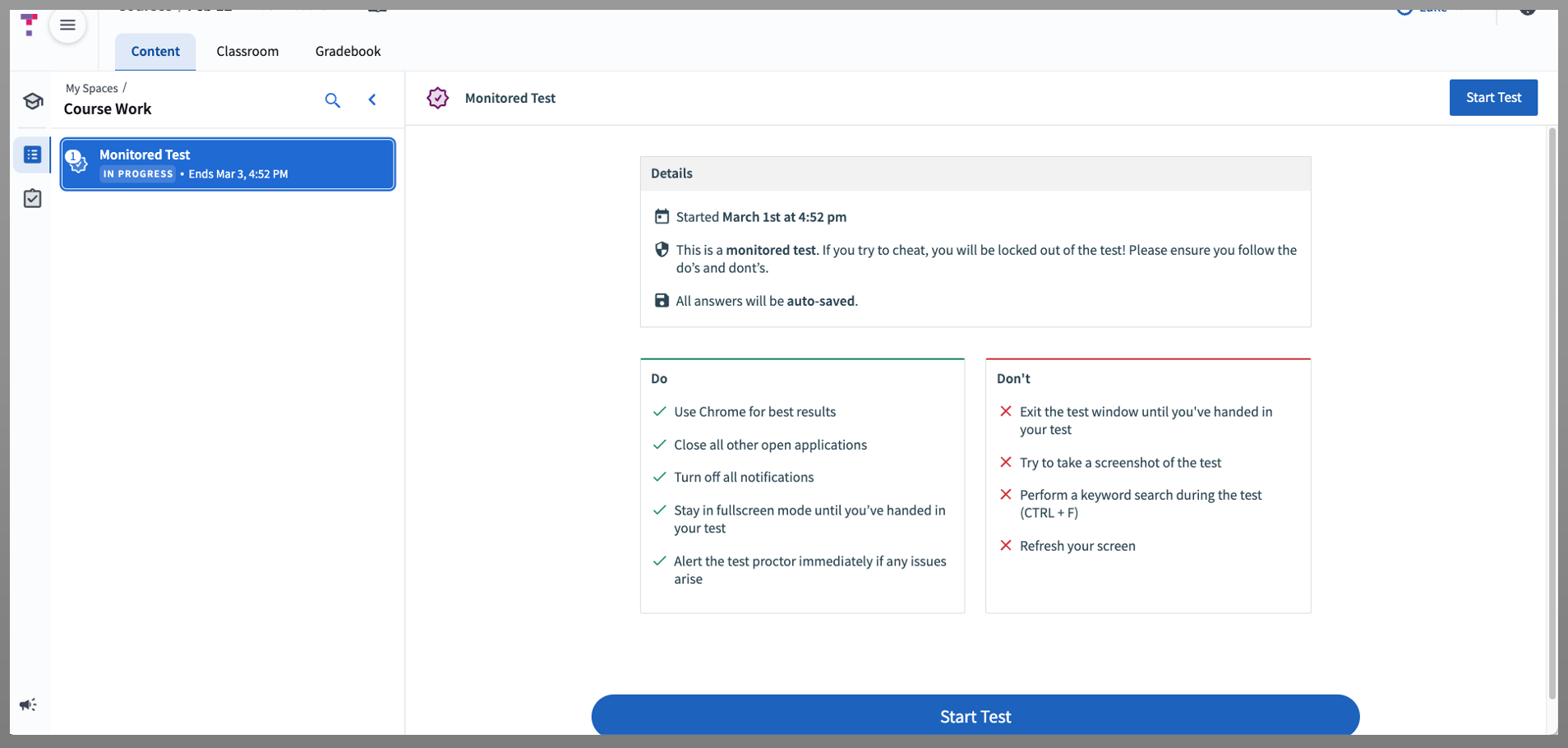 Image: Test Start Summary Page
Once you enter the code, you will enter full-screen mode. You must remain in full-screen mode for the duration of the test to avoid being locked out.
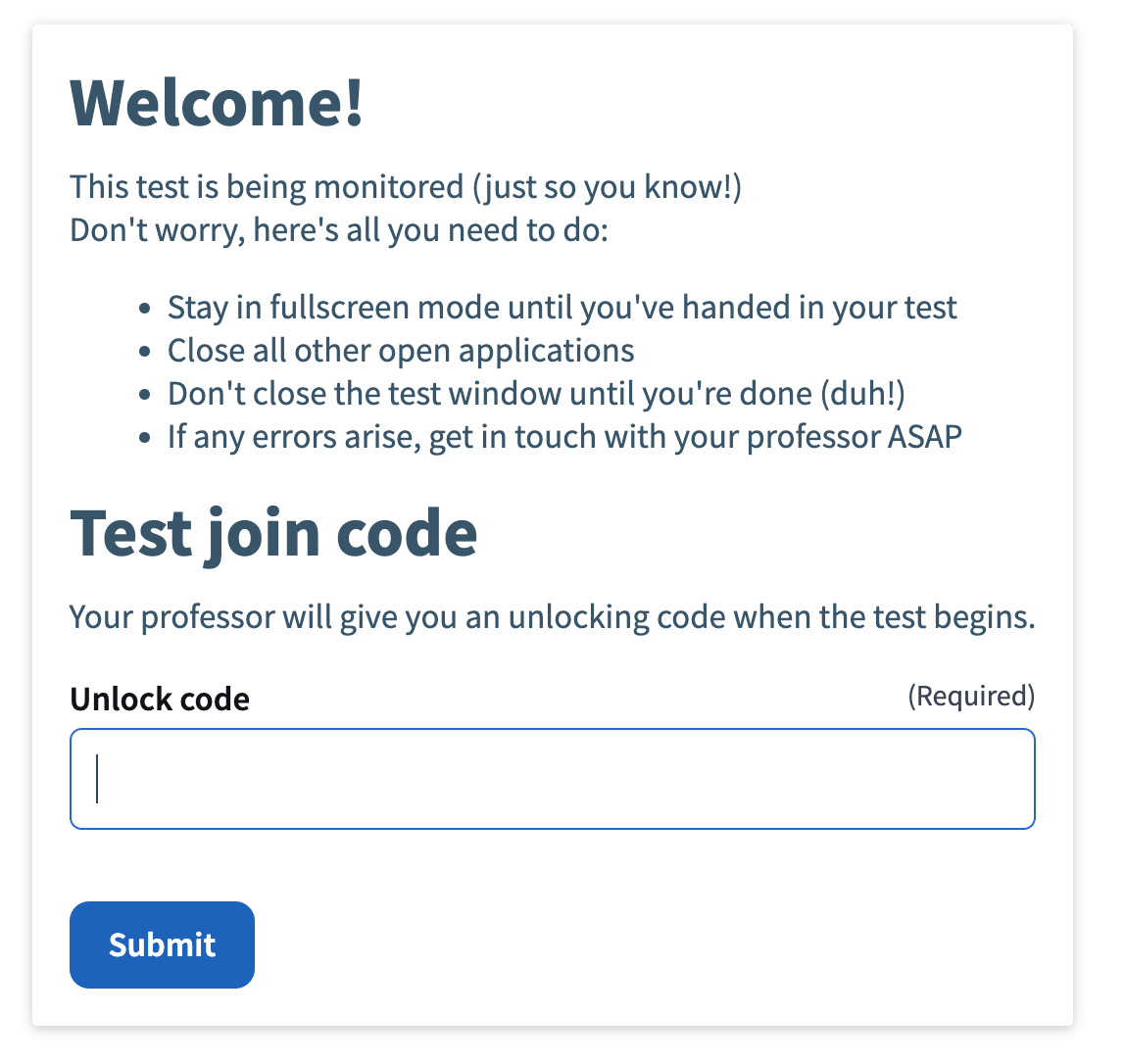 Image: Test Join Code entry screen
The test unlock code presented in class will look like this:
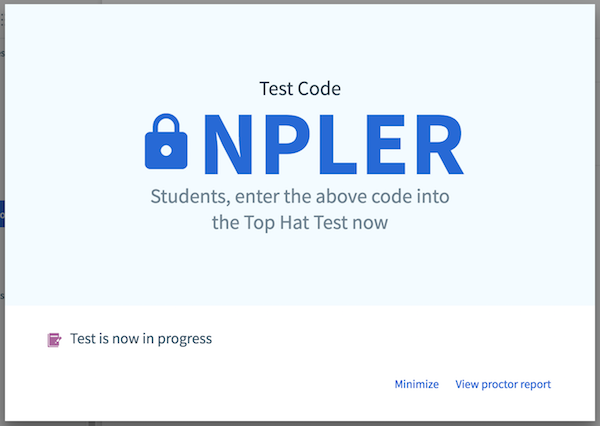
Image: Code to unlock the test
Once you enter the correct test join code, click "Submit". You will then enter the test in full-screen mode.
Important: Do not navigate away from full-screen mode or you will be locked out of the assessment. Complete the test and select Hand-In once you have finished.
Viewing Test Results and Grades
If your instructor has enabled results, you can review grades in your Gradebook. Detailed instructions can be found here: Student: Checking Grades
If a test is "Handed Back," it reappears in your Assigned tab, allowing you to review your specific responses against the correct answers.
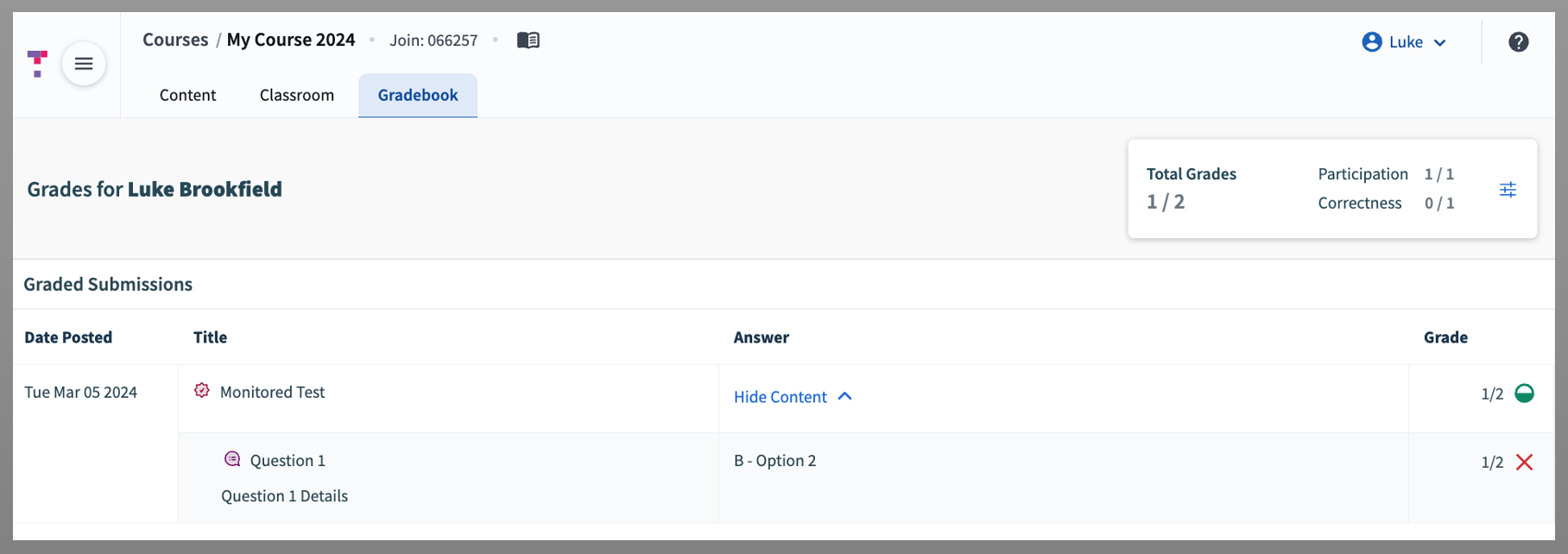 Image: Gradebook view with test results available
In-Test Warnings and Messages
While taking a monitored test, you may encounter specific warning messages. Understanding these will help you avoid accidental lockouts.
- "Irregular Behaviour Detected" – Triggered by attempting to take a screenshot. Screenshots are prohibited during monitored tests.
- "Oh No! You've been locked out" – Occurs if you exit full-screen mode or interact with other applications (such as receiving notifications). Selecting "Back to test" will return you to full-screen mode and allow you to resume.
- "Whoops, looks like you've exited full screen" – Similar to the lockout warning, this appears if the browser loses full-screen focus. Select "Back to test" to continue.
- "Content Not Found" – This typically indicates an attempt to re-enter a test after being locked out. You must speak with your professor to be manually unlocked. Once permitted, refreshing the browser will allow re-entry.
- "Connection Error" (Mobile App) – If network issues occur, Top Hat stores your answers locally. Do not close your browser or app. Answers will sync once your connection is restored. Note: Activity monitoring remains active while offline.

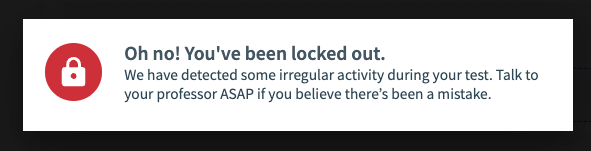 Image: Examples of warning and status messages within the app
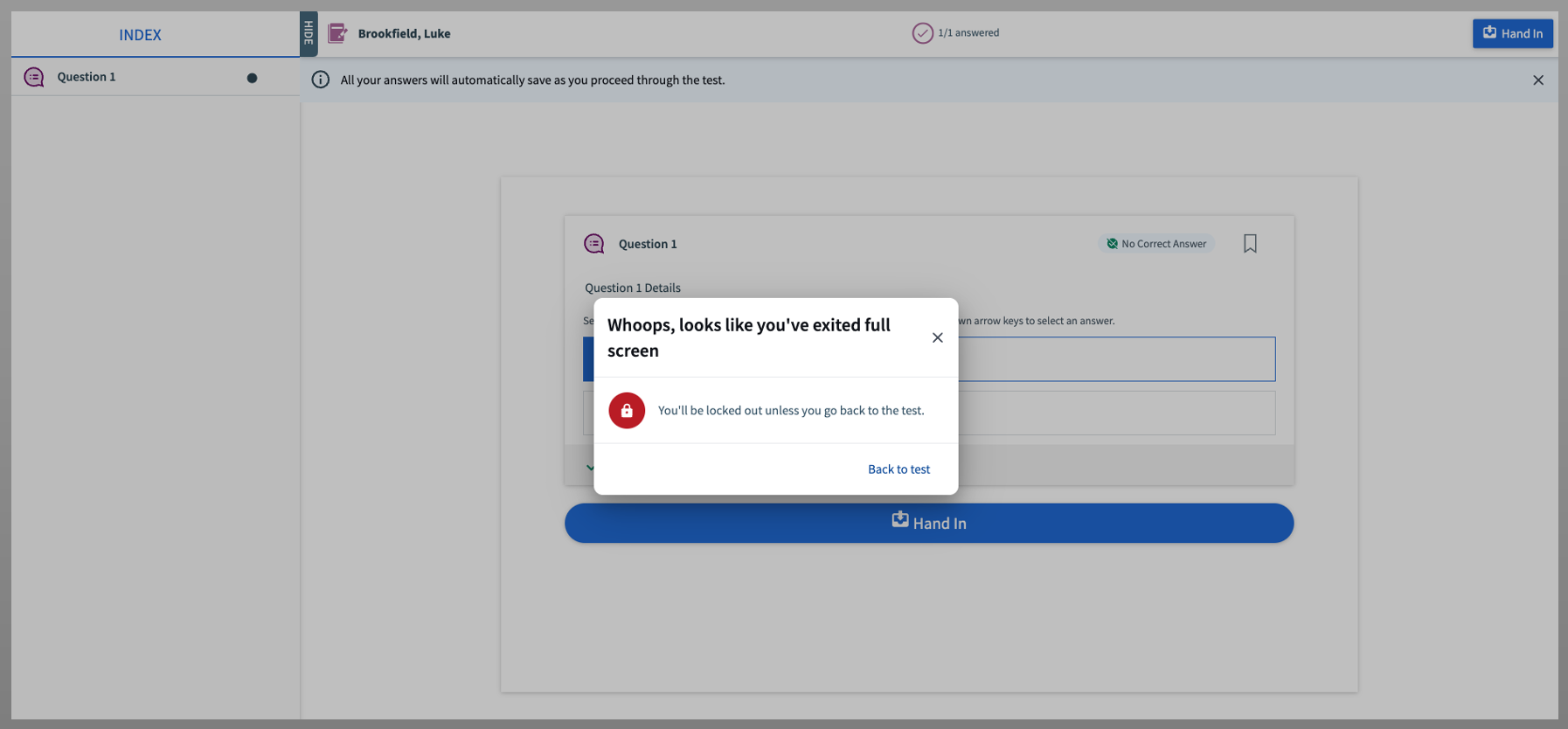 Image: Full-screen lockout warning during a monitored test
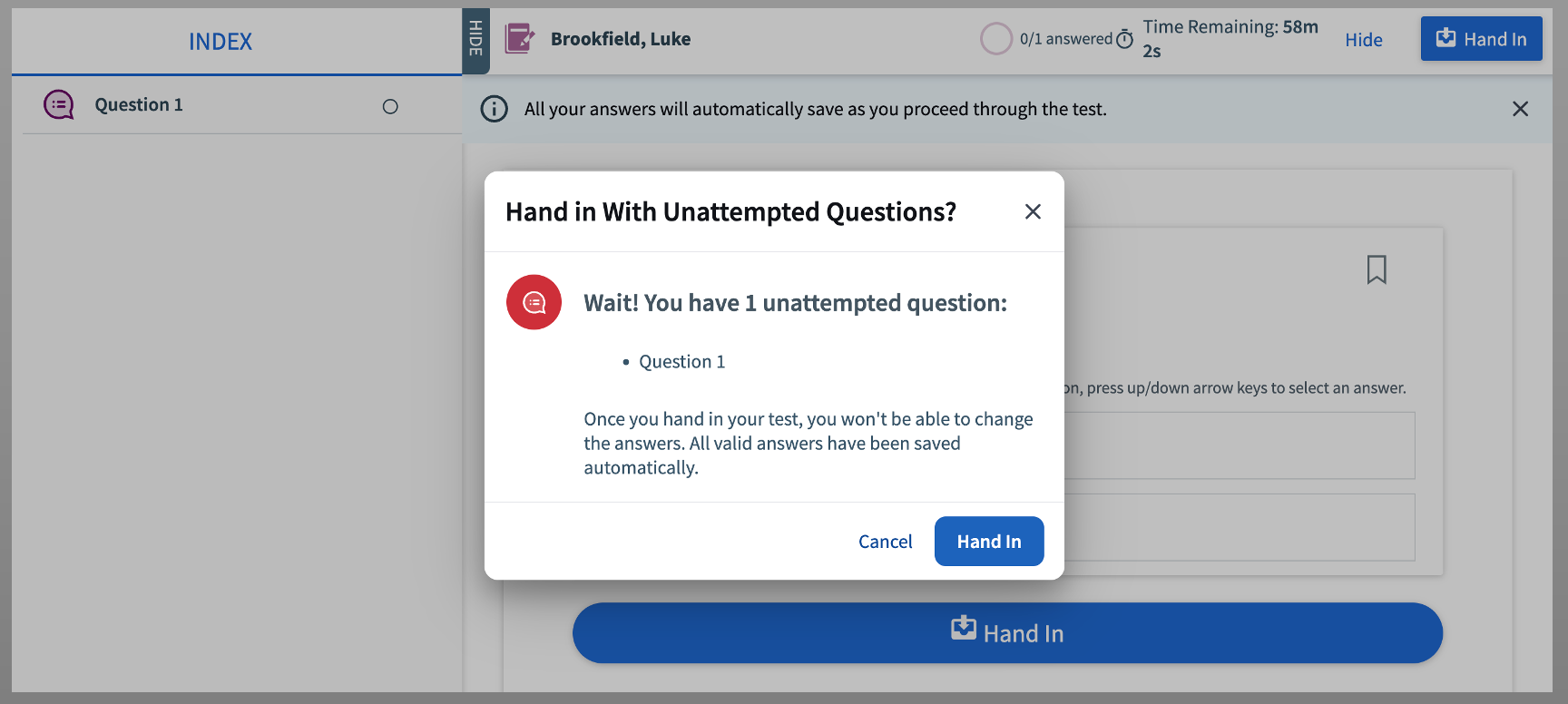 Image: Exit full-screen warning message
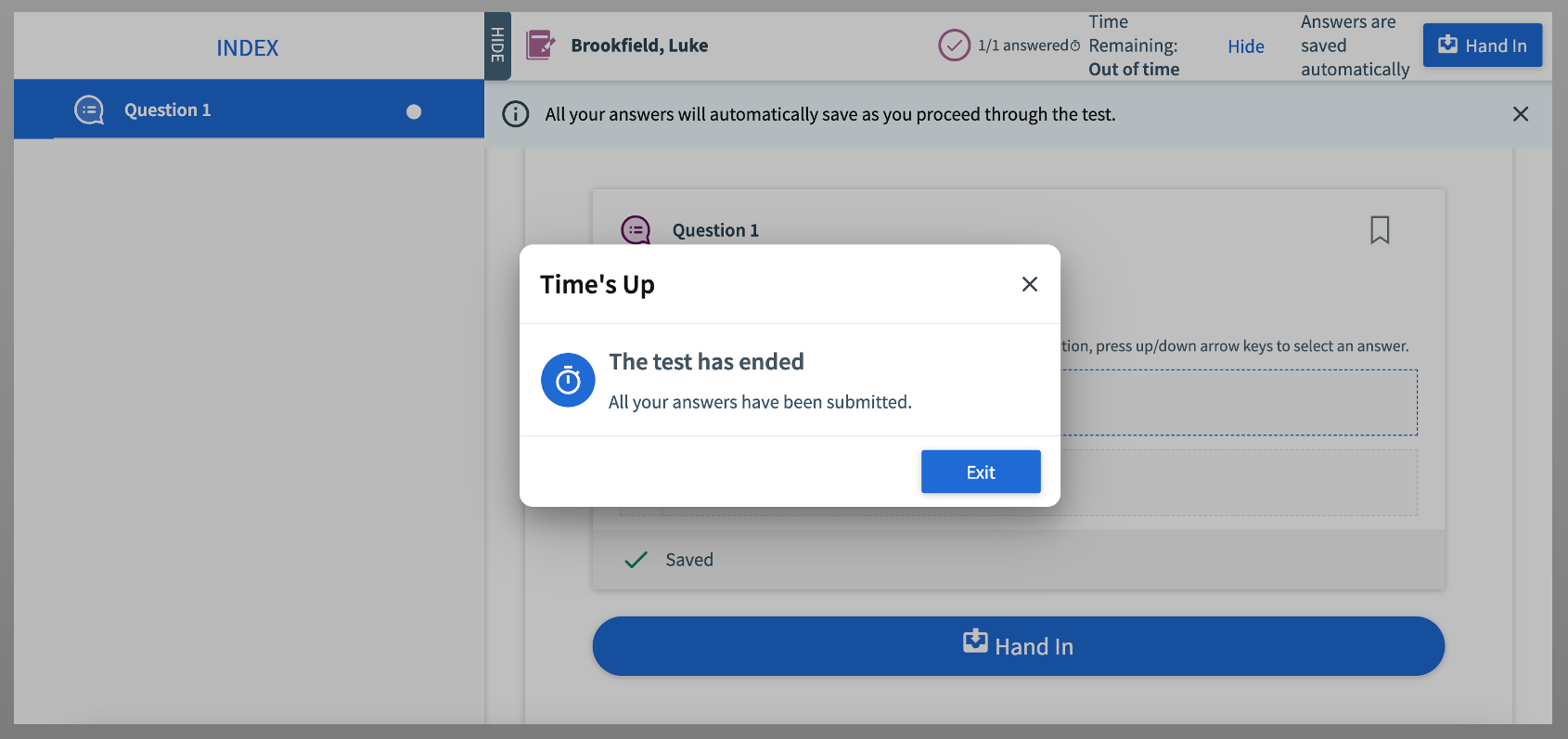 Image: Automated submission message when time expires
Device Locked After Taking Test
On rare occasions, iOS devices (iPhone or iPad) may remain stuck in "pinned mode" after completing a Top Hat Test, preventing interaction with other apps. If this occurs, navigate to your Account Settings page and select "Unlock Device (After Top Hat Test)".
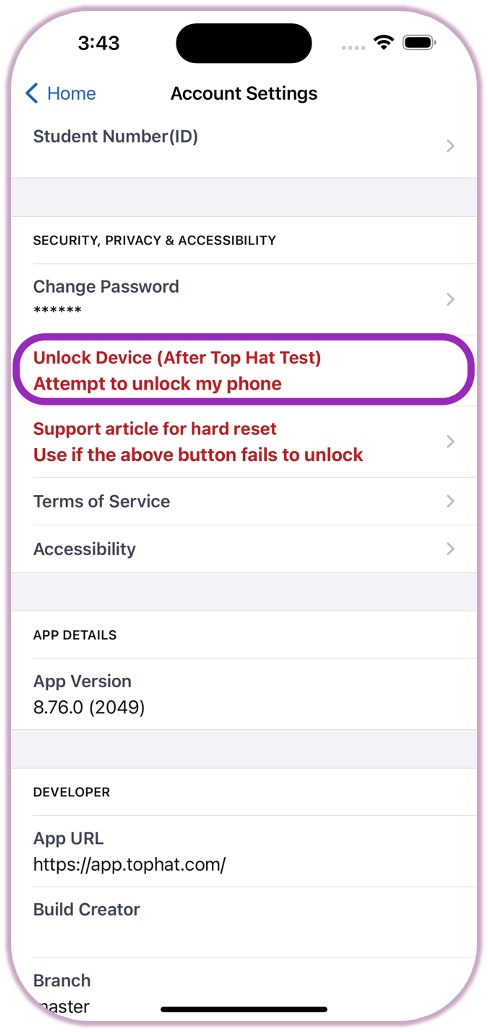 Image: Unlock Device option within Account Settings
If this does not resolve the issue, follow the latest instructions for a hard reset on the Apple Support page (opens in a new window). It is recommended to notify your professor before performing a device reset.
Frequently Asked Questions (FAQs)
- What do I need to take a Top Hat Test?
- You’ll need a phone, tablet, or computer with stable internet access. Ensure your device is fully charged, and bring a charger with you to the testing location.
- Where do I find the test join code?
- Your professor will share the code in class at the start of the test. It is generated when the test begins and cannot be accessed in advance.
- I have been locked out of my test. What do I do?
- If you leave full-screen mode or receive a notification, you will be locked out. Speak to your professor to regain access. To avoid this, remain in full-screen mode and silence all notifications.
- My professor unlocked me but I still don't have access. What should I do?
- Try refreshing your browser page. Your test and previously saved responses should reload after the refresh.
- How do I submit my test?
- Your answers are auto-saved. Select Hand-In when you have completed the test and are ready to submit.
- What if I lose internet connection? Will my answers be saved?
- Yes, answers are saved in your browser’s local memory. Do not refresh or close the page while offline. Once the connection is restored, your answers will sync.
- I don't see my grades after handing in my test—were my answers lost?
- No. Grades are only visible once your professor ends the test session and enables the gradebook. If they are unavailable, your professor may still have the test open for other students requiring accommodations.
- What does "test details are hidden for this course" mean?
- This means your professor has chosen to hide specific test questions or results. Contact your instructor to learn more about their specific policy on test reviews.
- My iPhone or iPad is stuck in "pin mode"—what can I do?
- This is rare. If you cannot navigate away from the app, you must perform a hard reset. Instructions are available on the Apple Support page (opens in a new window). Notify your professor before performing a reset.