Body
Learn how to answer Top Hat questions—multiple choice, numeric, word answer, long answer, matching, sorting, click-on-target, and more—on web or mobile. This student guide covers all supported Top Hat question types, including how to submit responses, use third-party question tools like Math and Chemistry Response, and participate using Short Message Service (SMS).
You’ll also find tips for answering test questions, using hints and explanations, understanding submission errors, and ensuring your grades are recorded correctly. Whether you’re submitting from a lecture hall or online, this guide has you covered.
Table of Contents
- Top Hat Question Types
- Multiple Choice
- Word Answer
- Numeric Answer
- Fill in the Blank
- Click on Target
- Matching
- Sorting
- Long Answer
- File Submission
- Video
- Third-Party Questions (Apps)
- Math Response
- Chemistry Response
- Tables and Graph Response
- No Correct Answer / Making a Submission
- Text Message Submissions
- SMS Format by Question Type
- SMS Confirmation and Error Messages
- Hints, Explanations & Correct Answers
- Test Questions
Top Hat Question Types
Multiple Choice
Step 1: Select your answer choice(s)—either a single option or multiple options if the question allows.
Step 2: Click "Submit" to finalize your response.
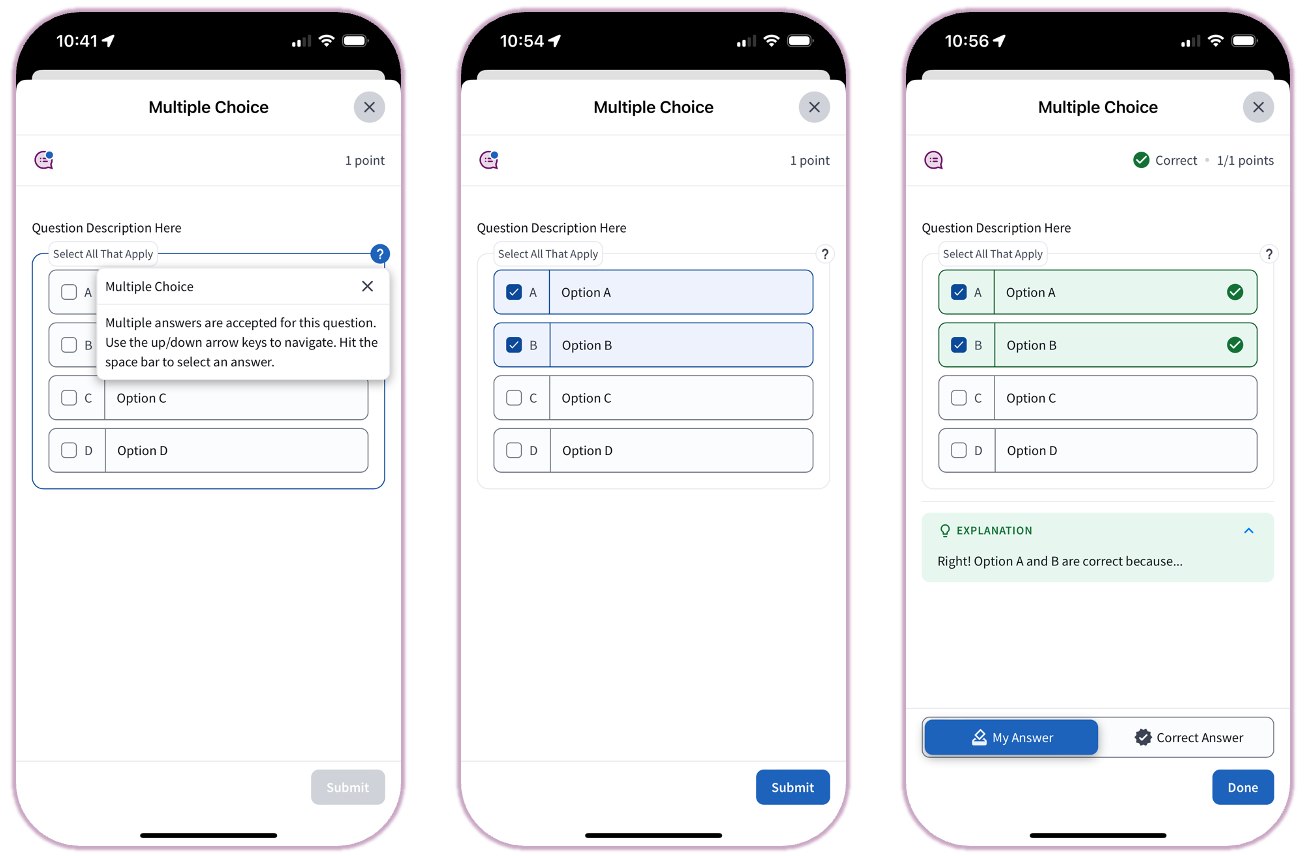 Image: Multiple Choice question interface
Word Answer
Step 1: Type your answer in the text field. (Note: Some answers may be case-sensitive.)
Step 2: Click "Submit" to record your response.
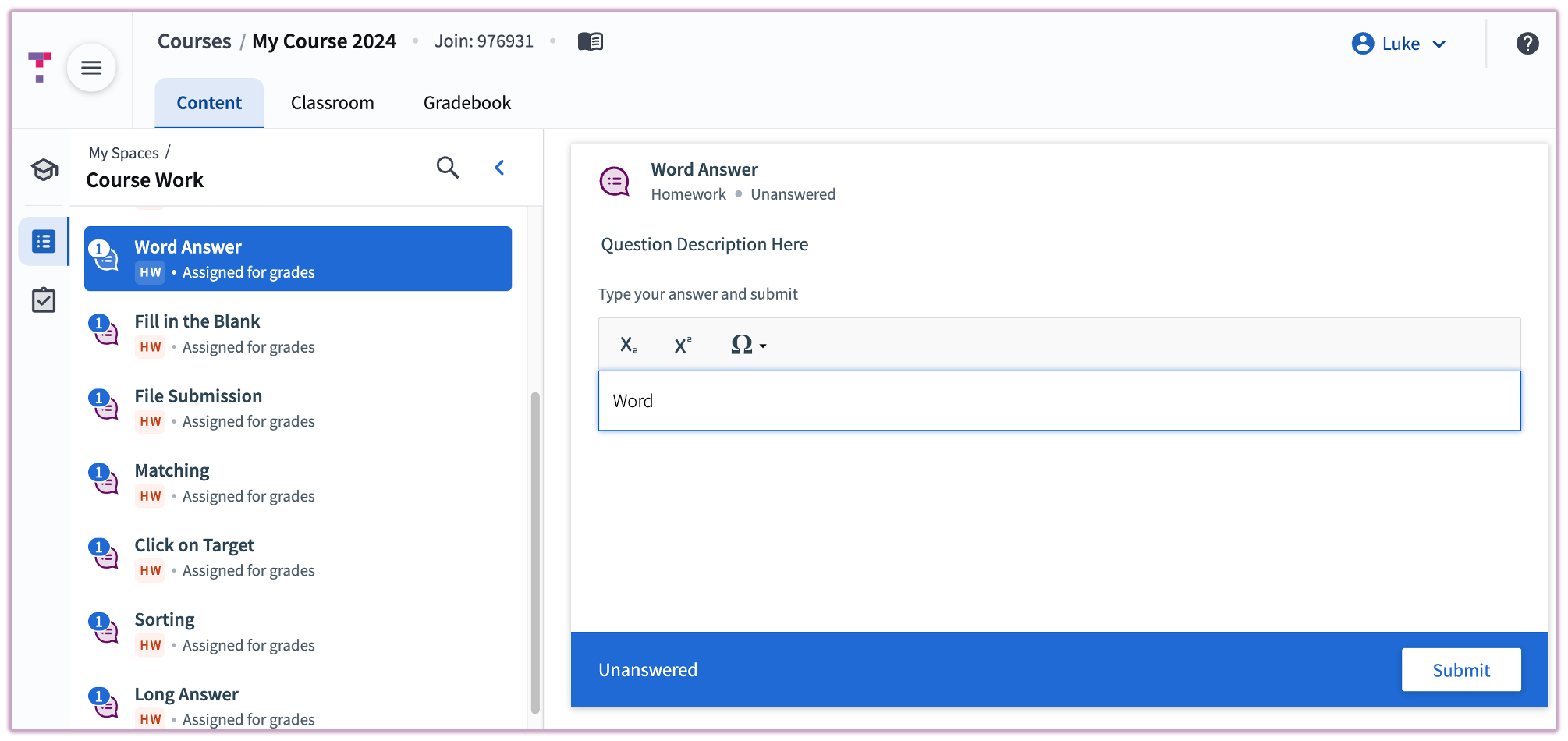 Image: Word Answer question interface
Numeric Answer
Step 1: Enter your numeric answer into the field.
Step 2: Click "Submit".
If significant figures are required, this will be noted. Units (e.g., cm, ml, ft) are not necessary unless specified.
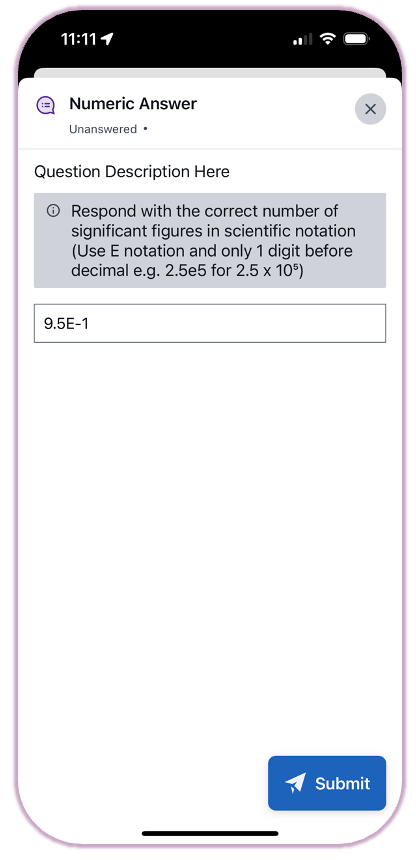 Image: Numeric Answer question interface
Fill in the Blank
Step 1: Fill in the missing word(s) in the provided blanks.
Step 2: Click "Submit".
Tip: Avoid copy-pasting responses to prevent formatting issues that could lead to incorrect submissions.
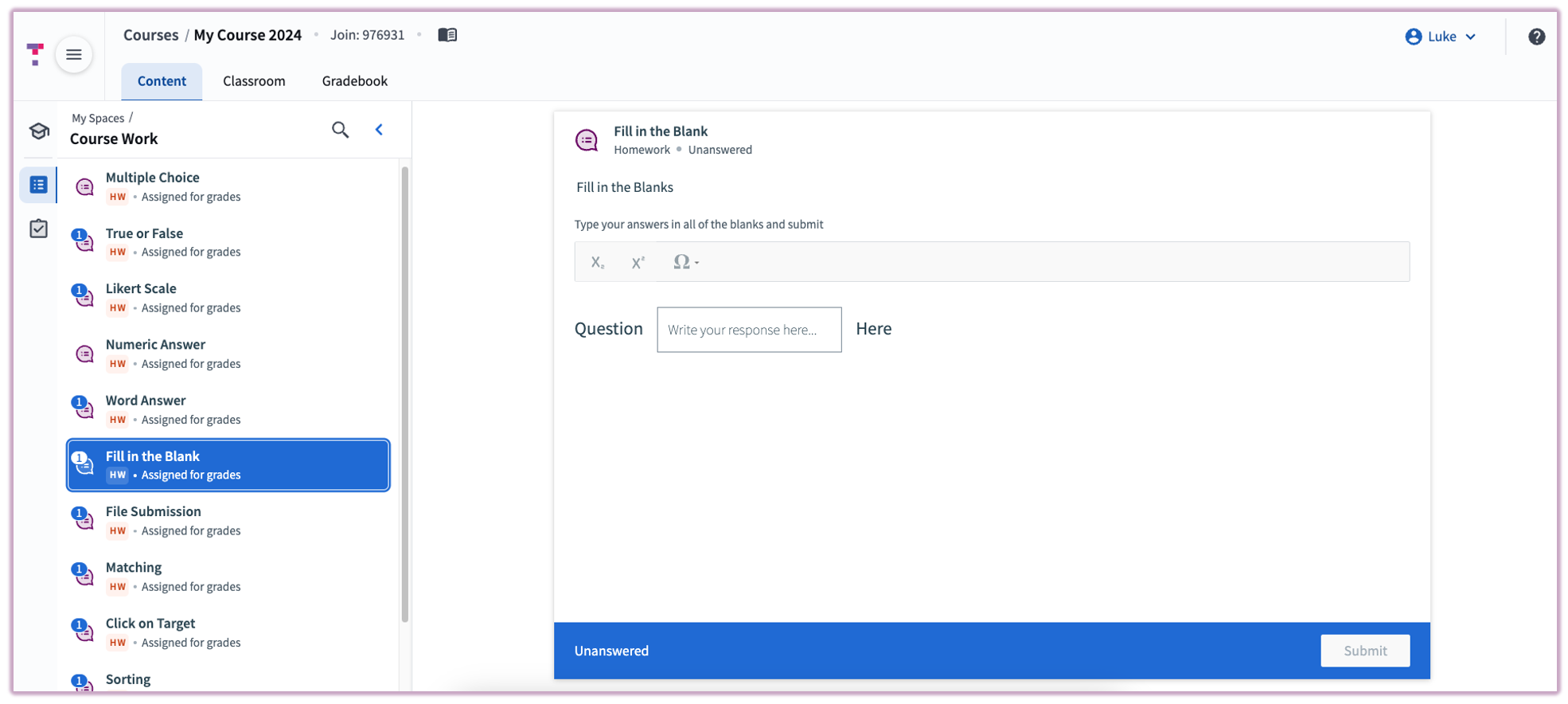 Image: Fill in the Blank question interface
Click on Target
Step 1: Click the area(s) of the image indicated by the question.
Step 2: Use Undo, Delete, or Remove All as needed, then click "Submit".
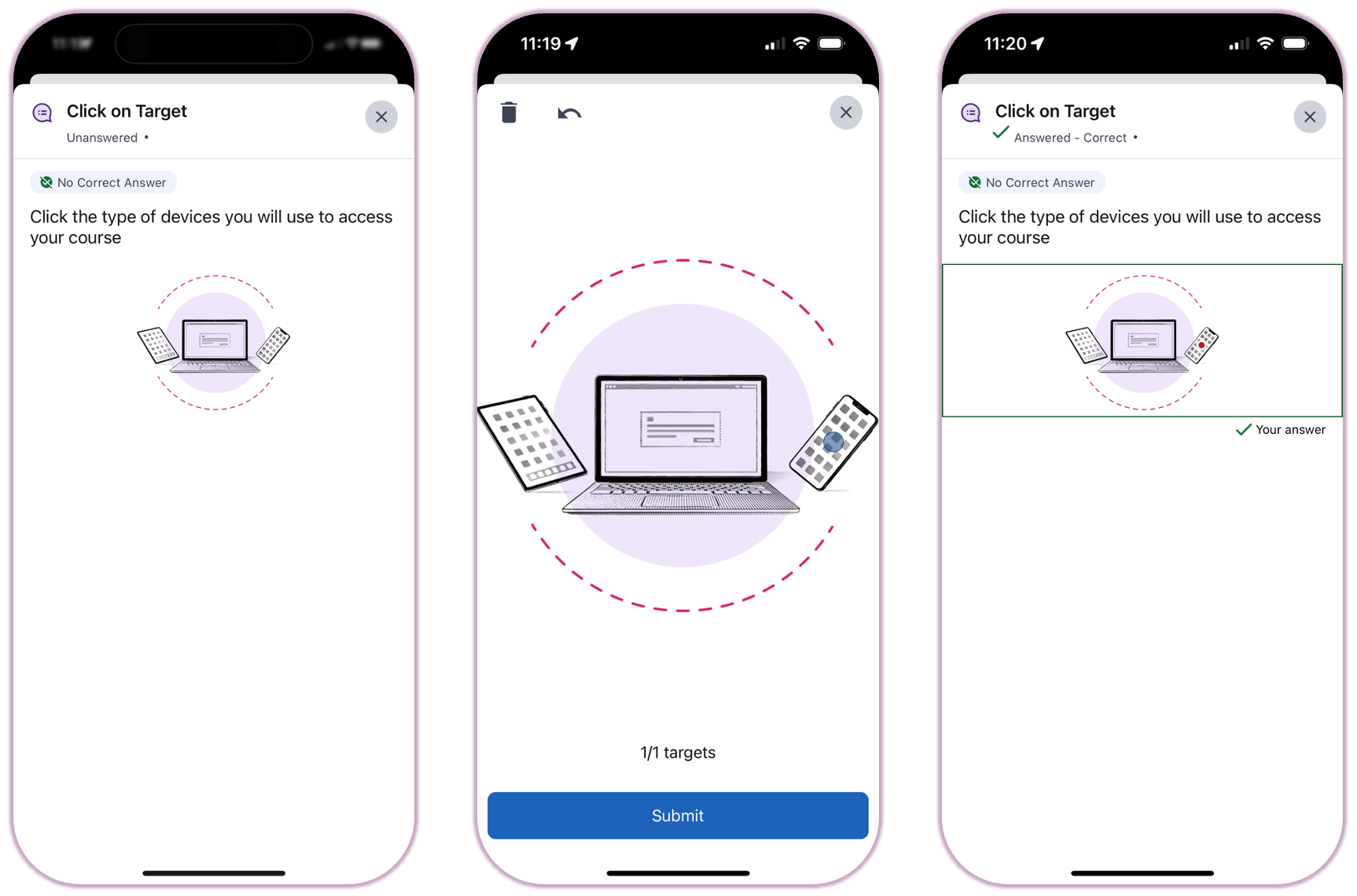 Image: Click on Target question interface
Matching
Step 1: Drag and drop each option to match with its correct pair.
Step 2: Click "Submit".
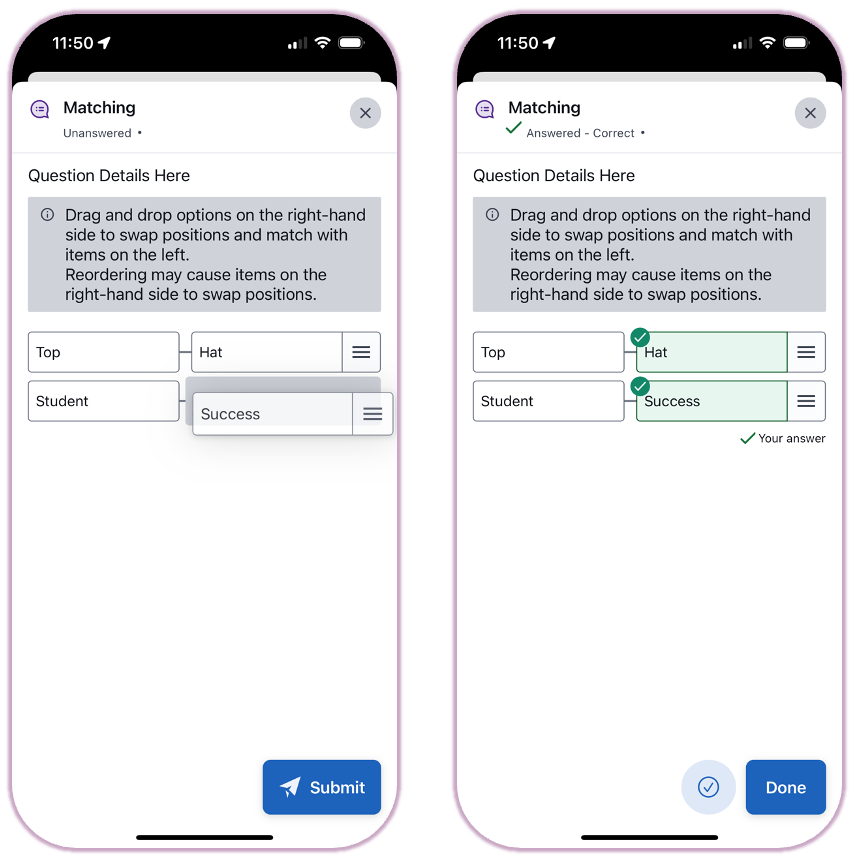 Image: Matching question interface
Sorting
Step 1: Drag and drop the items into the correct vertical order.
Step 2: Click "Submit".
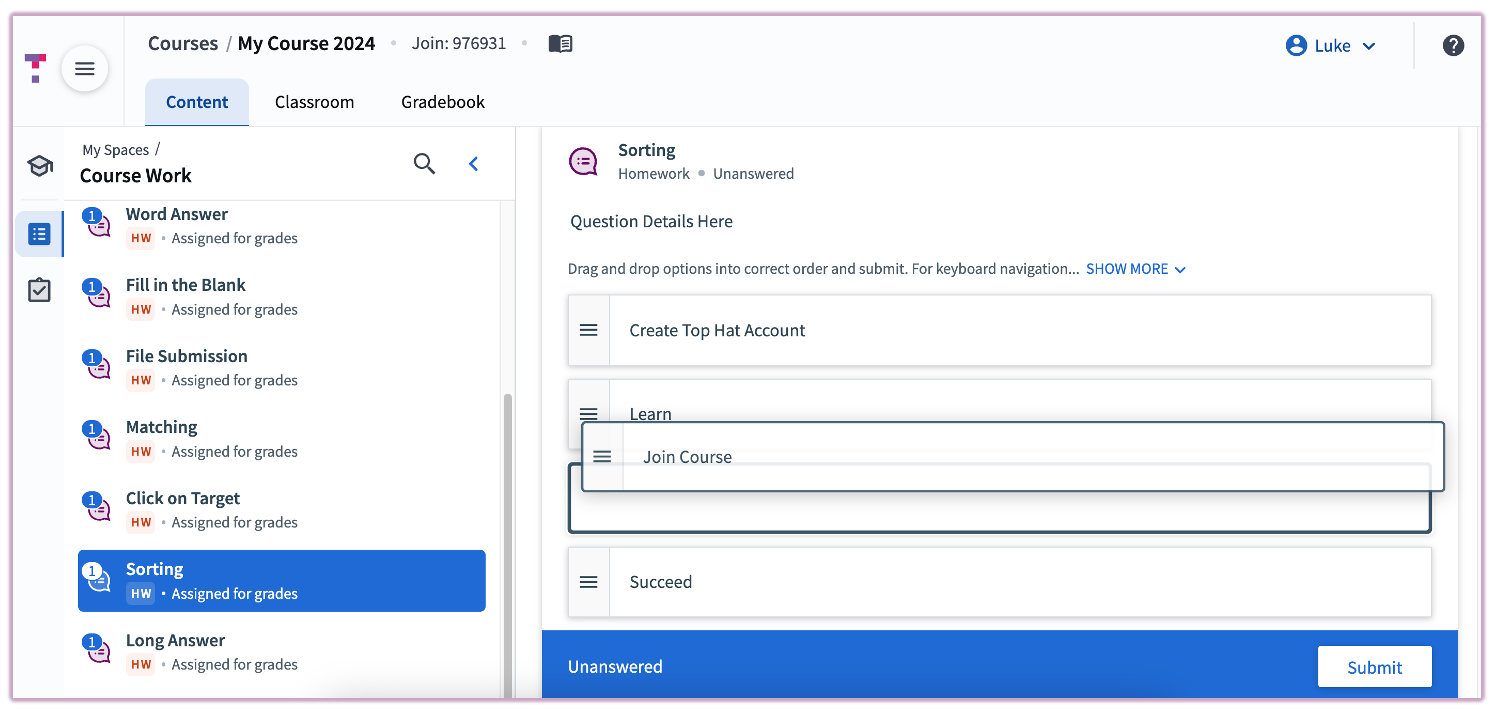 Image: Sorting question interface
Long Answer
Step 1: Type your full response in the provided text area (up to 5000 characters).
Step 2: Click "Submit".
This question type is manually graded by your instructor or TA and is not auto-scored.
Tip: Draft your answer in a separate document before pasting it into Top Hat. Note: Drafts are not saved in Top Hat.
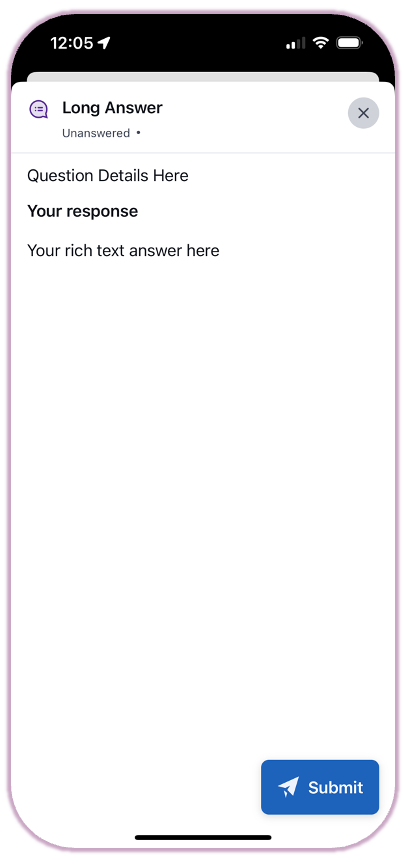 Image: Long Answer question interface
File Submission
File Submission questions require uploading a file in response to a prompt. These are found only under the Assigned tab.
- Maximum: 20 files per submission, each under 50 MB.
- PDF Tip: Always download and complete the provided file (File > Save As) before uploading.
- Important: Ensure your file appears under "Your Submission" before clicking "Submit".
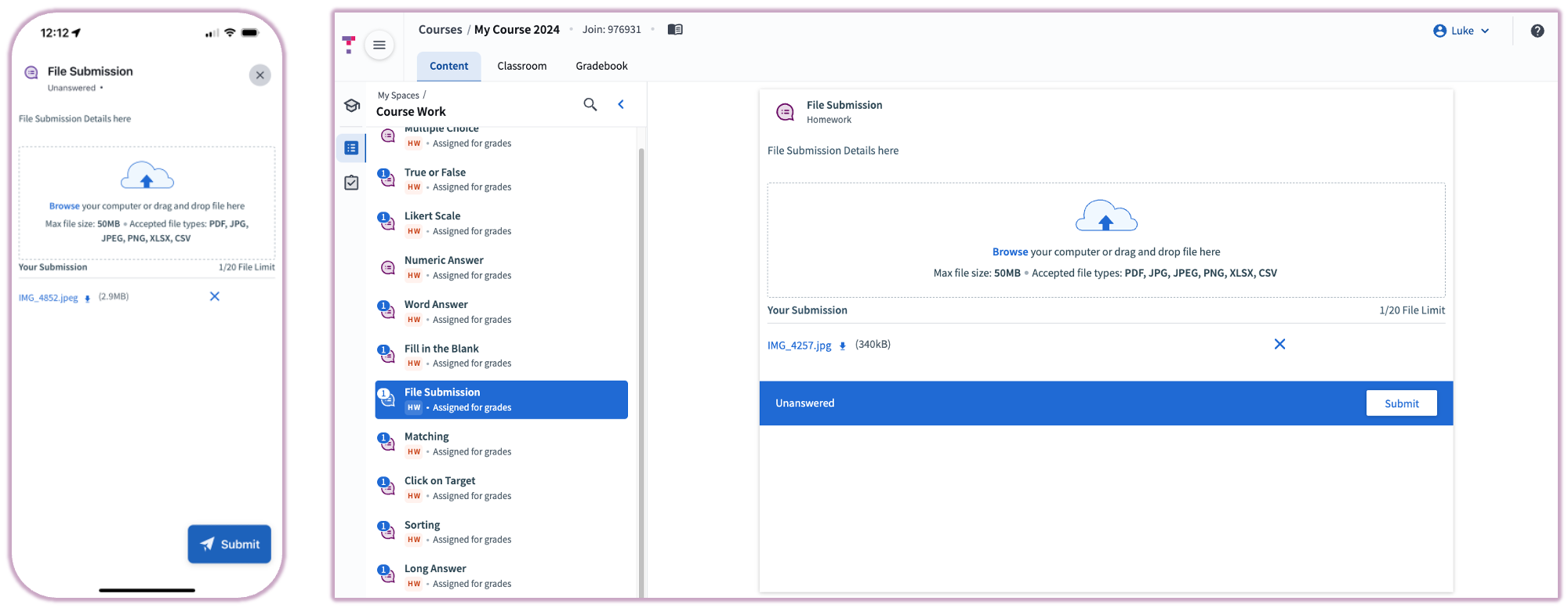 Image: File Submission interface
Video
Video questions in Top Hat require you to record a video response to a prompt in your course.
Step 1: Click "Record response".
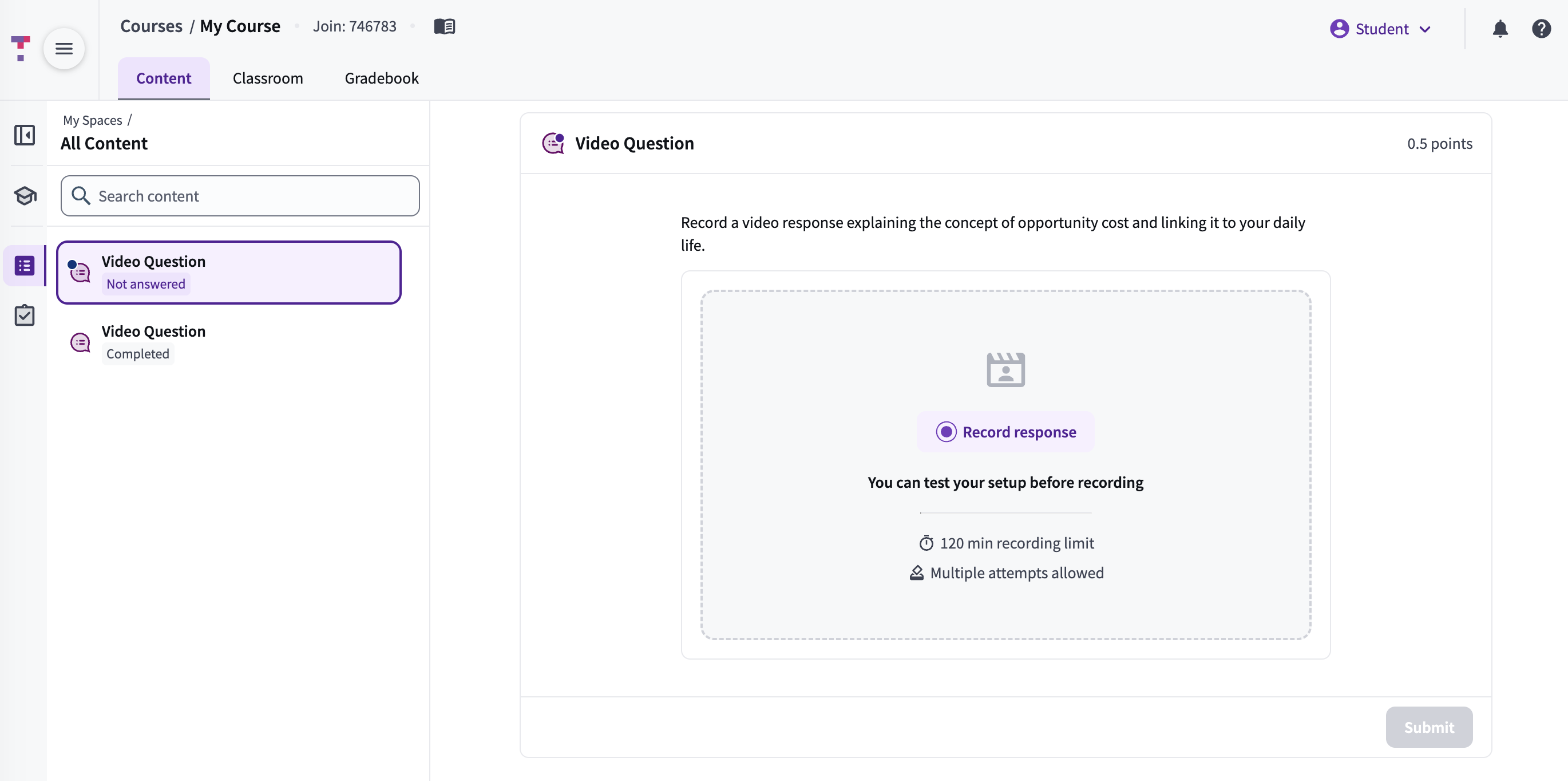
Image: Video question in a course
Step 2: In the pop-up, click "Enable" for microphone and camera permissions to begin recording.
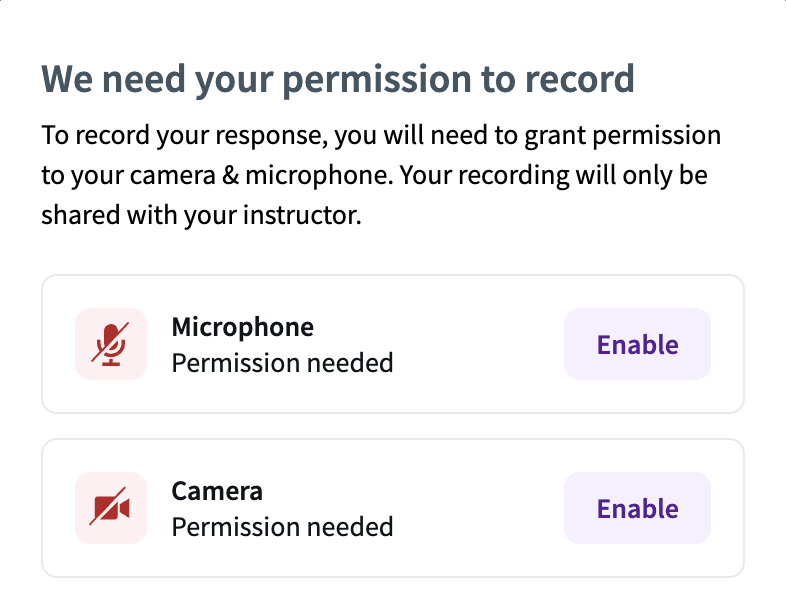
Image: Enabling permissions to record
Step 3: Select your microphone and camera inputs, then click "Record" to start. You can pause, resume, or restart your recording at any time. When finished, click "Stop Recording." You can review your video before choosing "Submit Video" or "Re-record."

Image: Recording a video response
Third-Party Questions (Apps)
Math Response
Math Response questions allow for complex input using specialized mathematical keyboards. If you see an answer template (e.g., F = _____), only fill in the missing portion.
 Image: Math Response keyboard interface
To change keyboards, use the drop-down menu above the palette. Available options are set by your instructor.
 Image: Switching between math keyboard palettes
You may need to switch between different keyboards to access all formatting tools or symbols needed for your response.
Note for Mobile Users: While the Math Response interface is identical on mobile, keyboard switching may be slower. For the best experience, use a web browser whenever possible.
Chemistry Response
Chemistry Response questions require you to input a chemical element, equation, or formula. These questions may also include an answer template, where you only need to fill in specific fields. For example, you might only need to enter coefficients like "2" or "3" into pre-set boxes within a chemical equation.
 Image: Chemistry Response answer template example
These questions feature a dedicated chemical keyboard designed for scientific notation, allowing you to include:
- Chemical symbols (e.g., →, +, −)
- Superscripts and subscripts (e.g., for ions like Ca2+ and molecular formulas like H2O)
- Special formatting required for complex chemical structures
To access these tools, select the drop-down menu located above the input field. The specific keyboard palettes available to you depend on the settings enabled by your instructor.
 Image: Chemistry keyboard palette and symbol selector
You may need to switch between different keyboards to access all the formatting tools or symbols required for your response.
Note for Mobile Users: While the Chemistry Response interface is identical on mobile, keyboard switching may be slower. For the best experience, use a web browser whenever possible.
Tables and Graph Response
Graph Response questions require plotting points, lines, or shapes on a Cartesian plane.
 Image: Graph Response plotting tool
No Correct Answer and Making a Submission
If you see No Correct Answer in the top-right corner, you must still click "Submit" to record your participation.
Tip: Always type your answers manually. Copy-pasting from external sources can introduce hidden HTML formatting that causes incorrect grading.
Text Message Submissions
Grades for responses sent via text message are only recorded if your mobile number is linked to your Top Hat account in Account Settings.
 Image: SMS Submission instructions on a classroom screen
Example: To submit the answer "2010" for code 0219, text 0219 2010 to your school's SMS number.
To submit an answer via text, use the 4-digit question code followed by a space and your response.
- Multiple Choice (one selection): 0219 c
- Multiple Choice (multiple selections): 0219 acd
- Word Answer: 0219 apple
- Numeric Answer: 0219 2010
- Matching: 0219 acd
(Example: If Canada matches to A, USA to C, and Australia to D)
- Sorting: 0219 cdeba
(Type the top-to-bottom arrangement from left-to-right)
- Discussion: 0219 Will you please clarify the process of photosynthesis?

Image: Visual example of a text message submission

Image: SMS confirmation message example
SMS Confirmation and Error Messages
- "You just sent your first submission to Top Hat!"
- Welcome message confirming your first submission was received.
- "Submission received for 'Question 1'. Text 'STOP' to stop getting confirmation messages."
- Indicates successful submission. Confirm the question title matches.
- "Your phone number is not linked to a Top Hat account."
- Link your phone in Account Settings. Enter the number with no brackets, hyphens, or symbols (e.g., 2345678900).
- "You are not enrolled in [Course Name]."
- Text back enroll [6-digit join code] to enroll in the course, or log in at www.tophat.com (opens in a new window).
- "Your subscription has expired."
- Renew your subscription in your account settings.
- "The 4-digit identification code is not in use."
- Double-check the code from your instructor's screen.
- "The 4-digit identification code could not be read."
- Resubmit using the format: code + answer (e.g., 1028 b).
- "Your answer could not be understood."
- Disable text signatures and remove special characters.
- "SMS submission [code + answer] from [phone] sent too late"
- Submission was received after the question was closed. Retain your sent messages to verify if necessary.
There are no additional fees for texting Top Hat. The number is local to your country. Charges depend on your mobile plan; contact your provider if you’re unsure. SMS submissions work with any phone that supports texting.
Hints, Explanations and Correct Answers
If Answer Feedback is enabled, you may see hints after failed attempts or explanations after correct answers, providing additional learning context.
Test Questions
- Top Hat Tests require a test code to access.
- The "Submit" button becomes a "Save" button. You must save each answer.
- Questions are graded for correctness only (no participation points).
For more details, visit the Student: Starting a Test guide.